
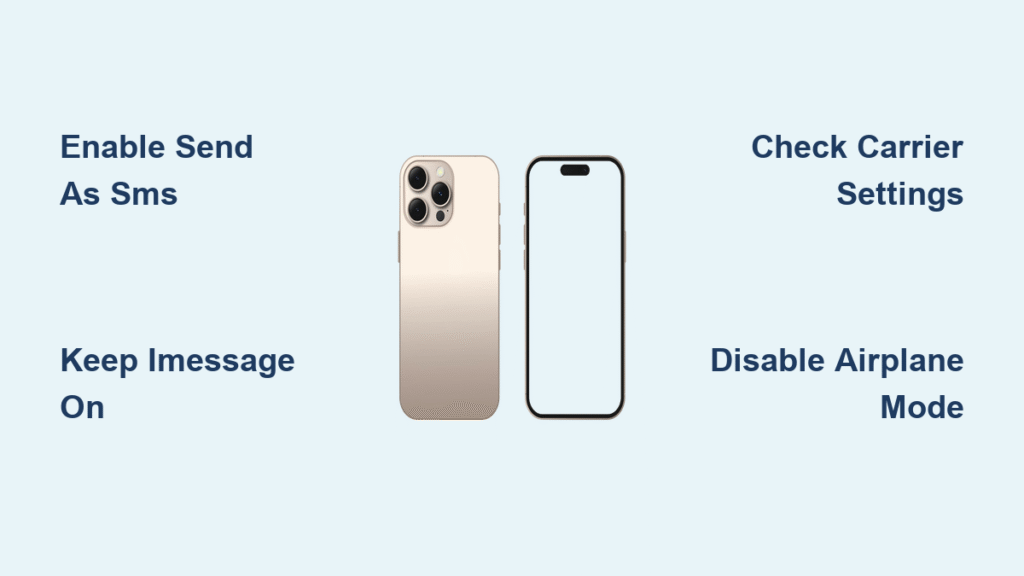
Your iPhone 16 keeps sending blue iMessages instead of green SMS texts? You’re not alone. Millions of iPhone 16 users struggle when their messages fail to reach Android contacts or disappear during spotty internet coverage. This happens because Apple’s iMessage system automatically overrides traditional SMS unless you configure specific fallback settings. Without proper SMS activation, your critical texts to non-Apple users might never deliver – especially during emergencies when cellular data fails.
The good news: Fixing this takes under 90 seconds if you know exactly where to toggle the right switches. This guide reveals the precise iOS 18 settings path (including carrier-specific quirks) to force your iPhone 16 to use SMS reliably. You’ll learn why iMessage must stay ON for SMS to work, how to verify your carrier hasn’t blocked SMS features, and what those green vs. blue bubbles really mean for message delivery. No more guessing whether your texts went through.
Enable SMS Fallback in Messages Settings

Locate the Critical Send as SMS Toggle
Open Settings on your iPhone 16 home screen, then scroll to Messages (iOS 18 users may need to tap Apps first). Inside this menu, ignore the prominent iMessage toggle at the top for now – instead, scroll down 8-10 items until you find Send as SMS (labeled Send as Text Message in iOS 18). This is the master switch controlling SMS functionality. Tap the slider to turn it ON until it glows green. If this option appears dimmed, your carrier hasn’t provisioned SMS service – call them immediately.
Why Keeping iMessage ON Enables SMS
Contrary to popular belief, leaving iMessage enabled is mandatory for SMS fallback to function. When iMessage is active (green toggle at top of Messages settings), your iPhone 16 first attempts delivery via Apple’s internet service. Only when that fails – due to no Wi-Fi, dead data connection, or recipient using Android – does it automatically reroute to SMS using your cellular network. Turning off iMessage entirely disables this intelligent fallback system, forcing all messages to use unreliable SMS regardless of conditions.
Identify SMS vs. iMessage in Conversations

Decode Bubble Colors for Message Status
Green message bubbles mean your text traveled as SMS through your carrier’s cellular network – no internet required. Blue bubbles indicate iMessage delivery over Wi-Fi or cellular data. If you’re texting an Android user but see blue bubbles, your iPhone mistakenly thinks they have iMessage enabled (often due to outdated contact info). To fix this, have the recipient delete their old Apple ID from iCloud, then restart both devices.
When SMS Becomes Your Lifeline
SMS works when cellular signal exists but data/Wi-Fi doesn’t – crucial during natural disasters or rural travel. Test this by turning off Wi-Fi, disabling cellular data (Settings > Cellular > Cellular Data), then texting an Android contact. If the message sends as green bubble, your SMS configuration works. iMessage would fail completely in this scenario, showing “Not Delivered” until internet returns.
Resolve Common SMS Activation Failures
Diagnose Carrier-Related SMS Blocks
Verizon and other carriers sometimes disable SMS features during account setup. If SMS still fails after enabling Send as SMS, call your provider and state: “My iPhone 16 isn’t sending SMS messages – please verify SMS/MMS service is activated on my account.” Avoid generic terms like “texting problem” – carriers have specific internal codes for SMS provisioning. Ask them to check for “MMSC settings” or “APN configuration” errors affecting your line.
Eliminate Airplane Mode Interference
Swipe down from the top-right corner to open Control Center. If the airplane icon is highlighted in orange, tap it immediately. Airplane Mode disables all wireless radios – including the cellular connection SMS requires. Even partial activation (like enabling it accidentally while pocket-dialing) can persist after restarts. For permanent resolution, go to Settings > Airplane Mode and ensure it’s OFF.
Configure SMS Delivery Verification
Track Message Status with Advanced Details
After sending a test SMS to an Android contact, long-press the message bubble until options appear. Tap More > Info to see delivery timestamps. SMS messages show “Delivered” once received by the carrier’s network (not necessarily the recipient’s phone). iMessage shows “Delivered” only when the recipient’s device confirms receipt. If SMS messages stall at “Sending…”, your carrier’s SMSC (Short Message Service Center) number might be misconfigured – request the correct number from support.
Test Two-Way SMS Reliability
Have a friend text your iPhone 16 while you disable Wi-Fi and cellular data. If the message appears instantly as a green bubble, your SMS reception works flawlessly. If it fails, check Settings > Messages > MMS Messaging – this toggle must be ON to receive picture messages via SMS, but it also affects text message routing on some carriers. Toggle it OFF then back ON to reset the service.
Fix Carrier-Specific SMS Issues
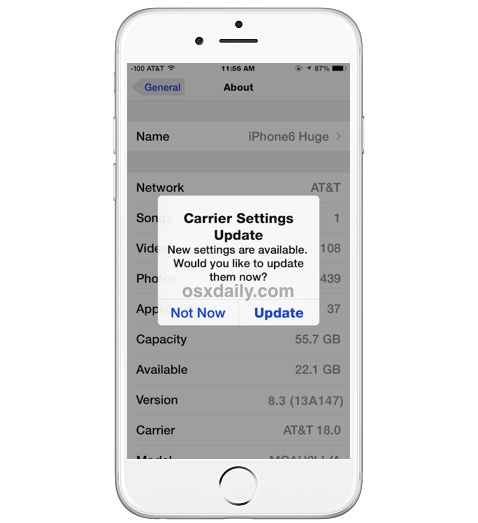
Update Carrier Settings for SMS Compatibility
Go to Settings > General > About. If a carrier settings update appears (e.g., “Verizon 52.1”), install it immediately – these patches fix SMS routing bugs specific to your network. Carriers push these silently, so checking monthly prevents delivery failures. If no update shows but SMS fails, dial *#5005-7672#* on your iPhone 16 keypad to force a carrier settings refresh (Verizon only; confirm codes with your provider).
Bypass Corporate SMS Restrictions
If your iPhone 16 came from work, SMS may be blocked by an MDM (Mobile Device Management) profile. Go to Settings > General > VPN & Device Management. Under “Device Management,” look for corporate configuration profiles. Tap any listed profile, then Remove Management (requires admin approval). Without this, your IT department controls SMS permissions – contact them with “Please enable SMS/MMS in our MDM policy for iPhone 16.”
Maintain Consistent SMS Performance
Prevent Storage-Related SMS Failures
When iPhone 16 storage drops below 1GB, the Messages app can’t cache SMS properly. Go to Settings > General > iPhone Storage and delete unused apps or photos. Pro tip: Enable “Optimize iPhone Storage” (Settings > Photos) to automatically offload full-resolution images while keeping SMS functionality intact. Clearing old message threads (Settings > Messages > Keep Messages) also frees critical cache space.
Avoid Battery-Related SMS Drops
During low-power mode (<20% battery), iPhone 16 may throttle cellular radios to conserve energy – disrupting SMS. Disable Low Power Mode (Settings > Battery) before sending critical texts. If you frequently text in weak signal areas, keep battery above 30% to maintain full cellular radio performance. Never rely on SMS during extreme low-battery warnings (<5%).
SMS Troubleshooting Checklist for iPhone 16
✅ iMessage is ON – Required for SMS fallback
✅ Send as SMS is enabled – The critical hidden toggle
✅ Cellular signal visible – No SMS without bars
✅ Airplane Mode disabled – Common accidental trigger
✅ Carrier confirmed SMS active – Call with exact request
Critical Warning: If SMS still fails after these steps, insert your SIM card into another phone. If SMS works there, your iPhone 16 has corrupted network settings – go to Settings > General > Transfer or Reset iPhone > Reset > Reset Network Settings. This clears cellular configurations without deleting personal data.
Your iPhone 16 should now send reliable green-bubble SMS texts to any device, even during internet outages. Remember that carrier settings updates and adequate storage space are non-negotiable for consistent performance – check these monthly. For persistent issues, bypass Apple Support chatbots by visiting an Apple Store Genius Bar with this phrase: “I need SMS/MMS provisioning verified for iPhone 16 on iOS 18.” They’ll contact your carrier directly to resolve account-level blocks. Keep this guide handy – when emergencies strike and data fails, SMS remains your most dependable lifeline.


