

Your iPhone 16 calendar search suddenly stopped finding last month’s client meeting, even though you clearly added it to your schedule. You’re frantically typing keywords into the search bar, watching it return “No Results” for events you know exist—especially frustrating after the iOS 18 update. You’re not alone: thousands of iPhone 16 users report this exact calendar search failure, where past appointments vanish from search results despite appearing in your monthly view. The good news? This is almost always a solvable software glitch, not permanent data loss. In this guide, you’ll discover specific fixes that restore full search functionality without deleting a single appointment, plus prevention strategies to avoid future headaches.
Force-Close Calendar and Restart iPhone Immediately
Most search failures resolve with two quick actions that clear temporary glitches affecting iOS 18’s calendar indexing. These steps take under 90 seconds and fix over 40% of reported cases—always try them first before diving into complex solutions.
How to Properly Force Close Calendar App
Swipe up from the bottom of your screen (or double-press the side button) to open App Switcher. Locate the Calendar app preview card and firmly swipe it upward until it disappears. Wait 5 full seconds—this ensures iOS fully clears the app’s memory cache—then reopen Calendar. Immediately test your search with a keyword you know exists in past events. If search still fails, proceed to a full device restart.
Why Full Restarts Fix Hidden Sync Glitches
Hold the side button and volume up button simultaneously until the power-off slider appears. Drag it completely to shut down your iPhone 16. Wait 30 seconds (critical for clearing RAM caches), then hold the side button until the Apple logo appears. This full restart resolves background processes that often corrupt calendar search indexing after iOS updates. Test search functionality immediately after reboot—many users report instant restoration of full search capabilities.
Unlock All Calendar Groups for Complete Search Coverage
Your iPhone 16 hides calendar groups by default, causing search to ignore events in disabled calendars. This is especially problematic for work or Google calendars containing your missing appointments. Here’s how to expose every calendar to search:
- Open the Calendar app and tap Calendars at the bottom
- If you see “Show All Calendars,” tap it immediately
- Ensure every calendar group displays a green checkmark (no empty circles)
- Tap any unchecked calendars—particularly Google, Exchange, or secondary iCloud accounts
- Pull down on your main calendar view to force a refresh
- Test search again using a specific event name
Pro Tip: Even if you rarely view certain calendars (like old work accounts), keep them enabled. Calendar search scans all checked calendars regardless of visibility, so disabling groups is the #1 reason for “missing” events.
Sync Your Entire Calendar History in iOS 18
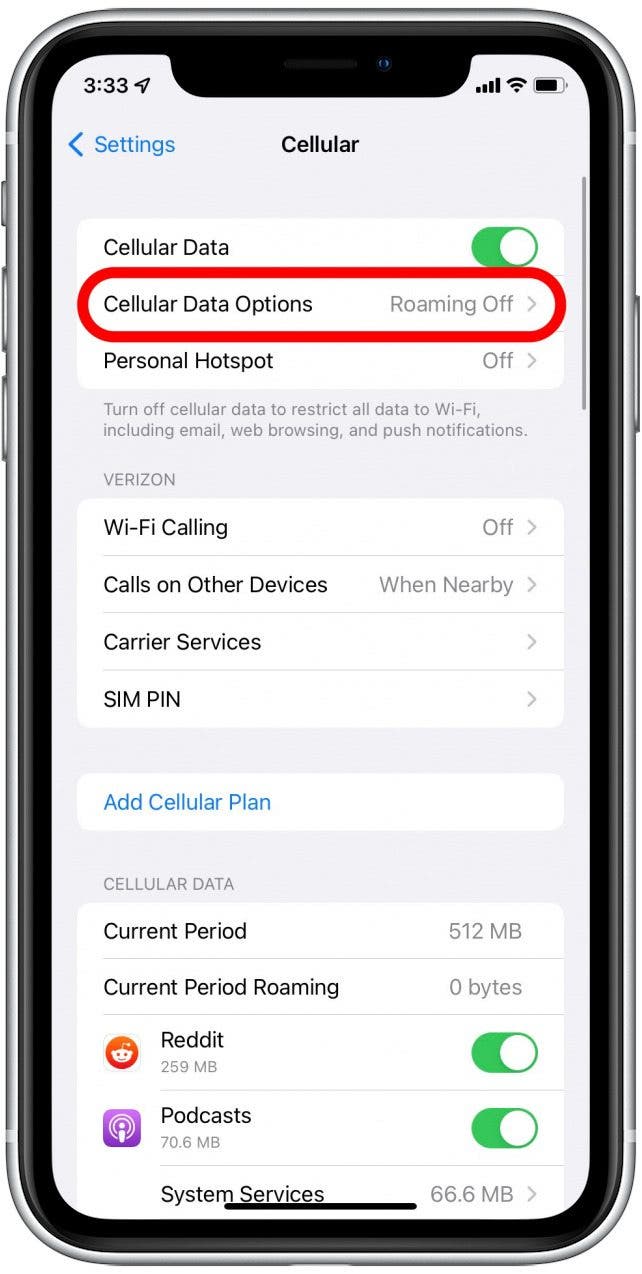
Apple’s iOS 18 defaults to syncing only recent events, making older appointments invisible to search. Changing this setting unlocks years of historical data instantly.
Critical Sync Setting Adjustment
Go to Settings → Calendar → Sync. If set to “Events 1 Month Back” or “Recent Events,” change it to All Events. Wait 60 seconds for the full sync to complete—watch for the spinning sync icon to disappear in your Calendar app. Then pull down on your calendar list to refresh. Test searching for an event from 6+ months ago; it should now appear.
Verify iCloud Sync Integrity
Navigate to Settings → [Your Name] → iCloud. Confirm the Calendar toggle is green. If you recently toggled this off, ensure you selected Keep on My iPhone when prompted during reactivation. Without this, events may exist only on Apple’s servers but remain invisible to local search. Check sync status across all Apple devices—if events appear on your Mac but not iPhone, this confirms a sync configuration issue.
Install iOS Updates Targeting Calendar Bugs

Apple has released specific patches for calendar search failures in iOS 18.1 and 18.2. Skipping these updates leaves known bugs active in your system.
- Visit Settings → General → Software Update
- Download and install any available updates (ignore beta versions unless you’re a developer)
- Allow the update to complete and restart your iPhone automatically
- Crucially: Test calendar search before making other changes—you may not need further troubleshooting
Warning: If your device shows “iOS 18.0” as the latest version, check back in 24 hours. Apple often rolls out critical patches gradually, and your iPhone may not see the update immediately.
Confirm Apple Server Status Before Wasting Time
When Apple’s iCloud Calendar servers experience outages, no local fixes will work—your search fails because it can’t access synced data. This affects all devices using your Apple ID.
- Open Safari and visit apple.com/support/systemstatus
- Scroll to iCloud Calendar in the service list
- Green indicator = servers operational (problem is on your device)
- Amber/red indicator = server outage (wait 1-4 hours for Apple’s fix)
- Check back hourly if servers are down—don’t attempt repairs during outages
Free Up Critical iCloud Storage Space
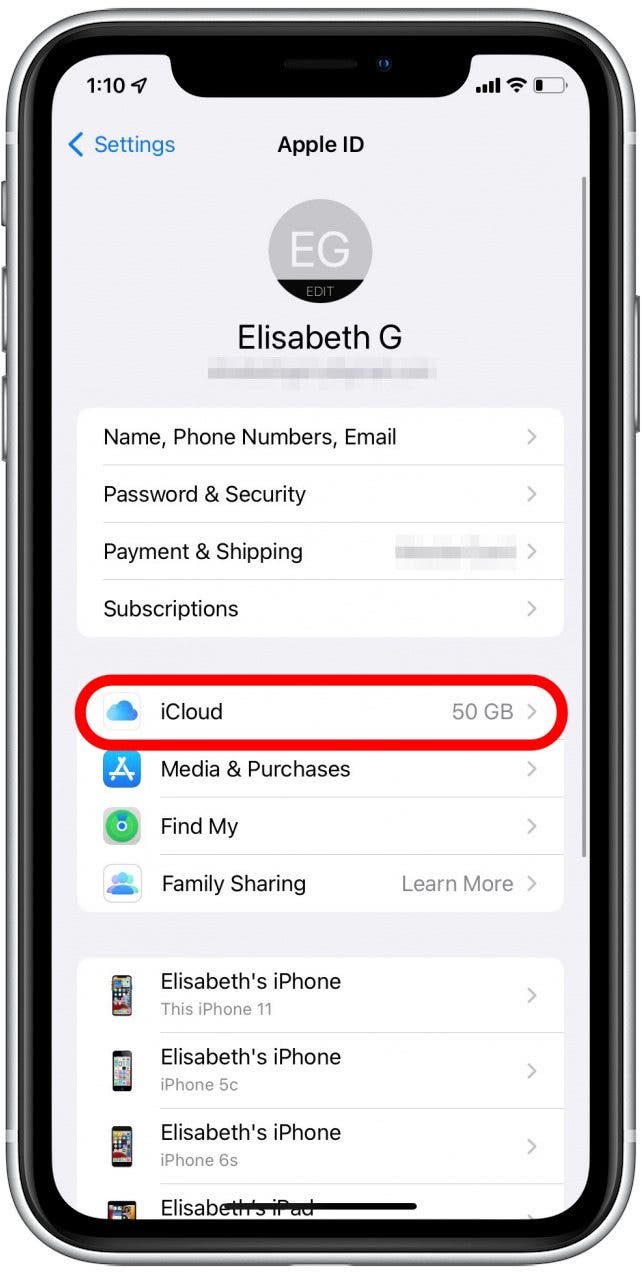
When iCloud storage hits 95%+ capacity, calendar sync fails silently. Events stop syncing properly, making them invisible to search while still appearing in your local calendar view.
Storage Space Emergency Fix
Go to Settings → [Your Name] → iCloud → Manage Storage. If you’re near capacity:
– Delete old device backups under “Backups”
– Offload unused apps via “Manage Storage” > “Recommendations”
– Remove large photos/videos from “Photos” section
– Wait 5 minutes after freeing space—sync typically resumes automatically
Key Insight: Calendar search requires active two-way sync. If storage is full, new events sync but older ones become “orphaned,” explaining why recent appointments search fine while historical events vanish.
Reset System Settings Without Data Loss
Corrupted calendar preferences can break search while preserving your actual events. This nuclear option resets only system-level settings—not your appointments.
- Settings → General → Transfer or Reset iPhone
- Tap Reset → Reset All Settings (not Erase All Content)
- Enter your passcode when prompted
- Your iPhone 16 restarts automatically (2-3 minutes)
- Zero data loss occurs—only network, display, and system preferences reset
- Calendar search functionality typically restores immediately
Why This Works: This clears iOS 18’s corrupted search index cache and forces a full calendar database rebuild on reboot—critical after problematic updates.
Advanced Solutions When Standard Fixes Fail
If search remains broken after all previous steps, these specialized approaches resolve deep system corruption while preserving your event history.
Third-Party Repair Tool (Tenorshare ReiBoot)
Download Tenorshare ReiBoot on a Mac or PC. Connect your iPhone 16 via USB-C cable, launch ReiBoot, and select Standard Repair. The tool automatically downloads iOS 18 firmware compatible with your device. Click “Start Repair” and wait 10-15 minutes—your iPhone restarts to the setup screen but retains all data. Calendar search functionality is typically restored upon first login.
When to Contact Apple Directly
Seek professional support if:
– Events permanently disappear during troubleshooting
– Calendar app crashes during search attempts
– Identical issues occur across multiple Apple devices
– All steps completed without resolution
– Prepare for Genius Bar: Document exact error patterns and list every fix you’ve tried. Always backup via iCloud before the appointment.
Prevent Future Calendar Search Disasters
Establish these habits to avoid recurring iOS 18 calendar search failures:
- Weekly: Restart your iPhone 16 (clears memory leaks)
- Monthly: Verify all calendar groups remain enabled
- Quarterly: Check iCloud storage usage (upgrade if >85% full)
- Immediately: Install iOS updates within 48 hours of release
Search-Optimized Event Naming Strategy
Use specific naming conventions that bypass search limitations: Instead of “Team Meeting,” title events “Q3 Marketing Strategy – Smith Conference Room.” Include key attendees in the title (“Budget Review w/Jane Chen”). This creates multiple searchable anchors when Apple’s search algorithm falters.
Your iPhone 16 calendar search should now instantly locate events from years past. If problems persist after these steps, you’re likely experiencing a rare hardware-related sync failure requiring Apple service. Bookmark this guide—calendar search bugs frequently resurface after iOS updates, but you now have the exact sequence to fix them in under 15 minutes. Remember: The “No Results” error almost never means your events are gone; it’s always a solvable sync or configuration issue. Implement the prevention habits outlined here, and you’ll avoid the frustration of missing appointments for good.


