

Your iPhone 16’s VPN connection suddenly blocks your banking app during an urgent transaction. The screen freezes with “Location Not Supported” while you’re trying to order dinner. Or maybe your internet feels sluggish despite having strong signal bars. When these frustrating moments hit, knowing exactly how to turn off VPN on iPhone 16 becomes critical. This guide delivers seven proven methods to disable your virtual private network in seconds, troubleshoot stubborn connections that won’t stay off, and understand when it’s safe to browse without protection. You’ll regain control of your connection without compromising security.
Tap to Disable: Instant Settings Method for iPhone 16
The quickest way to turn off VPN on iPhone 16 uses built-in system settings that work with any service provider. This universal approach takes less than 10 seconds when you know where to look.
Direct Settings Path for Immediate Disconnection
- Open your Settings app (the gray gear icon)
- Scroll until you see VPN listed prominently in the main menu
- Locate the VPN Status toggle at the top of the screen
- Tap the switch to turn it Off – you’ll see “Not Connected” appear instantly
Pro tip: If you’ve set up multiple VPN profiles, select the specific connection you want to disable before toggling the main switch.
Alternative Settings Route When VPN Option Is Missing
Some iOS versions hide the VPN menu under general settings:
1. Launch Settings
2. Tap General
3. Select VPN & Device Management
4. Choose VPN
5. Toggle your active connection to Off
Watch for this: The VPN icon disappears from your status bar within 3-5 seconds after disconnection. If it remains, your connection is still active.
One-Tap Disconnection Through Your VPN App
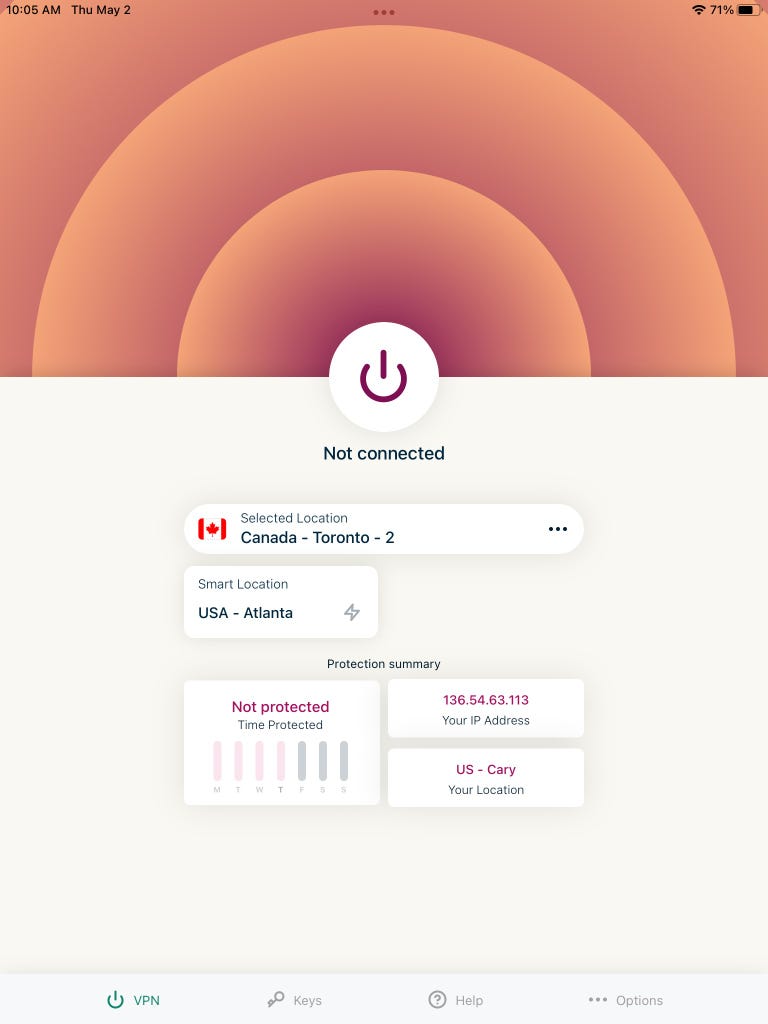
Your provider’s dedicated app offers the most intuitive way to turn off VPN on iPhone 16, though button placement varies between services. This method preserves your configuration while temporarily disabling protection.
Universal Steps for All Major VPN Providers
- Open your VPN application (NordVPN, ExpressVPN, etc.)
- Locate the primary disconnect button (usually central and prominent)
- Tap Disconnect or the power icon equivalent
- Wait for visual confirmation like “Disconnected” status or shield icon change
Provider-Specific Disconnection Buttons
- NordVPN: Tap the large blue “Disconnect” button on the main dashboard
- ExpressVPN: Press the circular power icon in the center of the screen
- Surfshark: Toggle the main connection switch from green to gray
- ProtonVPN: Tap the shield icon until it turns gray with “Off” label
Critical warning: Avoid “temporary disconnect” features that automatically reconnect after 15-30 minutes if you need complete disconnection.
Control Center Toggle: One-Swipe VPN Disabling
Set up this feature once to gain instant access to your VPN toggle from anywhere on your iPhone 16. The Control Center method works even when your screen is locked, making it perfect for urgent disconnections.
Adding VPN Toggle to Control Center
- Navigate to Settings > Control Center
- Tap Customize Controls
- Find VPN in the “More Controls” list
- Tap the + icon to move it to “Included Controls”
Using the Control Center Shortcut
- Swipe down from the top-right corner of any screen
- Tap the VPN button (looks like a radar icon)
- The button grays out when disconnected
- Time-saver: This works during calls, while gaming, or when using other apps
Expert note: If you don’t see the VPN icon after setup, restart your iPhone 16 to refresh Control Center configurations.
Stop Auto-Reconnecting VPNs on iPhone 16
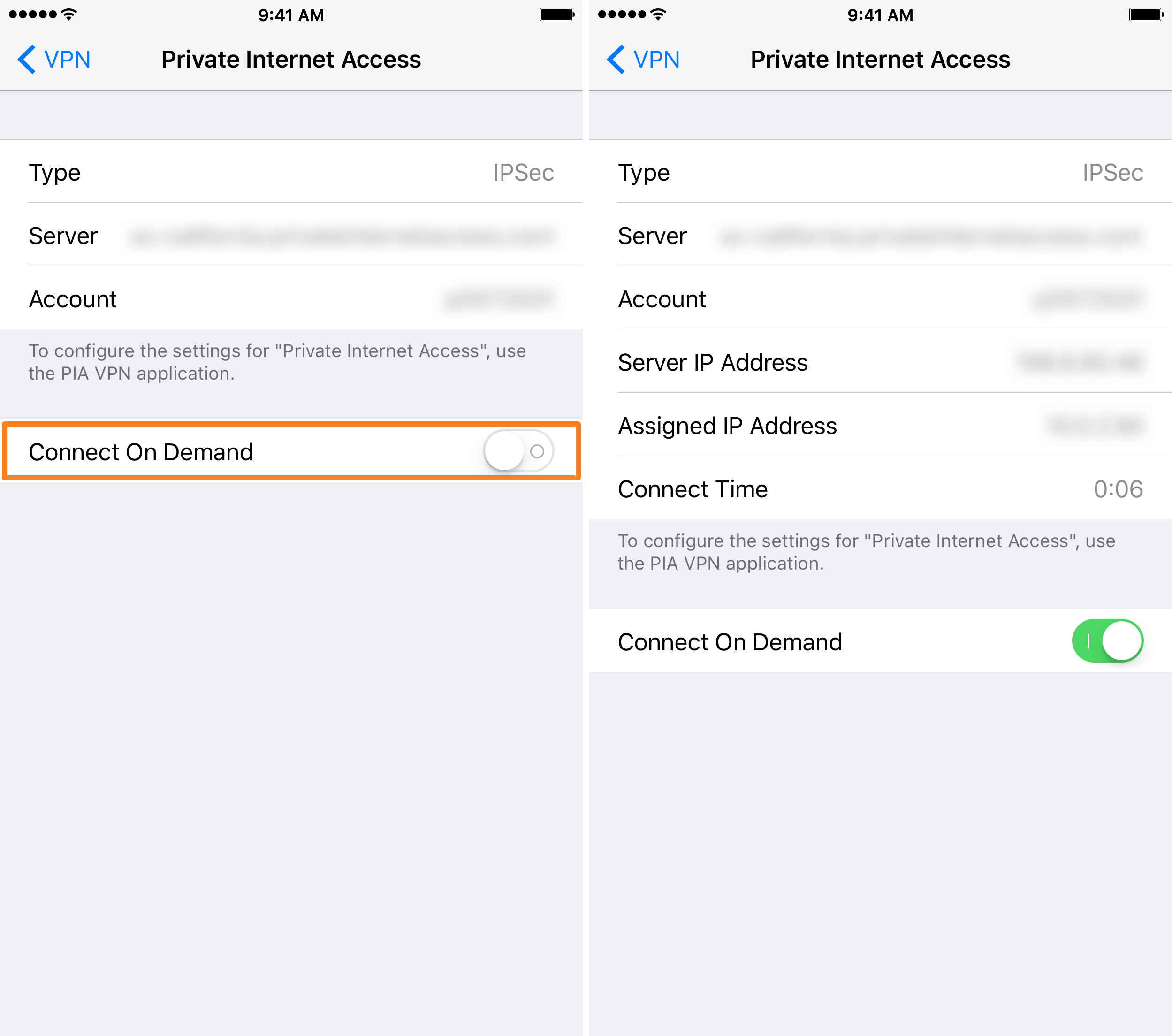
When your VPN turns back on immediately after disabling, these hidden settings are likely forcing the reconnection. Fix these three common culprits to permanently turn off VPN on iPhone 16.
Disable Connect On Demand Feature
This iOS setting automatically reestablishes your connection:
1. Go to Settings > VPN
2. Tap the ⓘ icon next to your VPN configuration
3. Toggle Connect On Demand to Off
4. Confirm by attempting disconnection again
Turn Off App-Level Auto-Connect
Open your VPN app and disable these dangerous settings:
– Auto-Connect (usually under Connection settings)
– Always-On VPN (security section)
– Reconnect on Launch (app startup options)
– Background Refresh (battery settings)
Pro tip: Take screenshots of your current settings before making changes – you can easily restore them later when you need VPN protection.
Remove Persistent Configuration Profiles
Work or school devices often have enforced connections:
1. Access Settings > General > VPN & Device Management
2. Tap the active configuration profile
3. Select Delete VPN (may require administrator password)
4. Confirm deletion when prompted
Warning: Corporate devices may prevent profile removal – contact your IT department before attempting this step.
When You Should Disable Your iPhone 16’s VPN

Knowing precisely when to turn off VPN on iPhone 16 helps balance security needs with practical functionality. These common scenarios justify temporary disconnection.
Critical App Access Situations
- Banking apps: Chase, Bank of America, and others block transactions over VPN connections
- Food delivery services: Uber Eats and DoorDash require true location data
- Streaming platforms: Netflix, Hulu, and Disney+ detect and block VPN IP addresses
- Public Wi-Fi portals: Airport and hotel networks often require direct connection
Performance Optimization Cases
- Weak signal areas: When cellular bars drop below 2, VPN encryption strains connection
- Battery emergencies: Below 15% battery, disabling VPN saves 8-12% power
- Speed-critical tasks: Video calls, cloud gaming, and large downloads benefit from full bandwidth
Expert insight: Test your connection speed with and without VPN using Speedtest.net – many users see 20-25% speed improvement when disconnecting.
Security Risks of Disabling Your iPhone 16 VPN
Turning off your virtual private network exposes your device to significant threats that require careful management. Never disable your VPN in these high-risk situations:
Immediate Vulnerabilities
- Public Wi-Fi networks: Cafés, airports, and hotels become prime targets for data theft
- Financial transactions: Banking and shopping sites transmit unencrypted personal data
- Location tracking: Websites pinpoint your exact geographic position without obfuscation
Safe Disconnection Practices
- Time-limited sessions: Disable only for the specific task (2-3 minutes max)
- Mobile data preference: Use cellular connection rather than public Wi-Fi when unprotected
- Reconnection ritual: Make it a habit to immediately re-enable VPN after completing your task
Critical warning: Your browsing history becomes visible to your internet provider the moment you turn off VPN on iPhone 16 – they can sell this data to advertisers.
Verify Your VPN Disconnection Success
Never assume your connection is disabled – confirm using these three verification methods before proceeding with sensitive activities.
Triple-Check Disconnection Status
- Status bar inspection: Swipe up slightly to check top-left corner for absence of “VPN” label
- Settings confirmation: Navigate to Settings > VPN to see “Not Connected” status
- IP address verification: Visit whatismyipaddress.com to confirm your real location appears
Control Center Verification Shortcut
- Swipe down from top-right corner
- Look for “VPN” indicator in the connection section
- Absence confirms successful disconnection
Pro tip: Bookmark an IP checker site for instant verification – it loads faster than navigating through settings menus.
Complete VPN Removal From iPhone 16
When you no longer need a particular VPN service, fully remove it to prevent background processes and accidental reconnections.
Two-Step Removal Process
-
Delete the app:
– Long-press VPN app icon until menu appears
– Tap Remove App > Delete App
– Confirm permanent deletion -
Eliminate configuration profiles:
– Go to Settings > General > VPN & Device Management
– Select remaining VPN profiles
– Tap Delete VPN for each entry
Note: Work-issued devices may require IT department approval before profile removal – don’t force-delete corporate configurations.
Quick Reference Troubleshooting Guide
VPN won’t stay off? Disable Connect On Demand in Settings > VPN > ⓘ icon and turn off all auto-connect features in your app.
Missing VPN option in Settings? Use the alternative path: Settings > General > VPN & Device Management.
Can’t find disconnect button? Look for power icons, shield symbols, or prominent “Disconnect” text in your app’s main interface.
Still having issues? Restart your iPhone 16 completely before attempting disconnection again.
Knowing how to turn off VPN on iPhone 16 gives you complete control over your connection without sacrificing security awareness. Use these methods strategically when accessing location-sensitive services or troubleshooting performance issues, but always reconnect immediately afterward for protection. The Control Center toggle provides the fastest access for frequent disconnections, while disabling auto-connect features prevents frustrating reconnections. Remember that disabling your VPN exposes your real IP address and browsing activity to your internet provider and potential hackers on public networks. For maximum safety, limit unprotected browsing to brief sessions on mobile data networks, and never access financial accounts without VPN protection. By mastering these techniques, you’ll maintain the perfect balance between security and functionality on your iPhone 16.


