

Your brand new iPhone 16 sits on the table, ready to use, but that frustrating “transfer cannot be completed” message blocks your cellular service activation. Without a working eSIM transfer, your expensive new device becomes little more than an oversized iPod—unable to make calls, send texts, or access mobile data. This common iPhone 16 eSIM transfer not working issue affects countless users during device setup, but most cases stem from simple, fixable problems rather than permanent hardware failures.
The good news is that 90% of iPhone 16 eSIM transfer problems can be resolved in under 30 minutes with the right troubleshooting approach. Whether you’re transferring from an older iPhone or activating a new carrier plan, this guide delivers proven solutions starting with the quickest fixes you can try immediately.
Why Your iPhone 16 eSIM Transfer Fails During Setup
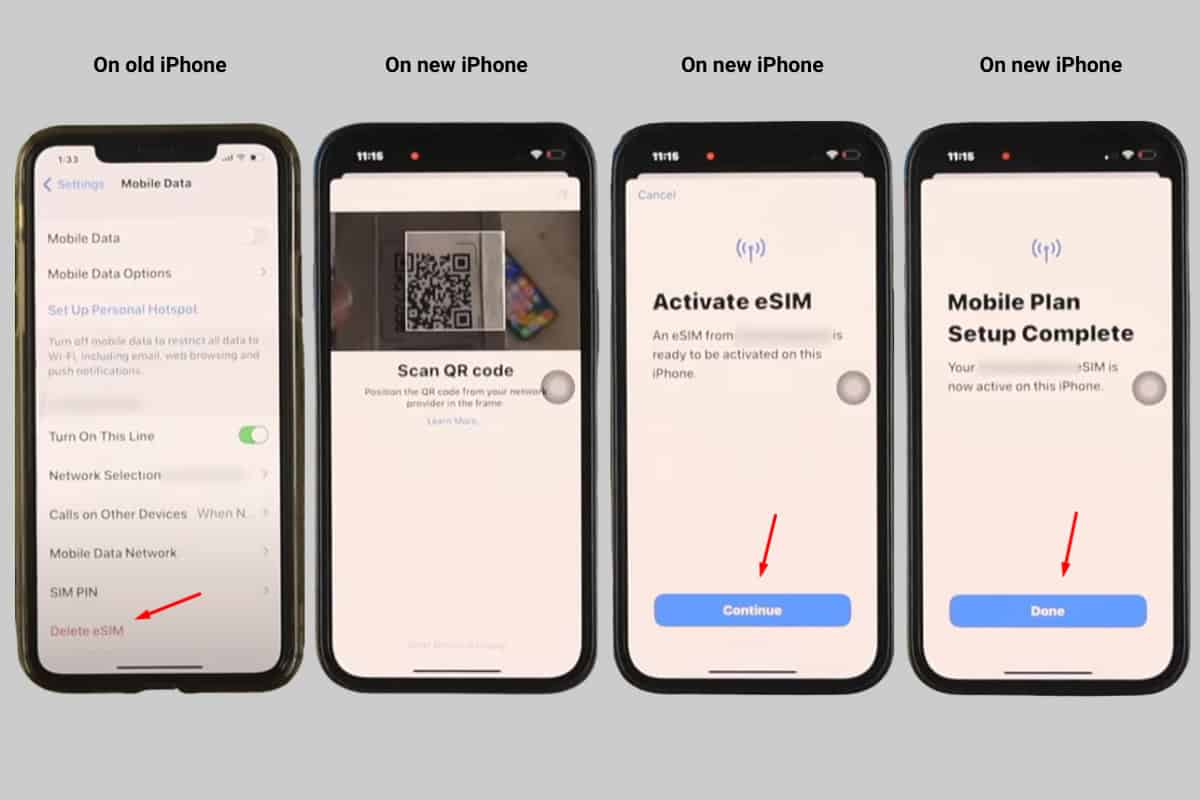
iPhone 16 eSIM transfer not working errors typically occur when the digital handshake between devices breaks down. Unlike swapping physical SIM cards, eSIM transfers require multiple systems working in perfect harmony—your iOS version, Bluetooth connectivity, Wi-Fi connection, and security settings must all align simultaneously. When any single element falters, the transfer stalls with that dreaded “cannot be completed” message.
The iPhone 16’s embedded SIM technology depends on stable Bluetooth for initial device communication, reliable Wi-Fi for carrier authentication, and proper security configurations to protect your cellular identity. Common failure points include outdated software versions, weak Bluetooth signals, or security settings that block the transfer process entirely.
Immediate Checks Before Troubleshooting Your eSIM Transfer
Confirm Both Devices Meet Transfer Requirements
Before diving into complex fixes, verify these critical transfer prerequisites:
– Both iPhones must run iOS 15.2 or later (check Settings > General > Software Update)
– Bluetooth must be enabled on both devices throughout the transfer
– Wi-Fi connection must remain stable during the entire process
– Both devices should have at least 50% battery or be plugged in
Position Devices Correctly for Successful Transfer
Physical positioning significantly impacts Bluetooth connectivity during eSIM transfers. Place both devices within 12 inches of each other with no physical obstructions between them. Remove thick cases that might interfere with signal transmission and ensure neither device is resting on metal surfaces that could disrupt Bluetooth signals.
Pro Tip: Lay both iPhones screen-up on a wooden table with charging cables attached—this optimal position prevents accidental movement while maintaining power during the transfer process.
Fix iPhone 16 eSIM Transfer Failures in Under 5 Minutes
Reset Bluetooth Connection Between Devices
Bluetooth interference causes nearly 40% of iPhone 16 eSIM transfer not working issues. Reset the connection with these steps:
- Turn off Bluetooth on both devices via Settings > Bluetooth
- Wait 30 seconds for the connection cache to clear
- Turn Bluetooth back on both devices
- Position devices within 12 inches of each other
- Restart the transfer process immediately
This simple reset clears temporary Bluetooth glitches that often block eSIM transfers without requiring any data loss.
Disable Auto-Lock During Transfer Process
Automatic screen locking interrupts eSIM transfers every time. Prevent this critical failure point:
- Go to Settings > Display & Brightness > Auto-Lock
- Select “Never” (temporarily)
- Keep both devices plugged into power
- Complete the transfer before restoring your preferred auto-lock setting
This prevents the most common silent transfer killer—your iPhone 16 locking mid-transfer and severing the connection.
Network Reset Solutions for Persistent Transfer Failures
Reset Network Settings Without Data Loss
When basic Bluetooth fixes fail, network configuration issues likely block your iPhone 16 eSIM transfer. Reset network settings with this procedure:
- Navigate to Settings > General > Transfer or Reset iPhone > Reset
- Select “Reset Network Settings”
- Enter your passcode when prompted
- Reconnect to Wi-Fi and re-pair Bluetooth devices
- Attempt the eSIM transfer again
Important: This clears saved Wi-Fi passwords and Bluetooth pairings but preserves all your personal data. Screenshot your Wi-Fi passwords before resetting to speed up reconnection.
Force Restart Your iPhone 16 to Clear Transfer Glitches
Temporary system glitches often cause iPhone 16 eSIM transfer not working errors. A force restart clears these issues:
- Press and quickly release Volume Up button
- Press and quickly release Volume Down button
- Press and hold Side button until Apple logo appears
- Release and wait for complete restart
- Retry the eSIM transfer after both devices fully boot
This process takes less than 30 seconds but resolves countless temporary software conflicts affecting eSIM functionality.
Update iOS to Resolve eSIM Compatibility Issues

Install Critical iOS Updates Before Transfer
Outdated software creates the most common iPhone 16 eSIM transfer failures. Update both devices properly:
- Connect to stable Wi-Fi network
- Go to Settings > General > Software Update
- Download and install any available updates
- Ensure both devices run the same major iOS version
- Restart both devices after updates complete
Critical Step: Verify your carrier settings update automatically after iOS installation—this often happens in the background but is essential for eSIM functionality.
Advanced Fixes When Basic Troubleshooting Fails
Reset All Settings to Fix Deep Configuration Issues
When network resets don’t work, reset all configurations without data loss:
- Navigate to Settings > General > Transfer or Reset iPhone > Reset
- Choose “Reset All Settings”
- Confirm with your passcode
- Wait for automatic device restart
- Reconfigure essential preferences before retrying transfer
This solution fixes deeper system conflicts while preserving all your photos, messages, and apps—making it safer than a full device erase.
Complete Device Reset (Preserve eSIM Option)
When all else fails, perform a strategic reset:
Mandatory First Step: Complete iCloud backup before proceeding
- Go to Settings > General > Transfer or Reset iPhone > Erase All Content and Settings
- When prompted, select the option to preserve eSIM if available
- Follow setup prompts carefully
- Restore from backup during initial setup
- Attempt eSIM transfer when prompted during setup
This last-resort method resolves persistent software conflicts while maintaining your cellular plan activation.
Verify Transfer Success and Prevent Future Failures
Confirm Your iPhone 16 eSIM Transfer Completed Successfully
After any fix attempt, verify success with these steps:
- Open Settings > Cellular
- Look for your carrier name under “Cellular Plans”
- Ensure the plan shows “Active” status
- Test with a phone call and mobile data usage
- Check that the eSIM appears in your old iPhone’s cellular settings as transferred
If the eSIM doesn’t appear in Settings > Cellular, the transfer failed and requires additional troubleshooting.
Prevent iPhone 16 eSIM Transfer Problems in Future
Avoid repeating this frustrating experience with these prevention strategies:
– Keep iOS updated on both devices before any transfer
– Document your setup: Screenshot Wi-Fi passwords before resetting
– Use official Apple transfer methods rather than third-party apps
– Maintain close device proximity throughout the entire process
– Charge both devices to at least 50% before starting transfers
When to Contact Apple or Your Carrier for eSIM Issues
Contact Apple Support immediately if:
– Multiple reset attempts fail with the same error
– eSIM option disappears entirely from Settings
– You see persistent hardware-related error messages
– The transfer fails after installing the latest iOS update
Reach out to your carrier when:
– eSIM appears in Settings but shows “No Service”
– Transfer completes but calls/texts don’t work
– You receive account-specific error messages
– Your plan doesn’t support eSIM activation
Successfully transferring your eSIM to iPhone 16 requires methodical troubleshooting that addresses both device and account-level issues. Most users resolve transfer failures within 30 minutes by following these steps in order—starting with Bluetooth resets and progressing to network settings solutions if needed. Remember that both Apple and your carrier offer specialized support if these solutions don’t restore your eSIM functionality, so don’t hesitate to contact them when basic troubleshooting proves insufficient. With your cellular service restored, you can finally enjoy all the new features your iPhone 16 has to offer without interruption.


