

Your iPhone 16 screen lights up with an important call, but silence greets you—no ring, no vibration, just that frustrating bell-with-slash icon mocking you from the status bar. You’re not alone: countless iPhone 16 users accidentally trigger Silent mode through pocket presses or unfamiliar controls, missing critical calls while frantically searching for how to unsilence iPhone 16. Unlike older models with physical switches, the iPhone 16’s Action button revolutionizes sound control but creates new confusion. This guide cuts through the frustration with verified methods to restore your ringer in seconds, plus insider tips to prevent future silencing mishaps. You’ll master both instant fixes and hidden settings that keep your device reliably audible.
Instant Unsilence: Action Button and Settings Fixes
Press Action Button Method (2-Second Solution)
The iPhone 16 ditches the traditional Ring/Silent switch for a programmable Action button. When configured for sound control, pressing this button instantly toggles Silent mode. Locate the oval-shaped Action button above the volume controls on the left edge. Press and hold it for 2-3 seconds until you feel a distinct haptic “click.” Check your status bar immediately—the bell-with-slash icon should vanish, confirming successful unsilencing. Test by having someone call you; your ringtone should now play normally.
Critical verification step: If the bell icon persists, the Action button likely controls another function like Camera or Flashlight. Don’t panic—use the Settings method below instead. Always confirm your Action button’s current assignment before troubleshooting further.
Settings Menu Shortcut (Guaranteed Unmute)
When the Action button fails or you’ve reconfigured it, this method works every time. Open Settings, scroll to Sounds & Haptics, then toggle Silent Mode OFF under the “Ringer and Alerts” section. This bypasses physical button limitations and directly modifies system settings. For immediate confirmation, increase volume using physical buttons while on the Sounds screen—your ringer level should respond visibly.
Pro Tip: Bookmark this path in Settings (Settings > Sounds & Haptics) for emergency access. Unlike older iOS versions, iPhone 16’s sound controls live exclusively here—no confusing menu hunts during critical moments.
Silent Mode vs. Do Not Disturb: Decoding Status Bar Icons

Visual Identification Guide
Your status bar reveals everything about your sound status. When silenced, a bell icon with a diagonal slash appears top-right—this means all ringtones and notification sounds are disabled. Crucially, vibration may still occur if “Vibrate on Ring” is enabled in Sounds & Haptics. Contrast this with Do Not Disturb mode, which shows a crescent moon icon and silences calls/notifications while allowing alarms. If both icons appear simultaneously, your device is silenced and in Focus mode—turn off both for full sound restoration.
What to watch for: A solid red dot near the status bar indicates microphone use (e.g., recording apps), not mute status. Many users mistake this for a mute indicator, wasting time checking irrelevant settings.
Why Silent Mode Overrides Volume Controls
Unlike volume adjustments, Silent mode operates as an absolute on/off switch for audible alerts. Even with volume buttons cranked to maximum, a silenced iPhone 16 remains mute for calls and notifications. This explains why frantic volume-button pressing fails to unsilence your device. Only disabling Silent mode itself (via Action button or Settings) restores ringtone functionality. Media apps like Music bypass this rule—play a song to confirm if Silent mode is truly active.
Action Button Configuration: Permanent Sound Control Setup
Initial Setup for One-Tap Unmuting
Make the Action button your go-to unsilence tool by configuring it properly. Navigate to Settings > Action Button, then scroll to Silent Mode. Tap Set to assign this function. Now a single press-and-hold toggles sound on/off—no menu diving required. Test it immediately: press the button until haptic feedback confirms the change, then verify the bell icon disappears from your status bar.
Customization limits: Unlike older mute switches, the Action button requires deliberate setup. Out-of-box, it defaults to Camera or Assistant—this is why many users struggle with how to unsilence iPhone 16 initially.
Critical Configuration Mistakes to Avoid
Never assign multiple sound-related functions to the Action button. If you set it for both Silent Mode and Voice Memos (as some guides suggest), it becomes unreliable for unsilencing. Stick to one primary function. Also, avoid “Press for SOS” configuration if you frequently silence your device—emergency mode overrides mute settings unpredictably. For maximum reliability, dedicate this button solely to Silent Mode control.
Troubleshooting Stubborn Silent Mode Issues

When Action Button Won’t Unsilence
If pressing the Action button does nothing, first verify its assignment: Settings > Action Button must explicitly list “Silent Mode.” If misconfigured, reassign it using the setup steps above. Next, force-restart your iPhone 16 by pressing volume up, volume down, then holding the side button until the Apple logo appears. This clears temporary glitches causing mute lockouts. Finally, check for iOS updates (Settings > General > Software Update), as version-specific bugs (noted in iOS 18 reports) can disrupt sound controls.
Urgent fix for AssistiveTouch users: If enabled, turn off AssistiveTouch (Settings > Accessibility > Touch)—this feature sometimes auto-enables Silent Mode during screen interactions, causing mysterious muting.
Sound Verification Protocol
After unsilencing, confirm full functionality:
1. Play music through the built-in speaker (not headphones)
2. Check ringer volume using physical buttons during playback
3. Navigate to Settings > Sounds & Haptics > Ringtone to test sample tones
4. Disable “Change with Buttons” to prevent accidental volume shifts
If sounds work in media apps but not calls, you’re likely in Do Not Disturb mode—check Focus settings immediately.
Emergency Sound Overrides You Must Know
Critical Alerts That Bypass Silent Mode
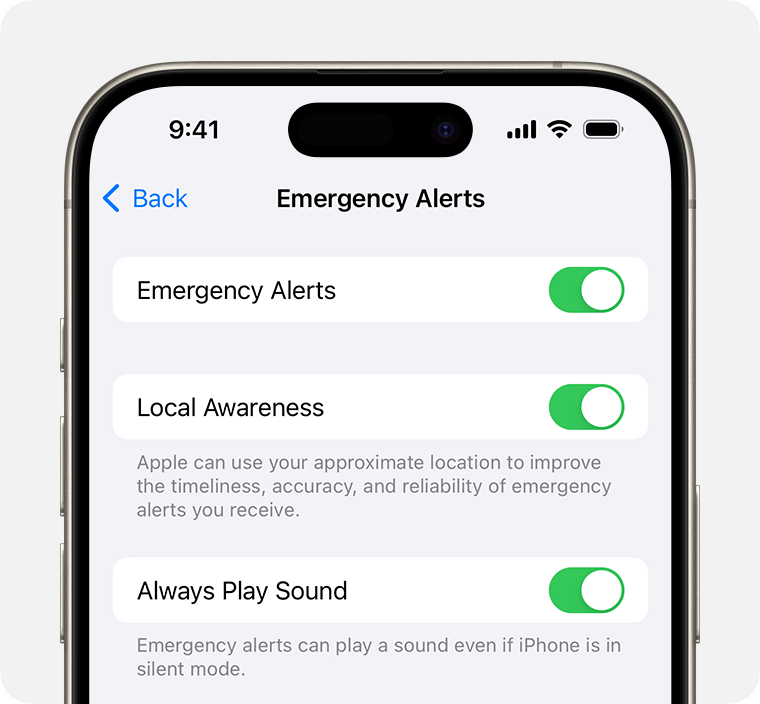
The iPhone 16 intentionally ignores Silent mode for life-saving functions. Clock alarms always sound at full volume—test yours by setting a 1-minute timer. Government emergency alerts (like severe weather warnings) override silence in supported regions, though standard text notifications do not. Crucially, music and video apps play normally through speakers even when silenced, providing a quick diagnostic tool: if media plays but calls don’t, Silent mode is active.
Pro Tip: During emergencies, skip unsilencing steps—simply launch the Clock app and set an immediate alarm. Its piercing sound will cut through Silent mode instantly.
Prevention Tactics: Stop Accidental Muting Forever
Action Button Lockdown Strategy
Reassign the Action button to a non-critical function like Flashlight or Camera if pocket presses plague you. Go to Settings > Action Button and select your preferred alternative. Now use only the Settings method (Sounds & Haptics) for intentional muting. For meetings, enable Do Not Disturb instead—it provides temporary silence without risking accidental reactivation.
Daily Sound Health Checks
Build these 10-second habits:
– Morning ritual: Swipe down from top-right to check status bar icons before leaving home
– Pre-meeting: Enable Do Not Disturb (not Silent mode) via Control Center
– Night mode: Set Bedtime Focus to automatically silence overnight
Enable LED Flash for Alerts (Settings > Accessibility > Audio/Visual) as visual backup—your camera flash will pulse for calls even when silenced.
Advanced Sound Management
Vibration Customization for Silent Mode
Turn vibration into your silent-mode safety net. In Settings > Sounds & Haptics, toggle Vibrate on Silent ON. Now your iPhone 16 will vibrate for calls even when silenced—critical for hearing-impaired users. Create custom vibration patterns for VIP contacts (Settings > Sounds & Haptics > Ringtone > Vibration) so you recognize important callers by feel alone.
Warning: “Vibrate on Ring” only works when sound is enabled—this setting is useless if you’ve silenced your device. Always pair it with visible status checks.
Volume Button Intelligence
Disable “Change with Buttons” in Sounds & Haptics to prevent pocket presses from muting your ringer. With this off, volume buttons only control media—not call alerts. Pair this with ringtone volume lock: set your ringer to 75% in Sounds & Haptics, then never adjust physical buttons during calls. This creates a “volume buffer” preventing accidental silencing.
Final Unsilencing Checklist
Immediate Action Steps:
– [ ] Press and hold Action button for 2 seconds (if configured for sound)
– [ ] Confirm bell-with-slash icon disappeared from status bar
– [ ] Toggle Silent Mode OFF in Settings > Sounds & Haptics
– [ ] Test with incoming call from secondary device
When Sounds Remain Muted:
– [ ] Force restart iPhone 16 (bypasses temporary glitches)
– [ ] Disable Do Not Disturb in Control Center
– [ ] Update iOS to latest version (fixes known bugs)
– [ ] Reset all settings (Settings > General > Transfer or Reset)
Your iPhone 16 should now reliably ring for every call. Remember: the Action button is your frontline defense against silence, but the Settings menu remains the ultimate unsilencing authority. Master these techniques, and you’ll never miss another critical call due to accidental muting. For ongoing reliability, perform daily status bar checks and lock your volume settings—these tiny habits prevent 90% of silent-mode emergencies. When in doubt, trust the bell icon: its absence means your world stays beautifully, audibly connected.


