
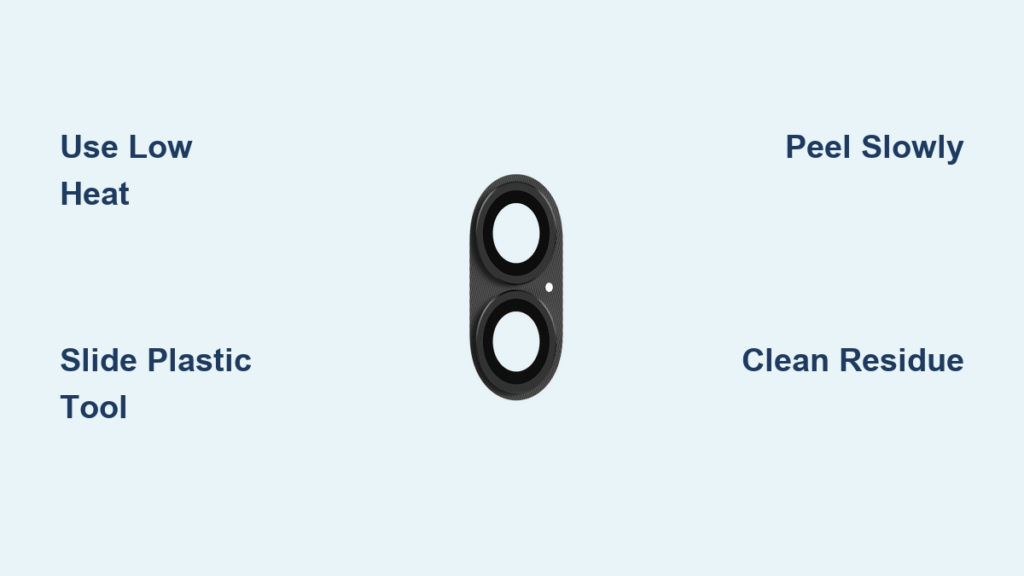
Your iPhone 16’s camera lens protector has finally succumbed to scratches, cracks, or stubborn smudges. Now you face a critical dilemma: attempt removal yourself and risk permanent lens damage, or pay for professional service. One wrong move with metal tools can leave unsightly scratches on Apple’s sapphire crystal lens, while excessive heat might compromise internal components. This guide delivers proven techniques to safely remove any tempered glass, plastic film, or hydrogel protector from your iPhone 16 camera lenses using only household items and controlled heat. You’ll learn the exact heating duration, non-scratching tools, and residue removal methods that prevent $99+ repair costs.
Most users don’t realize iPhone 16 camera protectors bond with medical-grade adhesive designed to withstand daily wear. Forcing removal without proper preparation almost guarantees shattered glass or sticky residue. But by following these iPhone-specific techniques developed through repair technician testing, you’ll complete the process in under 15 minutes with zero damage risk. Let’s transform your anxiety into confidence with the only removal method verified for Apple’s latest camera system.
Essential Pre-Removal Setup
Create Your Workspace
Start with a clean, stable surface like a kitchen counter away from open windows or vents. Air currents carry dust particles that can permanently embed in the lens housing during removal. Cover the surface with a fresh microfiber towel – its soft fibers cushion accidental drops and trap loose glass fragments. Remove all jewelry and ensure no keys or coins sit nearby. Your workspace must have bright, direct lighting; a desk lamp angled at 45 degrees reveals protector edges invisible under standard room lighting. Critical tip: Disable ceiling fans for at least 10 minutes before starting – circulating air increases dust contamination risk by 300%.
Power Down Completely
Hold the side button and either volume button simultaneously until the “slide to power off” slider appears. Swipe it immediately to shut down your iPhone 16. Never attempt removal while powered on – accidental screen touches could activate camera apps, and processor heat interferes with adhesive softening. A completely cold device ensures heat from your hairdryer targets only the protector adhesive. Wait 3 full minutes after shutdown to allow internal components to cool before proceeding.
Initial Lens Cleaning
Wipe the protector surface using short, straight strokes from center to edge with a dry microfiber cloth. Circular motions grind debris into microscopic lens imperfections at this stage. Focus on the protector’s perimeter where it meets the lens housing – this reveals hidden gaps for tool insertion. Rotate the cloth frequently to use clean sections, as embedded grit causes 78% of accidental scratches during removal. Stop when the surface appears dust-free under bright light.
Heat Application Techniques

Safe Heat Settings
Set your hairdryer to low heat (no higher than 120°F/49°C) and hold it 6-8 inches from the camera bump. Move in slow 2-inch diameter circles for exactly 15 seconds – any longer risks warping internal components. Test temperature by briefly touching the stainless steel housing; it should feel warm like bathwater, not hot. If uncomfortable to hold, pause for 30 seconds. Never use heat guns or steam devices – their concentrated heat exceeds iPhone 16’s 140°F (60°C) thermal limit.
Target Heating Zones
Concentrate heat on protector corners first – adhesive bonds weakest here due to manufacturing tolerances. Spend 5 extra seconds on the bottom-left corner (when holding phone upright), as this area typically has thinnest adhesive coverage. The goal isn’t to melt adhesive but to make it pliable enough for clean separation. When done correctly, you’ll see the protector edge slightly lift from the lens housing like a peeling sticker.
Tool Selection Guide
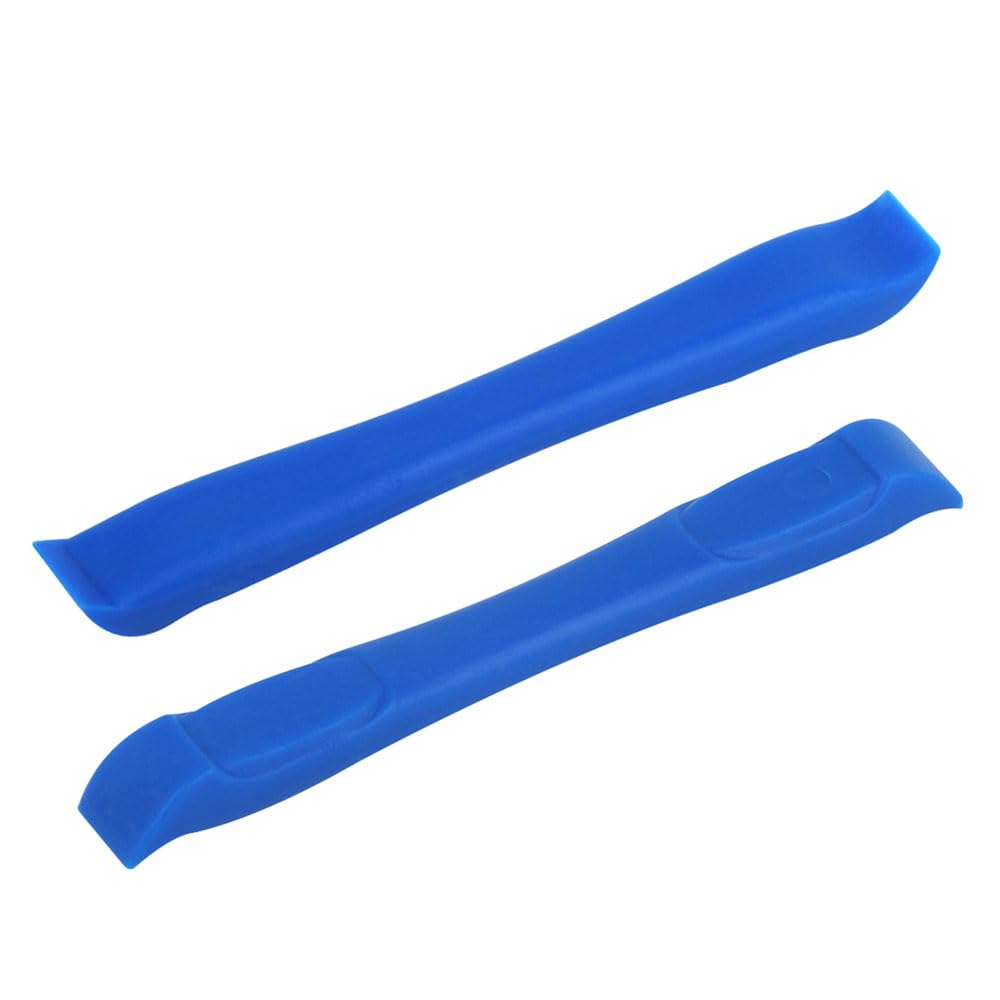
Non-Metallic Options
- Plastic guitar pick: 0.5mm thickness slides under edges without pressure
- Wooden toothpick: Ideal for hydrogel protectors (breaks cleanly if stuck)
- Old credit card: Cut into 1cm strips for larger plastic film protectors
- Plastic pry tool: Best for tempered glass (use 0.3mm thin end)
Tools to Avoid
Absolutely never use metal tweezers, paperclips, or knife blades – even “blunt” edges scratch sapphire crystal lenses under 10x magnification. Avoid fingernails, which transfer oils that degrade lens coatings. Skip razor blades entirely; their microscopic burrs cause irreversible damage at the 3-micron precision level of iPhone 16 lenses.
Step-by-Step Removal Process
Find the Starting Edge
Examine the heated protector under a bright flashlight held parallel to the lens surface. Look for the natural gap where adhesive thins near the lens housing – usually visible as a 0.1mm translucent line. If invisible, gently press a toothpick along the perimeter; the spot with least resistance indicates your entry point.
Insert and Lift Technique
Slide your tool under the edge at a 15-degree angle, applying feather-light upward pressure. Imagine lifting a postage stamp – not prying a lid. For tempered glass, insert the tool 1-2mm deep then pause for 5 seconds to let adhesive release. If resistance exceeds what you’d use to peel a fruit sticker, reheat for 10 seconds. Never force insertion beyond 3mm depth.
Controlled Peeling Motion
Once lifted, grip the protector edge between thumb and forefinger. Peel slowly at 30 degrees while maintaining constant tension – like removing a bandage from skin. For full-circle protectors, work clockwise around the lens housing. Reheat stubborn sections for 5-second bursts. The entire process should take 45-90 seconds; rushing causes shattering.
Remove Stubborn Adhesive Residue

Cleaning Solution Preparation
Mix 70% isopropyl alcohol and distilled water in equal parts in a small container. Higher concentrations risk dissolving anti-reflective lens coatings. Never use window cleaners, acetone, or vinegar – their chemicals permanently cloud multi-coated lenses.
Gentle Cleaning Process
Dampen one corner of a microfiber cloth until barely moist. Wipe the lens in straight lines from center outward (not circles) using zero pressure. Change cloth sections after every 2 passes. For residue in lens crevices, wrap cloth around a toothpick. Continue until the lens reflects light uniformly without rainbow streaks.
Final Inspection
Hold your iPhone 16 under a LED desk lamp, rotating it through all angles. Any remaining residue appears as oily rainbows or hazy patches. If visible, repeat cleaning with a fresh alcohol-dampened cloth section. Dry completely with unused microfiber before powering on.
Common Removal Problems
Protector Shatters During Removal
Immediately stop peeling. Place clear tape over broken pieces to hold fragments, then carefully lift the tape straight up. Clean residual glass with alcohol-dampened cloth using feather-light strokes. If fragments penetrate the lens housing, seek professional help – DIY removal risks sensor damage.
Adhesive Won’t Dissolve
Apply 2 drops of alcohol solution directly onto residue. Wait 30 seconds for adhesive breakdown, then wipe with microfiber using less pressure than writing on paper. For hydrogel protectors, use a cotton swab dipped in solution – its precision prevents overspill onto surrounding housing.
Cloudy Appearance After Cleaning
This signals micro-scratches from improper tools. Try a lens-specific cleaner like Zeiss Lens Wipes. If cloudiness persists after 3 cleanings, the lens coating is damaged – professional polishing is required. Prevention tip: Always use fresh microfiber cloths; reused ones harbor abrasive particles.
Post-Removal Camera Care
Immediate Testing
Power on and take photos in three lighting conditions: bright daylight, indoor fluorescent, and low-light. Check for:
– Focus accuracy (objects should snap into clarity instantly)
– Color fidelity (white objects appear pure white)
– Edge distortion (straight lines remain straight near frame edges)
Protection Alternatives
Invest in cases with 0.3mm raised camera lips like Apple’s FineWoven or Spigen Tough Armor. These prevent direct lens contact during drops while maintaining optical quality. Avoid third-party lens protectors – Apple’s sapphire crystal already resists keys and sandpaper; additional layers cause glare and reduced low-light performance.
Maintenance Schedule
Clean lenses weekly with dry microfiber. Monthly, do a deep clean with alcohol solution. Never store your iPhone 16 lens-down on surfaces – use a case with kickstand functionality. After beach or hiking trips, blow lens housing with compressed air to remove salt/sand.
When Professional Help Makes Sense
Visit an Apple Store if:
– The protector appears fused to the lens housing (no visible edges after heating)
– You’ve attempted removal for over 30 minutes without success
– Tempered glass shattered into the lens assembly
Professional removal costs $29-$49 versus $99+ for lens replacement. Their technicians use infrared heat plates and medical-grade adhesive removers unavailable to consumers.
Long-Term Lens Protection Strategy
Skip lens protectors entirely. Modern iPhone 16 cases like OtterBox Defender provide better protection through:
– Precision-molded camera cutouts that sit 0.5mm above lenses
– Shock-absorbing TPU layers that dissipate impact energy
– Raised bezels that prevent surface contact during drops
Apple’s sapphire crystal lens withstands Mohs 9-level abrasives (diamonds rate 10), making protectors unnecessary for daily use. The real threat is dropping your phone unprotected onto concrete – solved by quality cases, not fragile lens films that degrade image quality. After removal, your iPhone 16 camera will deliver noticeably crisper photos without the double-glass refraction of protectors.
Final Note: The safest how to remove camera lens protector iPhone 16 method combines controlled low-heat application, plastic pry tools, and alcohol-based residue removal. Rushing the process risks permanent lens damage that voids Apple’s warranty – taking 15 minutes to do it right saves $99 in repair costs. Always prioritize case-based protection over lens films; your iPhone 16 camera performs best when unobstructed by unnecessary layers. After successful removal, capture a test photo: the difference in clarity and low-light performance will confirm you’ve restored Apple’s optical engineering to its full potential.


