
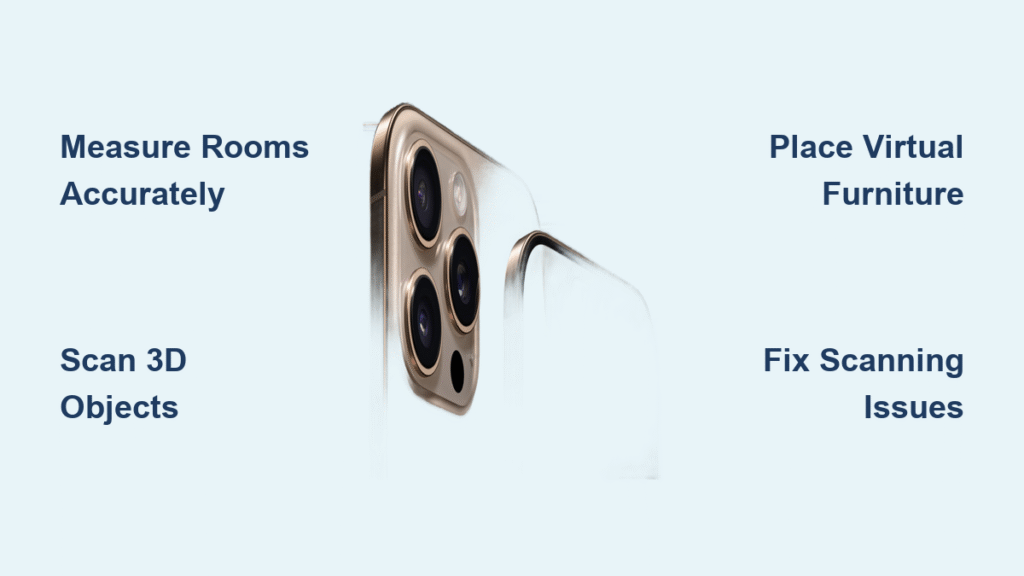
Your iPhone 16 Pro hides a secret weapon: a LiDAR scanner that fires 16,000 laser pulses per second to map your world in 3D. Forget struggling with tape measures that slip or furniture that doesn’t fit—this laser system creates millimeter-accurate spatial maps of everything around you. Within seconds, you can measure room dimensions, drop life-size virtual sofas into your living room, or scan objects for 3D printing. Most owners never discover this capability tucked beside the camera lenses, but this guide unlocks every practical use. You’ll transform from casual user to LiDAR power user without technical jargon—just actionable techniques that make your iPhone feel like science fiction made real.
Fix Crooked Shelves in 60 Seconds
Stop guessing if your shelves are level. The iPhone 16 Pro’s LiDAR scanner detects surface angles with 0.1° precision—far more accurate than bubble levels—using the built-in Measure app.
Why Your Shelf Won’t Stay Level (And How to Fix It)
Open Measure, tap the level icon (top-right), then press your iPhone flat against the shelf edge. If the screen flashes red with “1.5°,” your shelf slopes downward. Slide shims under the low end while watching real-time angle readings until it hits 0° and flashes green. Pro tip: For floating shelves, place your phone vertically against the wall bracket to check plumb alignment—critical for preventing wobble.
Measure Door Frames Without Ladders
Position your iPhone at the base of a door frame, tap “+” to set the starting point, then slowly raise the phone to the top. Tap “+” again—the exact height appears instantly, even for 9-foot ceilings. No more balancing on chairs or guessing measurements. For width, scan horizontally across the frame while keeping your phone steady; the app auto-corrects for slight hand movements using LiDAR data.
Drop Virtual Furniture at True Scale
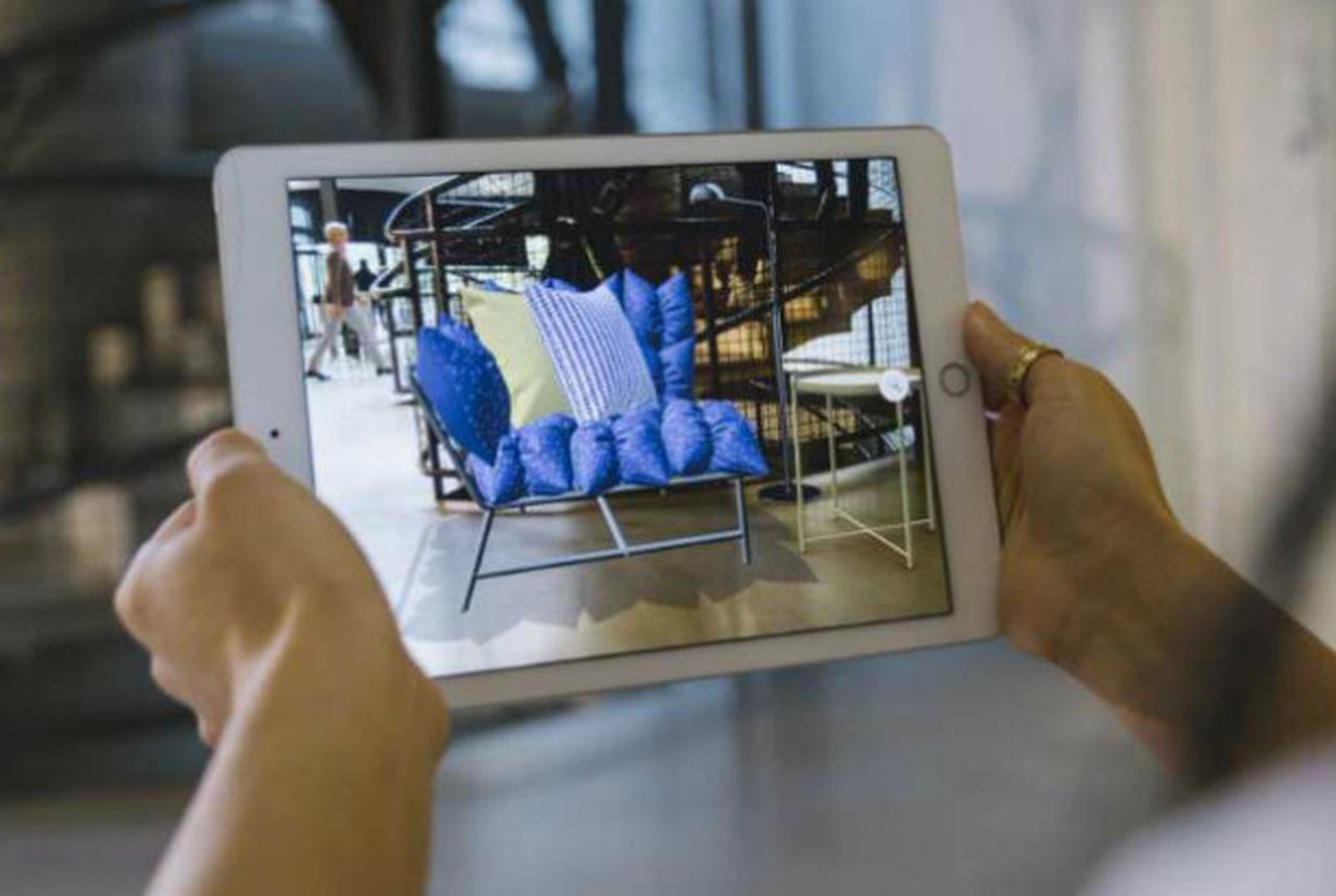
Stop buying furniture that doesn’t fit. LiDAR creates a precise 3D map of your space, letting you preview items at 100% real-world scale before spending a dime.
IKEA App: See Sofas Before You Commit
Open the IKEA app, find any sofa, and tap “View in room.” Your iPhone instantly scans the floor and walls using LiDAR. Walk around the virtual sofa—it casts realistic shadows and respects your actual room dimensions. Drag it to different spots, rotate it 360°, or snap comparison photos of three layouts side-by-side. Critical detail: Ensure overhead lights are on—dark rooms confuse the scanner. If the sofa flickers, slowly pan your phone to re-scan walls.
Avoid These Furniture App Mistakes
- Wayfair: When scanning large rooms, start in a corner and move clockwise. Stopping mid-scan corrupts the model.
- Housecraft: For accurate carpet measurements, place a magazine on the floor first—it gives LiDAR a texture reference in flat areas.
- Bob’s Discount Furniture: If virtual items float above floors, wipe the LiDAR lens (tiny black dot beside cameras) with a microfiber cloth—dust blocks laser pulses.
Scan 3D Models for 3D Printing in 5 Minutes
Turn coffee mugs, toys, or even your face into shareable 3D models—no expensive gear needed. LiDAR captures geometry invisible to regular cameras.
Scaniverse: Perfect Mug Scans Every Time
- Open Scaniverse, tap the shutter, select “Small Object”
- Hold your iPhone 12 inches from the mug, circle slowly (like filming a TikTok)
- Keep the mug centered for 15 seconds—do not rush (fast movement causes blurry textures)
- Tap shutter, choose “HD Processing,” and export as OBJ
Why your first scan fails: Moving faster than 6 inches per second. Practice with a tennis ball—smooth, slow circles at waist height. For reflective objects (like mugs), dim bright lights to reduce glare that confuses LiDAR.
Professional Scan Export Checklist
- For 3D printing: Export as OBJ, zip files, and keep .mtl/.jpg textures together
- For architects: Use LAS Geo-Referenced format to embed GPS coordinates
- Critical error: Never skip “Z axis up” toggle—upside-down scans waste hours fixing in Blender
Troubleshoot LiDAR Scans That Won’t Complete
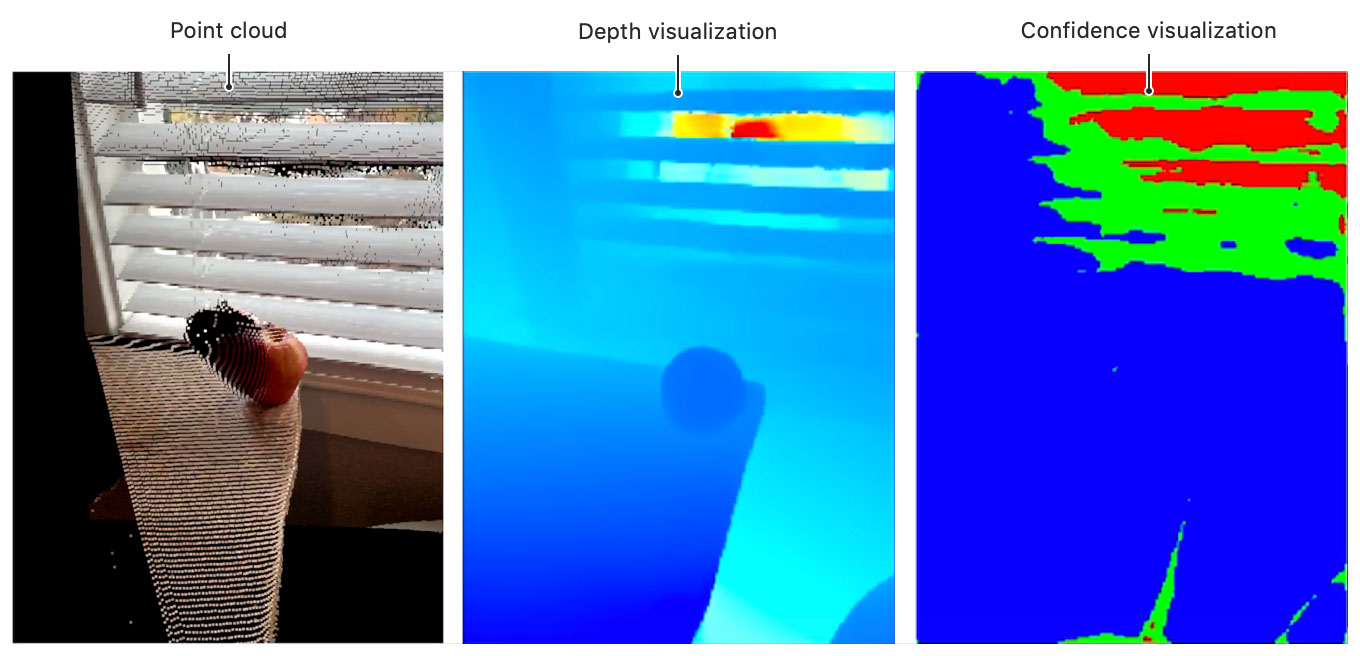
When your iPhone 16 Pro’s LiDAR scanner freezes or creates glitchy models, these fixes work 95% of the time—no restarts needed.
Why Scans Fail in Bright Rooms (And the Fix)
Direct sunlight overwhelms LiDAR’s laser sensor. Solution: Close curtains and turn on warm-white bulbs (not cool LEDs). If scanning outdoors, stand in shade with your back to the sun. Test with your hand—you should see a clear depth map in the Measure app before starting.
Storage Crisis During Scanning
4K LiDAR scans eat 1.5GB per minute. If you see “Processing Failed,” immediately:
1. Close all background apps
2. Delete old videos (Settings > General > iPhone Storage)
3. Scan in HD mode (not 4K) via app settings
Pro move: Before big projects, offload photos to iCloud—freeing 10GB prevents mid-scan crashes.
Play AR Games That Respect Your Real Furniture
LiDAR turns your couch into cover in robot battles and your coffee table into an Angry Birds battlefield. Virtual objects interact with real surfaces—no clipping through walls.
Angry Birds AR: Physics That Match Your Space
Launch the game, point at your coffee table, and virtual islands appear anchored to its surface. Tilt your phone to see under the table—the birds’ trajectories change based on your actual room layout. Secret tactic: Place a book under one side of the table to create sloped terrain that affects ball physics.
AR Robot: Hide Behind Real Objects
Virtual robots duck behind your actual sofa during combat. For best results:
– Scan in a clutter-free room first (LiDAR gets confused by cables)
– Stand 6-8 feet from furniture—beyond the 5-meter LiDAR range
– If robots clip through walls, reposition your phone to re-scan edges
Professional 3D Analysis Without $10,000 Scanners
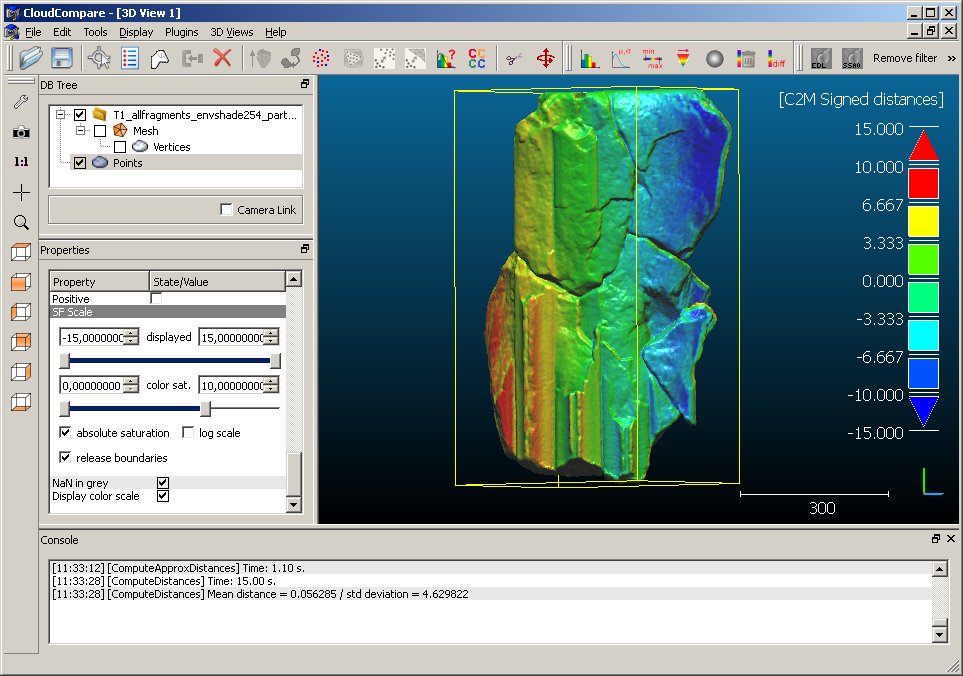
Architects and engineers use iPhone 16 Pro LiDAR for construction surveys. With free CloudCompare software, you can measure erosion or track renovation progress.
Track Construction Changes in 3 Steps
- Scan a room weekly with 3D Scanner App (LiDAR Mode)
- Export as LAS, import into CloudCompare
- Run M3C2 Distance tool: Blue shows removed drywall, red shows new flooring
Critical setting: Enter the RMS error value from your scan alignment (usually 0.003m). Skipping this makes measurements inaccurate by inches. For DIYers, use the “Guess params” button—it auto-calculates for iPhone-scale projects.
Maximize Battery Life During Heavy Scanning
LiDAR drains 40% battery per 30-minute scan. Avoid mid-project shutdowns with these pro strategies.
The 70-30 Power Rule
Never start scanning below 70% battery. At 30%, pause and plug in—even 5 minutes of charging prevents data corruption. Never skip: Enable Low Power Mode before scanning—it cuts background processes that compete for processing power.
Heat Management for Long Sessions
After 20 minutes of scanning, your iPhone hits 113°F (45°C), triggering thermal throttling. Fix: Place it on a marble countertop—it cools 3x faster than wood. For multi-room scans, take 5-minute breaks between areas to let the phone cool.
LiDAR on your iPhone 16 Pro isn’t just a camera trick—it’s a precision measurement tool that solves real problems. Start today by measuring your coffee table with the Measure app; within minutes, you’ll be scanning rooms for furniture or creating 3D models. The key is moving slowly during scans and keeping the LiDAR lens clean—dust is the #1 cause of failed measurements. For your first project, use IKEA’s app to place a virtual bookshelf: it reveals how perfectly virtual objects align with real walls thanks to laser-accurate depth mapping. Within a week, you’ll wonder how you ever measured spaces without it. This technology, once exclusive to surveyors with $20,000 gear, now fits in your pocket—ready to measure, model, and transform your world one laser pulse at a time.


