
You open your iPhone 16 camera expecting to add the Vivid filter that made your food photos Instagram-perfect, but it’s gone. That familiar row of filters has vanished without explanation, leaving you staring at a blank space where your favorite photo enhancement used to be. This isn’t a glitch—it’s an intentional removal by Apple that’s left countless iPhone 16 users frustrated when discovering their iPhone 16 camera filters not working as expected.
Your iPhone 16 camera filters aren’t broken—they’ve been completely removed by design. Apple replaced traditional filters with a new system called Photographic Styles across all iPhone 16 models, from the base version to the Pro Max. If you’re searching for why your Vivid filter disappeared and how to get similar effects, you’re not alone. Millions of users have hit this same wall since the iPhone 16 launch.
This guide explains exactly why Apple removed camera filters, provides immediate workarounds to restore traditional filter functionality, shows you how to manually recreate the Vivid effect, and reveals how to properly use the replacement Photographic Styles system. You’ll also learn how to submit effective feedback to Apple requesting filter restoration before the next iOS update.
Why Apple Removed Vivid Filter from iPhone 16
Apple deliberately eliminated traditional camera filters across the entire iPhone 16 lineup as part of their shift to Photographic Styles. This isn’t a manufacturing defect or software bug—it’s an intentional design decision documented in Apple’s iOS 18 resources: “On all iPhone 16 models, use Photographic Styles instead of filters to give your photos a customized look.”
Critical Differences Between iPhone Generations
- iPhone 15 and earlier: Full filter support including Vivid, Dramatic, and Noir accessible directly in Camera and Photos apps
- iPhone 16 series: Traditional filters completely removed from interface, replaced solely by Photographic Styles
- Storage format dependency: Your chosen camera format now determines whether traditional filters appear (or don’t)
This change affects every iPhone 16 model equally—there’s no hidden setting to restore filters without changing your camera configuration. Apple’s move represents a fundamental shift from one-tap enhancements to a more granular adjustment system that requires manual tweaking.
Restore Traditional Filters with One Settings Change
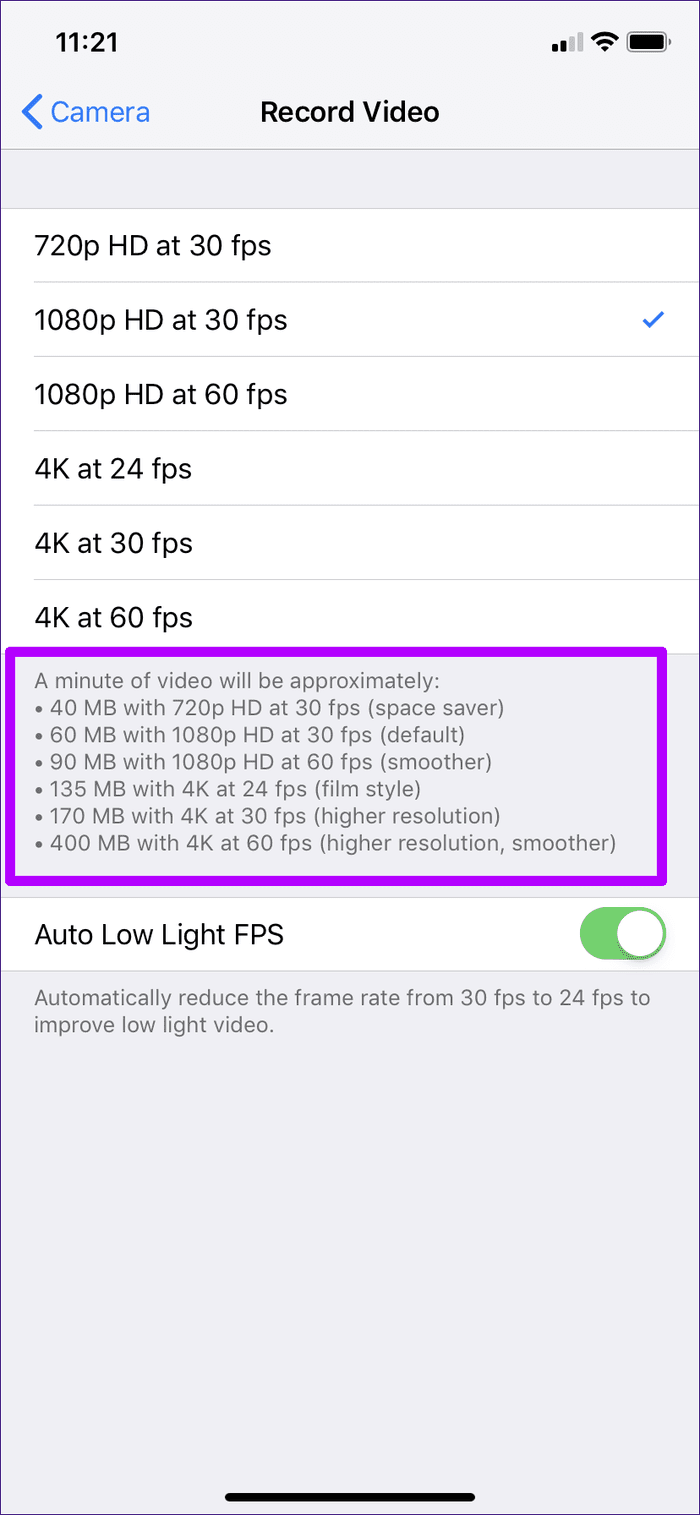
You can immediately restore access to traditional filters—including Vivid—by changing your camera format setting. This workaround works for all iPhone 16 models but comes with important trade-offs you need to understand before proceeding.
Follow these exact steps to get your filters back:
1. Open Settings on your iPhone 16
2. Scroll to and select Camera
3. Tap Formats
4. Switch from High Efficiency to Most Compatible
5. Exit settings and open your Photos app
6. Select any newly captured photo (existing HEIF photos won’t show filters)
7. Tap Edit and scroll through adjustment options to find Filters
Critical warning: This fix doubles your photo storage requirements. High Efficiency format (HEIF) uses advanced compression that stores photos in about half the space of standard JPEG files. Switching to Most Compatible means every photo takes approximately twice as much storage space.
Storage Impact Reality Check
- High Efficiency (HEIF): 1MB average photo size, no traditional filters
- Most Compatible (JPEG): 2MB average photo size, full filter support including Vivid
If you take 100 photos daily, this single setting change could consume an extra 100MB of storage daily. Consider your available space carefully—iPhone 16 models with 128GB or less storage will feel this impact quickly.
Recreate Vivid Filter Without Changing Formats

Prefer to keep High Efficiency format to save storage space? You can manually recreate the Vivid filter effect using built-in adjustment tools. This method preserves your storage efficiency while delivering similar results to the missing filter.
Step-by-step Vivid recreation:
1. Open any photo in your Photos app
2. Tap Edit in the top-right corner
3. Select Adjust from the bottom menu
4. Increase Vibrance to +40-60 (watch colors intensify without oversaturation)
5. Boost Brilliance to +30-50 (enhances mid-tone contrast)
6. Fine-tune Light or Color sliders if needed
7. Tap Done to save your edited photo
Pro tip: Once you perfect your Vivid recreation, use the “Copy Edits” function (tap three dots → Copy Edits) to apply identical settings to multiple photos. Paste these edits onto other images for consistent results—this saves significant time when editing batches of similar shots.
Master Photographic Styles for Better Results
Apple’s replacement system—Photographic Styles—offers more precise control than traditional filters but requires learning a new workflow. Understanding this system helps you decide whether to switch formats or adapt to Apple’s new approach.
How to Access and Use Photographic Styles
- Open any photo in Photos app
- Tap Edit
- Ensure “Styles” is selected below the photo (not Adjust or Filters)
- Swipe horizontally to preview different style options: Standard, Rich Contrast, Vibrant, Warm, or Cool
- Place two fingers on the photo and move them apart (to increase intensity) or together (to decrease)
- Drag finger across screen to simultaneously adjust tone and color
- Watch real-time values at the top (Tone, Color, Intensity) for precise control
- Tap Done when satisfied
Set Default Styles for Future Photos
Skip post-processing by applying styles automatically:
1. Open Camera app
2. Tap the arrow icon at top center
3. Select “Photographic Styles”
4. Choose your preferred style (Vibrant mimics Vivid filter closely)
5. All new photos will now capture with this style applied
This method preserves your High Efficiency format while delivering consistent results—no extra storage needed.
Submit Effective Feedback to Apple
Apple product teams monitor official feedback channels, not community forums. If you want traditional filters restored, submit feedback through Apple’s official channels before iOS 18.1 releases on October 28, 2024.
Follow this proven feedback process:
1. Visit feedback.apple.com
2. Select iPhone as product category
3. Choose Photos as feature area
4. Use this effective subject line: “Request Traditional Filters Return for iPhone 16”
5. In description:
– Explain how missing filters impact your daily photography
– Specify you want filters alongside Photographic Styles (not replaced)
– Mention Vivid filter by name as your most missed feature
– Note storage concerns with the format-change workaround
Critical timing: Submit before October 28th. Apple finalizes iOS updates weeks before release, so late feedback won’t influence iOS 18.1. Monthly submissions increase your impact—Apple tracks recurring requests across feedback cycles.
Smart Storage Strategy for Filter Users

If you choose the format-change workaround, implement these storage management tactics immediately to avoid running out of space:
Essential Storage Management
- Enable iCloud Photos: Settings → [Your Name] → iCloud → Photos → turn on “iCloud Photos”
- Set monthly cleanup reminders: Delete blurry shots and duplicates every Sunday
- Use built-in optimization: Settings → General → iPhone Storage → enable “Optimize iPhone Storage”
- Monitor usage weekly: Settings → General → iPhone Storage → review photo categories
Decision guide: Choose Most Compatible if Vivid filter is essential to your photography and you have 256GB+ storage. Stick with High Efficiency if you value storage space more than filters or can adapt to Photographic Styles.
Your iPhone 16 camera filters not working because Apple removed them—not because something’s broken. While Photographic Styles offer professional-grade control, they lack the simplicity of one-tap filters that made iPhone photography accessible to everyone. The format-change workaround provides immediate relief but doubles your storage needs, while manual recreation preserves space at the cost of extra editing time.
Submit official feedback before October 28th to increase chances of filter restoration in future iOS updates—Apple responds to concentrated user requests when they reach critical mass. Meanwhile, mastering Photographic Styles gives you more creative control than traditional filters ever offered, turning this frustration into an opportunity to elevate your mobile photography skills. The most successful iPhone 16 photographers aren’t fighting Apple’s changes—they’re adapting while making their voices heard through proper channels.


