

Your toddler’s first soccer goal, your dog’s mid-air frisbee catch, or your friend’s perfect skateboard flip—these fleeting moments vanish in less than a second. With the iPhone 16’s burst mode capturing ten photos per second, you’ll never miss that perfect shot again. Unlike previous models where burst mode felt hidden, the iPhone 16 offers multiple intuitive ways to activate this game-changing feature right when action happens.
While many iPhone users struggle to find burst mode or accidentally trigger video instead, the iPhone 16 introduces physical button options that make action photography more accessible than ever. Whether you’re a sports parent, pet photographer, or just want to capture life’s spontaneous moments, this guide reveals exactly how to take burst photos on iPhone 16 using all three methods—plus pro techniques for selecting the best shots without cluttering your storage.
iPhone 16 Burst Mode Activation: 3 Foolproof Methods
Camera App Gesture Method (Works Like Previous iPhones)
This screen-based technique works reliably but requires precise finger movement. Open your Camera app from either the lock screen or home screen—speed matters when action is unfolding. Press and drag the shutter button specifically to the left beneath the viewfinder, not up or down. Many users accidentally trigger video mode by swiping upward instead.
Hold your finger down to continue capturing photos at ten frames per second. Watch the counter appear where the shutter button was, showing exactly how many shots you’ve taken. Release your finger when the action ends—your burst sequence automatically saves to your photo library.
Pro tip: Practice this left-swipe motion before important events. The gesture feels unnatural at first but becomes second nature with just 5-10 practice attempts. If you accidentally swipe up instead of left, you’ll trigger video mode—simply stop recording and try again.
Physical Camera Button Method (iPhone 16 Exclusive Advantage)
The dedicated camera control button transforms burst photography on iPhone 16. Press this button once to wake or open the Camera app instantly. Double-tap quickly if you’re not in Photo mode—this cycles through Photo, Video, and Portrait modes until you see the photo interface.
Press and hold the camera control button firmly to activate burst mode immediately. Maintain steady pressure throughout the entire action sequence. Release when finished—the burst ends automatically without any additional steps.
Why this beats screen gestures: The physical button provides superior stability, significantly reducing camera shake during rapid sequences. You’ll notice sharper images, especially in lower light conditions where shutter speeds slow down. This method works even when your screen is locked—perfect for spontaneous action shots.
Volume Button Method (Customizable Shortcut)
Remap your volume buttons to become dedicated burst triggers. Navigate to Settings → Camera and toggle “Use Volume Up for Burst” to green. Now, whenever you’re in the Camera app, pressing and holding the Volume Up button instantly starts burst mode.
This configuration turns your volume buttons into specialized photography tools: Volume Down remains for standard single photos, while Volume Up triggers rapid-fire shots. Warning: Accidental presses during burst sequences will interrupt your shot flow, so be mindful of your grip position.
Time-saver: This method shines when holding your iPhone sideways for video, as your thumb naturally rests near the volume buttons. Setup takes 10 seconds but pays off during fast-paced action.
How to Find and Organize Your iPhone 16 Burst Photos
Immediate Access After Shooting
Right after capturing a burst, a preview thumbnail appears in the bottom-left corner of your screen. Tap this immediately to review your sequence while the moment is still fresh. The iPhone 16 automatically groups these photos, so you won’t see dozens of individual thumbnails cluttering your recent photos.
Smart Album Organization
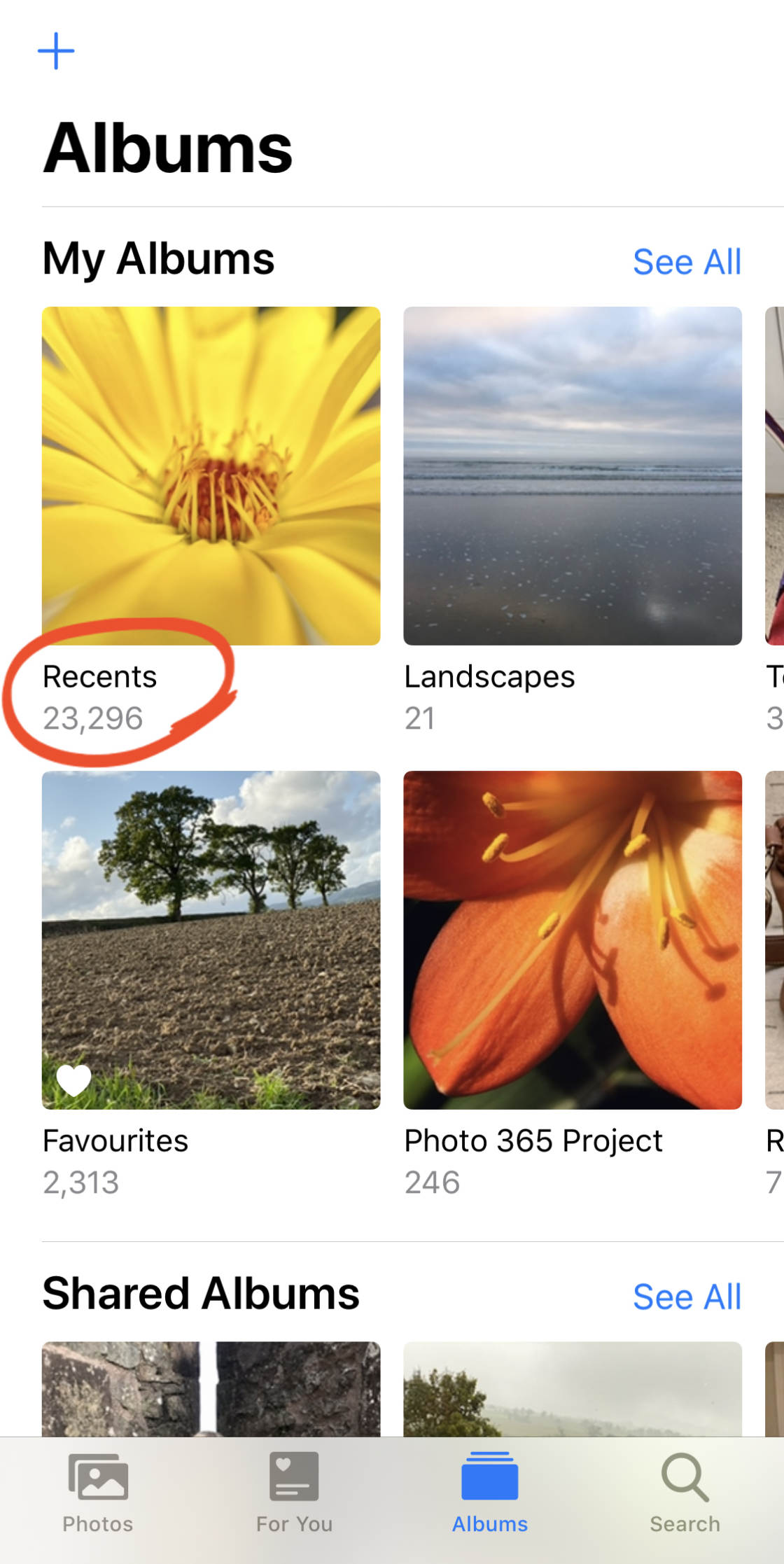
Your bursts live in two key locations: the dedicated Bursts album (found under Albums tab) and your Recent Days section where they’re clearly labeled. Unlike regular photos, bursts appear as single entries showing the best shot, with a “Burst” indicator.
AI-Assisted Selection Process
Open any burst sequence and tap “Burst” in the top-left corner. Swipe through frames or scroll the thumbnails below to review every shot. Look for gray dots beneath thumbnails—these indicate the iPhone’s AI-selected best shots based on focus, expression, and composition.
Select your favorites by tapping individual photos, then hit “Done.” You’ll face the critical decision: “Keep Everything” (saves all frames) or “Keep only X Favorite” (retains only your selections). Trust the AI initially—it accurately identifies peak action moments 80% of the time—then fine-tune your selections.
Why Your iPhone 16 Burst Photos Fail: 3 Critical Errors to Avoid

Gesture Confusion Mistakes
Most failed burst attempts happen because users swipe up instead of left, triggering video recording instead of burst mode. Others tap instead of swipe-hold, taking single photos rather than sequences. The most frustrating error? Releasing too early and cutting off the peak action moment.
Fix: Practice the left-swipe gesture 10 times before your next event. Remember: left for burst, up for video, tap for single shot.
Storage Panic Scenarios
A single 3-second burst creates 30 individual photos—each consuming standard storage space. After photographing a weekend soccer tournament, you might discover 500+ burst photos silently eating your storage.
Solution: Review bursts within 10 minutes while the action is fresh in your memory. Keep only 3-5 best shots per sequence and delete the rest immediately. Check your storage weekly during heavy shooting periods through Settings → General → iPhone Storage.
Focus Hunting During Action
Without locked focus, your iPhone 16 might hunt for focus mid-sequence, resulting in blurry shots during critical moments.
Pro technique: Double half-press the camera control button before starting your burst to lock exposure and focus. This maintains sharp subjects even when tracking fast-moving action like sports or wildlife.
Pro Action Photography Secrets: Getting Perfect iPhone 16 Burst Shots
Composition Techniques for Moving Subjects
- Create leading space: Leave room in the direction your subject is moving for more dynamic shots
- Anticipate the peak: Start your burst just before the action climax—like the moment before a jump
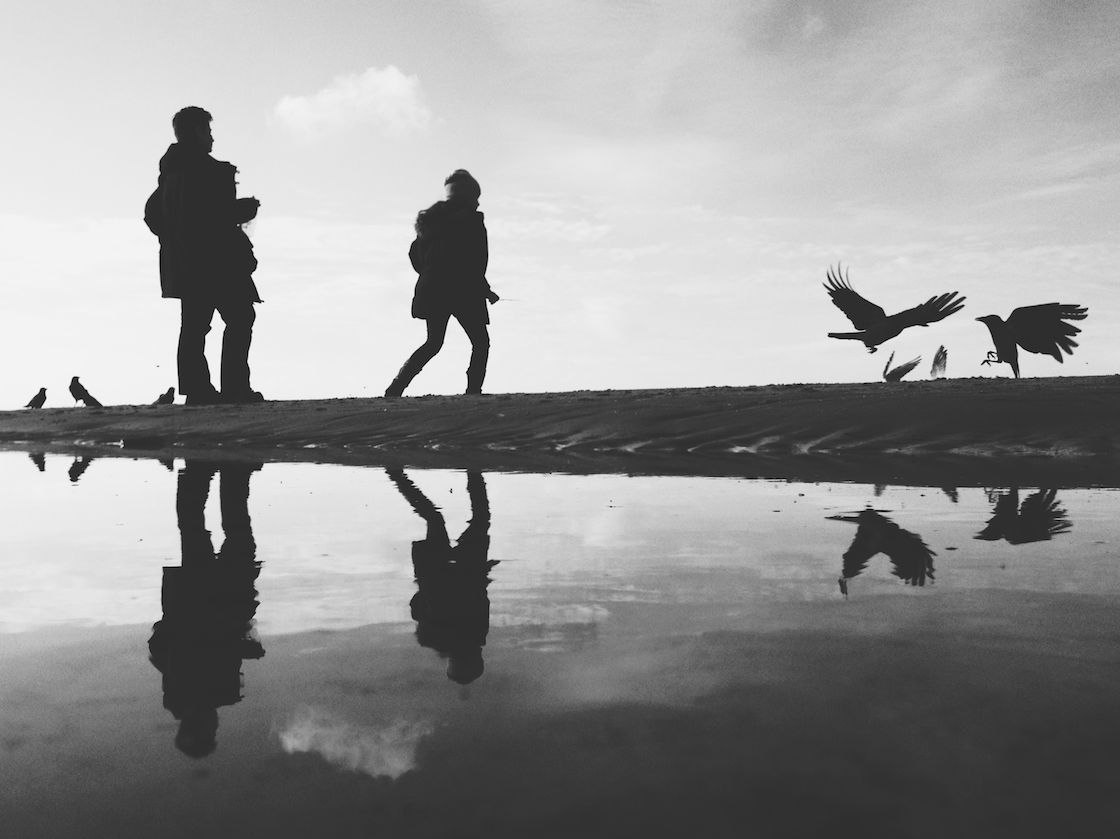
- Shoot from low angles: Kneel down for dramatic sports and pet photography that puts viewers in the action
- Use natural light: Bright conditions enable faster shutter speeds, freezing motion without blur
Essential Gear Upgrades
- Tripod-compatible cases: For stationary burst sequences like wildlife observation
- Grip accessories: Prevent accidental drops during intense action shooting
- Physical button preference: The camera control button consistently delivers sharper results than screen gestures
iPhone 16 Burst Storage Hacks: Keep Your Library Organized
Immediate Cleanup Protocol
After each burst session: review within 10 minutes, select 3-5 best shots, and delete the entire burst sequence. This two-minute process prevents storage bloat while preserving your best memories. Long-term burst accumulators often discover 20-30% of their storage consumed by unreviewed sequences.
Batch Management Workaround
While iOS lacks true bulk burst management, you can select multiple bursts in the Photos app by tapping the “Select” button, then choosing several burst thumbnails before deleting. This saves hours compared to processing each sequence individually.
Pre-Shoot Checklist: Optimizing Your iPhone 16 for Burst Mode Success
Before any action photography session, ensure:
– Battery above 50% – burst mode drains power rapidly
– At least 1GB free storage – each burst consumes 3-30MB depending on length
– Camera mode set to Photo – avoid fumbling with mode switches during action
– Exposure locked using the double half-press technique for consistent lighting
When to skip burst mode: For stationary subjects like posed portraits, in extremely low-light situations, when storage is critically low, or when conserving battery during long events. Live Photos might suffice for casual action, but for true peak moments, burst mode’s 10fps outperforms Live Photo’s limited capabilities.
The iPhone 16’s burst photography capabilities transform fleeting moments into perfect memories. Whether you master the left-swipe gesture, leverage the physical camera button, or remap your volume controls, these rapid-fire sequences ensure you’ll never miss the shot again. Practice these techniques before your next big event—within 30 minutes, you’ll capture action like a pro without carrying professional camera gear. Start implementing these methods today, and you’ll quickly wonder how you ever photographed action moments without them.


