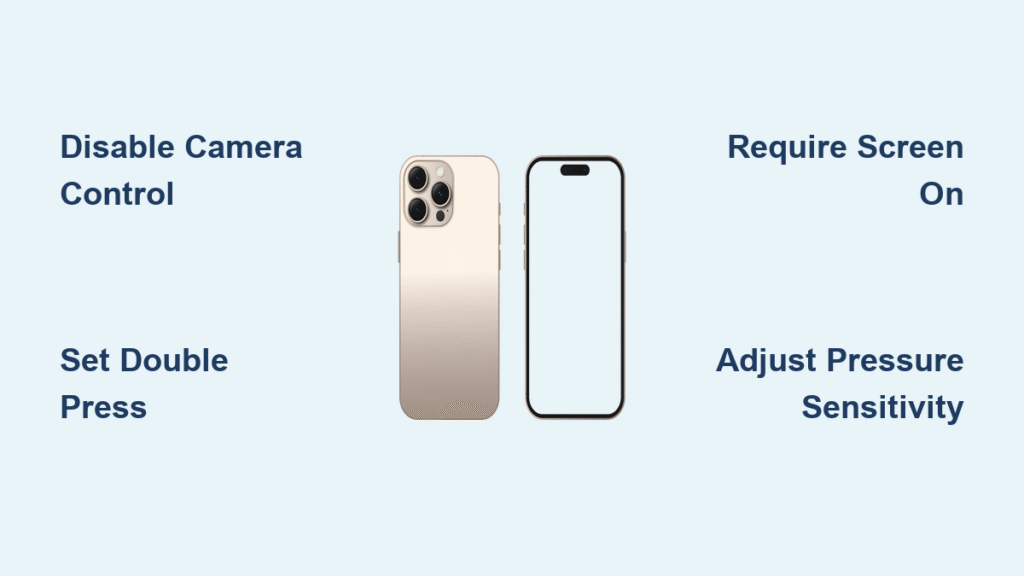
You’re fumbling to unlock your phone when a perfect sunset moment vanishes. Sound familiar? The answer to “does iPhone 16 have camera control” is a resounding yes – and it solves this exact problem. Apple’s first major external button addition since the original iPhone, the dedicated Camera Control button transforms how you capture life’s fleeting moments. This sapphire crystal-topped capacitive button sits flush on the right side of your iPhone 16, delivering professional-grade camera functionality through intuitive presses and light touches.
Unlike screen-based controls, this tactile interface provides instant access without waking your display. Whether you’re a parent chasing toddler moments or a content creator documenting travels, Camera Control eliminates the 400-900ms shutter lag that plagued previous models. The button intelligently prevents pocket activation while responding instantly when needed – finally making your iPhone feel like a purpose-built camera. Let’s explore how this game-changing feature works and why it matters for your photography.
How iPhone 16 Camera Control Actually Works

Single Press Operations That Beat Screen Taps
One firm click opens your Camera app faster than any swipe or tap – critical when capturing spontaneous moments. Click again to snap the photo. Press and hold to start video recording immediately, bypassing mode switching. This isn’t just speed; it’s behavioral intelligence. The system learns your usage patterns, becoming more responsive over time while preventing accidental triggers when stored in pockets or bags.
Unlike traditional camera buttons, Camera Control captures images on release rather than press. Combined with pre-buffered frames, this eliminates the frustrating delay that caused you to miss shots on iPhone 15 Pro. Whether photographing a child’s first steps or a street performer’s fleeting act, you’ll capture the exact moment intended. Third-party apps like Halide leverage this for 2× faster 48MP ProRAW capture, though full processing still requires several seconds.
Light Touch Gestures for Professional Adjustments
Gentle pressure reveals an adjustment overlay without leaving the viewfinder. Double-tap lightly to open a settings carousel where sliding your finger cycles through options. Light press and hold locks exposure and focus (AE/AF Lock) – essential for creative compositions. You’ll feel distinct haptic feedback: a soft pulse for lens switching, subtle click for exposure changes, and longer vibration when locking focus. This tactile system lets you adjust settings without looking away from your subject.
The adjustment overlay provides six core controls:
– Exposure: Brighten/darken scenes (±2 EV system-wide, ±6 EV in apps like Halide)
– Depth: Fine-tune background blur in Portrait mode
– Zoom: Seamlessly switch between 0.5×, 1×, 2×, and 5× lenses
– Cameras: Instant lens switching during composition
– Style: Apply Photographic Styles for creative effects
– Tone: Adjust color temperature for natural skin tones
Solving Real Photography Problems
Portrait Mode Triggering Issues
Holding your iPhone vertically for selfies often accidentally activates Camera Control. Disable light-press gestures in Settings > Camera > Camera Control to prevent this. For serious vertical shooting, temporarily switch to screen-based controls. Most users resolve this within days by adjusting pressure sensitivity – a simple fix that maintains functionality while eliminating frustration.
Overcoming the Learning Curve
Start by using Camera Control as a basic shutter button only. Practice landscape shooting first, where the button aligns naturally with traditional camera grips. Dedicate 10-15 minutes daily to build muscle memory: take 20 photos using only the button. Within 3-5 days, blind operation becomes second nature. Key tip: Always shoot landscape for complex adjustments – the interface is less intrusive and gestures work more intuitively.
Cold Weather Shooting Breakthrough
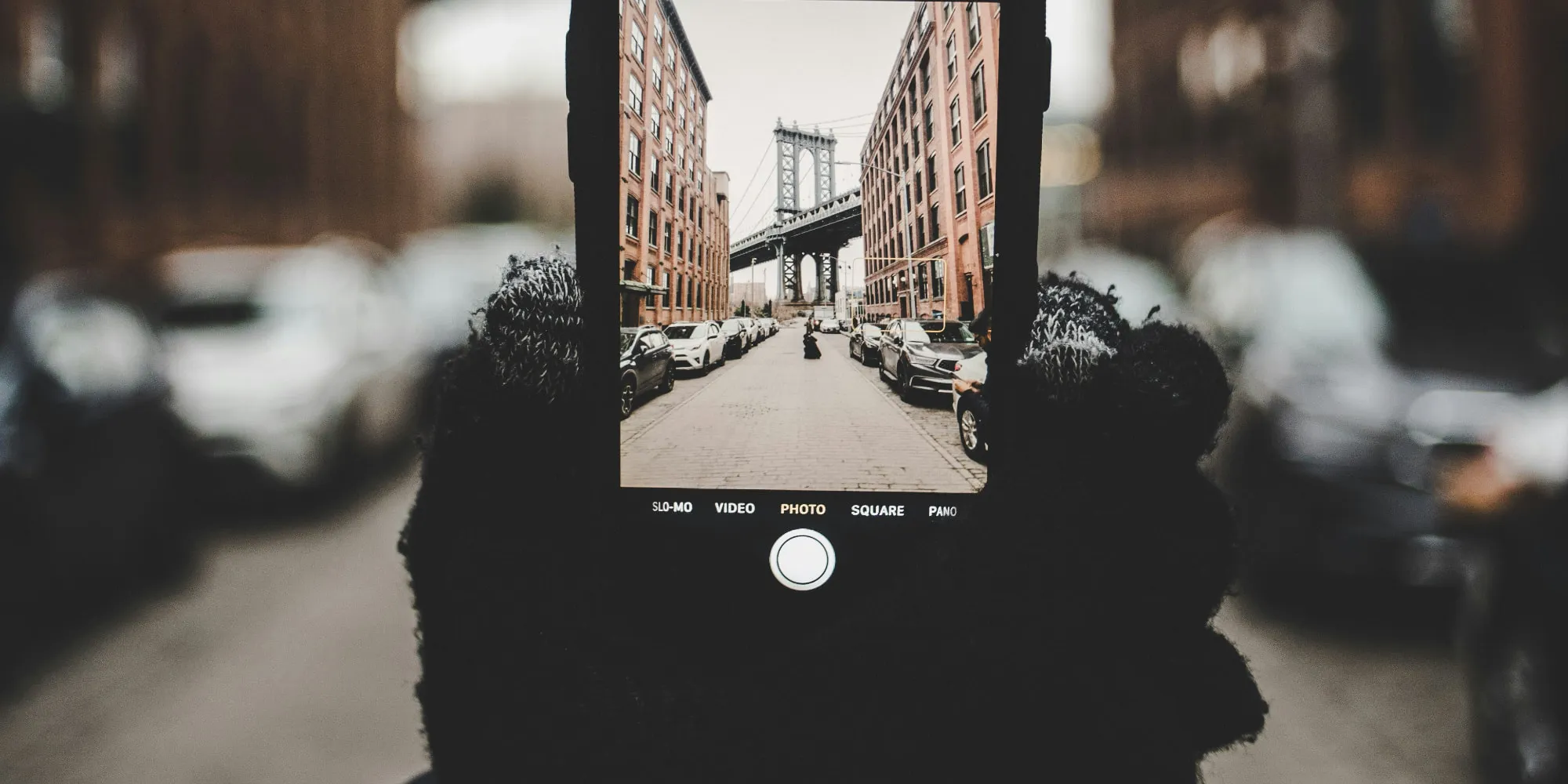
This is where Camera Control shines brightest. It works flawlessly with touchscreen-compatible gloves, eliminating the need to expose bare hands to freezing temperatures. Winter photographers report capturing shots 3× faster than with previous iPhones since you never touch the screen. The sapphire crystal surface remains responsive even with light snow accumulation – a game-changer for outdoor enthusiasts.
iPhone 16 vs iPhone 16 Pro: Camera Control Differences
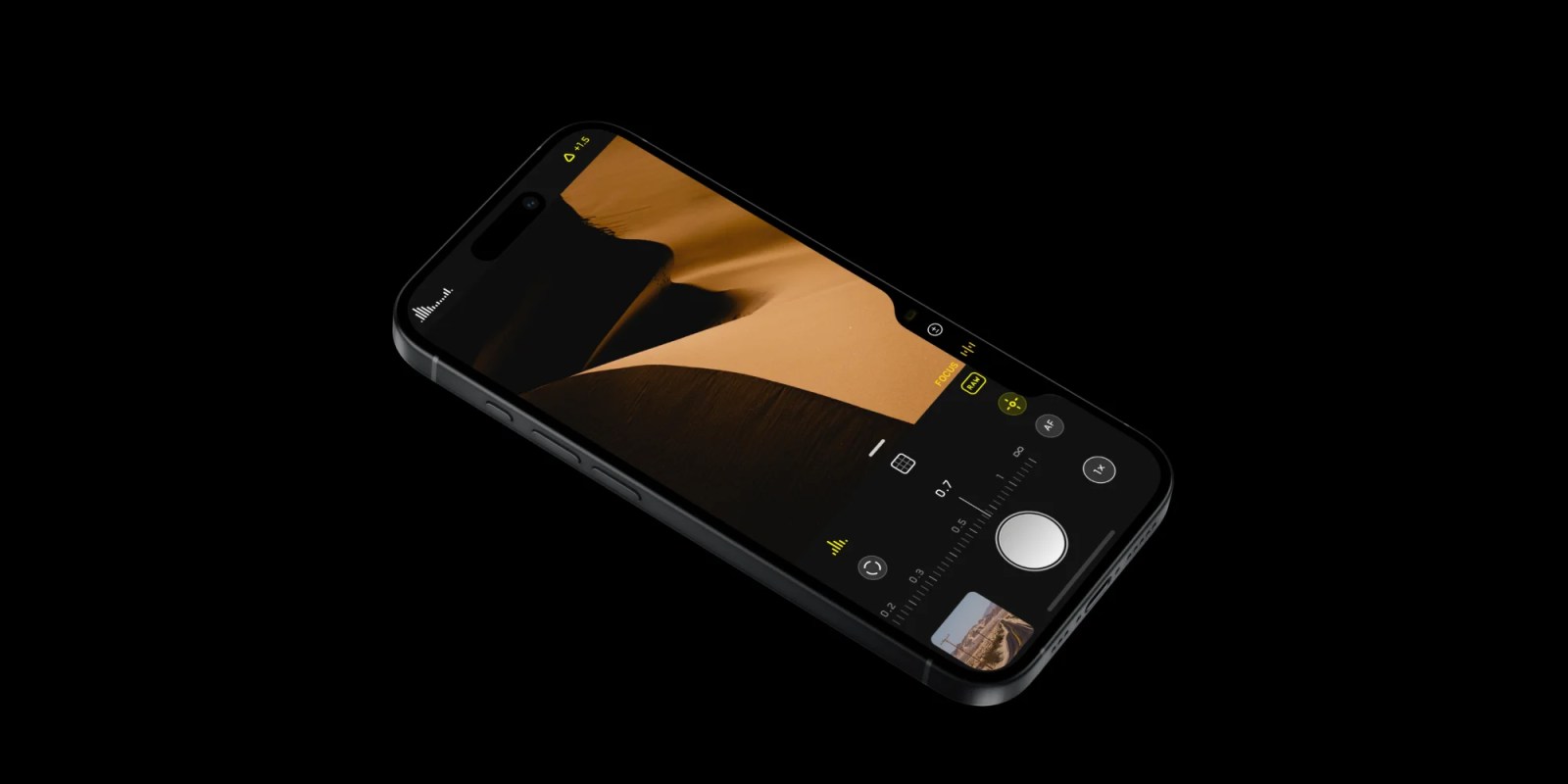
Both models include the full Camera Control system, but Pro models offer enhanced third-party API access. Apps like Halide can add custom controls beyond Apple’s defaults, including manual focus peaking and advanced exposure bracketing. Standard iPhone 16 users get Apple’s curated settings only, though still with full exposure, depth, and zoom adjustments.
Wi-Fi 7 support (46 Gbps theoretical speed) benefits both models during rapid ProRAW shooting, but Pro users maximize this with higher-resolution bursts. For most casual photographers, the standard iPhone 16 delivers identical Camera Control functionality – the Pro advantage matters primarily for professional workflows using specialized apps.
Customizing Your Camera Control Experience

Essential Settings Adjustments
Go to Settings > Camera > Camera Control to personalize:
– Choose single vs double-click to open the camera
– Adjust pressure sensitivity if triggering accidentally
– Reorder settings carousel to match your shooting style (e.g., put Zoom first)
– Toggle Visual Intelligence for real-time object recognition
– Enable “Require Screen On” (added in iOS 18.2) for security
Many users disable light-press gestures entirely for simpler operation – perfect when gifting the phone to less tech-savvy family members. Pro photographers often set Halide as their default app to access extended manual controls through the same button.
Visual Intelligence Features Worth Enabling
Point your camera at a restaurant menu to see instant translations in 17 languages including Chinese, Japanese, and Spanish. Identify products in stores to find online deals, or recognize plants and landmarks during travels. This Apple Intelligence integration works in both photo and video modes – simply activate through the Camera Control overlay. While currently in beta, users report 90% accuracy for text translation and business identification.
Quick Setup Guide for Immediate Results
First 5 Minutes Configuration
- Set default camera app (System Camera for beginners, Halide for pros)
- Lower pressure sensitivity slightly to prevent accidental triggers
- Prioritize Exposure and Zoom in the settings carousel
- Enable Visual Intelligence if traveling frequently
- Test landscape shooting before important events
Pro User Shortcuts
- Slide thumb vertically during light press for faster zoom adjustments
- Use two-finger slide on the overlay to temporarily hide interface
- Hold button for 3 seconds to activate VoiceOver for accessibility
- Practice blind operation by taking 50 test shots in low-light conditions
Camera Control transforms your iPhone 16 from a phone with a camera into a camera that happens to make calls. While the initial learning curve takes 3-5 days of consistent use, the payoff is immediate: zero shutter lag, glove-friendly operation, and professional adjustments without screen distraction. For casual users, it means never missing your child’s first goal. For creators, it delivers DSLR-like control in your pocket. The answer to “does iPhone 16 have camera control” isn’t just yes – it’s the most significant photography advancement since computational imaging. Start practicing landscape shooting today, and within a week, you’ll wonder how you ever shot without it. For ongoing optimization, revisit Settings > Camera > Camera Control monthly as Apple adds new gesture capabilities through iOS updates.