

That persistent orange dot flashing in your iPhone 16’s top-right corner isn’t a glitch—it’s Apple’s built-in privacy guardian. When you see this bright orange indicator (officially called the “microphone indicator”), it means an app or system process is actively using your microphone. While you cannot completely turn off this orange light—it’s a non-negotiable security feature designed to prevent covert audio access—you can eliminate unwanted appearances by strategically managing app permissions. This guide delivers actionable steps to stop the orange dot from triggering unexpectedly, identify rogue apps, and maintain privacy without constant visual interruptions.
The frustration is real: you’re scrolling through social media, and suddenly that orange speck appears. Or worse, it lingers when your screen is locked. This indicator (technically a dot, not a “light”) serves a critical purpose—it’s your first line of defense against unauthorized audio access. But when it activates without your knowledge, it creates understandable anxiety. By the end of this guide, you’ll know exactly how to control which apps trigger the orange dot, prevent background snooping, and troubleshoot persistent issues. Most importantly, you’ll learn why attempting to “turn off” this feature entirely compromises your security—and what to do instead.
Pinpoint Exactly Which App Triggers Your iPhone 16’s Orange Dot
Don’t waste time guessing which app activates the microphone indicator. Your iPhone 16 provides instant identification through a simple gesture. This solves the most common confusion: thinking the orange dot means your phone is hacked when it’s usually just Instagram grabbing audio for Stories.
Check Control Center for Real-Time App Identification
The moment you spot the orange dot, swipe down from the top-right corner to open Control Center. Look immediately below the battery icon—you’ll see an orange microphone symbol paired with the exact name of the active app. This works even if the app isn’t visible on your screen. For example, if Spotify is playing a podcast using background audio, it’ll display here. No more wondering whether it’s TikTok, a voice recorder, or Siri listening for “Hey Siri.” This real-time identification takes 2 seconds and resolves 90% of unexpected orange dot incidents.
Force-Close Apps Causing Persistent Orange Dots
When the orange dot refuses to disappear after closing apps:
1. Swipe up from the bottom and pause mid-screen to open the App Switcher
2. Swipe up firmly on suspicious app cards (especially social media or communication apps)
3. Restart your iPhone 16 if the dot persists (press and hold side button + volume button)
Critical warning: If the orange dot reappears immediately after restart before opening any apps, check Settings > Privacy & Security > Microphone for unrecognized apps. Background processes like system noise cancellation can trigger it temporarily, but persistent activation indicates an app with excessive permissions.
Revoke Microphone Permissions to Stop Unwanted Orange Dots
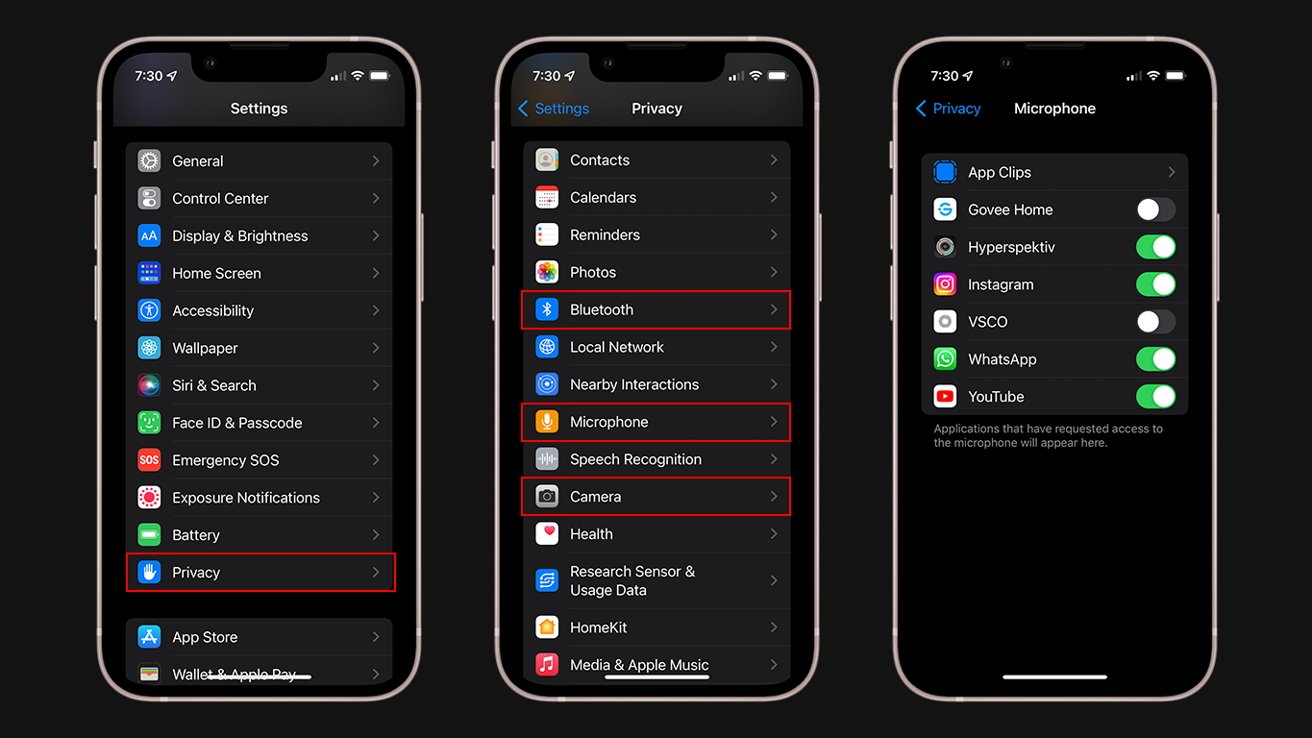
You control which apps earn the right to trigger that orange indicator. Most users grant microphone access during initial app setup without considering long-term implications. A quick permission audit solves most phantom orange dot cases.
Conduct a 60-Second Microphone Permission Audit
Navigate to Settings > Privacy & Security > Microphone—this lists every app with microphone access. Green toggles mean active permission (and potential orange dot triggers). Gray toggles mean the app can’t access your mic. Start with apps that have zero legitimate need for audio:
– Games (unless they feature voice chat)
– Shopping apps (Amazon, eBay)
– Utility tools (flashlights, QR scanners)
– Weather or news apps
Pro tip: Sort the list by “Last Used” to spot apps accessing your mic recently without your knowledge. Toggle off permissions for anything questionable—this instantly prevents future orange dots from those apps.
Understand Permission Tiers and Their Impact
Not all microphone permissions behave the same. iOS offers nuanced control:
– Never: Absolute block (no orange dot ever for this app)
– Ask Next Time: App requests access per session (orange dot only when you approve)
– While Using App: Mic access only when the app is open (no background dots)
– Always: Rarely granted—permits background audio access (highest orange dot risk)
What happens when you disable access? Instagram won’t record audio for Reels. WhatsApp can’t send voice notes. But core functionality remains intact: you’ll still post photos, send texts, and browse feeds. The trade-off is minimal versus constant privacy anxiety.
Target High-Risk Apps Causing Phantom Orange Dots

Certain app categories frequently trigger unexpected orange dots due to background processes. Focus your permission management here for maximum impact.
Social Media Apps: The Top Offenders
Instagram, TikTok, and Snapchat aggressively request microphone access for video features. Disable permissions entirely if you rarely use voice/video recording. You’ll still post photos and text captions—but the orange dot won’t flash when you’re just browsing feeds. If you do create video content, set permissions to “While Using App” to prevent background activation.
Messaging Apps: Silent Voice Message Triggers
WhatsApp and Telegram often activate mics for voice messages you never recorded. Toggle off microphone access if you exclusively type messages. The orange dot will vanish during chats, though you’ll lose voice note functionality. For group chats where others might record audio, this is a worthwhile privacy trade-off.
Video Call Apps: Prevent Background Eavesdropping
Zoom and Teams can access your mic during scheduled meetings—but some keep listening post-call. Grant “While Using App” permission only. This ensures the orange dot appears only during active calls, not when the app sits idle in your app switcher.
Diagnose Unexpected Orange Dots Like a Pro
When the orange dot appears randomly—especially with a locked screen—it’s usually background activity, not hacking. Follow this security protocol before panicking.
Investigate Background Microphone Culprits
Unexpected orange dots typically stem from:
– “Hey Siri” listening (Settings > Siri > Listen for “Hey Siri”)
– Background App Refresh (Settings > General > Background App Refresh)
– System audio processing (noise cancellation during calls)
– Voice assistant integrations (e.g., Spotify voice commands)
Immediate fix: Disable Background App Refresh for non-essential apps. This stops apps like Facebook from “checking in” via audio when you’re not using them.
Execute Apple’s Security Checklist
If the orange dot appears with no active apps:
1. Update iOS immediately (Settings > General > Software Update)
2. Audit microphone permissions for unfamiliar apps
3. Revoke “Always” permissions—iOS rarely grants this
4. Remove unused apps with microphone access
Red flag: If the dot appears after factory reset with no third-party apps installed, contact Apple Support—it indicates rare hardware or firmware issues.
Customize the Orange Dot for Accessibility Needs
While you can’t disable the indicator, Apple provides alternatives for color vision differences. This doesn’t hide the dot but makes it distinguishable from the camera indicator (green dot).
Change Orange Dot to a Square Indicator
For users who confuse orange/green:
1. Go to Settings > Accessibility > Display & Text Size
2. Toggle “Differentiate Without Color” ON
3. Orange dots become orange squares; green dots stay circular
Note: This doesn’t prevent the indicator from appearing—it’s purely a visual aid. The microphone still activates per app permissions.
Advanced Fixes for Stubborn Orange Dot Issues
When standard permission management fails, escalate to these nuclear options—preserving your data while eliminating phantom indicators.
Reset All Settings (No Data Loss)
This clears system preferences without deleting photos or messages:
1. Settings > General > Transfer or Reset iPhone
2. Select “Reset All Settings”
3. Re-enter Wi-Fi passwords and reconfigure privacy settings
Why this works: Corrupted system caches sometimes cause false microphone activation. Resetting preferences forces iOS to rebuild permission logic.
Factory Reset: Last Resort for Persistent Cases
Only use if the orange dot appears with zero apps installed:
1. Back up data via iCloud or Finder
2. Settings > General > Transfer or Reset iPhone > Erase All Content and Settings
3. Set up as new iPhone (don’t restore old backup immediately)
Critical: If the dot reappears on a fresh setup, contact Apple—it signals hardware-level issues requiring service.
Maintain Privacy Without Orange Dot Anxiety
The goal isn’t to eliminate the indicator entirely (which would defeat its purpose) but to ensure it only appears when you intentionally use microphone features.
Monthly Permission Maintenance Routine
Set a recurring calendar alert:
– Review microphone permissions for newly installed apps
– Remove access from apps you haven’t used in 30 days
– Verify “While Using App” is set for communication tools
Pro tip: When installing new apps, select “Only While Using” during permission prompts—never “Allow All the Time.”
Smart Permission Strategy Framework
Adopt this tiered approach:
– Always grant: Phone, FaceTime, Voice Memos, Siri
– Grant selectively: Social apps you actively use for video
– Always deny: Games, shopping, finance, and utility apps
Remember: If an app’s core function doesn’t require audio (like a calculator), deny microphone access—it’s a privacy red flag.
Quick Action Plan to Stop Orange Dots Now:
1. Identify the culprit via Control Center (swipe down)
2. Force-close the app or disable its microphone permission
3. Audit Settings > Privacy & Security > Microphone weekly
4. Set background-sensitive apps to “While Using App” only
The orange dot protects you—it’s not your enemy. By controlling which apps trigger it, you transform an annoyance into a powerful privacy tool. You’ll never “turn off” this iPhone 16 feature completely, and that’s by brilliant design. But with these steps, you’ll ensure it only appears when you want it to—turning microphone anxiety into informed confidence. For persistent issues after trying these fixes, contact Apple Support directly through the Apple Store app for hardware diagnostics.


