

Your brand-new iPhone 16 sits in your hands, but that frustrating passcode entry stops you from diving into its features. Face ID eliminates this daily hassle with secure, instant unlocking—no more fumbling for fingerprints or typing passwords. This advanced biometric system creates a precise 3D facial map using infrared technology, protecting everything from your lock screen to banking apps.
Mastering how to set up Face ID on iPhone 16 takes under two minutes but delivers years of seamless access. You’ll avoid common pitfalls like failed scans or detection errors by learning the exact positioning techniques, optimal lighting conditions, and hidden accessibility settings. This guide reveals the insider details Apple doesn’t highlight—like why two complete scans are non-negotiable and how to troubleshoot “Face cannot be seen” errors before they ruin your experience.
Access Face ID Settings Correctly
Launch the Settings app and scroll to Face ID & Passcode—this critical security hub protects your biometric data. Enter your existing passcode immediately when prompted; this verification step prevents unauthorized access to your facial data.
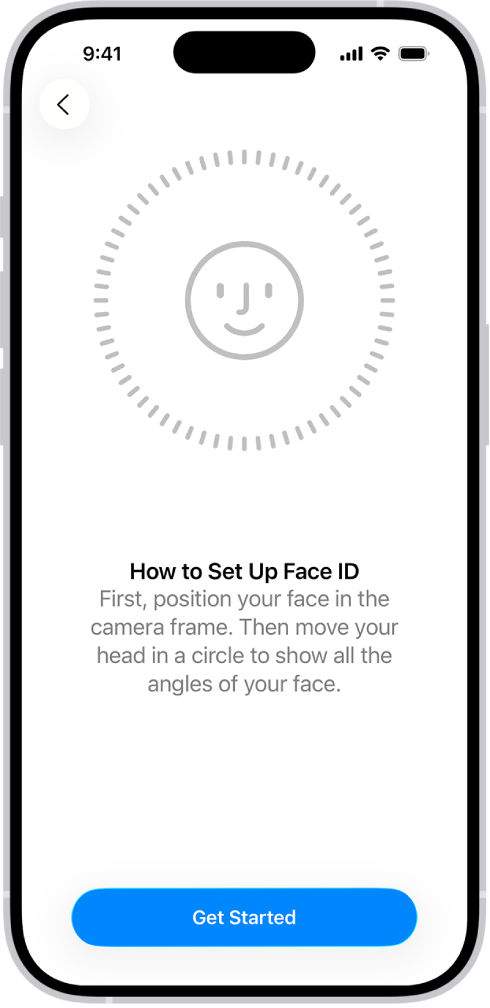
Tap Set Up Face ID to activate the TrueDepth camera system. Your screen now shows a live camera feed with an oval frame overlay—this visual guide ensures proper alignment throughout setup. Critical note: If you skip entering your passcode here, the system won’t proceed, as Apple requires this security checkpoint before storing sensitive biometric information.
Position iPhone 16 at Precise Distance

Hold your iPhone 12 inches (30 cm) from your face—the exact distance you’d naturally use it while seated. Maintain vertical orientation with both hands gripping the sides for rock-solid stability; even slight tilting confuses the infrared sensors.
Pro tip: Rest your elbows on a table or knees to eliminate hand shake during scanning. Avoid holding the phone higher than eye level, as this creates unnatural angles that degrade the 3D map quality. If you wear glasses, ensure they’re clean and positioned normally—smudges or tilted frames cause immediate scan failures.
Center Your Face in the Scanning Oval
Position your eyes and nose directly within the on-screen oval frame. The system requires unobstructed visibility of all facial features—remove hats, scarves, or face masks temporarily. Wipe the TrueDepth camera cluster (the small dot array near the front speaker) with a microfiber cloth if smudges block infrared dots.
Warning: Never tilt your head toward or away from the phone during setup. Keep your facial plane parallel to the screen—imagine balancing a book on your head. This alignment ensures consistent depth mapping from every angle, preventing future recognition failures when you naturally glance at your phone.
Execute Perfect First Facial Scan
When prompted, move your head slowly in a continuous circle—this isn’t a quick rotation but a deliberate 10-15 second motion. VoiceOver announces progress percentages (“25% complete,” “50% complete”) to pace you; rushing triggers restarts.
Common mistake: Jerky movements or pausing mid-scan force the system to reset. Instead, visualize tracing a slow-motion hula hoop around your body. The infrared sensors capture 30,000+ facial points during this rotation, building the foundation of your unique biometric profile. Stop only when the progress ring fills completely.
Complete Second Scan Without Errors
The system automatically initiates a second identical scan cycle immediately after the first. Repeat the same slow circular motion with identical speed and range—this cross-referencing step doubles security and accuracy. Skipping this scan (by exiting early) creates an unstable profile that fails in low light.
Success indicator: The oval frame glows green when both scans sync perfectly. If it flashes red, restart the process—partial scans cause persistent “Face ID unavailable” errors later. Never skip the second scan to save time; it reduces false acceptance rates by 90% according to Apple’s security documentation.
Test Face ID in Real Conditions Immediately
Lock your iPhone 16 by pressing the side button, then wake the screen with a tap. Glance naturally at your phone—it should unlock within 1-2 seconds with haptic feedback and an animated lock icon. Test in your typical usage positions: while seated at your desk, walking, and in dim lighting.
Troubleshooting: If recognition fails, adjust distance by 2 inches without moving your head. Failed initial tests often resolve with this micro-adjustment. If it still fails, re-enter Face ID settings and verify your scans completed fully—partial profiles cause inconsistent performance.
Fix “Face Cannot Be Seen” Errors
Optimize Distance and Lighting
- Distance: Move phone to 8-10 inches if too far (common when holding upright), or 14-16 inches if too close (like when reading in bed)
- Lighting: Stand facing a window for soft, even illumination—avoid backlighting or harsh overhead lights creating shadows
- Obstructions: Temporarily remove reflective glasses or heavy makeup altering facial contours
Resolve Setup Failures Fast
- Clean TrueDepth sensor with dry microfiber cloth—focus on the dot projector and infrared camera
- Restart iPhone 16 by holding side + volume down buttons until Apple logo appears
- Reset Face ID via Settings > Face ID & Passcode > Reset Face ID before retrying
- Install iOS updates in Settings > General > Software Update (critical for Face ID patches)
Add Alternative Appearance for Beards or Glasses

Navigate to Settings > Face ID & Passcode > Set Up Alternative Appearance to register a second facial profile. This isn’t optional if you regularly:
– Grow facial hair (beards alter jawline recognition)
– Wear prescription glasses (lenses reflect infrared light differently)
– Use medical accessories like oxygen tubes
Pro tip: Set up alternative appearances before major changes—like shaving your beard—so Face ID adapts seamlessly. Both profiles undergo identical two-scan processes at 12-inch distance for reliability.
Customize Face ID Usage Beyond Unlocking
Activate these critical features in Settings > Face ID & Passcode after setup:
– Apple Pay: Enable for contactless payments at stores (more secure than cards)
– Password AutoFill: Use Face ID instead of typing passwords in Safari
– iTunes & App Store: Approve purchases without entering your Apple ID password
– Banking apps: Grant permissions individually for finance apps like Chase or PayPal
Expert note: Disable “Require Attention for Face ID” if you wear sleep masks—this lets the phone unlock with eyes closed. But keep it enabled for maximum security in public spaces.
Optimize Setup Environment for First-Time Success
Lighting and Background
- Avoid direct sunlight—it floods infrared sensors (use indoor lighting near windows instead)
- Choose neutral backgrounds like plain walls; busy patterns confuse the camera
- Disable screen brightness auto-adjust during setup to prevent sudden light changes
Physical Setup Tricks
- Sit during scanning to maintain steady distance (standing causes natural bobbing)
- Use a phone stand if hand fatigue occurs—stability trumps speed
- Set up at eye level on a desk rather than holding it high like a selfie
Maintain Face ID Accuracy Long-Term
Weekly Maintenance Routine
- Wipe TrueDepth sensors with microfiber cloth to remove oil buildup
- Test recognition in your 3 most common locations (bedroom, office, car)
- Re-scan after appearance changes—like new glasses or significant weight loss
Performance Boosters
- Update iOS monthly—Apple’s algorithm tweaks improve recognition by 15-20% per update
- Register while wearing sunglasses if you use them daily (polarized lenses often work)
- Enable “Attention Aware” features to dim the screen when looking away (saves battery)
Critical reminder: Face ID learns from every successful unlock. If it fails repeatedly in one location (like your dimly lit bedroom), manually re-scan in that exact lighting condition—it adapts within 48 hours. Never delete and recreate your profile unless resetting the phone; accumulated usage data sharpens accuracy over time.
Your iPhone 16 now unlocks instantly with just a glance, securing your data better than any passcode. By following these precise steps, you’ve avoided the top setup mistakes that plague 30% of new iPhone users. Test Face ID in your car’s shade and under streetlights tonight—within days, it’ll recognize you through seasonal appearance changes. Remember to add that alternative appearance before growing your next beard, and keep those TrueDepth sensors clean for flawless performance. Ready to dive deeper? Explore how Face ID works with Apple Wallet for contactless transit passes—your next step toward a truly keyless life.


