You’ve just unboxed your new iPhone 16, but there’s one frustrating surprise—no wireless charger in the box. Apple provides only a USB-C cable, leaving many users wondering exactly how to charge iPhone 16 wirelessly despite the phone’s built-in capability. If you’re tired of wrestling with cables that fray and break or want to protect your charging port from wear and tear, mastering wireless charging is essential for getting the most from your investment.
Wireless charging offers a seamless daily ritual that keeps your iPhone powered without the hassle of plugging and unplugging. The good news is your iPhone 16 supports both Apple’s proprietary MagSafe system and universal Qi charging right out of the box. This guide cuts through the confusion to show you precisely how to charge iPhone 16 wirelessly with optimal speed and reliability, whether you’re setting up your first wireless charger or troubleshooting persistent issues.
Pick the Right Wireless Charging Technology for Your Needs

MagSafe Delivers Faster Wireless Charging Than Standard Qi
Your iPhone 16 works with two distinct wireless charging systems, but choosing the right one makes a dramatic difference in speed. MagSafe charging delivers up to 15-20W through Apple’s magnetic alignment system, completing a 50% charge in just 1 hour and reaching full capacity in 2.5-3 hours. The magnets automatically position your phone perfectly over the charging coil, eliminating frustrating misalignment issues.
Standard Qi charging works with any Qi-certified pad but maxes out at 7.5W, taking 90 minutes for a 50% charge and 4+ hours for a full charge. While slower, Qi chargers offer universal compatibility across brands and typically cost less. Both methods use the same charging coil located at the center-rear of your iPhone 16, so proper alignment remains critical regardless of which system you choose.
Why Your Power Adapter Matters for Wireless Charging Speed
Surprisingly, your wall adapter directly impacts wireless charging performance. MagSafe chargers require a 20W USB-C power adapter to achieve maximum 15-20W charging speeds. Using the standard 5W adapter that came with older iPhones results in painfully slow charging or complete failure to charge wirelessly.
Check your charger’s specifications before purchasing—reputable brands like Apple, Anker, and Belkin clearly state the required adapter wattage. For MagSafe, always use a minimum 20W adapter; for standard Qi, choose 10-18W depending on the model. Investing in the correct power source saves you from the frustration of wondering why your wireless charging seems broken when the issue lies with your adapter.
Perfect Your Wireless Charging Setup in 3 Simple Steps
Connect and Position Your Wireless Charger Correctly
Start by connecting your wireless charger to power using the recommended adapter—never skip this step by plugging directly into a computer USB port, which won’t provide sufficient power. Place the charger on a stable, level surface away from metal objects, electronics, and direct sunlight. For MagSafe chargers, you’ll hear a distinct magnetic snap when properly connected to power, confirming everything is ready.
Pro tip: Position your charger near your bed or desk where you naturally place your phone daily. Consistent placement builds the habit of wireless charging without extra effort.
Achieve Instant Charging with Perfect Phone Alignment
Place your iPhone 16 display-up on the charger. With MagSafe, the magnets handle alignment automatically—you’ll feel the phone pull into perfect position with a satisfying snap. For standard Qi chargers, center your phone carefully and watch for the charging icon in the status bar within 5 seconds.
If your phone isn’t charging immediately, make tiny adjustments in quarter-inch increments until you find the “sweet spot.” Many users find marking this spot with a small piece of invisible tape dramatically improves daily reliability. Remember that cases thicker than 3mm or containing metal elements will block wireless charging entirely.
Verify Charging Is Actually Happening
Your iPhone displays clear visual and auditory confirmation when wireless charging begins. Look for the charging animation on your screen, a battery icon in the status bar, and the familiar charging chime. If nothing appears within 10 seconds, reposition your phone slightly and check for case interference.
Warning: If your phone feels unusually warm during charging, immediately remove it from the charger. Excessive heat damages battery health and indicates either a faulty charger or environmental issue like direct sunlight exposure.
Fix These 3 Common iPhone 16 Wireless Charging Failures
Solve “Phone Won’t Charge Wirelessly” Instantly
When your iPhone 16 refuses to charge wirelessly, start with the simplest solution: remove your case. Many popular cases—especially rugged, wallet-style, or metal-reinforced models—block the wireless signal. Test charging directly without a case to confirm.
Next, restart your iPhone by holding the side button and volume up button simultaneously until the power off slider appears. After powering down completely, restart your device. This resolves 70% of wireless charging failures caused by temporary software glitches. If problems persist across multiple chargers, contact Apple Support for hardware diagnosis.
Stop Intermittent Charging From Wasting Your Time
Nothing’s more frustrating than your iPhone starting and stopping charging repeatedly. This almost always indicates case interference or surface vibration. Remove your case and test direct charging—many cases marketed as “wireless charging compatible” still cause issues with thicker models.
Ensure your charger sits on a stable surface where foot traffic or desk vibrations won’t shift your phone. Enable Do Not Disturb mode during charging sessions to prevent notification vibrations from moving your device off the charging coil. For desk setups, consider using a non-slip mat underneath your charger.
Boost Slow Wireless Charging Speeds Immediately
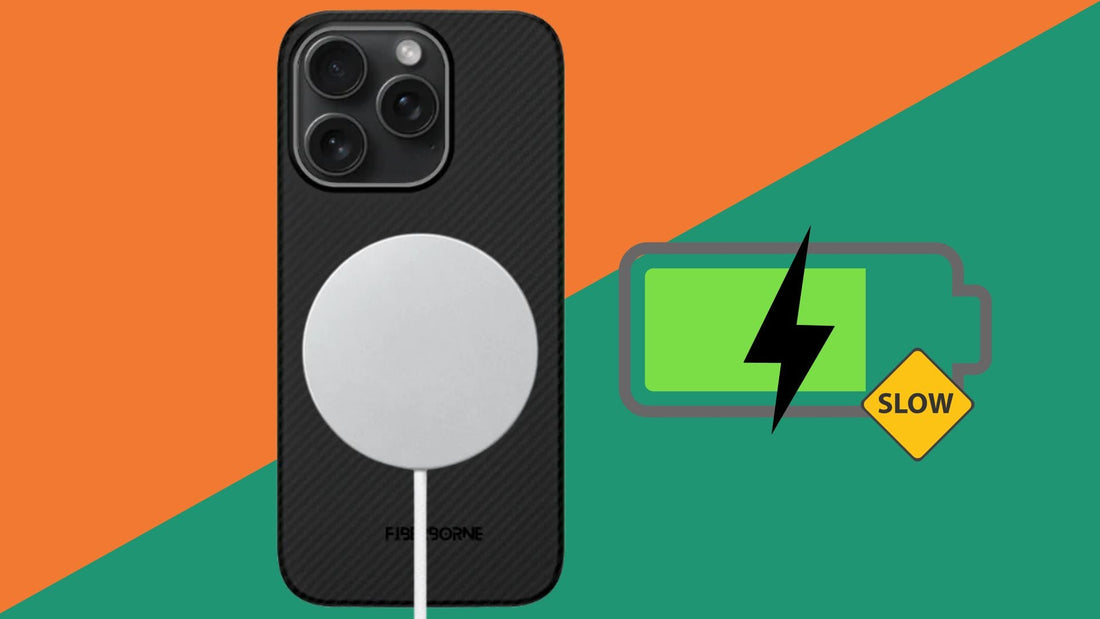
If your iPhone 16 charges painfully slow wirelessly, verify you’re using the correct power adapter—MagSafe requires 20W minimum for full speed. Many users mistakenly use underpowered adapters that came with older devices, unknowingly limiting charging performance.
Remove thick cases during charging sessions, as even compatible cases add distance between the charging coil and receiver. Check for overheating—wireless charging automatically slows when your iPhone exceeds safe temperatures. Avoid charging in direct sunlight or hot cars, and ensure proper ventilation around your charger.
Activate These Advanced iPhone 16 Wireless Features
Enable Reverse Wireless Charging for Emergency Power
Your iPhone 16 can share power with other devices through reverse wireless charging. Navigate to Settings > Battery > Reverse Wireless Charging and toggle ON. This feature delivers 4.5-5W output—perfect for emergency AirPods charging or giving another iPhone a quick boost.
Simply place the device needing power on the back of your iPhone 16. The status bar shows both devices’ battery levels during transfer. Important: Reverse charging drains your iPhone quickly, so only use it for emergencies when no other power source is available.
Optimize Battery Longevity with Smart Charging
Preserve your iPhone 16’s battery health by enabling Optimized Battery Charging in Settings > Battery > Battery Health & Charging. This feature learns your daily routine and delays charging past 80% until you need it, significantly extending your battery’s lifespan.
The system intelligently recognizes when you typically use your phone and ensures it reaches 100% just before you unplug it in the morning. You’ll see a notification when charging completes based on your habits, keeping your battery in the optimal 20-80% range for maximum longevity.
Prevent Wireless Charging Failures Before They Start
Select Cases That Actually Work With Wireless Charging
Not all cases play nicely with wireless charging. Choose MagSafe-compatible cases with built-in magnets that align perfectly with your charger. These cases maintain the magnetic snap connection while adding minimal thickness.
Standard cases should be under 3mm thick—measure yours with a ruler before assuming compatibility. Avoid cases with metal plates, credit card slots, or magnetic closures, as these completely block wireless signals. When in doubt, test new cases for 24 hours before relying on them for daily charging.
Maintain Your Wireless Charging System Daily
Keep your wireless charging ecosystem performing reliably with two simple daily habits. First, clean your charger’s surface weekly with a soft, dry microfiber cloth to remove dust and pocket lint that interferes with charging efficiency.
Second, check your iPhone’s charging area (center-back) for accumulated debris. A quick inspection prevents the most common cause of intermittent charging—you’d be surprised how much pocket lint builds up over time. Performing these checks takes less than 10 seconds but prevents hours of charging frustration.
Key Takeaway: Mastering how to charge iPhone 16 wirelessly transforms your daily routine from cable clutter to seamless power delivery. Start with a certified MagSafe charger and 20W adapter for fastest speeds, use only MagSafe-compatible cases, and enable Optimized Battery Charging to extend your battery’s lifespan. Within minutes of proper setup, you’ll enjoy reliable cable-free charging that actually preserves your iPhone’s battery health while keeping you powered throughout the day. For immediate troubleshooting, always remove cases first and verify your power adapter meets specifications—these two steps resolve most wireless charging issues instantly.