
Your phone number broadcasts with every outgoing call—unless you take command of your iPhone 16’s caller ID settings. Whether you’re a small business owner protecting client privacy, a job seeker hiding your personal number, or simply someone who values discretion, mastering caller ID management is non-negotiable. This guide delivers exactly how to change caller ID on iPhone 16 through permanent toggles and one-call tricks. You’ll learn why Apple relocated these settings, avoid critical mistakes that expose your number, and discover which methods actually work with modern carriers. By the end, you’ll have complete control over who sees your digits—no tech expertise required.
Locate Caller ID Controls on iPhone 16
Apple completely restructured settings navigation in iOS 17, moving caller ID controls away from the traditional Phone menu. If you’re searching Settings > Phone like previous models, you’ll waste precious time. The iPhone 16 now centralizes all app-specific features under Settings > Apps > Phone—a critical change from iPhone 15 and earlier. This redesign groups related functions but catches even seasoned users off guard.
When you enter the Apps section, scroll past social media apps to find “Phone” in the system apps list. Tapping it reveals carrier settings, call forwarding, and crucially—your caller ID toggle. This four-tap path (Settings → Apps → Phone → Show My Caller ID) replaces the old two-step process. Ignore third-party tutorials claiming the setting remains under “Phone” alone; those reflect outdated iOS versions. The new location prevents accidental toggles but requires precise navigation.
Toggle Caller ID On or Off Permanently
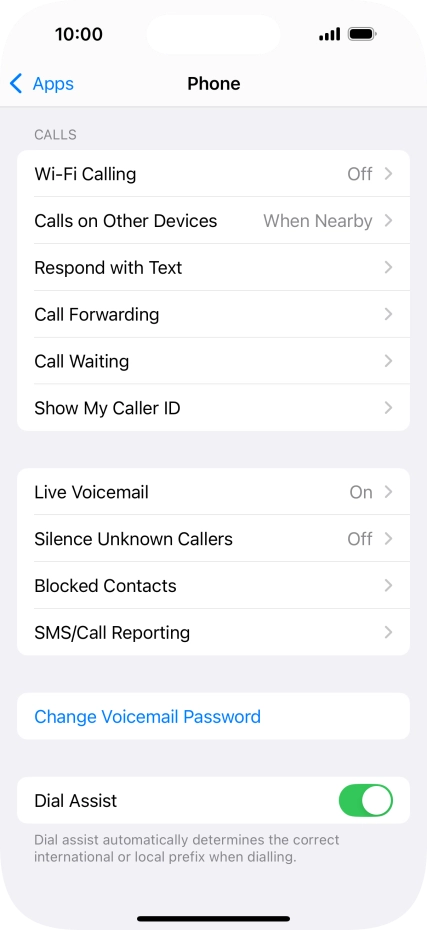
Step-by-Step Activation Guide
Step 1: Tap the Settings app (gear icon) on your home screen
Step 2: Scroll down and select Apps—it appears below “Privacy & Security”
Step 3: Locate Phone in the Apps list (under “System Apps”) and tap it
Step 4: Choose Show My Caller ID from the Phone settings menu
Step 5: Toggle the switch right for ON (visible number) or left for OFF (hidden number)
- Green/ON: Recipients see your full number and contact name if saved
- Gray/OFF: Calls display as “Private,” “Blocked,” or “Unknown” depending on carrier
Pro Tip: Changes apply instantly—no reboot needed. Verify by calling your voicemail (press and hold 1) immediately after toggling. If hidden, you’ll hear “Caller ID blocked” before the greeting.
Visual Confirmation Checklist
After adjusting the toggle, inspect three visual cues:
1. The switch position (right=ON, left=OFF)
2. The text label (“On” or “Off” appears below the toggle)
3. The status bar (if enabled, “Caller ID” appears when dialing)
This triple-verification prevents embarrassing slips—like accidentally leaving your number visible during sensitive calls. If the toggle appears grayed out (non-interactive), your carrier restricts this feature; contact them directly for resolution.
Control Caller ID for Single Outgoing Calls
Hide Your Number for One Call Instantly
When your global setting shows your number but you need privacy for a specific call:
– Dial *67 immediately before the 10-digit number
– Example: *672125550199
– Recipient sees “Private” or “Blocked” instead of your number
This universal code overrides your permanent setting for that single call only. Your regular caller ID status automatically reactivates for the next call—no resetting required. Ideal for Craigslist transactions, medical offices, or sensitive business inquiries where discretion matters temporarily.
Carrier-Specific Blocking Alternatives
Some carriers like T-Mobile or international services require #31# instead of 67:
– Dial #31#* before the number (e.g., #31#2125550199)
– Both prefixes achieve identical results—test which works with your carrier
If 67 fails, immediately try #31# before hanging up. This saves time versus reconfiguring global settings. Note: These codes only work for voice calls*—they won’t hide your number in FaceTime or messaging apps.
Reveal Your Number When Globally Hidden
If your permanent setting hides your caller ID but you need to share your number for one call:
– Dial *82 before the number (e.g., *822125550199)
– Your number appears normally despite global “OFF” status
This emergency override proves invaluable when calling delivery services, employers, or contacts who reject blocked numbers. Like blocking prefixes, *82 resets after one call—your hidden setting remains intact.
Critical Caller ID Limitations You Must Know

Voice Calls Only—Texts Always Display Your Number
Your iPhone 16 caller ID setting exclusively affects voice calls. SMS, iMessages, and RCS texts will always reveal your number regardless of settings. Apple provides no native way to hide your number in Messages—this is a carrier-level restriction, not an iPhone limitation. Never assume texting offers privacy; use third-party apps like Signal for anonymous messaging.
No Contact-Specific Rules or Exceptions
Unlike Android, the iPhone 16 offers binary control: your number is either visible to everyone or hidden from everyone. You cannot:
– Show your number only to saved contacts
– Hide it from specific numbers (like your ex)
– Automatically unblock for emergency services
This “all-or-nothing” approach frustrates many users but aligns with carrier regulations. For granular control, consider business VoIP services like Google Voice.
Third-Party Apps Ignore iPhone Caller ID Settings
WhatsApp, Zoom, Signal, and FaceTime operate on separate caller ID systems. Your “Show My Caller ID” toggle only affects the native Phone app. To hide your number in these services:
– In WhatsApp: Settings > Account > Privacy > Last Seen
– In FaceTime: Settings > FaceTime > Caller ID
– In Zoom: Settings > Phone > Caller ID
Always verify privacy controls within each app—never assume system-wide settings apply.
Test Caller ID Changes Immediately
Voicemail Verification Method
- Open Phone app and press/hold 1 (auto-dials voicemail)
- When prompted, press * to enter your PIN
- Listen for the caller ID announcement:
– “Private number” = Hidden successfully
– Your full number = Setting not applied - Hang up and recheck Settings if hidden calls show your number
This self-test takes 15 seconds and confirms carrier compliance—critical since some carriers override iPhone settings.
Real-World Friend Test Protocol
Ask a trusted contact to:
1. Save your number as “TEST CALL” in their contacts
2. Note exactly what displays when you call:
– “TEST CALL” = Visible with contact name
– Your full number = Visible but not saved
– “Private” = Hidden successfully
3. Repeat with global ON/OFF states and prefix codes
This exposes carrier-specific quirks (like Verizon showing “Restricted” instead of “Private”) that affect real-world usability.
Avoid These 4 Caller ID Mistakes
Mistake 1: Assuming texts are hidden when caller ID is off
Consequence: Accidentally revealing your number in sensitive SMS conversations
Fix: Treat all texts as permanently visible—never share confidential info via Messages
Mistake 2: Forgetting per-call prefixes require exact dialing
Consequence: Partial codes like “67” instead of “67″ dial unintended numbers
Fix*: Always include the asterisk/pound symbol—practice with your voicemail first
Mistake 3: Ignoring carrier-specific code variations
Consequence: Wasted time troubleshooting working settings
Fix: Save both *67 and #31# in Notes as “Caller ID Prefixes”
Mistake 4: Overlooking iOS update resets
Consequence: Hidden number suddenly visible after updating
Fix: Recheck Settings > Apps > Phone after every iOS upgrade
Maintain Flawless Caller ID Privacy
Monthly Security Audit Routine
- Set a recurring calendar alert: “Caller ID Check”
- Navigate to Settings > Apps > Phone > Show My Caller ID
- Confirm toggle matches your preference (ON for business, OFF for personal)
- Make a test call to verify functionality
This 30-second habit prevents accidental exposure during critical calls. Document your preferred setting in Notes with carrier-specific prefixes—especially helpful when assisting family members.
iOS Update Survival Strategy
Major iOS updates (like iOS 18) occasionally reset privacy settings. After updating:
– Immediately recheck caller ID status
– Verify third-party apps didn’t override permissions
– Test both global and per-call methods
– Report bugs to Apple via Settings > Feedback
Apple typically fixes setting resets within patch updates, but proactive verification keeps you protected.
Fix These Caller ID Failures Immediately
“Show My Caller ID” Grayed Out?
This indicates carrier restriction—not an iPhone defect. To resolve:
1. Contact carrier support and request “caller ID blocking permission”
2. Verify regional laws (some countries ban number hiding)
3. Check for carrier settings updates: Settings > General > About
Carriers like AT&T often disable this for prepaid plans; upgrading your plan may be required.
Prefix Codes Not Working?
When *67 or #31# fail:
– Try the alternative prefix immediately
– Confirm you’re dialing a 10-digit number (not 11+ with country code)
– Test internationally: Prefixes differ outside North America (e.g., 141 in UK)
If both codes fail, your carrier blocks caller ID hiding—switch providers if privacy is essential.
Number Visible Despite Hidden Setting?
Check these hidden culprits:
– FaceTime Audio calls: Shows Apple ID instead of phone number
– Carrier call-return services: Dial 69 to reveal blocked numbers
– Enterprise systems*: Banks/hospitals often bypass blocking for security
When in doubt, ask recipients to screenshot what they see—this diagnoses carrier-specific issues faster than guessing.
Your iPhone 16 puts caller ID privacy in your hands—but only if you navigate Apple’s redesigned settings correctly. Remember: Global toggles control all voice calls instantly, while 67/82 prefixes offer surgical precision for single calls. Crucially, your text messages and third-party apps operate under separate rules, so never assume system-wide privacy. Test changes immediately using voicemail verification, and schedule monthly checks to prevent accidental exposure after iOS updates. For true granular control, pair these native tools with carrier-specific services—but for most users, mastering these iPhone 16 settings delivers complete privacy on demand. The next time you need to make an anonymous call, you’ll know exactly which prefix to dial or which toggle to flip—no more fumbling through menus while the phone rings.


