
Your iPhone 16 suddenly rings at full volume during a critical meeting, or stays silent when your boss calls. This frustrating situation happens because Apple redesigned how volume controls work on the latest model, leaving many users confused about how to adjust ring volume on iPhone 16 properly. Unlike previous iPhones, the physical buttons behave differently depending on what you’re doing with your phone, and the settings menu contains hidden options that control this essential function.
Knowing exactly how to adjust ring volume on iPhone 16 can prevent embarrassing moments and ensure you never miss an important call again. Whether you’re in a quiet office, at a loud concert, or just trying to set the perfect level for your daily routine, mastering these volume controls is crucial. The good news is there are multiple reliable methods to control your ring volume that work in different situations.
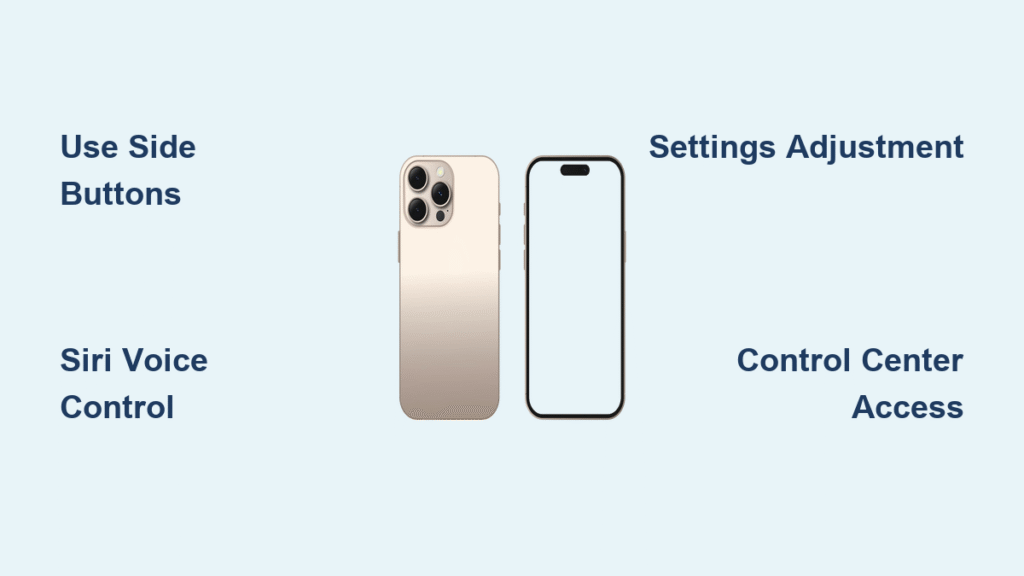
In this guide, you’ll discover seven practical ways to adjust ring volume on iPhone 16, from quick physical button adjustments to voice commands and advanced settings. You’ll learn which method works best for different scenarios, how to troubleshoot common issues, and even how to set custom volumes for specific contacts. By the end, you’ll have complete control over your iPhone’s ring volume.
Fix Ring Volume Instantly Using Side Buttons
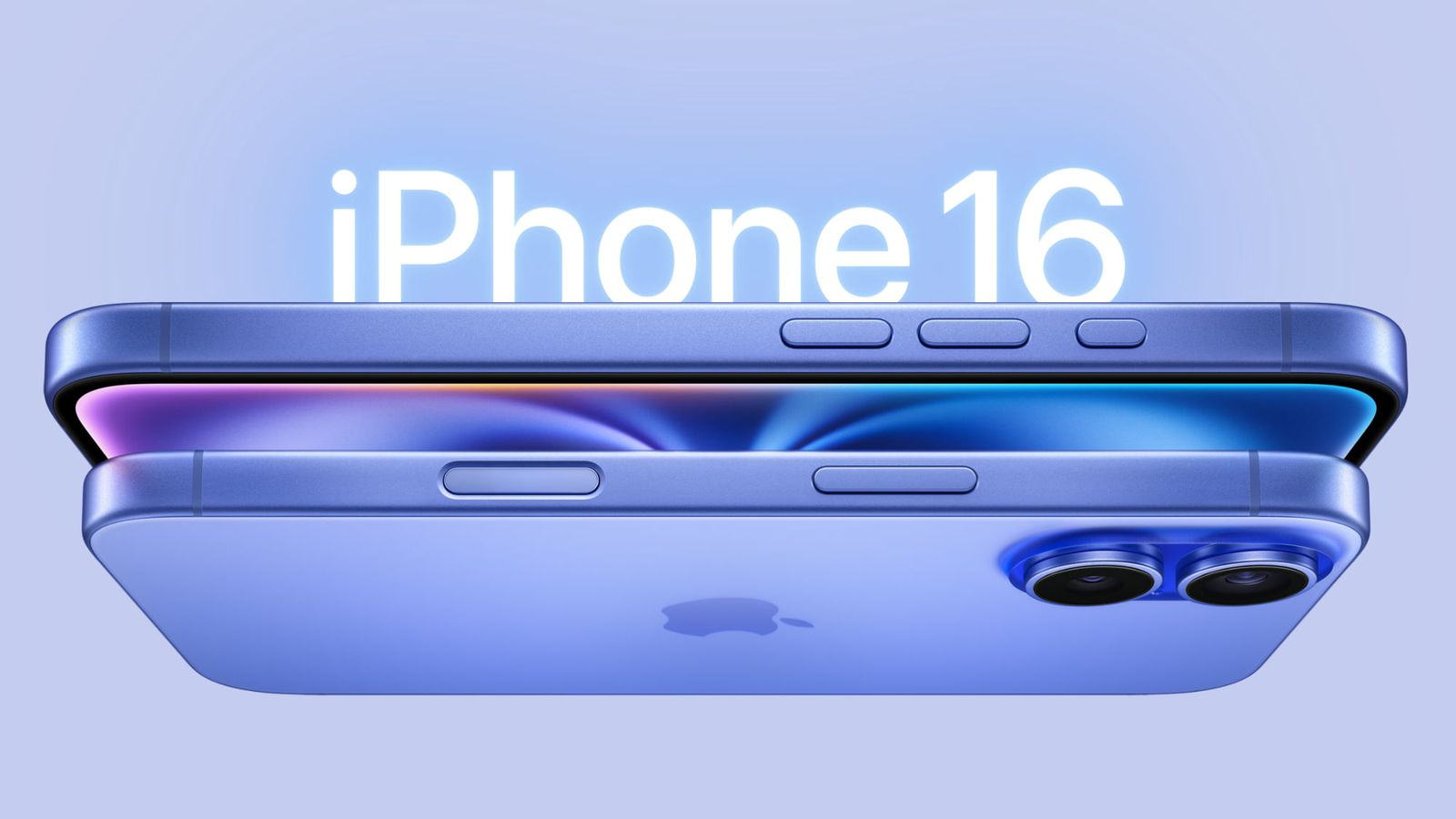
Press the volume buttons on your iPhone 16’s side when your screen is off or on the home screen to adjust ring volume immediately. The top button increases volume while the bottom button decreases it, with a bell icon appearing on-screen to confirm you’re adjusting ring volume rather than media. This physical control method takes just 2 seconds and works even when your phone is locked.
Critical visual cue: Look for the bell icon instead of the speaker icon—this tells you you’re adjusting ring volume versus media volume. If you see a speaker icon, your phone thinks you’re playing media, so close any audio apps first.
Stop Accidental Volume Changes
Prevent your ring volume from changing unexpectedly during daily use:
- Open Settings > Sounds & Haptics
- Toggle Change with Buttons to OFF position
- Your ring volume locks at current level
- Physical buttons now control media volume only
This setting is especially valuable if you frequently carry your phone in a pocket or bag where buttons might get pressed accidentally. When disabled, you’ll need to use Control Center or Settings for ring volume adjustments, but you’ll never have to worry about your phone suddenly ringing too loudly.
Control Ring Volume Hands-Free With Siri
Adjust your iPhone 16’s ring volume without touching your device using simple voice commands. Say “Hey Siri, set ring volume to 75 percent” or “Hey Siri, lower ring volume” to make instant changes while driving, cooking, or when your hands are occupied. Siri processes these requests in under 3 seconds and confirms the new volume level verbally.
Pro tip: For precise control during important events, use percentage-based commands like “Hey Siri, set ring volume to 30 percent” rather than vague terms like “a little lower.”
Voice Command Troubleshooting
When Siri doesn’t respond correctly to your volume requests:
- Ensure “Hey Siri” is enabled in Settings > Siri & Search
- Speak clearly with your iPhone 16 within 2 feet of your mouth
- Specify “ring volume” instead of just “volume” to avoid confusion with media
- Try restarting Siri by toggling it off and on in Settings
This method works even when your screen is locked, making it perfect for quick adjustments while your phone sits in your pocket or bag during meetings.
Set Permanent Ring Volume in Settings

Navigate to Settings > Sounds & Haptics for complete control over your iPhone 16’s ring volume behavior. This is where you’ll find the master slider that determines your default ring volume level for all incoming calls. Drag the Ringer and Alerts slider to your preferred position—this change applies immediately without needing to restart your device.
Time-saving shortcut: With your Settings app open, swipe down from the top of the screen to quickly access Control Center and adjust volume while keeping Settings visible for reference.
Protect Your Hearing with Volume Limits
Prevent sudden loud ringtones from damaging your hearing:
- Go to Settings > Sounds & Haptics > Headphone Safety
- Enable Reduce Loud Audio
- Drag the slider to set your maximum safe volume (80-85 dB recommended)
Family safety tip: If you’ve set up Screen Time for children, lock these settings by going to Screen Time > Content & Privacy Restrictions > Reduce Loud Audio and selecting “Don’t Allow.” This prevents kids from accidentally setting dangerously high volumes.
Access Ring Volume From Any Screen Using Control Center
Swipe down from the top-right corner of your iPhone 16’s display to open Control Center from any app or the lock screen. The volume slider appears prominently at the top—drag it up or down to adjust ring volume instantly. This method takes less than 5 seconds and works even when you’re mid-call to adjust the earpiece volume.
Visual confirmation: The bell icon next to the volume slider confirms you’re adjusting ring volume rather than media volume. If you see a speaker icon instead, swipe left on the slider to switch to ring volume control.
Customize Ring Volume Per Contact
Set different ring volumes for specific people so important calls always get your attention:
- Open Contacts and select a person
- Tap Edit > Ringtone
- Choose their specific ringtone
- Adjust the volume slider below the preview
- Tap Done to save your changes
Pro workflow: For critical contacts like family members or your boss, set their volume to maximum while keeping general ring volume lower. This ensures you’ll hear their calls even when your phone is in your bag or across the room.
Troubleshoot Ring Volume Problems in Minutes

When Physical Buttons Don’t Change Ring Volume
If your iPhone 16’s side buttons aren’t affecting ring volume:
- Verify Change with Buttons is enabled in Sounds & Haptics
- Clean around the buttons with a soft brush to remove debris
- Restart your iPhone by holding side button and volume button
- Check for iOS updates that might fix volume bugs
Quick diagnostic: Play a song, then pause it—now try the volume buttons. If they work for media but not ring volume, the “Change with Buttons” setting is likely disabled.
Fix Unexpected Volume Resets After Updates
Your ring volume sometimes resets after iOS updates due to software conflicts:
- Re-enable Change with Buttons in Sounds & Haptics
- Check Screen Time restrictions that might override settings
- Reset all settings: Settings > General > Transfer or Reset iPhone > Reset All Settings
Important: This reset won’t delete your data, but will return network settings, keyboard dictionary, and privacy settings to defaults.
Set Emergency Bypass for Critical Contacts
Ensure important calls always reach you, even when your iPhone 16 is in silent mode:
- Open Contacts and select a person
- Tap Edit > Ringtone
- Toggle on Emergency Bypass
- Set their custom ring volume level
- Save changes
This feature is essential for family members, doctors, or emergency contacts—when enabled, their calls will ring at full volume regardless of your silent switch position or Do Not Disturb settings.
Master Your iPhone 16 Ring Volume Today
You now have complete control over how to adjust ring volume on iPhone 16 using multiple reliable methods. The physical buttons provide instant adjustments when “Change with Buttons” is enabled, while Siri offers hands-free convenience. For permanent settings, the Sounds & Haptics menu gives you granular control, and Control Center provides quick access from any screen.
Remember that your iPhone 16 treats ring volume separately from media volume, which explains why buttons sometimes seem unresponsive—they’re controlling the wrong audio channel. The key settings to monitor are Change with Buttons in Sounds & Haptics and your Headphone Safety limits for hearing protection.
Final maintenance tip: After each iOS update, verify your ring volume settings haven’t reset by calling your iPhone 16 from another device. Spend just 30 seconds checking that your preferred volume level remains intact, especially if you rely on custom contact volumes for important people in your life. With these methods mastered, you’ll never again miss a critical call or embarrass yourself with an unexpectedly loud ringtone.


