

Your AirPods Pro won’t connect to your new iPhone 16, and you’re missing calls, music, and podcasts. This frustrating issue affects many users during the initial setup or when switching to a new device. The good news? Most connection problems resolve quickly with the right troubleshooting steps.
This guide walks you through proven solutions to get your AirPods Pro working seamlessly with your iPhone 16, from basic checks to complete resets. You’ll discover why your AirPods Pro not connecting to iPhone 16 happens and exactly how to fix it in under 15 minutes.
Confirm Your iPhone 16 Meets AirPods Pro Requirements
Update iOS Before Troubleshooting
Don’t waste time on complex fixes when a simple iOS update might solve your AirPods Pro not connecting to iPhone 16 problem. Your iPhone 16 needs the latest iOS version to properly recognize AirPods Pro models. Head to Settings > General > Software Update and install any available updates—Apple often includes Bluetooth fixes in these updates that resolve pairing issues immediately.
Pro tip: If you’re near another Apple device running the same Apple ID, enable “Automatic Updates” to ensure you never miss critical connectivity patches that affect your AirPods.
Verify Apple Account Association
If you purchased used AirPods Pro, they’re likely still linked to the previous owner’s Apple ID, preventing connection to your iPhone 16. The previous owner must remove them from their account via Settings > [Their Name] > Find My > Find My iPhone > Devices. If you can’t contact them, you’ll need to visit an Apple Store where staff can verify ownership and assist with the transfer.
Immediate Connection Diagnostic Steps
Check AirPods Charging Status Visually
Before diving into complex troubleshooting, confirm your AirPods Pro have sufficient power. Place both earbuds in the charging case with the lid open—each should show a solid white or amber light indicating charging status. No light? Connect the case to power for 15 minutes using the included cable. Many “not connecting” issues stem from completely drained batteries that prevent Bluetooth activation.
Verify iPhone 16 Bluetooth Functionality
Navigate to Settings > Bluetooth on your iPhone 16 to ensure the toggle is green and active. Now place your AirPods Pro case near your phone with the lid open—if they’ve connected before, they should appear under “My Devices.” If they show under “Other Devices” with a gray Bluetooth icon, they’re discoverable but not paired, signaling a pairing issue rather than hardware failure.
Execute Perfect AirPods Pro Setup on iPhone 16

Trigger the Automatic Pairing Animation
Skip manual methods when your AirPods Pro not connecting to iPhone 16—use Apple’s seamless setup process:
- Unlock your iPhone 16 to the Home Screen (not locked screen)
- Open your AirPods Pro case with both earbuds inside
- Hold the open case within 2 inches of your iPhone
- Tap “Connect” when the animation appears (should take 3-5 seconds)
- Complete prompts for your specific AirPods Pro model
- Tap “Done” to finish setup
Critical note: If Siri isn’t configured on your iPhone 16 yet, you’ll be prompted to set it up during this process—this is required for full AirPods functionality.
Confirm iCloud Device Synchronization
After successful pairing, test automatic device switching by playing audio on your iPhone 16, then opening a video on another Apple device signed into the same Apple ID. Your AirPods Pro should seamlessly switch audio sources—if they don’t, go to Settings > Bluetooth > AirPods Pro > More Info and enable Automatic Switching to fix the connection gap.
Force Manual Connection When Automatic Setup Fails
Activate Pairing Mode for Your Specific AirPods Model
When the setup animation doesn’t appear, manually trigger pairing mode based on your AirPods Pro generation:
For AirPods Pro 1 & 2:
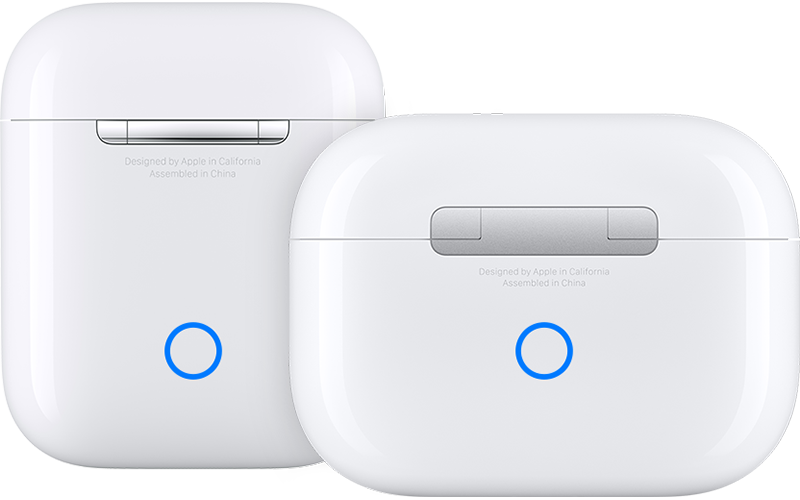
– With earbuds in case, press and hold the setup button on the back
– Release when status light flashes white (takes 5-8 seconds)
For AirPods Pro 3:
– Open case with earbuds inside
– Double-tap the front of the case repeatedly until light flashes white
Connect Through Bluetooth Settings Menu
- On iPhone 16, open Settings > Bluetooth
- Wait 10 seconds for devices to refresh
- Tap your AirPods Pro under “Other Devices”
- If prompted, enter your iPhone passcode
- Wait for confirmation tone in your AirPods
Warning: Don’t select “Ignore” if prompted—this will require a full reset to undo.
Complete AirPods Pro Reset When All Else Fails
Prepare for Factory Reset Procedure
Before resetting, place your AirPods Pro in the charging case and close the lid for 30 seconds. On your iPhone 16, go to Settings > Bluetooth—if your AirPods appear, tap the (i) icon next to them, select Forget This Device, and confirm. This clears any corrupted pairing data causing the connection failure.
Execute Model-Specific Reset Sequence
For AirPods Pro 1 & 2:
1. Open case lid with AirPods inside
2. Press and hold setup button for 15 seconds
3. Release when light flashes amber, then white
4. Hold case near iPhone 16 and follow setup prompts
For AirPods Pro 3:
1. Open case lid
2. Double-tap front of case until light activates
3. Double-tap again when light flashes white
4. Double-tap third time when light flashes faster
5. Wait for amber→white light sequence
6. Reconnect to iPhone 16
Troubleshooting tip: If the light never flashes white, close the lid for 20 seconds, then immediately open and begin the reset sequence—this often resolves unresponsive cases.
Resolve Persistent Connection Failures

Clean Critical Charging Contacts Thoroughly
Dirty contacts are a silent killer of AirPods connectivity. Use a dry cotton swab (never damp) to gently clean:
– The charging ports on each AirPod stem
– The corresponding contact points inside the case
– The Lightning port on the case itself
Visual indicator: Look for dark residue or discoloration on contacts—this indicates buildup preventing proper charging and Bluetooth activation.
Verify Audio Output Selection
After successful pairing, many users miss this critical step: your iPhone 16 might still route audio to another device. Open Control Center (swipe down from top-right), tap the AirPlay icon in the music widget, and ensure AirPods Pro is selected. Adjust volume using the slider to confirm audio is routing correctly.
Prevent Future AirPods Pro Connection Problems
Implement Weekly Maintenance Routine
- Every 7 days: Wipe down charging case with dry microfiber cloth
- After gym/running: Clean ear tips and charging contacts to prevent sweat damage
- Monthly: Check for iOS updates before connectivity issues arise
Pro tip: Keep a spare charging cable in your bag—9 out of 10 “connection failures” during travel stem from a dead case battery.
Optimize Battery Health for Reliable Connections
Avoid leaving AirPods Pro in hot cars or direct sunlight, as extreme temperatures permanently damage battery capacity. When storing long-term, charge to 50% first and place in a cool, dry location—this preserves battery health far better than full or empty storage.
When to Seek Professional AirPods Pro Repair
If your AirPods Pro still won’t connect to iPhone 16 after completing all these steps, you likely have hardware failure. Visit an Apple Store or authorized service provider if you notice:
– Case doesn’t charge despite multiple cables
– Single AirPod connects but the other doesn’t
– Status light remains solid amber during reset attempts
Critical warning: Don’t attempt DIY repairs—opening the case voids warranty and risks permanent damage to the delicate internal components.
Your AirPods Pro should now connect reliably to your iPhone 16 after following these targeted troubleshooting steps. The key to solving “AirPods Pro not connecting to iPhone 16” issues lies in methodically working through compatibility checks, proper reset procedures, and connection verification—starting with the simplest solutions before progressing to advanced fixes.
Most users resolve this problem within 10 minutes by ensuring iOS is updated, executing the correct model-specific reset, and verifying audio output settings. For lasting success, implement the weekly maintenance routine to prevent future connection failures. If problems persist despite these comprehensive steps, contact Apple Support for hardware diagnostics—your solution is just one professional consultation away.


