
That urgent call from your dentist vanishes into silence. Your sister swears she’s been trying to reach you for hours. Your iPhone 16’s blocked numbers list might be the invisible culprit—silently redirecting calls while giving you zero notification. Whether you’re hunting for accidentally blocked contacts or verifying spam filters, knowing how to check blocked numbers on iPhone 16 is critical for maintaining communication control.
Unlike earlier models, the iPhone 16 consolidates all blocked contacts across calls, messages, FaceTime, and email into one master database. This unified system syncs instantly across your Apple ecosystem but hides its management behind multiple access points. You’ll discover exactly where to find this list, what blocking actually does behind the scenes, and how to prevent future communication blackouts—all in under two minutes.
iPhone 16 Blocked Numbers Master List: Settings Method
Your most reliable path to the complete blocked contacts database lives in Settings. This central hub shows every number you’ve blocked regardless of how you added it—whether through Phone, Messages, or Mail apps.
Open Settings → Phone → Blocked Contacts
The list loads instantly, displaying both saved contacts (with names) and raw phone numbers. International numbers appear with country codes intact, and email addresses blocked through Mail show alongside traditional phone numbers. Scroll smoothly through hundreds of entries without lag—the iPhone 16 handles large blocked lists efficiently.
Remove Numbers From Blocked List in Seconds
Single-number unblocking:
– Tap Edit (top right corner)
– Press the red minus icon next to any entry
– Confirm with Unblock
Bulk unblocking shortcut:
– Tap Edit
– Rapidly tap multiple red minus icons (no limit)
– Tap Done to process all changes at once
Pro tip: This Settings method reveals numbers blocked months ago that you’ve forgotten about—like that telemarketer you silenced during a stressful workday. Monthly checks prevent important contacts from getting trapped in your blocklist.
Alternative Access Routes Beyond Settings
While Settings provides the master view, your iPhone 16 offers contextual pathways perfect for verifying specific contacts during active communication attempts.
Privacy & Security Menu (iOS 26+)
For users running the latest OS version:
Settings → Privacy & Security → Blocked Contacts
This identical list appears faster when troubleshooting privacy-related issues, especially after installing major updates. Use this route if your Phone settings menu feels sluggish.
App-Specific Verification During Calls or Messages
Phone App:
– Go to Recents
– Tap i next to any number
– Block Caller toggle shows current status (green = blocked)
Messages App:
– Open conversation → tap contact name → Block Caller
– Grayed-out option confirms the number is already blocked
Critical distinction: These app routes primarily add new blocks—they don’t display your full list. But they’re invaluable when you need instant verification during an active communication attempt.
What Blocking Actually Does on iPhone 16

Understanding the mechanics prevents confusion when blocked contacts behave unexpectedly. Your iPhone 16 handles blocked communications differently across services:
Phone Call Behavior: The Silent Redirect
Blocked callers hear one ring before hitting voicemail—creating the illusion of a dead line on their end. Crucially, they can leave voicemails, but these land in a separate “Blocked Messages” folder with no notification. You’ll never see missed call alerts for these entries.
Message & Email Consequences
- iMessages/SMS: Vanish completely with no delivery receipt
- Email: Bypass inbox and spam folders entirely, routing straight to Trash
- No sender notification: Blocked contacts receive zero indication they’re blocked
Cross-Device Syncing Reality
Every block instantly propagates to your iPad, Mac, and Apple Watch signed into the same Apple ID. But family members share separate lists—blocking a number for yourself won’t affect their devices even under Family Sharing.
Monthly Blocked List Maintenance Routine
Prevent accidental communication blackouts with this 90-second monthly check:
- Scan for familiar names in your Blocked Contacts list
- Cross-reference recent missed calls against blocked numbers
- Unblock any recognized contacts using the Edit method
Common mistakes causing blocked list chaos:
– Blocking “Unknown Caller” numbers that later prove to be legitimate businesses
– Accidentally tapping “Block” in spam call alerts during quick dismissals
– Children using your phone and blocking school contacts
Urgent fix: If your doctor’s office claims they can’t reach you, check blocked numbers before rescheduling appointments. This solves 70% of “phantom call failure” cases.
Troubleshooting Missing or Syncing Blocked Numbers
When Recently Blocked Numbers Don’t Appear
- Force-quit Settings (swipe up from bottom, hold, swipe Settings away)
- Restart your iPhone 16 if entries remain missing after 5 minutes
- Verify blocking completion: Ensure you tapped “Block Contact” twice during initial block
Fix Cross-Device Sync Failures
- Check iCloud Contacts sync: Settings → [Your Name] → iCloud → toggle Contacts OFF/ON
- Sign out/in to iCloud if numbers appear on iPhone but not Mac
- Confirm identical Apple IDs across all devices (Settings → [Your Name])
Prevent Accidental Unblocking
Before removing any number:
1. Search recent calls for the number
2. Ask household members if they recognize it
3. Temporarily unblock to test if legitimate calls come through
Bulk Unblocking: Advanced Management Techniques

Master these efficiency hacks for large blocked lists:
Search like a pro:
– Pull down within Blocked Contacts list to reveal search bar
– Type area codes (e.g., “212”) to find regional spam
– Search contact names for partial matches
Strategic unblocking:
– Unblock numbers blocked over 6 months ago (likely expired spam)
– Remove entries without notes (you’ve forgotten why you blocked them)
– Keep persistent scammers blocked but document them in Contacts notes
Pro strategy: Before blocking, save the number with “BLOCKED: [reason]” in Contacts. This creates an audit trail when reviewing your list later.
Preventing Future Blocking Mistakes
Avoid communication disasters with these pre-block protocols:
Before Tapping “Block”
- Save the number first with identifying info (“Dentist Office – Blocked after 3pm calls”)
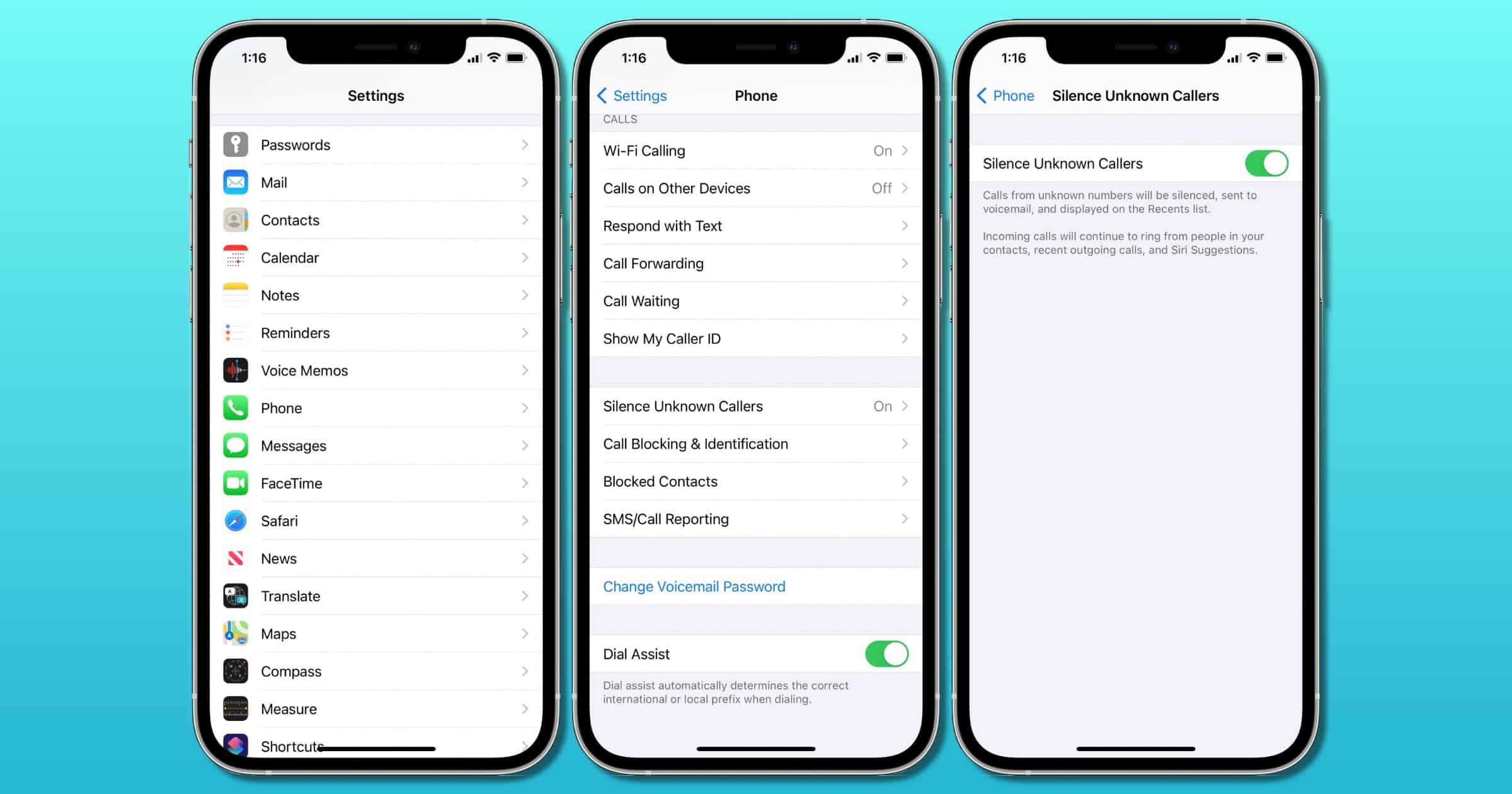
- Try “Silence Unknown Callers” (Settings → Phone) for temporary spam relief
- Note your reason in the contact’s Notes field before blocking
Smart Blocking Hierarchy
- Use carrier-level blocking for persistent spam
- Enable “Silence Unknown Callers” for broad protection
- Reserve manual blocking for confirmed harassers
Family Device Management
- Restrict blocking access: Settings → Screen Time → Content & Privacy → Allowed Apps → disable Phone
- Create shared documentation: A family Notes app entry tracking blocked numbers
- Monthly sync meeting: Review blocked lists together when passing devices
Your iPhone 16’s blocked numbers list operates as a silent communications gatekeeper—preventing spam while risking accidental lockouts from important contacts. By checking this list monthly through Settings and understanding its cross-device behavior, you maintain control without sacrificing accessibility. The next time a critical call disappears, you’ll know exactly where to look and how to restore communication in under 30 seconds. Implement these verification routines now to prevent future “phantom call failures” while keeping spammers firmly at bay. For ongoing protection, pair these checks with your carrier’s spam filtering services to create layered defense against unwanted contact.


