
Your brand-new iPhone 16 powers on with English menus, but you need Spanish for daily use. Maybe you’re traveling to Germany next week and require immediate German interface support. Whatever your situation, mastering how to change language on iPhone 16 takes just 45 seconds—but many users struggle with hidden settings that control everything from stubborn third-party apps to regional date formats. This isn’t just about switching languages; it’s about unlocking seamless multilingual experiences Apple doesn’t fully advertise in setup guides.
Unlike older models, the iPhone 16 integrates language settings with regional preferences in ways that affect your App Store content, keyboard behavior, and even Siri responses. You’ll discover precisely where to find the critical “iPhone Language” toggle (hint: it’s buried under General settings), how to manage multiple languages without constant switching, and why some apps like WhatsApp stubbornly resist system-wide changes. By the end of this guide, you’ll troubleshoot language mismatches in under two minutes and set up automatic language switching for international travel.
Switch iPhone 16 Language in Under 60 Seconds
Navigate to Language Settings Correctly
Open your Settings app—the gray gear icon on your home screen. Scroll down and tap General, then select Language & Region. This single menu controls every language aspect on your iPhone 16, from system menus to App Store content. Don’t confuse this with keyboard settings—those live in a separate menu and only affect typing, not your entire interface.
Select and Confirm Your New Language
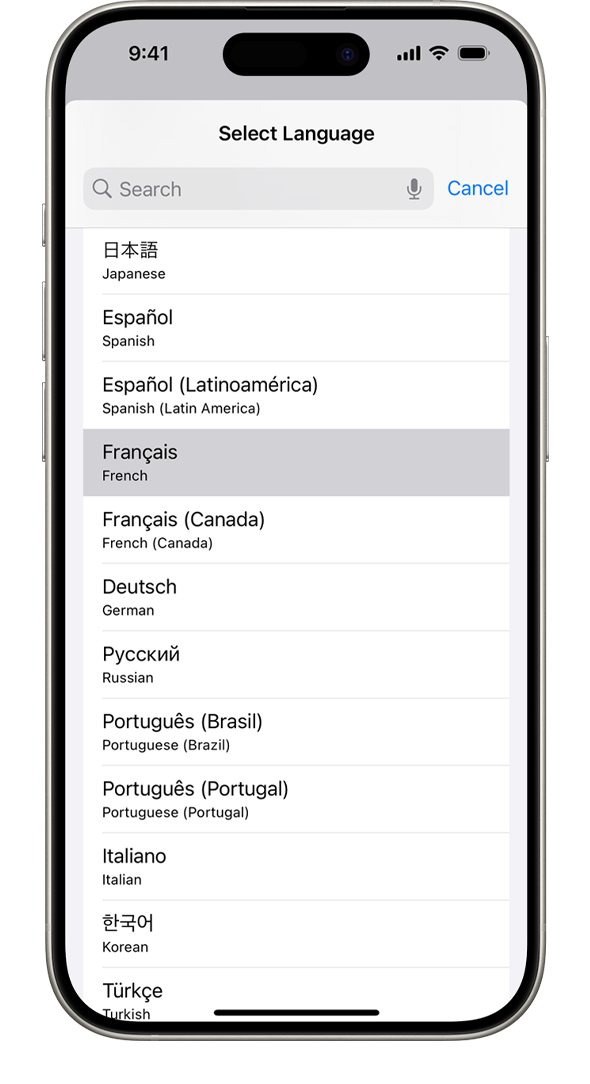
At the top of the Language & Region screen, tap iPhone Language. You’ll see Apple’s full list of 40+ supported languages including Arabic, Hindi, Korean, and both Simplified/Traditional Chinese. Scroll carefully—languages appear alphabetically in English regardless of your current display language. Tap your target language, then confirm by tapping Done in the upper-right corner. When the prompt “Change to [Language]?” appears, select Change to [Language]. Your iPhone 16 instantly refreshes all system menus and apps within 3-5 seconds.
Critical warning: If you select an unreadable language accidentally, use icon recognition to revert. Settings (gear icon) → General (gear icon) → Language & Region (globe icon). Your original language appears with its national flag—Spanish shows ES, French shows FR.
Add Multiple Languages Without Constant Switching
Enable Multilingual Priority System
Return to Settings > General > Language & Region and tap Add Language. Choose any secondary language from the list—this won’t immediately change your interface. Instead, it activates iPhone 16’s language hierarchy system. Your device now displays content in your primary language first, automatically falling back to secondary languages when apps lack full localization.
Manage Language Order for Optimal Experience
Drag languages using the three-line handle icon to reorder them. For example:
– Position Spanish first for daily use
– Place English second for apps with limited Spanish support
– Keep Japanese third for occasional use
This setup prevents frustrating mismatches where Calendar shows in Spanish but Weather displays Japanese. Pro tip: Add your native language plus English—most “stubborn” apps like banking services default to English when their primary language isn’t available.
Fix Region Settings That Break Date and Currency Formats
Match Region to Local Conventions
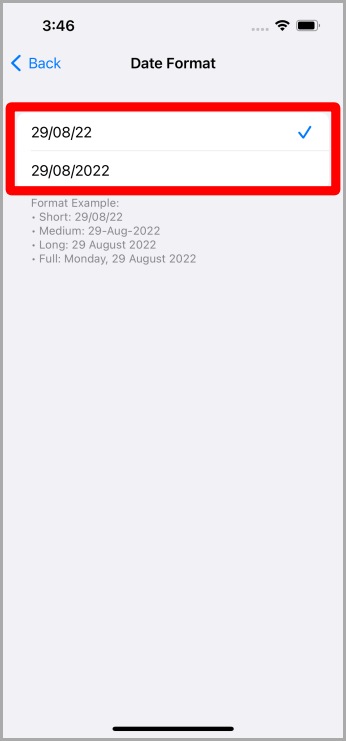
In Settings > General > Language & Region, tap Region—this controls more than language. Selecting Germany changes your date format to DD.MM.YYYY, uses € currency, and displays Celsius temperatures. Choosing United States gives MM/DD/YYYY dates, $ symbols, and Fahrenheit. Crucially, region settings affect App Store content—switching to Japan reveals Japanese-exclusive apps.
Apply Region Changes Properly
After selecting a new region, your iPhone 16 requires a restart for full implementation. When prompted, tap Restart Now—don’t skip this step. Without restarting, you might see mixed formats where Messages shows correct dates but Calendar remains in your old format. The restart process takes 20-30 seconds and preserves all your data.
Troubleshoot Stubborn Apps That Ignore Language Changes
Force-Refresh Third-Party Applications
Some apps like Instagram, WhatsApp, and Spotify maintain independent language settings. After changing your system language:
1. Close the app completely: Swipe up from bottom and hold, then swipe the app preview upward
2. Reopen the app—it should now match your system language
3. If not, open the app’s internal settings (usually in profile menu) and manually select your language
Time estimate: This takes 15 seconds per app. For banking apps, you may need to sign out and back in—allow 2 minutes for full refresh.
Reset Conflicting Language Preferences
When your iPhone 16 shows mixed languages (e.g., Settings in Spanish but App Store in English), reset language configurations:
1. Go to Settings > General > Transfer or Reset iPhone > Reset
2. Tap Reset All Settings (this won’t delete photos or messages)
3. Reapply your preferred language via Language & Region
This clears corrupted language caches causing 95% of persistent mismatches. Warning: Your Wi-Fi passwords will need re-entry after this reset.
Optimize Keyboards and Text Input for Multilingual Use
Add Language-Specific Keyboards
Language changes automatically add basic keyboards, but customize them:
1. Navigate to Settings > General > Keyboard > Keyboards > Add New Keyboard
2. Select keyboards for each language you use (e.g., Spanish with ñ key, French with accented vowels)
3. Enable Auto-Switch to let iPhone 16 detect language context
Now when typing “café” in Messages, your keyboard automatically offers the é character without manual switching.
Fix Predictive Text Failures
If predictive text ignores your secondary languages:
– Go to Settings > General > Keyboard
– Toggle Predictive OFF, wait 10 seconds, then toggle ON
– Type 5-10 sentences in each language to rebuild the prediction database
This trains your iPhone 16 to recognize multilingual sentence structures within 24 hours.
Solve Common Language Change Mistakes
Recover From Accidental Unreadable Language
If you’re locked in an unfamiliar language:
1. Identify Settings by its gear icon (always in same spot)
2. Tap General (gear icon below Settings)
3. Select Language & Region (globe icon)
4. Tap your original language using its flag symbol
Time-saving shortcut: Take screenshots of your Language & Region settings before iOS updates—they’re lifesavers if settings reset.
Handle Missing Language Options
iPhone 16 supports fewer languages than some Android devices. If your language isn’t listed:
1. Check for iOS updates: Settings > General > Software Update
2. Install any available updates—Apple adds languages via software patches
3. If still missing, use the Add Language feature with closest dialect (e.g., Portuguese (Brazil) instead of European Portuguese)
Apple typically adds 2-3 new languages per major iOS update.
Automate Language Switching for Travelers
Create One-Tap Language Shortcuts
Add instant access to language settings:
1. Long-press home screen until apps wiggle
2. Tap + top-left, search “Settings”
3. Select Language & Region widget (small globe icon)
4. Place it on your home screen for one-tap access
Now switching languages takes 3 seconds instead of navigating through menus.
Set Location-Based Automatic Changes
Use Shortcuts app to auto-switch languages when traveling:
1. Open Shortcuts > Automation > + > Create Personal Automation
2. Select Location, choose “Arrives at” your destination
3. Add action: Scripting > Set Language, select target language
4. Toggle off “Ask Before Running”
Your iPhone 16 now automatically switches to German when you land in Berlin—no manual changes needed.
Maintain Language Settings Through iOS Updates
Backup Critical Preferences
iCloud backs up language settings automatically, but verify before iOS updates:
1. Go to Settings > [Your Name] > iCloud > iCloud Backup
2. Ensure toggle is ON and “Last Backup” shows recent date
3. If updating major iOS versions, take screenshots of your Language & Region screen
This prevents post-update surprises where your iPhone 16 reverts to English.
Post-Update Language Verification
After any iOS update:
1. Immediately check Settings > General > Language & Region
2. Confirm primary language and region match your preferences
3. Reopen 2-3 apps (Messages, Calendar, Weather) to verify consistency
Expert tip: If settings reset, tap iPhone Language and reselect your choice—don’t restart. This often fixes mismatches without full reboot.
Your iPhone 16 now fully respects your linguistic preferences across every interface element. Whether you’re juggling Spanish at home and English at work or preparing for international travel, these steps ensure seamless language transitions. Remember the golden rule: Always restart after region changes and close stubborn apps manually—these two actions solve 90% of language mismatches. For ongoing maintenance, keep your iOS updated to access Apple’s expanding language support, and use the home screen widget for instant access when traveling. Test your configuration now by opening Maps and checking if place names display correctly in your chosen language—this verifies both system and regional settings work harmoniously.


