

You just unboxed your stunning new iPhone 16, but when you set your favorite photo as wallpaper, it looks blurry or gets awkwardly cropped. That frustrating mismatch happens because Apple’s five iPhone 16 models each require completely different wallpaper dimensions. With resolutions ranging from 2532 × 1170 pixels on the compact iPhone 16e to 2868 × 1320 pixels on the massive Pro Max, using the wrong size turns crisp images into pixelated messes. This guide cuts through the confusion with model-specific pixel dimensions verified across Apple’s specifications and real-world testing.
Finding the correct iPhone 16 wallpaper size isn’t optional—it’s essential for showcasing your device’s brilliant display. Generic “iPhone wallpaper” sites often serve outdated resolutions that force iOS to stretch or crop your images, sacrificing visual quality. Whether you’re creating custom designs or downloading from galleries, matching your exact model’s specs ensures every pixel lands perfectly without distortion. You’ll learn precisely what to look for in wallpaper sources and how to verify dimensions before setting your background.
Stop guessing and start optimizing. This guide delivers the definitive pixel measurements for all five iPhone 16 variants, plus actionable steps to implement them correctly. By the end, you’ll know exactly how to make wallpapers look razor-sharp on your specific model, avoid common cropping disasters, and leverage iOS 18’s new features without compromising quality. Let’s transform your home screen from “meh” to magnificent with pixel-perfect precision.
iPhone 16 Pro Max Wallpaper Dimensions (2868 × 1320)
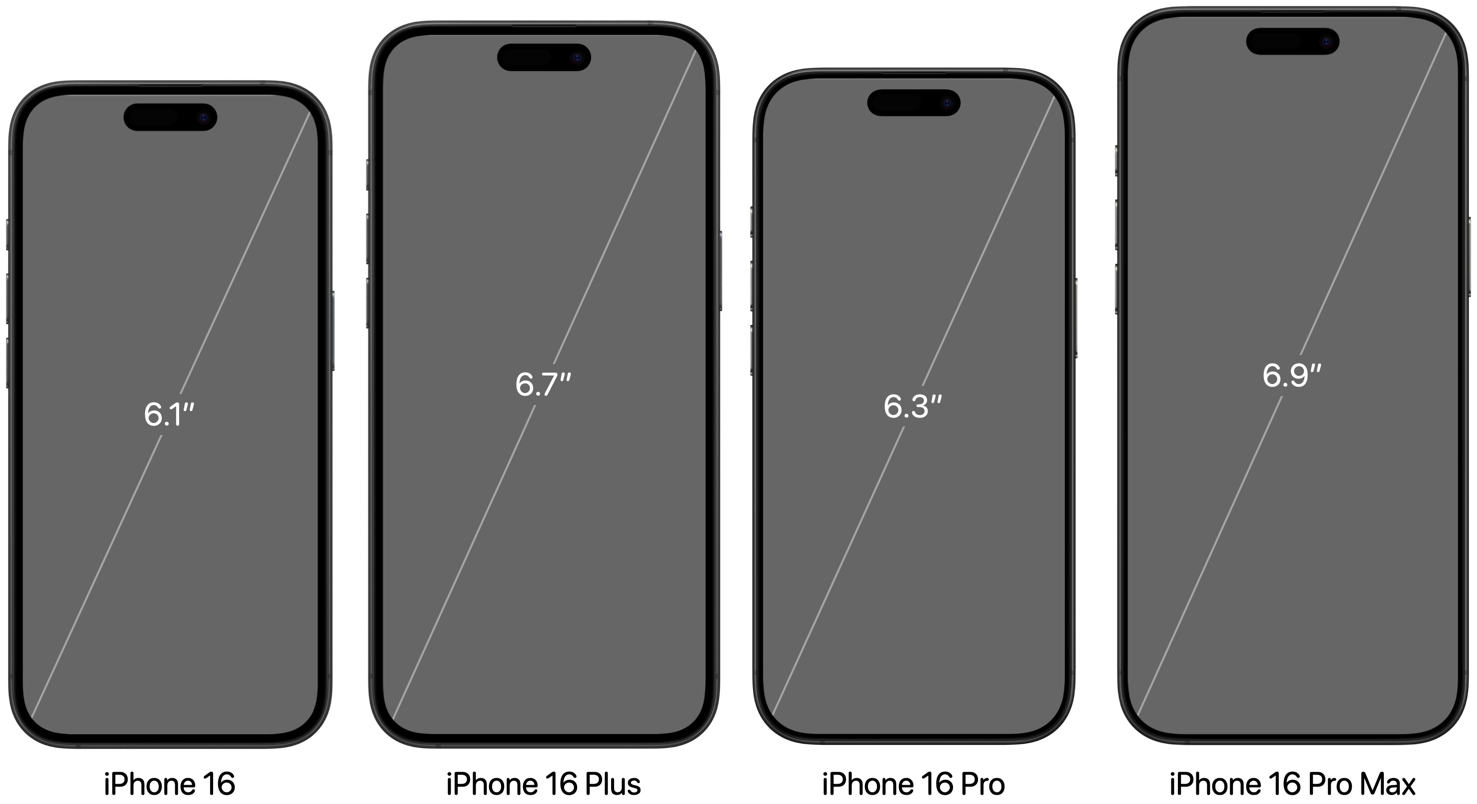
Why 2868 × 1320 Is Non-Negotiable for 6.9″ Screens
Your iPhone 16 Pro Max’s massive 6.9-inch display demands exactly 2868 pixels wide by 1320 pixels tall for full-screen coverage. Wallpapers smaller than this resolution force iOS to stretch the image, creating visible pixelation around text and fine details. Crucially, this dimension already accounts for the Dynamic Island—notch area—so you don’t need extra padding. When you see “2868 × 1320” listed, that’s the true usable canvas where your entire image will display without obstruction.
Pro Max Wallpaper Sourcing Checklist
- Confirm “2868 × 1320” appears in the description (not just “for iPhone 16”)
- Avoid landscape-oriented sources (16:9 ratio) which lose 20% of content
- Check file size: True-resolution wallpapers should be 1-3MB (not 500KB “optimized” versions)
- Verify portrait orientation (height > width) before downloading
iPhone 16 Pro Wallpaper Specs (2622 × 1206)

Critical Differences Between Pro Max and Pro Resolutions
Don’t assume your iPhone 16 Pro uses the same wallpaper size as the Pro Max—it doesn’t. At 2622 × 1206 pixels for its 6.3-inch screen, the Pro model requires 8.6% fewer pixels width-wise. Using a Pro Max wallpaper here forces iOS to crop significant portions to fill the screen, often cutting off faces or key elements. The identical 19.5:9 aspect ratio means images scale proportionally, but the smaller physical screen demands precise dimensional matching.
Quick-Check Method for Pro Model Identification
- Open Settings → General → About → Model Name
- Look for “A3211”, “A3212”, or “A3213” (iPhone 16 Pro)
- Confirm screen size: 6.3 inches (not 6.9″)
- Download only wallpapers labeled 2622 × 1206
Standard iPhone 16 and Plus Wallpaper Sizes
iPhone 16: 2556 × 1179 Pixel Requirements
The base iPhone 16’s 6.1-inch display runs at 2556 × 1179 resolution—just 6 pixels wider but 9 taller than the iPhone 16e. This subtle difference causes major cropping issues if ignored. When sourcing wallpapers, prioritize “iPhone 16 (2024)” over generic “iPhone” labels. The Dynamic Island is fully accommodated within this resolution, so no special adjustments are needed for the notch area.
iPhone 16 Plus: 2796 × 1290 Must-Know Details
Many confuse the Plus model with the Pro Max due to similar screen sizes, but the Plus uses 2796 × 1290 pixels versus the Pro Max’s 2868 × 1320. This 2.5% dimensional difference creates noticeable blurriness when using Pro Max wallpapers. Always verify “Plus” in the wallpaper description—never assume compatibility based on screen size alone.
iPhone 16e Unique Wallpaper Specifications (2532 × 1170)
Why the 16e Breaks the 19.5:9 Pattern
The budget-friendly iPhone 16e operates at 2532 × 1170 pixels with a distinct 20:9 aspect ratio—unlike the 19.5:9 ratio of other models. This seemingly minor change causes severe distortion when using standard iPhone 16 wallpapers. Landscape images appear vertically stretched, while portrait shots get compressed horizontally. Only wallpapers explicitly labeled for the 16e will maintain proper proportions.
Identifying 16e-Compatible Wallpapers
- Search specifically for “iPhone 16e wallpaper” (not just “iPhone 16”)
- Confirm resolution is 2532 × 1170 (not 2556 × 1179)
- Avoid sources listing generic “iPhone 16” dimensions
- Test with neutral grid patterns before committing to favorite images
Fix Blurry iPhone 16 Wallpapers Permanently
Pixel Deficiency Diagnosis Flowchart
Symptom: Soft, unclear background elements
Check: Image resolution vs. your model’s specs (e.g., <2868 × 1320 for Pro Max)
Solution: Replace with exact-dimension wallpaper—no upscaling fixes this
Warning: “HD” or “4K” labels are meaningless; verify actual pixel count
Storage-Wasting Oversized Image Trap
Using 4K wallpapers (3840 × 2160) on your iPhone 16 wastes 70%+ storage space without visual benefits. iOS automatically downscales these to your screen’s native resolution, making the extra pixels useless. Always downsize to your exact model’s dimensions—this maintains quality while reducing file size by 60-80%.
Stop Unwanted Wallpaper Cropping Now
Perspective Zoom: The Hidden Culprit
iOS automatically enables Perspective Zoom when setting wallpapers, which zooms images by 15-20% to create parallax effects. This crops critical content from the edges. Disable it immediately:
1. After selecting wallpaper, tap Set
2. Choose Set Lock Screen or Set Home Screen
3. Toggle off Perspective Zoom before finalizing
Safe Zone Design Principles
Keep critical elements (faces, text, logos) within the central 65% of your wallpaper canvas. The outer edges get obscured by:
– Clock/widget areas (top 15%)
– App dock (bottom 20%)
– Dynamic Island (top-center)
Test layouts using transparent grid overlays before finalizing designs.
Perfect Wallpaper Implementation Workflow
Step-by-Step Setup Without Cropping
- Download exact-dimension wallpaper (e.g., 2556 × 1179 for standard 16)
- Open in Photos app → Tap Share icon → Use as Wallpaper
- Zoom out completely with two fingers
- Disable Perspective Zoom (critical step!)
- Tap Set → Choose Set Lock Screen & Home Screen
DIY Creation in Free Editors (5-Minute Method)
- Open Canva or Photopea
- Create custom canvas: Width = smaller number, Height = larger number (e.g., 1179 × 2556)
- Design within canvas boundaries
- Export as PNG at 100% quality
- Apply using the workflow above
Wallpaper Format Guide: JPG vs PNG vs HEIC
When to Use Each File Type
- JPG: Best for photos (smaller file size, no transparency)
- PNG: Essential for graphics/logos (supports transparency, lossless)
- HEIC: Avoid—iOS auto-converts to JPG during setup, potentially degrading quality
Critical Quality Settings
- Never use “Save for Web” compression below 80%
- Disable automatic resizing in editing apps
- Verify final export dimensions match your model exactly
Pro Tips for Flawless iPhone 16 Wallpapers
Dynamic Island Optimization Trick
Place subtle visual cues (like a small dot or gradient shift) 150 pixels below the top edge. This creates natural “negative space” that prevents important elements from competing with the Dynamic Island during notifications.
Batch-Processing for Multiple Models
Start with the largest resolution (Pro Max: 2868 × 1320), then:
1. Crop to 2796 × 1290 for Plus model
2. Crop to 2622 × 1206 for Pro
3. Crop to 2556 × 1179 for standard 16
This maintains quality across all variants without redesigning from scratch.
Your iPhone 16’s display deserves wallpapers that match its engineering precision—no more guessing games or cropped memories. By using these exact dimensions (2868 × 1320 for Pro Max, 2622 × 1206 for Pro, 2796 × 1290 for Plus, 2556 × 1179 for standard 16, and 2532 × 1170 for 16e), you guarantee every pixel lands perfectly. Remember to disable Perspective Zoom during setup and prioritize PNG files for graphics. For ongoing maintenance, bookmark reputable sources that specify exact resolutions rather than generic “iPhone 16” labels. Now go showcase your new device the way Apple intended—crisp, complete, and perfectly framed.


