Your iPhone 16’s speech-to-text suddenly stopped responding mid-sentence. The microphone icon sits grayed out in Messages, Notes refuses to transcribe your voice, and you’re left typing everything manually. This frustrating issue affects thousands of users daily, disrupting productivity and accessibility features that many rely on for work and communication.
Whether your dictation produces no text despite appearing to listen, or you’re seeing “no permission” errors, this guide walks you through proven solutions to restore voice-to-text functionality quickly. We’ll cover everything from simple settings checks to advanced system repairs, plus backup options when built-in dictation fails completely. Most iPhone 16 speech to text not working problems can be resolved in under 15 minutes with the right troubleshooting approach.
Verify Dictation Settings First
Enable Dictation in Keyboard Settings
Open Settings > General > Keyboard and locate the “Enable Dictation” toggle. If it’s already on (green), turn it OFF for 30 seconds, then flip it back ON. This refresh often resolves glitches where dictation appears enabled but doesn’t function. Many users overlook this simple toggle after iOS updates, accidentally disabling the feature without realizing it.
Note: The toggle must remain green for dictation to work across all apps. Some users accidentally disable this during iOS updates. If you’ve recently updated to iOS 17 or 18, double-check this setting immediately—it’s the most common fix for iPhone 16 speech to text not working issues.
Test Microphone Hardware
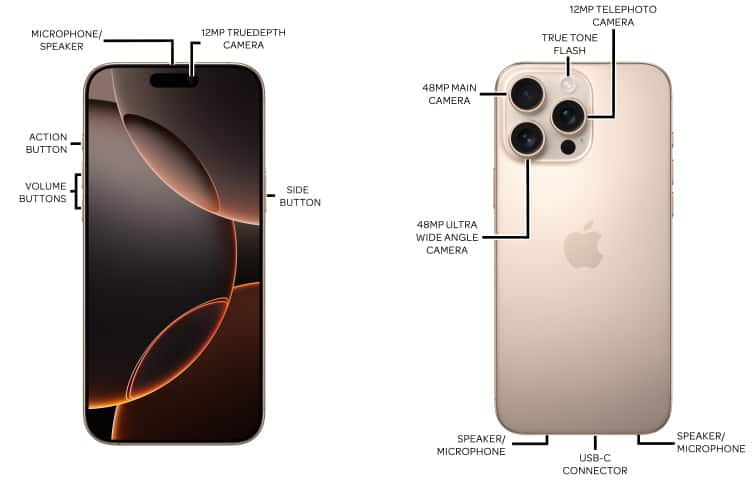
Launch Voice Memos and record a 10-second clip. Speak clearly into the bottom microphone (near the charging port). Play back your recording:
- Clear audio: Microphone hardware works correctly
- No sound: Check for case obstructions or debris in microphone holes
- Muffled recording: Clean microphone port gently with soft brush
If recording fails completely, hardware damage may require Apple Support. Cases with thick material over the bottom edge often block the microphone—remove your case temporarily to test. For best results, speak directly into the microphone port at a consistent volume without covering it with your fingers.
Refresh Siri Integration Settings
Reset Siri Configuration
Dictation relies on Siri services. Corrupted Siri settings often break speech-to-text:
- Go to Settings > Siri & Search
- Turn OFF all three toggles:
– “Listen for Hey Siri”
– “Press Side Button for Siri”
– “Allow Siri When Locked” - Wait 30 seconds
- Turn all toggles back ON
- Test dictation in Messages immediately
This process clears temporary Siri glitches that commonly cause iPhone 16 speech to text not working problems. Many users report immediate improvement after this simple reset, as Siri’s speech recognition engine powers the dictation feature.
Align Language Settings
Language mismatches between Siri and your keyboard cause dictation failures:
- Settings > General > Language & Region: Ensure primary language matches spoken language
- Settings > Siri & Search > Language: Verify consistency with keyboard language
- Quick fix: Temporarily switch to English (UK) if English (US) fails:
- Add English (UK) keyboard in Settings > General > Keyboard
- Change Siri language to English (UK)
- Test dictation, then revert if successful
This alignment is critical—your iPhone 16 speech to text not working issue might simply stem from inconsistent language settings after an update. Siri must “understand” your accent and phrasing, so matching these settings ensures proper communication between your voice and the transcription system.
Check App Permissions and Restrictions
Grant Microphone Access
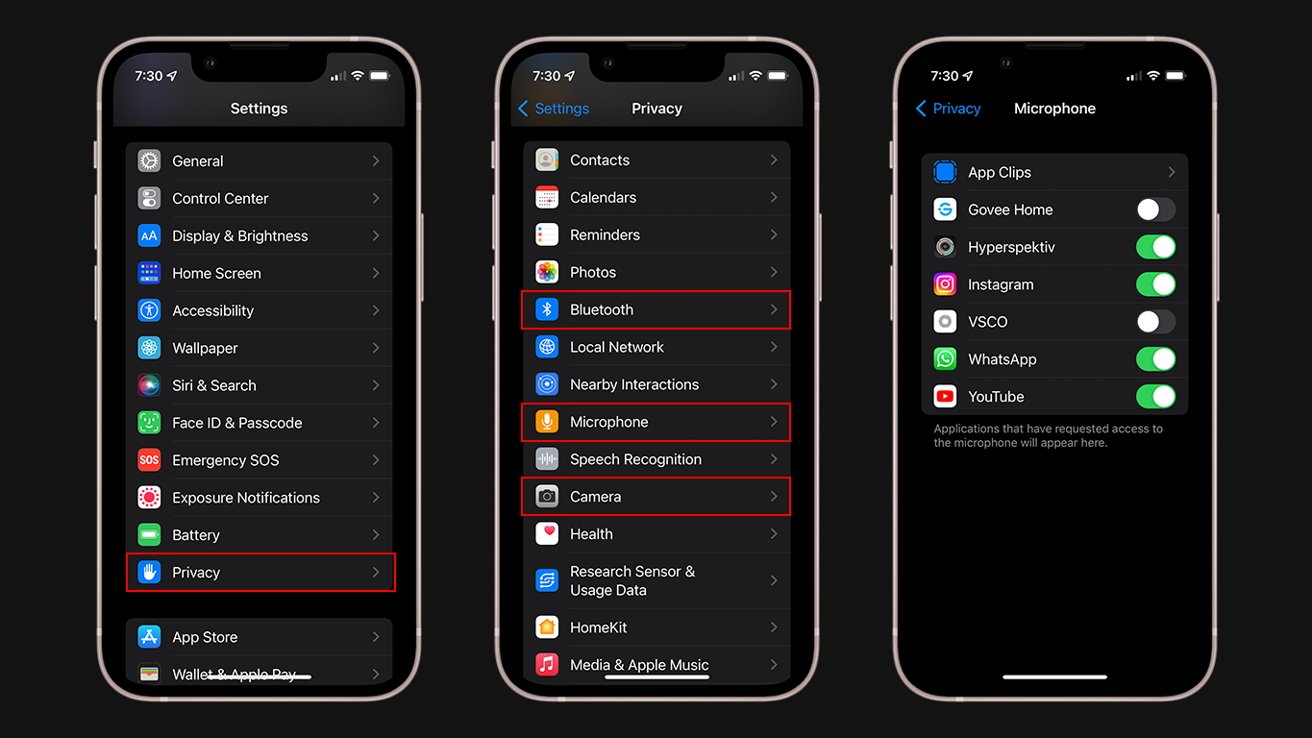
Navigate to Settings > Privacy & Security > Microphone. Ensure these apps have microphone access:
- Messages (for text dictation)
- Notes (for voice notes)
- Mail (for email dictation)
- Any third-party apps using dictation
Toggle permissions OFF then ON for each affected app to refresh access. This simple refresh resolves many cases where the iPhone 16 speech to text not working error appears despite proper settings.
Disable Screen Time Restrictions
Screen Time can block dictation entirely:
- Settings > Screen Time > Content & Privacy Restrictions
- Tap Allowed Apps
- Ensure “Siri & Dictation” toggle is ON (green)
- If restrictions exist, add dictation-enabled apps to the allowed list
Parents often enable these restrictions without realizing they disable speech-to-text functionality. If you’ve set up Screen Time passcodes, review these settings carefully—many iPhone 16 speech to text not working cases trace back to accidental restrictions.
Turn Off Low Power Mode
Settings > Battery – Toggle Low Power Mode OFF. This mode limits background processes, including dictation cloud processing. While conserving battery is important, Low Power Mode deliberately disables voice-to-text to save energy. If you’ve recently enabled this feature, turning it off often immediately restores speech-to-text functionality on your iPhone 16.
Fix Network and System Issues
Refresh Internet Connection
Dictation requires stable internet for cloud processing:
- Test Safari loading speed
- Toggle Airplane Mode ON for 10 seconds, then OFF
- Switch between Wi-Fi and cellular data
- Restart router if Wi-Fi is unstable
Your iPhone 16 sends speech to Apple’s servers for processing, so connectivity issues directly cause speech to text not working problems. If Safari loads slowly, your dictation will fail—even with full signal bars, network quality matters more than signal strength.
Update iOS System
Settings > General > Software Update – Install any available updates immediately. iOS 17/18 updates specifically addressed dictation bugs affecting iPhone 16 models. Apple frequently releases patches for speech recognition issues, so staying current prevents many iPhone 16 speech to text not working scenarios.
Important: Restart your device after every iOS update before testing dictation. Many users skip this step, wondering why the update didn’t fix their problem—restarting completes the installation process.
Force Restart iPhone 16
For persistent dictation failures:
- Press and quickly release Volume Up
- Press and quickly release Volume Down
- Press and hold Side button until Apple logo appears
- Release and wait for restart completion
This clears temporary glitches without data loss. Unlike a regular restart, a force restart clears the RAM where dictation processes might be frozen. It’s the most reliable quick fix when your iPhone 16 speech to text not working issue appears suddenly without explanation.
Emergency Dictation Alternatives

Notta Voice-to-Text App
When built-in dictation fails completely, Notta provides reliable transcription:
- Download Notta from App Store
- Create account and grant microphone permissions
- Tap “+” for new recording
- Select language and begin speaking
- Export text directly to Messages, Notes, or email
Pro tip: Notta works offline and includes auto-correct features missing from native dictation. Many professionals keep this app installed as a backup when their iPhone 16 speech to text not working problem strikes during important meetings.
Other Reliable Apps
- Otter.ai: Perfect for meeting transcription with timestamps
- Google Docs Voice Typing: Access via Safari for document creation
- Dragon Anywhere: Professional-grade dictation with custom vocabulary
These alternatives become essential when system-level fixes fail. Unlike built-in dictation, third-party apps often work offline or use different processing methods unaffected by iOS glitches.
Prevention Strategies
Weekly Maintenance Routine
- Clean microphone ports with soft brush weekly
- Restart device every 3-4 days to clear glitches
- Monitor storage: Keep 10%+ free capacity for optimal performance
- Update iOS immediately when available
Preventing iPhone 16 speech to text not working issues starts with regular maintenance. Crumbs, dust, and pocket lint gradually clog microphone ports—a quick weekly cleaning prevents most hardware-related failures.
Settings Optimization Checklist
- [ ] Enable automatic iOS updates
- [ ] Set consistent language across all services
- [ ] Create Screen Time passcode without Siri restrictions
- [ ] Use high-quality headsets for consistent audio input
This checklist ensures your iPhone 16 stays ready for voice input. Inconsistent language settings remain the top preventable cause of speech to text not working errors—verify these monthly to avoid surprises.
Key Takeaway: Most iPhone 16 dictation issues resolve through the Settings refresh process (Siri toggle and dictation re-enable). Start with these steps before attempting system resets. If problems persist after factory reset, contact Apple Support for hardware diagnostics—microphone failure affects both dictation and regular voice recording. For immediate needs, keep Notta or Otter.ai installed as reliable alternatives when your iPhone 16 speech to text not working problem strikes unexpectedly. Regular maintenance and consistent language settings will prevent 90% of these frustrating interruptions to your workflow.