
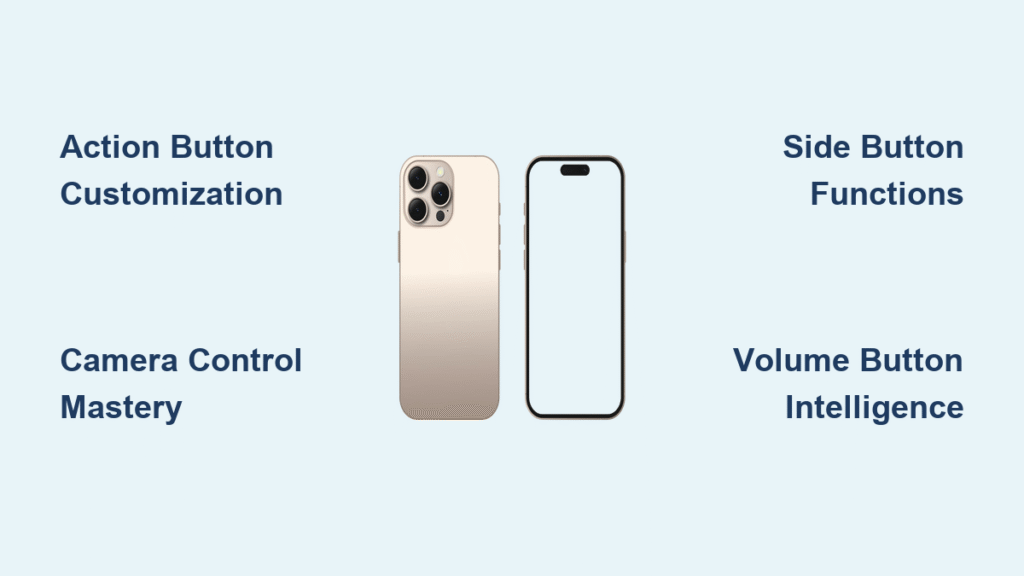
Your iPhone 16’s physical controls have undergone a dramatic transformation, replacing familiar switches with intelligent, programmable buttons designed for faster access and personalized functionality. Gone is the traditional Ring/Silent switch, and in its place sits a versatile Action button that adapts to your daily needs. This comprehensive iPhone 16 buttons explained guide cuts through the confusion to show you exactly how each control works, where to find them, and how to customize them for maximum efficiency. You’ll discover why Apple redesigned the button layout and how to leverage these physical controls to capture photos faster, silence notifications instantly, and access critical functions without touching your screen.
Mastering these new buttons eliminates frustrating moments—like missing the perfect shot while fumbling for the camera app or accidentally triggering emergency SOS. Whether you’re upgrading from an older iPhone or just curious about the new hardware, understanding these physical interfaces unlocks a smoother, more intuitive experience. This guide delivers practical, actionable insights straight from Apple’s design philosophy, so you can transform these buttons from confusing novelties into indispensable tools.
iPhone 16 Button Layout and Locations
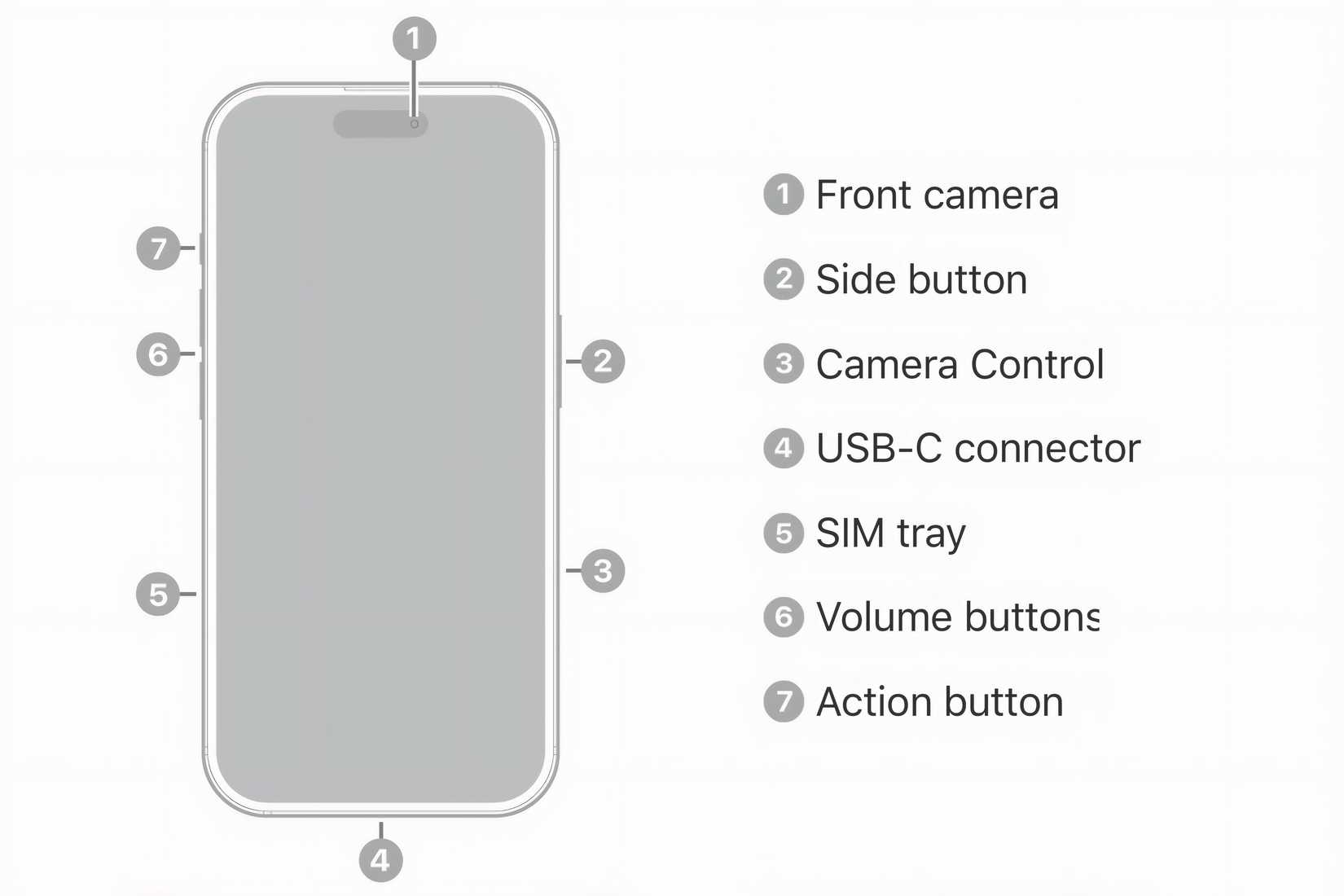
Find every control instantly with this precise location guide. Your right thumb naturally lands on the two primary right-side buttons during normal use, while your left hand comfortably accesses the left-side trio without adjusting your grip.
Right Side Controls
Your right edge hosts two essential buttons optimized for thumb access:
Side Button sits centrally on the right edge—press it firmly to wake your device or lock the screen. This single button replaces multiple functions from older models.
Camera Control positions just below the Side button, designed for your index finger during landscape photography. This new addition eliminates screen tapping for camera access, giving you DSLR-like physical control.
Left Side Configuration
Flip your iPhone to discover three left-side controls:
Volume Up appears at the top of the left edge, while Volume Down sits directly beneath it. These buttons intelligently adapt based on your current activity.
Action Button replaces the old Ring/Silent switch, positioned above the volume controls. This programmable button becomes whatever shortcut you use most—silent mode, flashlight, or camera access.
Side Button Functions
This central control handles critical system operations beyond simple power management. Master these functions to streamline daily interactions with your iPhone 16.
Power and Security Operations
Your Side button serves as a multi-tool for essential tasks:
- Wake/Lock: Single press activates or secures your display
- Power Off: Hold 3 seconds to access the shutdown slider
- Apple Pay: Double-press instantly launches your default payment card
- Emergency SOS: Five rapid presses trigger emergency services with location sharing
Face ID Integration
This button works seamlessly with facial recognition:
- Press once while looking at your phone to unlock instantly
- Hold during Apple Pay for secure transaction confirmation
- Triple-press activates Accessibility Shortcuts for vision or motor assistance
Volume Button Intelligence
These controls dynamically shift functions based on context—no more accidental ringer silencing during movies. The iPhone 16 buttons explained system ensures volume adjustments always match your current activity.
Context-Aware Controls
Your volume buttons automatically adapt:
Media Mode: While watching videos or listening to music, they control playback volume with real-time on-screen feedback.
Ringer Mode: On the home screen or in non-audio apps, they adjust notification and ringtone levels instead.
Camera Mode: Inside the Camera app, volume buttons double as physical shutter releases—perfect for steady long-exposure shots.
System Integration Features
- Haptic feedback confirms each press with subtle vibration
- Visual indicators show exact volume levels without distraction
- Silent toggle functionality moved entirely to the Action button
iPhone 16 Action Button Customization
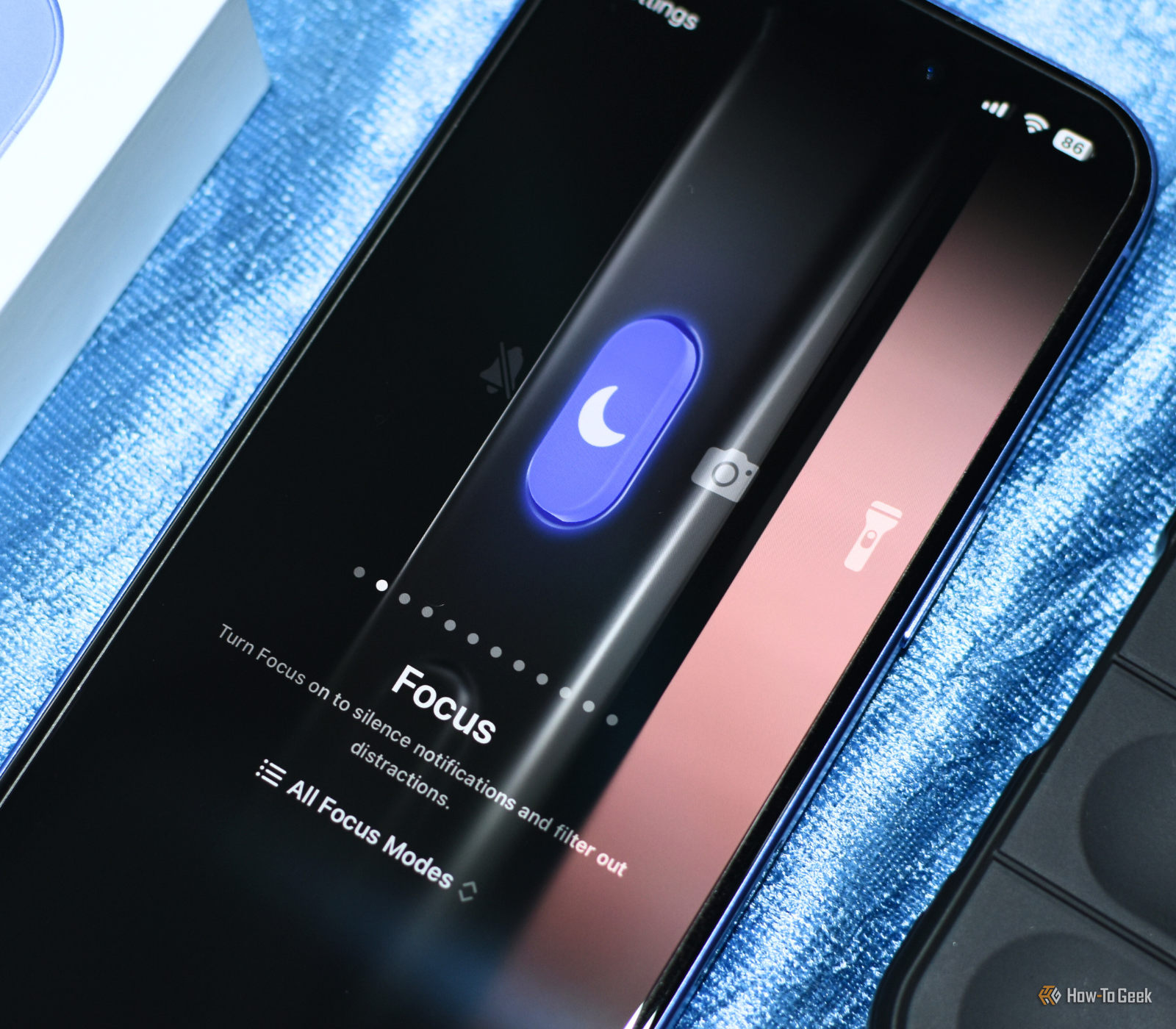
Transform this single button into your most-used shortcut—no more swiping through menus for frequent tasks. This replacement for the traditional Ring/Silent switch offers unprecedented personalization.
Default Silent Mode
Out of the box, it functions like your old silent switch:
- Up position: Normal sound with audible notifications
- Down position: Silent mode with vibration-only alerts
Critical exceptions remain: Clock app alarms still sound, and calls from favorite contacts ring through even in silent mode.
Personalization Options
Reconfigure it in Settings > Action Button to become:
- Instant Camera: One press opens Camera app from lock screen
- Flashlight: Immediate illumination without unlocking
- Voice Memos: Start recording meetings with a single tap
- Magnifier: Turn your camera into a reading aid
- Custom Shortcuts: Trigger any automation workflow
Configuration Steps
- Navigate to Settings > Action Button
- Swipe through available functions
- Select your preferred option
- Test immediately to confirm activation
iPhone 16 Camera Control Mastery
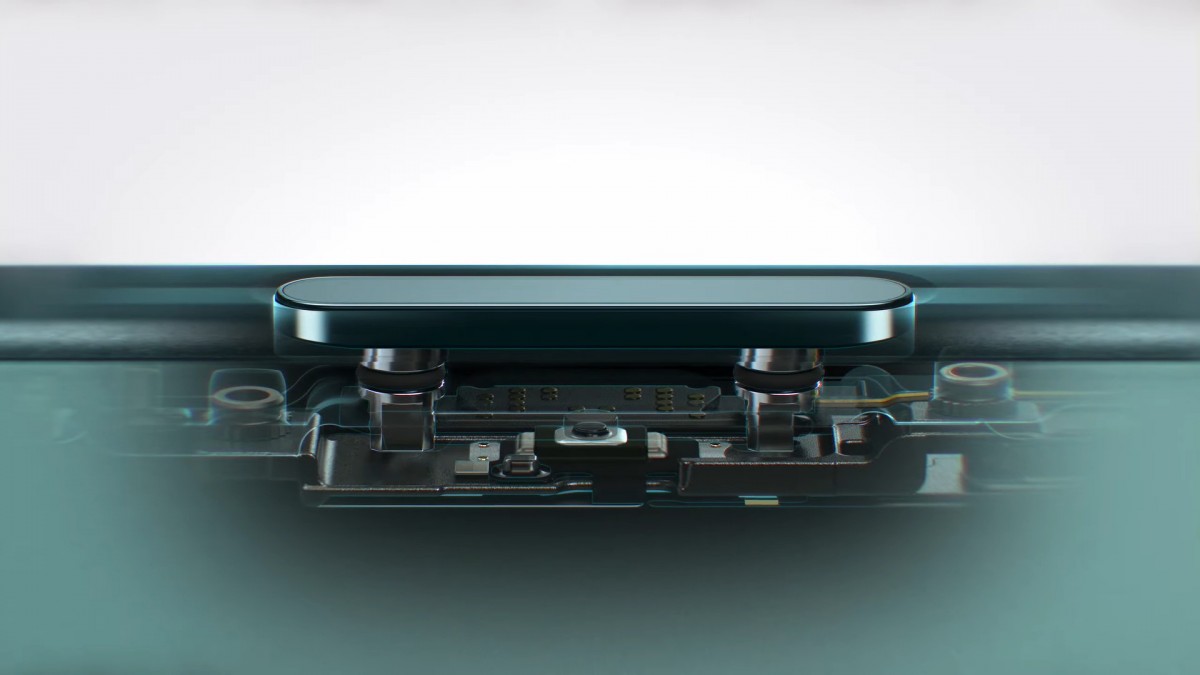
This revolutionary button puts professional photography controls at your fingertips—literally. No other iPhone offers this level of physical camera interaction, making it essential for anyone serious about mobile photography.
Photography Functions
Master these core operations:
Quick Launch: Single press opens Camera app from any screen—even when locked. Never miss spontaneous moments again.
Focus Lock: Half-press holds focus and exposure on your subject for consistent shots.
Shutter Release: Full press captures images with satisfying tactile feedback.
Video Recording: Hold continuously to film—release to stop.
Advanced Camera Settings
Swipe directly on the button surface for screen-free adjustments:
- Up/Down Swipes: Switch between photo, video, and portrait modes
- Left/Right Swipes: Adjust zoom levels without touching display
- Circular Swipe: Access filters and lighting effects
Pressure Sensitivity
The button responds to touch intensity:
- Light touch: Preview mode with focus peaking
- Medium press: Exposure and focus lock
- Firm press: Immediate shutter activation
- Extended firm press: Burst mode for fast-action sequences
Model-Specific Differences
Not all iPhone 16 models share identical button capabilities—knowing these distinctions prevents frustration when switching devices.
iPhone 16 vs iPhone 16 Pro
Both include the complete button set with identical functionality. The Pro model uses premium materials but offers no additional button features.
iPhone 16e and iPhone 15 Pro
These models feature the Action button but lack Camera Control:
– iPhone 16e: Action button included, Camera Control omitted
– iPhone 15 Pro: Action button present, requires screen access for camera
Older Model Comparison
iPhone 15 non-Pro: Retains physical Ring/Silent switch instead of Action button
iPhone 8 and earlier: Features Home button with Touch ID, creating completely different interaction patterns
Single-Hand Operation
The button layout optimizes for one-handed use—whether you’re right or left-handed. Apple engineered this placement to prevent accidental presses during normal handling while keeping critical functions accessible.
Right-Handed Optimization
Your thumb naturally covers:
– Side button for power/security
– Camera Control for landscape photography
– No grip adjustment needed during calls or typing
Left-Handed Adaptation
Left-thumb comfortably reaches:
– Volume controls for media adjustment
– Action button for silent mode or shortcuts
– Camera Control remains index-finger accessible
Accessibility Accommodations
AssistiveTouch creates virtual button alternatives. Custom gestures replicate any button function through screen touches. Adjust haptic feedback strength in Settings > Sounds & Haptics for better confirmation.
Maintenance and Troubleshooting
Keep your buttons responsive with these essential care practices. Physical controls require minimal maintenance but can malfunction when neglected—especially after case changes or exposure to elements.
Button Care Essentials
Prevent issues with these routines:
– Daily Cleaning: Wipe buttons with dry microfiber cloth
– Case Compatibility: Verify cutouts align perfectly—misaligned cases cause sticking
– Monthly Testing: Check responsiveness through Settings > General > About
Common Issues and Solutions
Unresponsive Action Button:
– Remove case and test directly
– Check for iOS updates in Settings > General
– Reset all settings if problem persists
Camera Control Not Recognizing Pressure:
– Clean with soft-bristled brush
– Recalibrate in Settings > Camera > Camera Control
– Restore iOS as last resort
Volume Buttons Controlling Wrong Function:
– Restart device to reset context awareness
– Check for app-specific overrides
– Reset settings if issue continues
Prevention Tips
- Avoid moisture exposure—liquids cause sticking
- Choose precision-cut cases from trusted brands
- Test buttons monthly to catch issues early
Your iPhone 16’s physical controls represent Apple’s most thoughtful button system yet—transforming rigid switches into adaptive tools that learn your habits. By mastering the Side button’s security functions, customizing the Action button for daily tasks, and leveraging Camera Control for pro photography, you’ll unlock efficiency impossible on older models. Remember to clean buttons monthly and verify case compatibility to maintain responsiveness. Within days of implementing these techniques, these physical interfaces will feel like natural extensions of your workflow—proving that in an era of touchscreens, well-designed buttons still matter most.


