
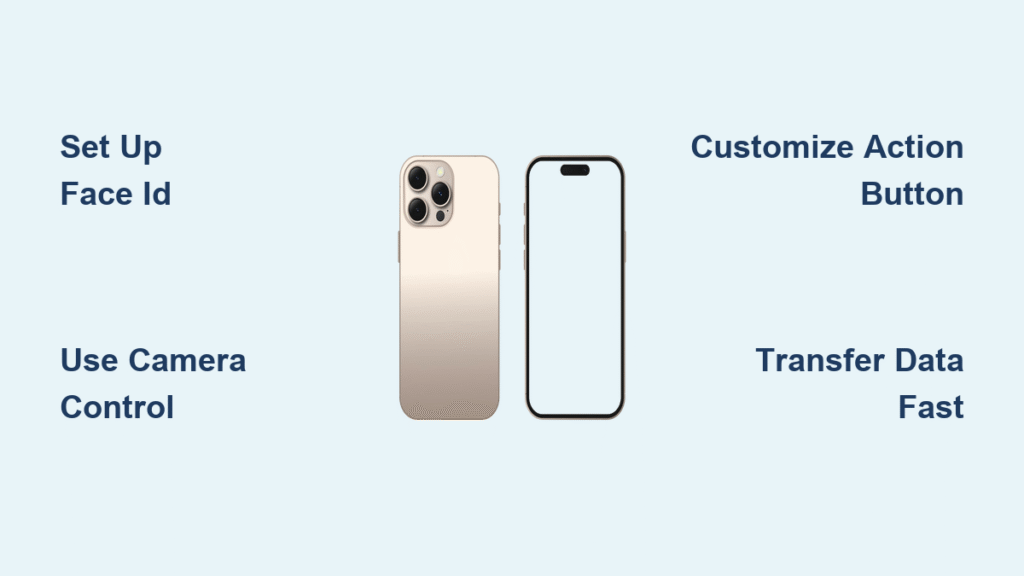
Your iPhone 16 Pro arrives as Apple’s most intelligent titanium powerhouse yet, but its revolutionary features can leave you staring at that sleek display wondering where to start. From the game-changing Camera Control button to Apple Intelligence’s AI-powered magic, this guide cuts through the overwhelm with exact steps to transform you from confused newcomer to confident power user. Within minutes, you’ll master gestures that replace the home button, activate Face ID correctly, and unlock camera tricks professionals use—no tech degree required. Let’s turn your stunning new device into an extension of yourself.
Unbox and Power On Your iPhone 16 Pro Correctly
Skip the frustration by starting right: Your box contains only the titanium iPhone 16 Pro (in White, Natural, Black, or Desert Titanium), a braided USB-C cable, quick start guide, and Apple stickers—no charger brick. Power on by pressing the elongated right-side button for 3 seconds until the Apple logo appears. That premium titanium finish resists scratches but shows fingerprints; wipe clean with a microfiber cloth. Crucially, keep your old phone nearby—within inches—for seamless data transfer via Quick Start. If switching from Android, download Apple’s “Move to iOS” app before powering on your 16 Pro to migrate contacts, photos, and messages automatically.
Critical first move: During setup, choose “Transfer from iPhone” when prompted to preserve everything—including your home screen layout, Focus modes, and even VoiceOver customizations. Android users get contacts, messages, and free apps, but paid apps require reinstallation. Avoid the “Set Up as New” trap unless you want to rebuild settings from scratch.
Navigate Without a Home Button Like a Pro
Forget muscle memory—these gestures replace physical buttons entirely. Swipe up from the bottom edge to return home; swipe up and pause to open the app switcher. Access Control Center with a top-right swipe (customize toggles in Settings > Control Center), and pull notifications down from the top-left. For lightning-fast app switching, swipe left or right along the home indicator bar at the screen’s base. The titanium edges provide extra grip, minimizing accidental drops as you adapt.
Action Button customization: Immediately map this left-side button (above volume controls) to your most-used function: Settings > Action Button > select Camera for instant shots, Voice Memo for meetings, or Flashlight for dark spaces. Press-and-hold to activate—no accidental triggers since short presses do nothing. Pro tip: Set it to VoiceOver if you assist visually impaired users; triple-tap the power button during “Hello” screen setup to enable it instantly.
Set Up Face ID for Flawless Unlocking
Don’t waste time re-entering passwords—perfect Face ID in 60 seconds. Hold your 16 Pro 10-12 inches from your face and slowly rotate your head in a complete circle twice. The second scan captures angled views, crucial for unlocking while lying in bed. Then enable both “Require Attention for Face ID” and “Attention Aware” in Settings > Face ID & Passcode. This ensures your phone only unlocks when you’re looking directly at it (security) and dims the screen when you glance away during videos (battery saving).
Avoid future headaches: Tap “Set Up an Alternate Appearance” if you grow a beard, wear new glasses, or change hairstyles. This secondary scan prevents lockouts when your appearance shifts. Disable attention awareness only if you have visual impairments—but know it reduces security since the phone unlocks with eyes closed.
Master the Camera Control Button in 5 Minutes
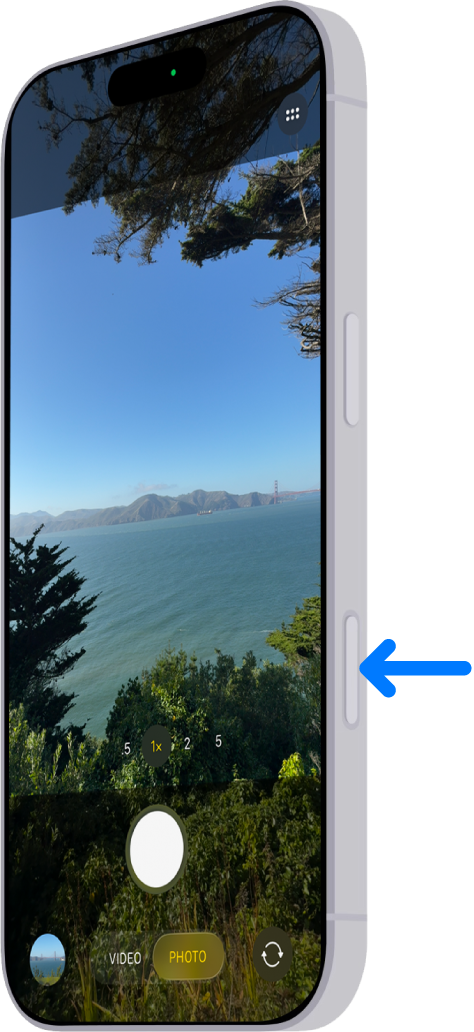
This sapphire-crystal button (lower right frame) revolutionizes photography—learn these gestures before your first shot:
– Light press: Instantly launches Camera from lock screen
– Press-and-hold: Starts video recording (no opening app first)
– Double light press: Cycles lenses (0.5×, 1×, 2×, 5×)
– Slide horizontally: Smooth zoom from 1× to 5×
– Slide vertically: Adjust exposure compensation
– Deep press: Locks focus/exposure or toggles depth control in Portrait mode
Customize defaults immediately: Settings > Camera > Camera Control > choose Photo for quick snaps or Video for content creators. Disable “Show Adjustments” if accidental swipes annoy you. The button attracts fingerprints—keep a microfiber cloth handy, but never clean openings with liquids. Wipe only with a dry cloth to avoid sensor damage.
Transfer Data Without Losing a Single Photo
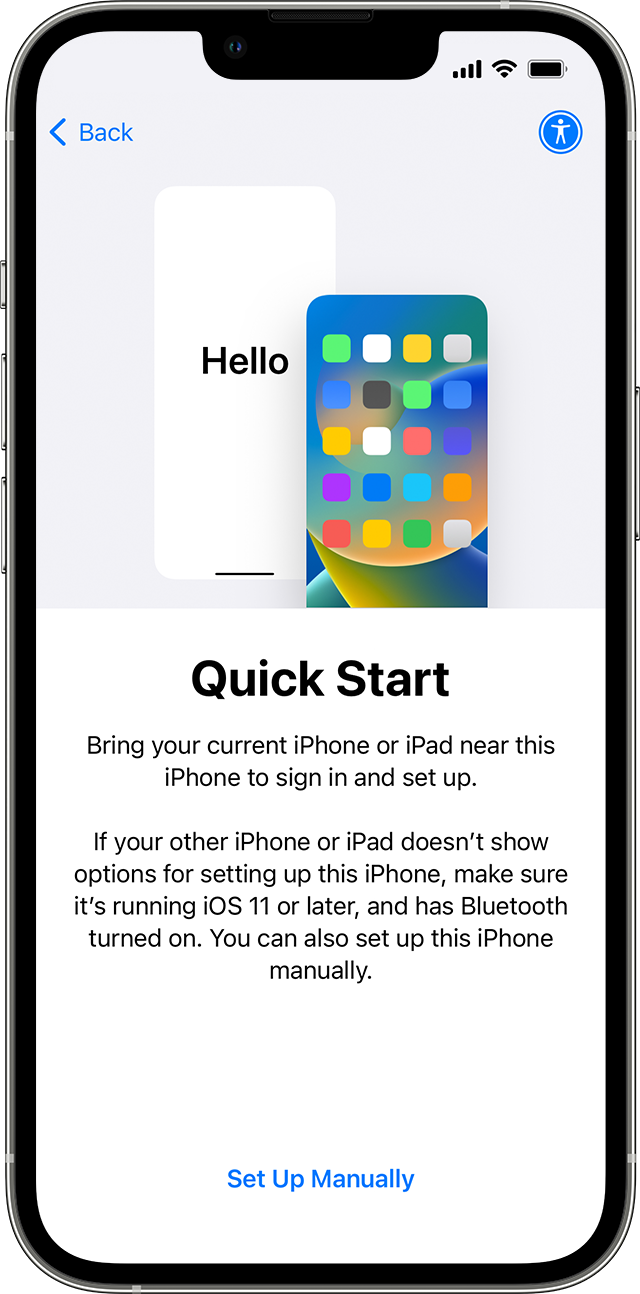
Skip the panic of missing memories with these proven methods:
1. Quick Start (best): Bring old iPhone near 16 Pro > scan animation > authenticate > select “Transfer from iPhone.” Preserves all data including health records, passwords, and Bluetooth pairings (except some smart locks—check manufacturer sites).
2. iCloud restore: Settings > General > Transfer or Reset iPhone > Erase All Content > Restore from iCloud Backup. Use only with strong Wi-Fi; takes 30-60 minutes.
3. Android switch: Install “Move to iOS” on Android first—it transfers messages, contacts, and free apps.
Critical note: Your home screen layout, Focus modes, and accessibility settings transfer completely. But paid Android apps require manual reinstallation from the App Store. Verify successful transfer by checking Photos and Messages before erasing your old device.
Optimize Battery Life for All-Day Power
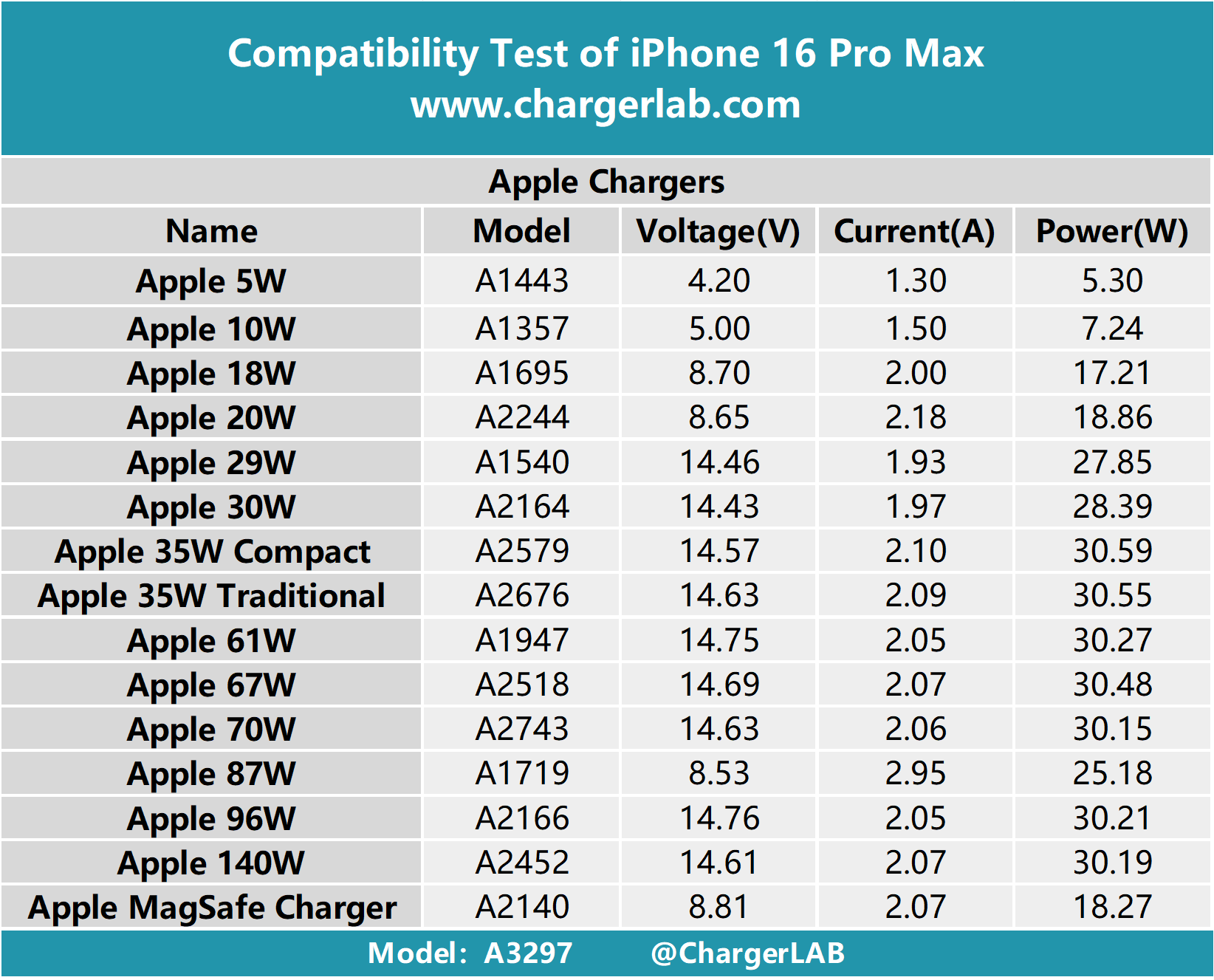
Don’t endure daily anxiety—extend battery health with these tweaks. Real-world usage delivers 27 hours video playback or all-day mixed use, but heavy photography drains faster. Prioritize charging methods:
– USB-C fast charging (27W adapter): 50% in 30 minutes ($19 adapter sold separately)
– MagSafe (30W adapter): 25W—ideal for bedside charging
– Qi2 wireless: 15W for overnight top-ups
– Avoid reverse charging: Using 16 Pro to charge AirPods (4.5W) wastes battery
Enable Settings > Battery > Battery Health & Charging > Optimized Battery Charging to learn your schedule and reduce aging. The 80% Limit option (for desk workers) dramatically extends lifespan but requires daily charging. If battery health drops below 80%, replace it for $99 with AppleCare+—or $449 without.
Troubleshoot Common Headaches Immediately
Fix these issues before calling Apple Support:
– Bluetooth won’t pair? Restart 16 Pro > Reset Network Settings (Settings > General > Reset > Reset Network Settings) > ensure accessory battery is 70%+.
– No notification sounds? Check left-side mute switch > Settings > Sounds & Haptics > raise volume > disable Audio Ducking (Accessibility > VoiceOver > Audio).
– Stuck app updates? Three-finger swipe down on App Store account screen to force refresh > tap “Update All.”
Pro prevention: Schedule monthly “Reset All Settings” (Settings > General > Transfer or Reset > Reset All Settings) to clear glitches—your data stays intact. Always back up to iCloud weekly via Settings > [Your Name] > iCloud > iCloud Backup.
Your iPhone 16 Pro mastery journey starts now. Test the Camera Control button capturing sunlight through a window, customize your Action Button for morning routines, and enable Apple Intelligence for email summaries. Remember: what feels complex today becomes instinct within a week. Bookmark this guide for quick reference, and don’t fear experimentation—your titanium marvel learns with you. Within days, you’ll wield its AI-powered camera, seamless gestures, and all-day battery like a native, transforming everyday moments into extraordinary experiences. This isn’t just a phone upgrade; it’s your most capable creative partner yet.


