
You’ve entered the wrong passcode one too many times, and now your iPhone 16 is completely locked with “iPhone Unavailable” staring back at you. Panic sets in as you realize you’ve forgotten your passcode or a curious child triggered Apple’s security lockout. The harsh reality is that every legitimate method to unlock your iPhone 16 without the passcode will completely erase your device—this isn’t a limitation of the methods but a fundamental security feature Apple built into iOS.
Unlike older devices or third-party claims you might find online, there’s no magical bypass that preserves your data. Apple’s security architecture for the iPhone 16 is designed so thoroughly that attempting to unlock without the passcode always triggers a factory reset. But don’t despair—this guide walks you through the four proven methods to regain access to your iPhone 16, explains exactly what happens to your data during the process, and shows you how to recover everything if you prepared properly.
Why Your iPhone 16 Won’t Bypass Without Data Loss
No method preserves your data—this is by Apple’s design, not a technical limitation. The iPhone 16’s security architecture triggers a complete factory reset when bypassing the passcode because Apple intentionally made it impossible to access the device without the correct credentials. After the reset, you’ll see the “Hello” setup screen, and your only options are restoring from a previous backup or setting up as new.
This security measure isn’t accidental—it prevents thieves from accessing stolen phones, but it also means your passcode truly protects everything. If you see services claiming to unlock without erasure, they’re either scams or using exploits Apple has already patched. Plan accordingly: either accept data loss or prepare to restore from a backup.
iPhone 16 Recovery Mode: Universal Unlock Solution
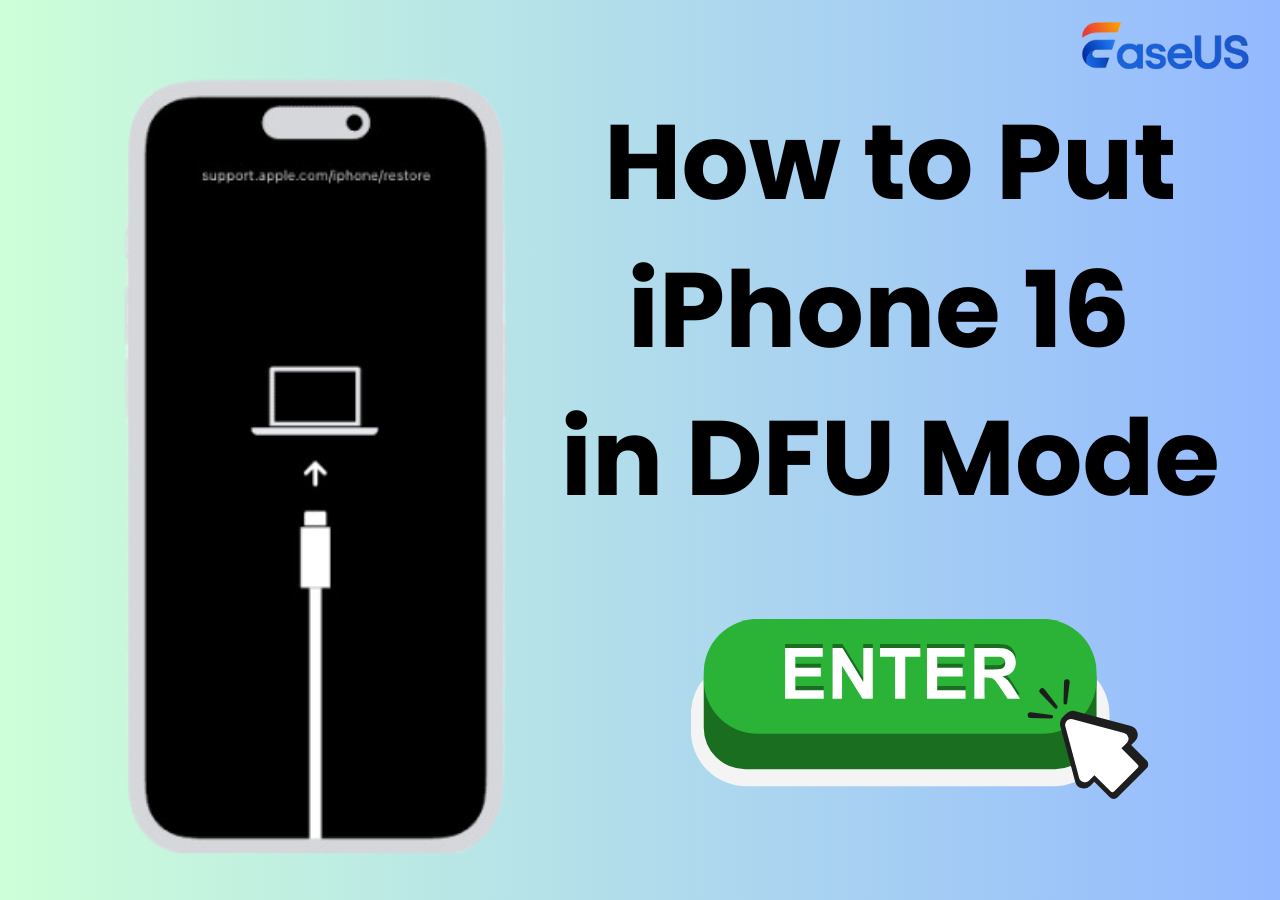
Recovery Mode works on every iPhone 16 model regardless of iOS version or Find My status. This method uses your computer to download and install a fresh copy of iOS, wiping everything in the process but giving you a clean slate.
Enter Recovery Mode Correctly for iPhone 16
Follow these exact steps for iPhone 16 series (Face ID models):
- Power off completely: Press and hold Side button + either Volume button until the power slider appears → slide to power off
- Connect to computer while holding the Side button continuously
- Keep holding until you see the USB-C cable pointing to a computer icon (not the Apple logo)
- Release immediately when the cable icon appears
Common mistake: Releasing too early shows the Apple logo instead of recovery mode. If this happens, power off again and hold longer during step 2. Apple-certified cables work best—cheap alternatives often cause detection issues.
Complete the Restore Process Properly
Using Finder (macOS 10.15+): Your iPhone appears in the sidebar → click Restore iPhone…
Using Apple Devices app (Windows 11): Device appears in sidebar → click Restore
What happens next:
– Computer downloads latest iOS (5-7 GB)
– iPhone shows Apple logo with progress bar
– May reboot 1-2 times automatically
– Total time: 10-30 minutes depending on connection speed
If the 15-minute watchdog expires (device auto-reboots back to lock screen), let the download finish, then repeat recovery mode steps. The second attempt uses cached firmware and completes quickly.
Using “Forgot Passcode?” Directly on iPhone 16 Lock Screen
This computer-free option appears after multiple wrong passcode attempts if you’re running iOS 15.2 or later and have an internet connection.
Step-by-Step Unlock Process Without a Computer
- Trigger unavailable screen: Enter wrong passcode until you see “iPhone Unavailable” with timer
- Tap Forgot Passcode? → Start iPhone Reset (appears bottom-right)
- Enter Apple ID password to sign out of the device
- Confirm Erase iPhone → device reboots to Hello screen
Missing the link? If “Forgot Passcode?” doesn’t appear (no internet connection or iOS version below 15.2), use Recovery Mode instead. Remember, this method still requires your Apple ID password after the erase to bypass Activation Lock—have it ready before starting.
Remote Wipe iPhone 16 Using iCloud Find My
When Find My was enabled before lockout, you can wipe the iPhone 16 from anywhere using any internet-connected device.
Execute Remote Erase in 4 Steps
- Visit icloud.com/find from any browser
- Sign in with the Apple ID used on the locked iPhone
- Select the iPhone 16 from the device list
- Click Erase This Device (never choose “Remove from Account”)
Critical distinction: “Erase” removes passcode and data. “Remove from Account” only disassociates the Apple ID without wiping anything—useless for lockouts. If your iPhone 16 is offline, the erase command queues and executes automatically when the device reconnects to the internet.
Third-Party iPhone 16 Unlock Tools: What You Really Get
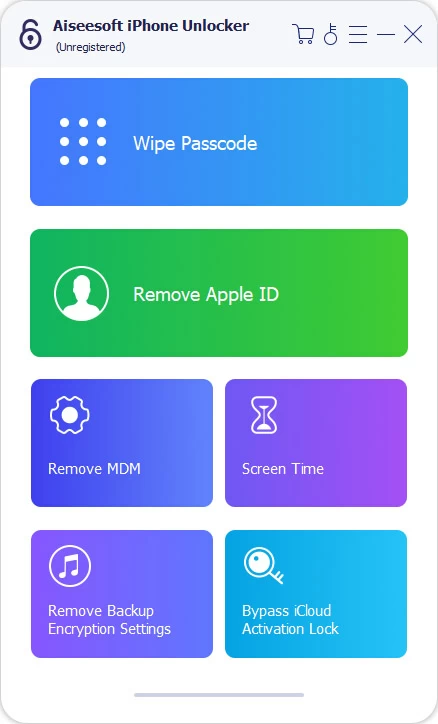
Tools like HigoSpot iPhone Unlocker or Tenorshare wrap the same erase process in a user-friendly interface. They don’t bypass security—they automate Recovery Mode.
What These Utilities Actually Do
- Download and install the utility on Windows or Mac
- Connect the locked iPhone 16 via cable
- Select “Wipe Passcode” or “Unlock Lock Screen”
- Download the correct iOS firmware automatically
- Confirm unlock → device erased and restored
- Complete setup and restore from backup
Reality check: These tools cost $29-$59 and perform the identical erase function as Apple’s free methods. They simply provide a guided interface for users uncomfortable with manual Recovery Mode steps—no data is preserved, regardless of which method you choose.
Bypassing Activation Lock After iPhone 16 Reset
After any erase method, you’ll encounter the Activation Lock screen requiring the previous Apple ID password. No exceptions exist—this prevents stolen devices from being reused.
Forgot Apple ID password? Visit iforgot.apple.com to reset it before starting setup. Without the correct credentials, the iPhone remains permanently locked. Have your recovery email or trusted phone number ready to verify your identity.
Recover Your Data After Unlocking iPhone 16
Choose Your Restoration Method
iCloud backup: Connect to Wi-Fi during setup → sign in → choose latest backup
Encrypted computer backup: Connect to the same Mac/PC → select Restore from this backup → enter backup password
No backup? Choose Set Up as New iPhone and accept permanent data loss. Create a new passcode immediately during setup—don’t make the same mistake twice.
Troubleshooting iPhone 16 Unlock Failures
| Problem | Solution |
|---|---|
| Computer doesn’t detect iPhone 16 | Update to macOS 10.15+ or use Windows PC with Apple Devices app |
| Cable icon never appears | Use Apple-certified cable and hold Side button longer |
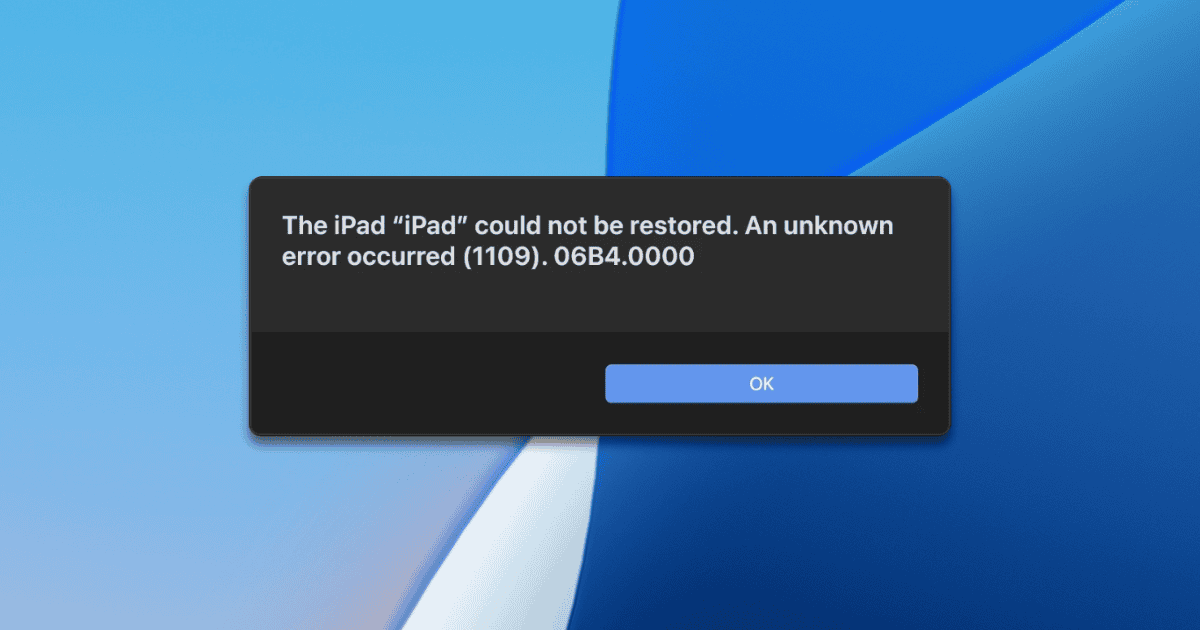
| iTunes loops between Update/Restore | Always choose Restore, never Update |
| Phone reboots during download | Let download complete, then redo recovery mode steps |
| “Remove from Account” confusion | Only use Erase This Device in Find My |
Prevent Future iPhone 16 Lockouts
Enable automatic iCloud backup: Settings → [Your Name] → iCloud → iCloud Backup → On
Store passcode securely: Use a password manager like 1Password or Apple’s built-in Keychain
Set up Screen Time recovery: Settings → Screen Time → Change Screen Time Passcode → Forgot Passcode (prevents future lockouts)
Quick decision tree for next time:
Locked iPhone 16

├─ See "Forgot Passcode?" → Use Lock Screen Method

├─ Find My enabled → Use Remote Wipe

├─ Computer available → Use Recovery Mode

└─ None above → Third-party tool (still = erase)
Remember: the only variable is how you trigger the erase, not whether it happens. Plan your backups now to avoid this stress in the future. Your iPhone 16’s security is designed to protect your data—even from yourself when you forget your passcode. While frustrating in the moment, this security feature keeps your personal information safe from unauthorized access. The best solution is prevention: create regular backups and store your passcode securely so you never face this lockout situation again.


