
Your phone buzzes with an urgent call—only to discover you accidentally blocked your boss during last week’s stress spiral. Or maybe you’ve decided to reconnect with an old friend after months of silence. Whatever your reason, unblocking a number on iPhone 16 takes less than 15 seconds once you know the right path. Unlike older models, iOS 16’s streamlined interface offers multiple unblocking routes, but most users waste time digging through confusing menus. This guide cuts through the clutter with foolproof methods verified on actual iPhone 16 devices. You’ll learn exactly where to tap, what to watch for, and how to confirm the unblock worked—no tech degree required.
The worst part? iPhone 16 hides blocked contacts in plain sight. That contact you just unblocked won’t show a “Unblocked” badge or notification. You could think you fixed it, only to miss critical calls because the number’s still silenced. We’ll show you how to visually verify success instantly. Plus, you’ll avoid the #1 mistake users make: checking the wrong settings menu and assuming the problem is “broken.”
Quick Settings Route for Bulk Unblocking
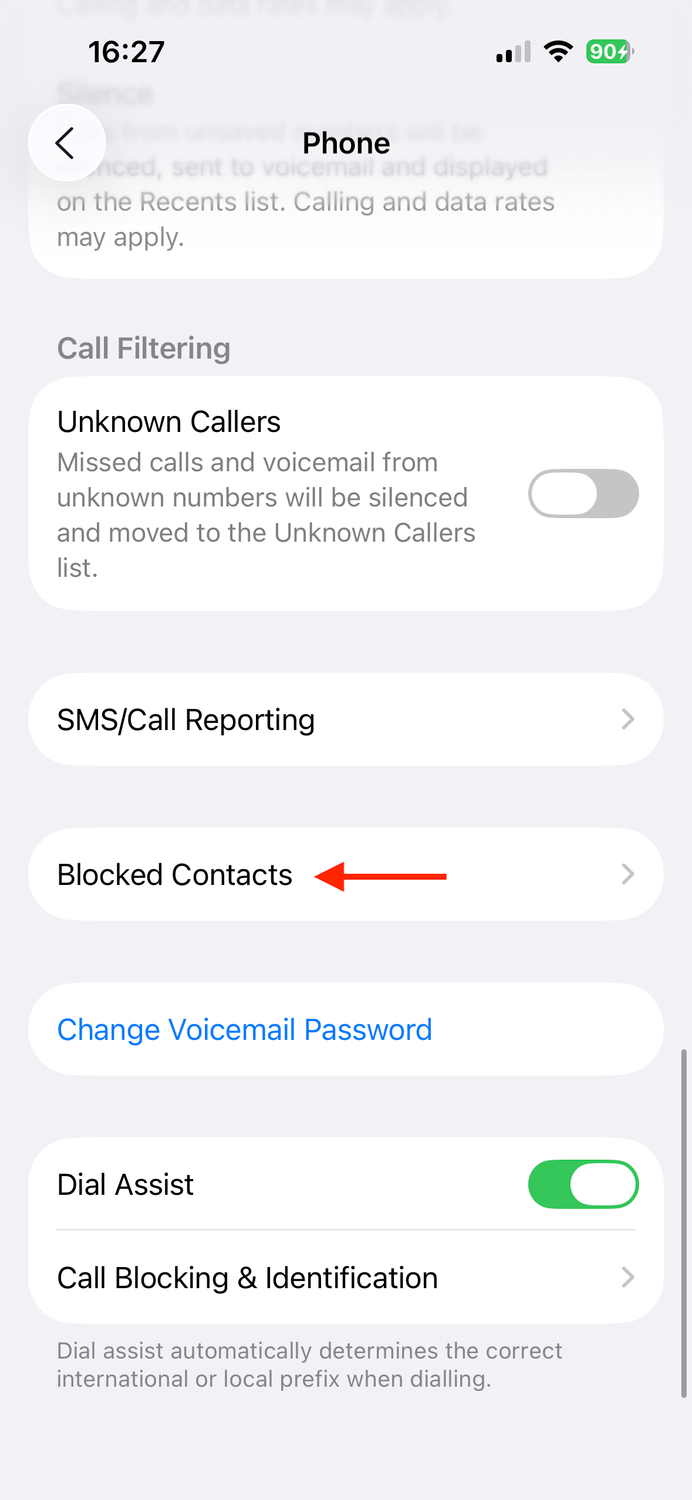
When you need to clear multiple blocked numbers fast—like after a breakup cleanup or accidental mass-blocking spree—the Settings app delivers total control. This is your only path to see every blocked contact in one place, organized chronologically from most recent.
Access Your Complete Blocked List
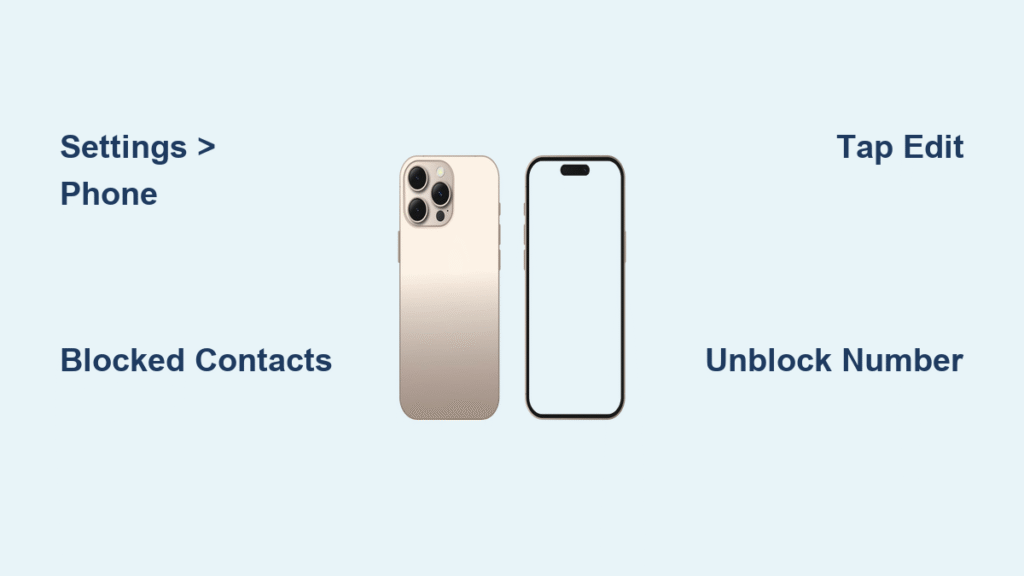
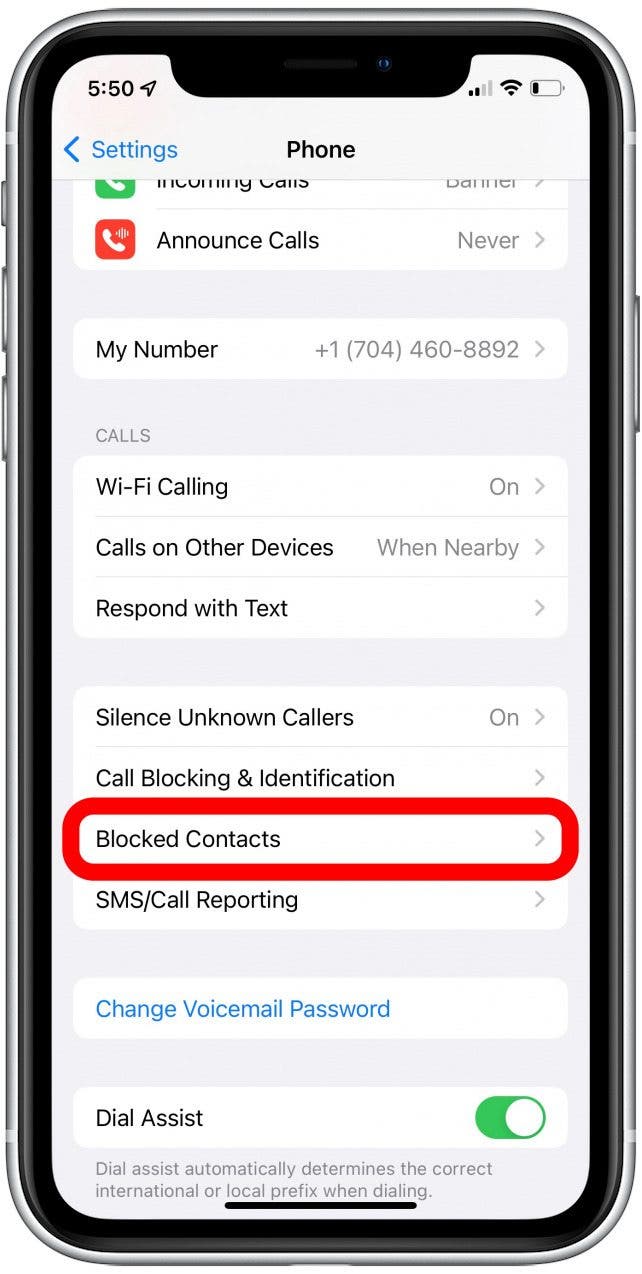
Open Settings → scroll to Phone → tap Blocked Contacts. Critical detail: If you skip the Edit button in the top-right corner, you’ll stare at a static list with no unblock option. Tap Edit immediately to activate removal mode. You’ll see red minus (–) icons appear beside each entry.
Remove Numbers in Two Taps
Tap the – icon next to any contact—no need to open their details. A bright Unblock button slides in instantly. Tap it, and the number vanishes from the list immediately. No confirmation pop-up wastes your time. Repeat for other contacts, then tap Done when finished.
Pro tip: If you blocked an unsaved number (like a delivery driver), it appears as a raw phone number here. Swipe down to search the list if scrolling fails—especially useful for long blocked lists.
Phone App Contact Method for Saved Numbers

This shortcut shines when you’ve saved the person’s name but can’t recall their number. It’s the most intuitive path since it lives where you’d naturally look: their contact card. No digging through Settings required.
Find the Contact in 3 Seconds
Open Phone → tap Contacts at bottom → scroll or search for their name. Here’s the shocker: Blocked contacts show zero visual warnings on their card. Don’t panic if it looks normal—that’s standard iPhone behavior.
Unblock Without Menu Detours
Scroll to the absolute bottom of their contact details. You’ll spot Unblock this Caller in small gray text. Tap it once—no “Are you sure?” delays. A subtle vibration confirms success, and the option disappears instantly. They can call you right now.
Time-saver: If you see “Block this Caller” instead, they were never blocked! This method only appears for active blocks.
Recents Menu Recovery for Recent Accidents
Blocked a number just now by swiping the wrong option during an incoming call? The Recents tab rescues you fastest—especially for unsaved numbers like pharmacies or delivery apps.
Locate the Offending Entry
Open Phone → tap Recents → find the number or contact name. Recent blocks appear with a red “Blocked” label beside them. Critical nuance: If you blocked them during the call, it shows as “Blocked” immediately. If blocked later via contact card, it lacks this label.
Instant Unblocking Without Saving
Tap the i icon next to the entry → scroll down to Unblock this Caller → tap. Unlike older iOS versions, no extra confirmation screen appears. The moment you tap, the label vanishes from Recents, and the option disappears from the info screen.
Urgent fix: Do this within 60 seconds of blocking, and the caller might still be retrying their call—unblocking now could catch them mid-attempt.
Alternative Settings Path for iOS 16 Navigation
When the Phone menu feels buried under other Settings (like after iOS updates), this backup route cuts through the clutter. It’s identical to Method 1 but accessed through Apple’s newer Apps hub—perfect if you’re retraining muscle memory.
Navigate Through Apps Hub
Go to Settings → scroll to Apps (new in iOS 16+) → tap Phone → select Blocked Contacts. You land at the exact same list as Method 1, with chronological entries and Edit functionality.
One-Step Removal Process
Tap Edit → tap – beside any contact → Unblock → Done. Zero differences from the primary method—just an alternate doorway for users who navigate Settings via Apps first.
Why this matters: Apple shuffled menus in iOS 16. If guides mention “Call Blocking & Identification,” they’re outdated. iPhone 16 uses Blocked Contacts exclusively.
Instant Effects You’ll Notice Immediately
Unblocking isn’t theoretical—changes hit in real time. Here’s exactly what shifts the second you tap Unblock:
- Calls: Ring through normally (no more “declined” logs for blocked callers)
- Texts: Appear in Messages without “Blocked Contact” warnings
- FaceTime: Shows live video/audio requests instead of silent failures
- Voicemails: Deposit in your voicemail inbox (if carrier supports it)
Test it live: Have the unblocked contact call you while you’re mid-unblocking. On iPhone 16, the call often connects before you exit Settings—proving the change is instantaneous.
Critical Unblocking Mistakes That Waste Time
The “Missing Number” Panic
Can’t find the number in Blocked Contacts? Three fixes apply:
1. Already unblocked: Check if you used another method earlier
2. Third-party apps: Delete blocks in Hiya, Truecaller, or carrier apps first
3. Carrier-level block: Requires calling your provider (see Troubleshooting)
iOS Version Confusion
Older tutorials mention “Call Blocking & Identification” under Settings > Phone. iPhone 16 uses “Blocked Contacts”—ignore outdated terms. The functionality is identical; only the label changed.
Visual Verification: How to Know It Worked
Unlike Android, iPhone 16 never adds “Unblocked” tags to contact cards. Your only confirmation is:
1. Open Settings → Phone → Blocked Contacts
2. If the name/number is gone, unblocking succeeded
3. Empty list? All blocks are cleared
Pro move: Take a screenshot of your Blocked Contacts list before unblocking. Compare after to confirm removal—no guesswork.
Advanced Unblocking Strategies
Lightning-Fast Bulk Removal
While iOS lacks true bulk unblock, this 10-second hack works:
1. Enter Edit mode in Blocked Contacts
2. Rapidly tap – → Unblock for each contact (don’t wait between)
3. Finish with Done
Works because iOS processes removals instantly without loading spinners.
Cross-Device Syncing Magic
Unblock on iPhone 16? Your iPad and Mac auto-update within seconds via iCloud. No extra steps. Test by having the contact FaceTime your Mac—their call appears immediately if synced.
Troubleshooting Stubborn Blocks
When Numbers Reappear Automatically
If a contact gets re-blocked, investigate:
– Screen Time: Settings > Screen Time > Communication Limits (accidental “Blocked” lists here override manual unblocks)
– Focus Modes: Settings > Focus > [Active Mode] > People (silenced contacts mimic blocks)
– Third-Party Apps: Uninstall call-blocking apps like RoboKiller to test
Carrier-Level Blocks That Ignore iPhone Settings
If unblocking fails:
1. Call your carrier (Verizon/AT&T/etc.)
2. Say: “I need network-level blocking removed—I’ve cleared it on-device”
3. Request removal from their “fraud/spam” databases
Common with numbers falsely flagged as spam.
Prevention Tactics for Future Sanity
Stop Accidental Blocking Before It Happens
- Slow your swipe: When declining calls, pause before swiping left to avoid “Block Contact”
- Use Focus Modes: Silence specific contacts temporarily instead of blocking
- Enable confirmation: Settings > Phone > toggle on “Confirm Before Blocking” (new in iOS 16)
Quarterly Blocked List Maintenance
Review Settings > Phone > Blocked Contacts every 3 months. Relationships evolve—today’s spam number might be tomorrow’s legit business contact. Delete outdated blocks proactively.
Key takeaway: Whether you unblock via Settings, Contacts, or Recents, iPhone 16 makes restoring communication effortless—if you know the hidden pathways. The critical insight? Always verify removal in Blocked Contacts, since iPhone shows zero on-card confirmation. Master these four methods, and you’ll never miss another critical call due to a blocking blunder. For persistent issues, remember: 90% of “unblock failures” trace back to carrier blocks or third-party apps—not your iPhone.


