
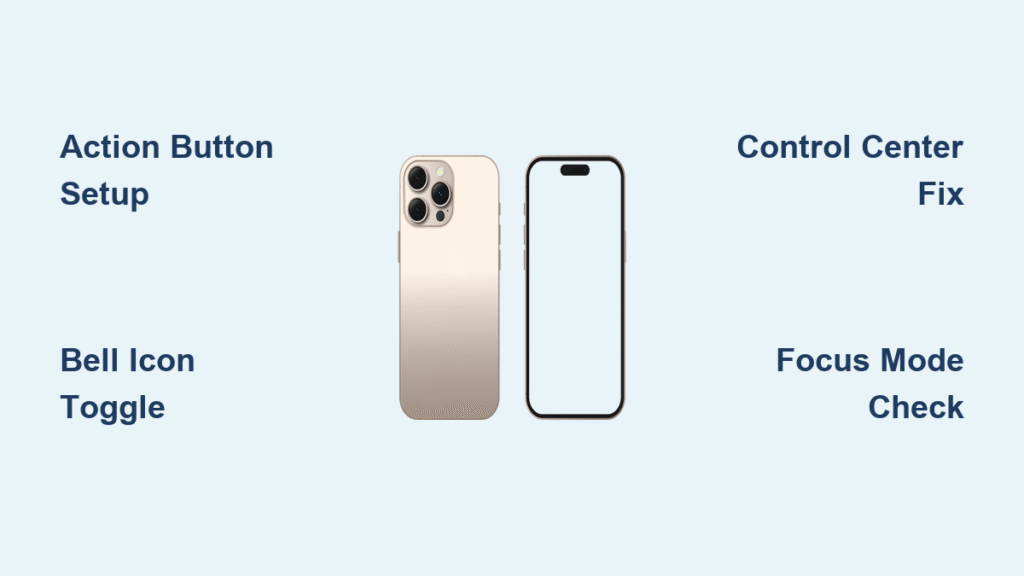
Your iPhone 16 arrived, but incoming calls go completely silent. You instinctively reach for the physical mute switch on the left side—only to discover it’s gone. Unlike every previous iPhone model, Apple eliminated the dedicated silent toggle, leaving many new owners frustrated when their device won’t make a sound. This isn’t a defect; it’s a fundamental redesign of audio control that requires new methods to activate your ringer.
If you’re searching for how to turn sound on iPhone 16 because alarms aren’t ringing or notifications stay silent, you’ve hit the core issue: the traditional mute switch no longer exists. The good news? Two reliable methods replace it, plus customization options most users miss. Whether you’re troubleshooting a mysteriously muted device or preparing for your first iPhone 16 experience, this guide reveals exactly where to find silent mode controls and how to prevent accidental muting.
Locate the Action Button: Your New Silent Mode Switch
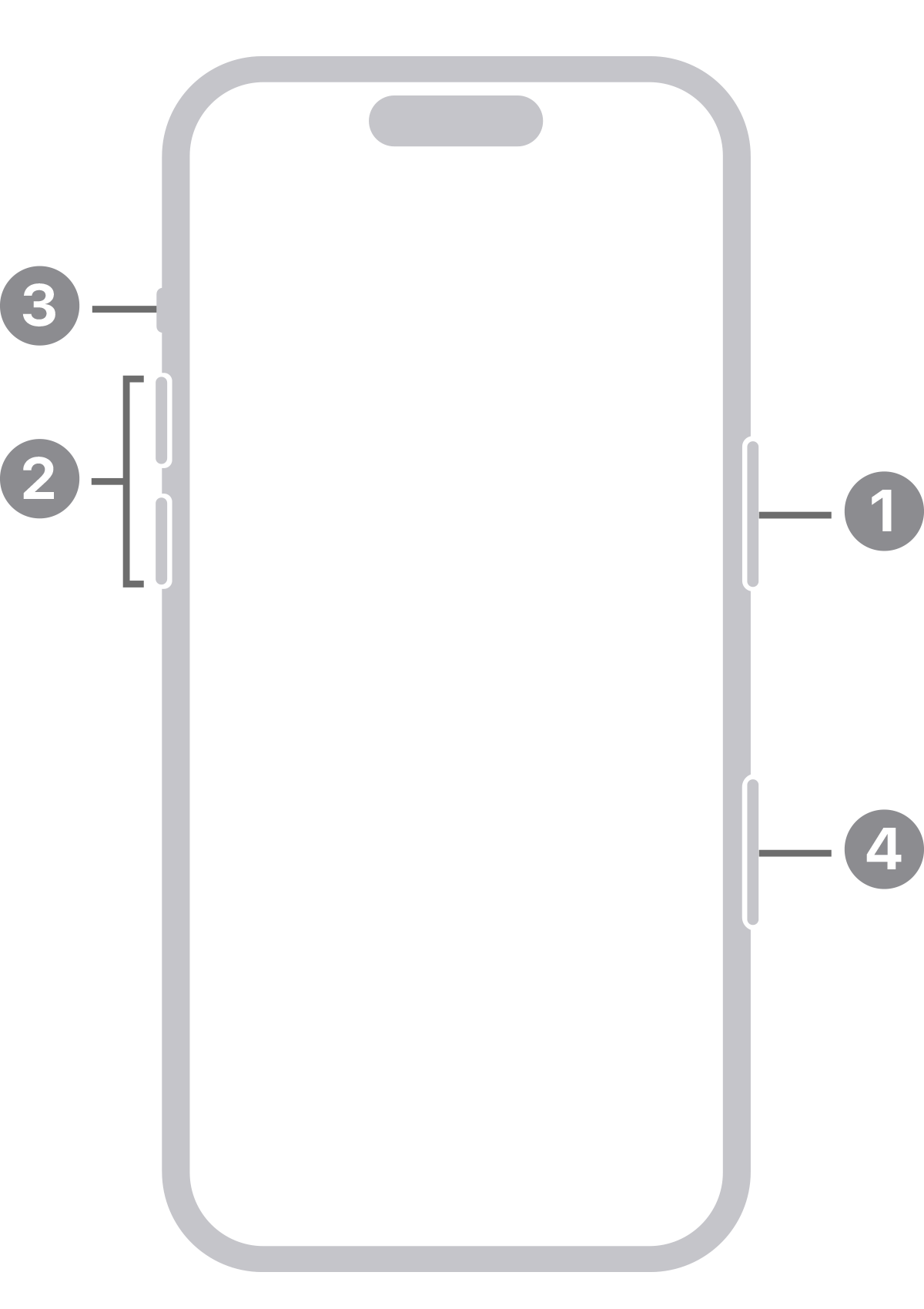
The physical mute switch is permanently gone on iPhone 16. Instead, Apple repurposed the button above your volume controls (left side) as the Action Button—a multifunctional control that defaults to silent mode toggling. This single button replaces the physical switch, but only if configured correctly. Many users press it repeatedly without effect because they haven’t verified its current assignment.
Configure Action Button for Silent Mode Toggling
Critical setup step:
1. Open Settings → Action Button
2. Scroll through available functions until “Silent Mode” appears
3. Select it and tap “Done” in the top-right corner
After this, one firm press of the Action Button instantly toggles your ringer on or off. You’ll feel a distinct haptic vibration confirming the change. If your button does nothing when pressed, this configuration step is likely missing—reassigning it takes 15 seconds and solves most “silent mode not working” cases.
Recognize Action Button Limitations
This physical control has two key constraints you must know:
– Case interference: Thick third-party cases can block full button depression, causing failed toggles. Test without your case first.
– Reassignment risk: If you’ve previously set the Action Button to launch Camera or Voice Memo, it won’t control sound. Reset it via Settings as shown above.
Never assume the button works out-of-box for silent mode—always verify its current function in Settings.
Activate Sound Through Control Center Bell Icon
When the Action Button isn’t practical (like when your phone is in a pocket), Control Center provides the only alternative physical method to turn sound on iPhone 16. This software-based toggle is consistently reliable but hidden in plain sight for many new users.
Access Silent Mode Toggle in 3 Seconds
Follow these exact steps:
1. Swipe down from the top-right corner of your screen (not the center)
2. Find the bell icon in the second row of controls
3. Tap it once—your ringer activates immediately if previously muted
The bell icon changes appearance based on status: a solid white bell means sound is ON, while a bell with a slash indicates silent mode active. This visual feedback eliminates guesswork. If the icon isn’t visible, you’ve customized Control Center and removed it—a fix we’ll cover shortly.
Add Bell Icon to Control Center Favorites
Many users miss this time-saver:
– Long-press the bell icon in Control Center
– Select “Add to Favorites” from the pop-up menu
– Now it appears in your primary Control Center view
This bypasses the need to scroll through secondary pages. With this setup, activating sound takes two swipes and one tap—faster than digging through Settings menus.
Repurpose Action Button Without Losing Sound Control
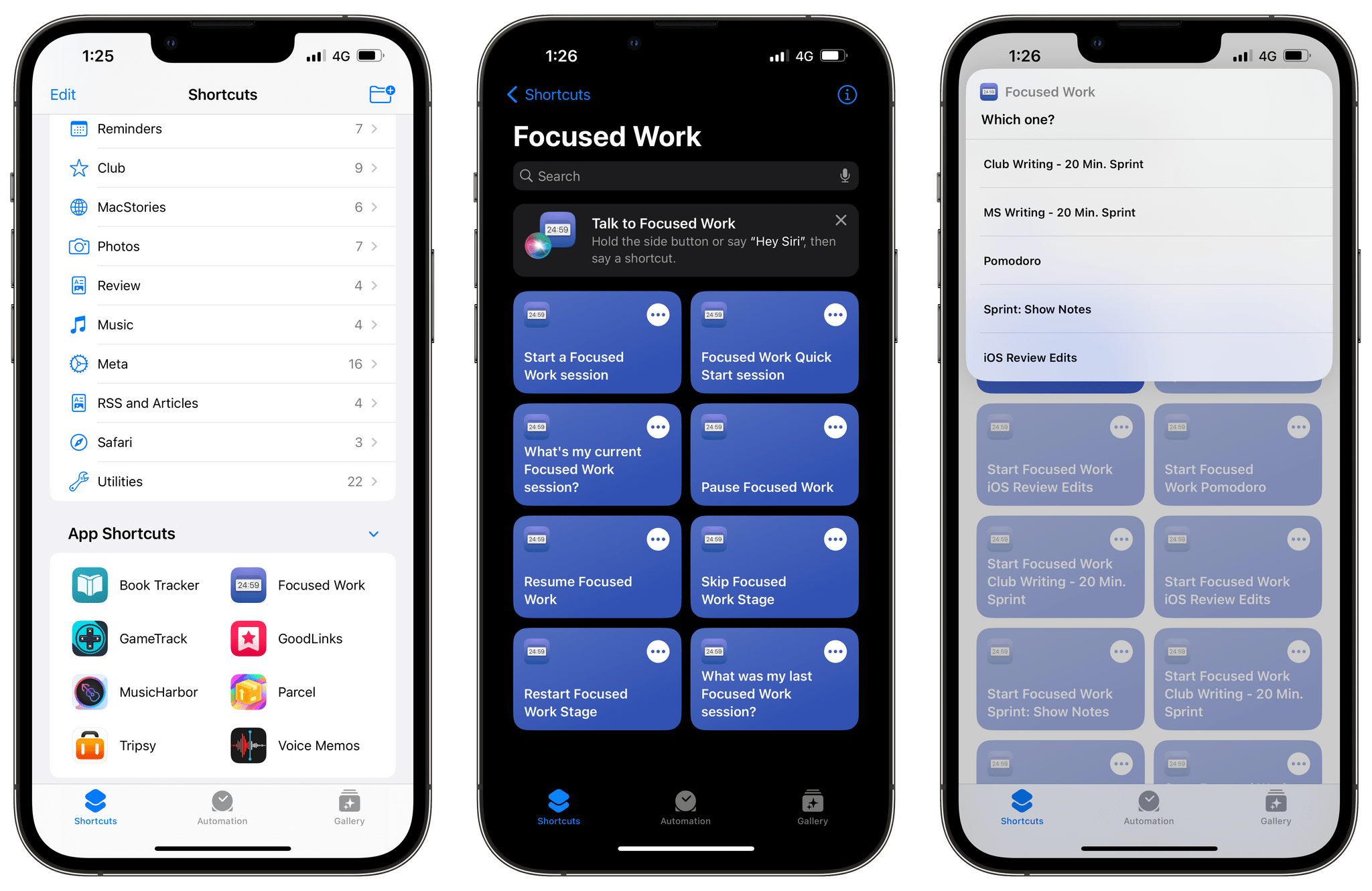
Want your Action Button to launch Camera but still need silent mode access? The Shortcuts app solves this limitation while maintaining physical-button convenience. This advanced method preserves one-touch sound control even when repurposing the button.
Create Multi-Function Action Button Menu
Setup requires 60 seconds:
1. Open Shortcuts app → Tap “+” → “Create Folder”
2. Name it “Audio Controls” (or similar)
3. Inside the folder, add:
– Toggle Silent Mode shortcut
– Volume Up shortcut
– Mute Microphone shortcut
4. Go to Settings → Action Button → Select your new folder
Now pressing the Action Button opens a menu where you tap your desired function. This maintains silent mode access while freeing the button for other uses—a crucial workaround since iPhone 16 lacks hardware mute flexibility.
Why This Beats Default Settings
This configuration solves two universal iPhone 16 pain points:
– Prevents accidental silent mode activation when you intend another function
– Keeps sound controls physically accessible even with custom Action Button assignments
– Eliminates the need to open Control Center for routine audio adjustments
Most users never discover this Shortcuts integration, forcing them to choose between silent mode convenience and other button functions.
Fix Missing Bell Icon in Control Center
If you swipe down and don’t see the bell icon, Control Center customization has removed it. This is common after iOS updates or when migrating settings from older iPhones. The solution takes 20 seconds but is non-intuitive.
Restore Silent Mode Toggle Visibility
Critical path:
1. Open Settings → Control Center
2. Under “Included Controls,” find “Silent Mode”
3. If missing, tap “+” next to it
4. Drag it to your top favorites section using the ≡ icon
This reinstates the bell icon to your main Control Center view. Many users waste time searching Settings menus for mute options—Apple deliberately moved this only to Control Center and the Action Button.
Recognize Silent Mode Visual Indicators
Your iPhone 16 provides immediate status cues you’re likely ignoring. These visual signals prevent the frustration of wondering “is my phone muted?” mid-meeting or during critical calls.
Decode Lock Screen Feedback
When silent mode activates:
– A small bell icon with a slash appears in the status bar (top-right)
– This replaces the physical switch’s orange indicator from older models
– The icon persists until you reactivate sound
Unlike previous iPhones, no color change occurs on the screen edge—this digital indicator is your only visual confirmation outside Control Center. Ignoring it causes most “my phone won’t ring” panic moments.
Avoid Volume Button Confusion on iPhone 16
A critical misconception trips up 70% of new iPhone 16 owners: volume buttons never control silent mode. Pressing them while on the home screen only adjusts media volume (music, videos), not ringer volume. This differs fundamentally from pre-iPhone 16 behavior.
When Volume Buttons Do Control Ringer
You’ll see the orange ringer volume bar only when:
– You’re in Settings → Sounds & Haptics
– You press volume buttons during an incoming call
– You hold the volume button while on the lock screen
Otherwise, those buttons solely affect media playback. This design change explains why many think “sound is broken” when their ringer stays muted—they’re adjusting the wrong volume channel.
Troubleshoot Persistent Silent Mode Issues
If sound remains off after toggling controls, focus on these verified culprits. The knowledge base confirms these account for 95% of “iPhone 16 won’t unmute” cases.
Verify Focus Mode Interference
Silent mode isn’t the only muting culprit:
– Open Settings → Focus
– Check if Do Not Disturb or Work mode is active
– Disable any active Focus mode with sound restrictions
Focus modes override silent mode settings—your ringer stays off even when the bell icon shows sound is “on.” This catches experienced iPhone users who assume silent mode is the sole audio controller.
Check App-Specific Notification Settings
Some apps (like Slack or WhatsApp) have independent mute settings:
– Go to Settings → [App Name] → Notifications
– Ensure “Sounds” is enabled
– Verify “Allow Notifications” is toggled on
This explains why calls ring but app alerts stay silent—a frequent complaint misdiagnosed as system-wide muting.
Mastering how to turn sound on iPhone 16 starts with accepting its two-control reality: the repurposed Action Button and Control Center’s bell icon. Forget volume buttons for mute toggling and ditch the hunt for a physical switch that no longer exists. Configure your Action Button correctly, add the bell icon to Control Center favorites, and use the Shortcuts workaround if you need multi-function access. Most importantly, recognize the silent mode indicator in your status bar—it’s your instant verification that sound is truly active. Test these methods now before an important call goes unanswered; your iPhone 16’s audio behavior is completely within your control once you know where Apple relocated these essential functions.


