
That relentless click-clack of your iPhone 16 keyboard shattering the silence during meetings or late-night texts? You’re not imagining it—Apple finally gave users control over keyboard sounds, but left the dial pad stubbornly noisy. While iOS 18 introduced subtle changes, the core limitation remains: you can silence typing sounds across most apps, but the phone dialer’s clicks are untouchable. This guide reveals exactly which sounds you can mute, why the dial pad fights back, and the proven workarounds power users deploy to type in peace.
Disable iPhone 16 Keyboard Sounds in 10 Seconds
Settings → Sounds & Haptics → Keyboard Feedback → Toggle “Sound” OFF
This single action instantly silences typing sounds across Messages, Notes, Safari, and every app using Apple’s native keyboard. Unlike temporary fixes, this setting survives restarts and iOS updates—making it your most reliable weapon against disruptive clicks. The moment you toggle it off, your keyboard transforms into a silent typing zone without affecting call alerts or notification chimes.
Why Keep Haptic Feedback Enabled
In the same menu, toggle Haptics ON while disabling sounds. You’ll feel subtle vibrations with each keystroke—providing tactile confirmation without audible disruption. This hybrid approach maintains typing accuracy in dark environments or during video calls where even slight sounds become problematic. Critical note: If vibrations disappear after enabling haptics, verify Settings → Accessibility → Touch → Vibration is active—this foundational setting controls all device vibrations.
When the Toggle Refuses to Stick
If sounds return after toggling “Sound” off:
– Force-close Settings by swiping it away in the app switcher
– Restart your iPhone 16 using side + volume buttons
– Check for iOS updates (Settings → General → Software Update)
iOS 18 occasionally re-enables keyboard sounds post-update—a deliberate Apple behavior, not a glitch. Always re-verify this setting after installing updates to prevent surprise disruptions.
Silent Mode: The Nuclear Option (With Hidden Traps)
Control Center → Tap Bell Icon → Enable Silent Mode
This brute-force method mutes everything: keyboard sounds, dial pad clicks, ringtones, and notifications. Use it only when absolute silence is non-negotiable (like during presentations), but beware of critical trade-offs. You won’t hear incoming calls unless you’re visually monitoring your screen—turning your iPhone into a vibrating paperweight.
Silent Mode’s Silent Sabotage
- No selective muting: Cannot keep ringtones while silencing keyboard
- Alarms still blare: Emergency alerts and alarms override silent mode
- Vibration trickery: If Settings → Accessibility → Touch → Vibration is disabled, you’ll miss all call notifications
This solution creates dangerous communication gaps. Reserve it for short-term needs like theater visits, not as a permanent fix.
Third-Party Keyboards: Your Secret Weapon for Selective Silence

Install Gboard for Granular Control
- Settings → General → Keyboard → Keyboards → Add New Keyboard
- Select Gboard from the list
- Grant full access when prompted (required for sound control)
- Switch keyboards in any app by tapping the globe icon
Mute Sounds Without Sacrificing Alerts
- Open Gboard Settings → Languages → Gboard Settings → Preferences
- Disable “Sound on keypress” while keeping “Vibration on keypress” active
Unlike Apple’s system-wide toggle, Gboard silences only typing sounds—preserving ringtones, notifications, and crucially, dial pad sounds remain unaffected. This is the only method letting you type silently while still hearing incoming calls.
Why You Can’t Silence iPhone 16 Dial Pad Sounds (And Never Will)

No setting exists to mute the phone app’s number pad clicks. This isn’t an iPhone 16 flaw—it’s a decades-old Apple policy. Every iPhone since 2007 shares this limitation because dial pad sounds serve as mandatory accessibility feedback. Vision-impaired users rely on audible clicks to confirm number entry without looking at the screen—a functional necessity Apple won’t compromise.
Your Only Dial Pad Workarounds
- Use Silent Mode (with all its call-missing risks)
- Bypass dialing entirely: Long-press a contact → Tap “Call”
- Voice command shortcut: Say “Hey Siri, call [Name]”
No third-party keyboard solves this. The dial pad operates outside standard keyboard controls, making selective muting impossible through any current iOS version.
Fixing Persistent Keyboard Sounds: Pro Troubleshooting
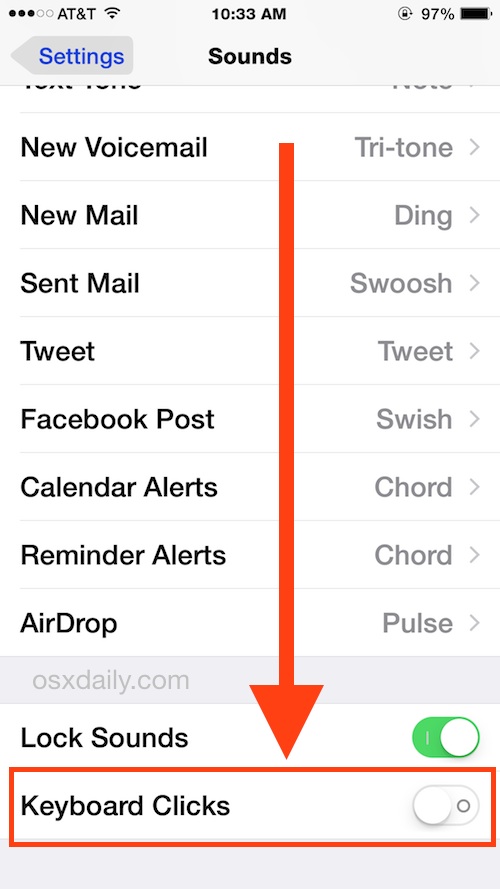
The 3-Point Verification Checklist
- Settings → Sounds & Haptics → Keyboard Feedback → Sound (MUST show OFF)
- Settings → Sounds & Haptics → Keyboard Clicks (Should auto-disable when Sound is off)
- Settings → Accessibility → Touch → Vibration (ON if using haptic feedback)
If sounds persist despite correct settings, accessibility features are likely overriding your preferences.
Hidden Sound Enablers
VoiceOver sabotage:
Settings → Accessibility → VoiceOver → Audio → Sounds → Disable “Keyboard Clicks”
Switch Control interference:
Settings → Accessibility → Switch Control → Audio → Toggle off “Sound Effects”
These accessibility tools often reactivate sounds after iOS updates—a common frustration for power users.
Last-Resort Reset Protocol
- Back up your iPhone 16 to iCloud or computer
- Settings → General → Transfer or Reset → Erase All Content and Settings
- Restore from backup (selectively if possible)
This nuclear option fixes deep system glitches but should only be used when standard methods fail. Most users resolve issues before reaching this step.
iPhone 16 Sound Control Strategy Matrix

| Your Need | Best Solution | Critical Trade-Off |
|---|---|---|
| Silent typing only | Native Settings → Keyboard Feedback → Sound OFF | None—perfect solution |
| Silent typing + audible calls | Gboard/SwiftKey with sound disabled | Slight learning curve |
| Emergency silent mode | Control Center bell icon | Miss incoming calls |
| Silent dial pad | Impossible | N/A |
Prevent Future Sound Surprises
After every iOS update: Immediately check Settings → Sounds & Haptics → Keyboard Feedback. iOS 18 notoriously re-enables sounds for previously silent users—a documented pattern since iOS 14. Before critical meetings: Open Notes app to test typing sounds, then verify silent mode won’t block urgent calls by having a colleague test-call you.
The Unavoidable Truth About iPhone 16 Sound Control
Your iPhone 16 gives you complete control over keyboard typing sounds but zero control over dial pad sounds—a deliberate design choice unchanged since the original iPhone. For most users, installing Gboard provides the ideal balance: silent typing across all apps while preserving audible call alerts. The dial pad limitation remains Apple’s hill to die on, prioritizing accessibility over user preference.
Take action now: Download Gboard from the App Store, follow the setup steps, and type in peace within 90 seconds. This single change delivers what Apple won’t—a truly customizable sound experience that respects your need for quiet without sacrificing critical functionality. Your colleagues (and late-night text recipients) will thank you.


