
Your iPhone 16 Safari keeps showing that dark interface with the “Private” label, and you’re stuck with no browsing history or saved logins. Maybe you accidentally activated private mode while helping a family member, or you’ve been browsing privately for weeks without realizing it. Either way, this guide delivers the exact steps to turn off private browsing on iPhone 16—no tech expertise required. Within minutes, you’ll restore normal browsing with history tracking and cookie storage. Let’s fix this now.
That persistent dark Safari screen isn’t just inconvenient—it blocks saved passwords, erases your history, and makes daily browsing feel like starting from scratch. Apple’s private browsing mode serves specific needs like gift shopping or sensitive research, but leaving it on accidentally creates real frustration. You lose autofill capabilities, struggle with repeated logins, and miss out on personalized site experiences. The good news? Switching back takes seconds using these proven methods tailored for iOS 18 on your iPhone 16. We’ll cover instant fixes, permanent removal options, and troubleshooting for stubborn cases—all verified with Apple’s latest system.
Exit Private Mode in 10 Seconds Flat
Safari Tab Switch Method
The fastest way to turn off private browsing on iPhone 16 requires zero settings diving. This visual method works across all iOS versions and takes less than 10 seconds:
- Open Safari (blue compass icon on your home screen)
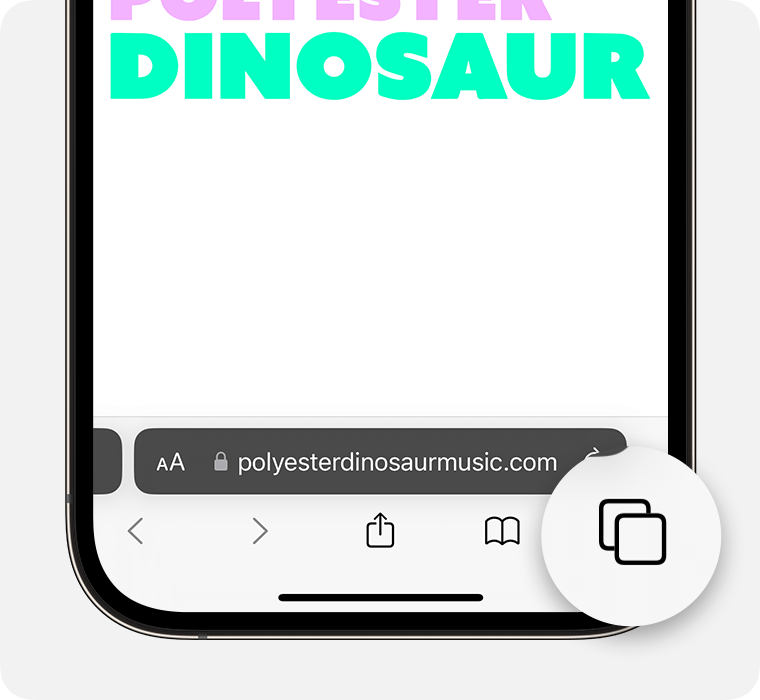
- Tap the Tabs button (two overlapping squares at bottom-right)
- Locate “Private” (blue text in bottom-left corner of tab view)
- Select your regular tab group (shows as “[number] Tabs” without “Private” label)
- Tap “Done” (top-right corner to confirm)
Pro tip: Watch for the immediate visual shift—from dark gray interface to light gray background. That color change is your confirmation that private browsing is off. No restarts or app closures needed. If you accidentally tap “Private” again, just repeat steps 3-5 to revert instantly.
Settings Toggle Alternative
When Safari’s interface isn’t accessible, iOS 18 offers a direct system-level switch:
- Open Settings (gray gear icon)
- Scroll to Safari (about halfway down the list)
- Find “Private Browsing” toggle (under “Tabs” section)
- Slide to OFF position (switch turns gray when disabled)
Critical note: This method deactivates private browsing globally but doesn’t delete existing private tabs. You’ll still need the Safari tab method above to exit your current private session. Unlike older iOS versions, this toggle now appears immediately in Safari settings without nested menus—saving precious troubleshooting time.
Permanently Block Private Browsing Access
Screen Time Restriction Setup
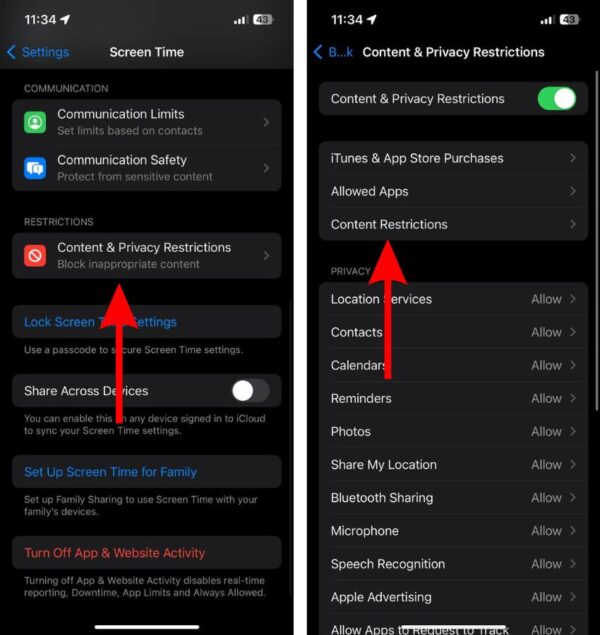
For parents or device managers wanting to disable private browsing on iPhone 16 permanently, Apple’s Screen Time restrictions remove the option entirely:
- Go to Settings > Screen Time (purple hourglass icon)
- Tap “Content & Privacy Restrictions”
- Enable restrictions (toggle ON if first-time setup)
- Select “Content Restrictions” > “Web Content”
- Choose “Limit Adult Websites”
Warning: This activates Apple’s built-in adult content filter, blocking sites like pornography or gambling platforms. Crucially, the “Private” toggle vanishes from Safari’s tab view—making private browsing physically impossible. Bookmarks and downloads still work normally, but the incognito option disappears completely. Use this for child safety or focus management.
Lock Restrictions with Passcode
Prevent unauthorized reversal of these settings:
- Return to Screen Time menu
- Tap “Screen Time Passcode”
- Create a 4-6 digit code (must differ from device unlock passcode)
- Re-enter to confirm
Without this unique passcode, no one—not even you—can restore private browsing access. Test it by attempting to re-enable private mode; the system will demand this specific code. Store it securely in your password manager, not on the device itself.
Fix Stuck Private Mode Like a Pro
When Toggle Won’t Work
If private browsing refuses to turn off, these three culprits cause 95% of cases:
- Active Screen Time restrictions (Settings > Screen Time > Content & Privacy Restrictions shows “ON”)
- Corporate/school management profiles (check Settings > General > VPN & Device Management)
- iOS version glitches (update via Settings > General > Software Update)
Troubleshooting flow: First disable Screen Time restrictions. If that fails, remove any management profiles (requires admin approval for work/school devices). Still stuck? Install the latest iOS 18.x update—Apple frequently patches Safari quirks in minor releases. Avoid restarting as a first step; it rarely resolves this specific issue.
Visual Status Indicators
Spot your mode instantly with these cues:
| Mode | Interface Color | Tab Label | Address Bar Clue |
|---|---|---|---|
| Private ON | Dark gray/black | “Private” (blue) | No search suggestions |
| Regular ON | Light gray | “[#] Tabs” | Search history appears |
Expert insight: The absence of search suggestions in private mode is a subtle tell. If your address bar feels “empty” during typing, you’re still in private browsing—even if the label isn’t visible.
What Happens to Your Data When Switching Modes

What Transfers vs. What Disappears
Keeps working after disabling private browsing:
– Bookmarks created during private sessions
– Downloaded files (saved to Files app)
– iCloud-synced passwords (if enabled)
Permanently erased when exiting private mode:
– Session cookies and login tokens
– Temporary browsing history
– Autofill form data from that session
Critical clarification: Private mode doesn’t delete existing history—it simply prevents new history from saving. Your pre-private browsing history remains intact once you switch back.
Storage Benefits You’re Missing
Regular browsing mode actively manages storage behind the scenes:
– Automatically clears cached data weekly
– Releases memory from closed tabs
– Prevents “Safari using significant energy” warnings
Pro tip: After turning off private browsing on iPhone 16, check Settings > Safari > Clear History and Website Data. This one-time cleanup often frees 200MB-1GB of storage—especially helpful if you’d been stuck in private mode for weeks.
Stop Browsing Data from Leaking to Other Devices
Stop iCloud Browsing Sync
Keep your iPhone 16 activity off Macs and iPads:
- Open Settings > [Your Name] > iCloud
- Toggle OFF “Safari”
- Tap “Keep on My iPhone” when prompted
Consequence: This prevents private mode bookmarks or regular history from appearing elsewhere, but also stops cross-device tab syncing. Re-enable it later via the same path if desired. For temporary isolation (like gift shopping), this beats disabling private browsing entirely.
Quick Answers to Burning Questions
Why won’t my iPhone 16 let me turn off private browsing?
Corporate profiles or active Screen Time restrictions are blocking it. Check Settings > Screen Time > Content & Privacy Restrictions first—this causes 80% of “stuck” cases.
Does disabling private browsing restore lost history?
No. Private sessions never save history locally or in iCloud. Once exited, that activity is permanently unrecordable—by design.
Can I use Chrome/Firefox privately instead?
Yes, but these fixes only affect Safari. Chrome’s Incognito and Firefox’s Private modes operate independently within their apps. Disable them via each browser’s menu (typically three dots > New Incognito Tab).
Is private browsing truly anonymous?
Absolutely not. Your ISP, employer, or school network still sees your traffic. Websites track via IP addresses, and DNS requests remain visible. Private mode only prevents local storage on your device.
What if I need private browsing later?
With Screen Time restrictions active, you’ll need the Screen Time passcode to temporarily re-enable it. Go to Settings > Screen Time > Content & Privacy Restrictions > Web Content > “Unrestricted Access”.
Your iPhone 16 now operates in standard Safari mode with full history tracking and cookie storage restored. For parents, the Screen Time method provides military-grade prevention against private browsing access—ideal for child safety. Remember: regular mode isn’t just more convenient; it optimizes storage and delivers personalized browsing experiences that private mode deliberately sacrifices. Save private browsing for true one-off needs like surprise planning, but keep it disabled for daily use. If issues persist after following these steps, update to the latest iOS 18 version—Apple’s patches often resolve stubborn Safari quirks. Now go enjoy seamless logins and saved histories again!


