
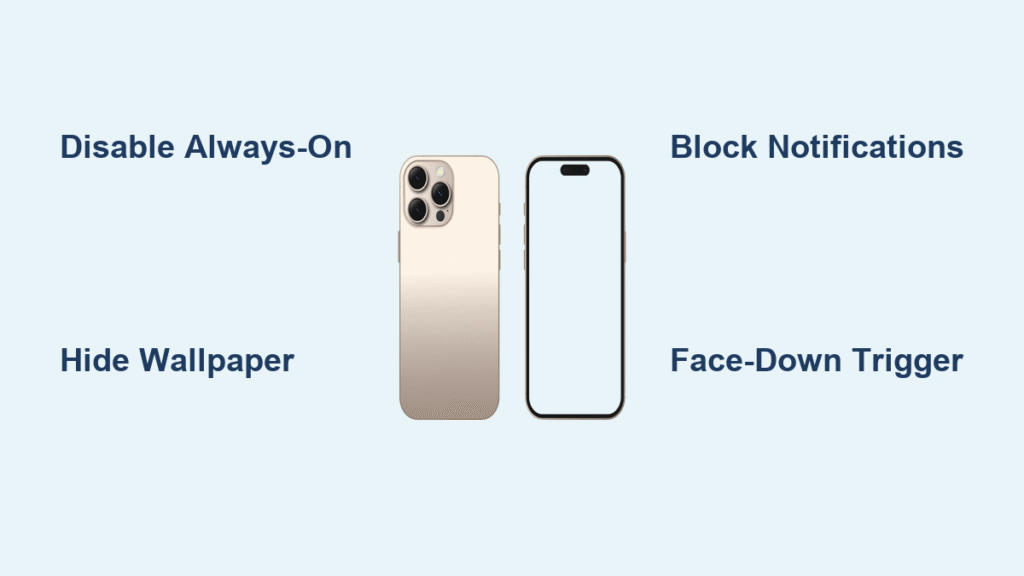
Your iPhone 16 Pro screen stubbornly glows with the time and notifications even when locked, draining precious battery during meetings or while you’re trying to sleep. That persistent glow might feel helpful at first glance, but when your bedside table looks like a miniature Times Square at 2 AM, you’ll want this feature silenced immediately. The good news? You can completely shut off your iPhone 16’s always-on display faster than it takes to unlock your phone—no technical skills required.
This essential guide cuts through Apple’s confusing settings maze to deliver the exact steps for disabling your iPhone 16 Pro’s always-on display. You’ll learn not just how to kill the constant glow completely, but also smarter customization options that preserve useful information while eliminating distractions. Whether you’re battling battery anxiety or just need darkness for better sleep, these proven methods work reliably on all iPhone 16 Pro models running iOS 18.
Locate Always-On Display Settings Instantly
Skip the settings scavenger hunt—your iPhone 16 Pro puts always-on display controls exactly where you’d expect them. Open Settings and tap Display & Brightness immediately. Scroll all the way to the bottom where you’ll see the Always On Display option waiting for your command. This single destination houses every control for managing your locked-screen behavior.
Direct Path to Power Down
- Open Settings → Tap Display & Brightness → Scroll to Always On Display
- No nested menus or hidden sub-sections stand between you and control
Confirm Your iPhone 16 Supports This Feature
Before proceeding, verify you’re using an iPhone 16 Pro or Pro Max model. Standard iPhone 16 models lack always-on display capabilities entirely. If you don’t see the “Always On Display” option in your settings menu, your device doesn’t support this feature—no further troubleshooting needed. Only iPhone 14 Pro, 15 Pro, and 16 Pro series models include this functionality.
Kill the Glow With One Toggle Switch
Once inside Always On Display settings, disabling the feature requires just one decisive action. Find the master toggle switch labeled Always On Display at the top of the screen and slide it to the OFF position (gray). The change takes effect immediately—no restart required.
Your iPhone 16 Pro will now behave like classic iPhones: pressing the side button or auto-locking triggers complete darkness. The screen stays pitch black until you actively wake it with a tap, raise, or button press.
What Changes Immediately After Disabling
- Total darkness when locked: No clock, notifications, or wallpaper visible
- Battery preservation: Expect 5-10% daily battery improvement based on usage patterns
- Classic iPhone behavior: Returns to the familiar “dark screen until touched” experience
Real Battery Impact You’ll Notice
Turning off always-on display delivers the most significant battery savings for heavy users who check their phone 50+ times daily. Since the display consumes more power than any other component, eliminating that persistent low-brightness glow extends usable hours—especially noticeable during travel or all-day work sessions without charging access.
Customize Instead of Cutting Off Completely

If you still want to glance at the time without fully waking your iPhone 16 Pro, customize rather than disable. These smart compromises maintain utility while reducing distractions:
Hide Wallpaper for Clean Minimalism
Keep always-on display active but remove your background image. Go to Settings → Display & Brightness → Always On Display → Wallpaper and select Hide Wallpaper. You’ll see only the clock and notifications against a solid black background—ideal for reducing visual noise while preserving essential information.
Block Notification Previews Only
Maintain time visibility while hiding sensitive message content. In Always On Display settings, toggle off Show Notifications. Your screen will display just the time and date during lock screen periods, with full notifications appearing only after you wake the device.
Essential-Only Mode (Time + Date Only)
For maximum focus, combine both options: hide wallpaper AND notifications. This shows only the clock in a clean, centered format against pure black—perfect for bedside tables or minimalist workspaces where even subtle glows disrupt concentration.
Leverage Automatic Display Off Triggers
Your iPhone 16 Pro already silences the always-on display in specific scenarios, even with the feature enabled. Use these automatic triggers as temporary solutions when you need immediate darkness:
- Face-down placement: Lay your iPhone flat on any surface with screen facing down
- Enclosed spaces: The proximity sensor kills the display when in pockets or bags
- Low Power Mode activation: Always-on display disables automatically to conserve battery
- Scheduled Sleep Focus: During configured sleep hours, the screen goes completely dark
Pro Tip: Temporary Darkness Without Settings Changes
Flip your iPhone 16 Pro face-down during movie nights or presentations for instant darkness. This physical trick bypasses software settings entirely—no menu diving required when you need immediate relief from screen glow.
Fix Common Always-On Display Problems
Encounter resistance when trying to disable your display? These targeted solutions resolve frequent iPhone 16 Pro issues:
Grayed-Out Toggle? Check These First
If the Always On Display switch appears dimmed and unresponsive:
– Confirm you’re running iOS 18 or later (Settings → General → Software Update)
– Verify you have an iPhone 16 Pro or Pro Max (Settings → General → About → Model)
– Check Screen Time restrictions (Settings → Screen Time → Content & Privacy Restrictions)
Settings Not Applying After Toggle?
When disabling always-on display seems ineffective:
– Force restart your iPhone 16 Pro (press volume up, volume down, then hold side button)
– Disable Low Power Mode (Settings → Battery) which overrides display settings
– Check active Focus modes (swipe down Control Center) that may be controlling display behavior
Screen Waking Too Frequently?
If your display lights up constantly despite disabling always-on:
– Turn off Raise to Wake (Settings → Display & Brightness → Raise to Wake)
– Ensure Tap to Wake is disabled if you don’t need it (Settings → Accessibility → Touch)
– Clean the proximity sensor (top-front edge) with a microfiber cloth—dirt can trigger false wakes
Double Your Battery Savings After Disabling

Turning off always-on display is just the first step. Maximize gains with these complementary settings:
Shorten Auto-Lock Duration
Go to Settings → Display & Brightness → Auto-Lock and select 30 Seconds. This ensures your screen sleeps faster after each use, compounding the battery savings from disabling always-on.
Reduce Base Brightness Level
With always-on disabled, lower your default brightness:
– Swipe down Control Center
– Drag brightness slider to 60-70% (Settings → Accessibility → Display & Text Size for precise control)
– Enable Auto-Brightness to let your iPhone adjust dynamically
Eliminate Accidental Wake-Ups
– Disable Tap to Wake (Settings → Accessibility → Touch)
– Turn off Back Tap actions (Settings → Accessibility → Touch → Back Tap)
– Store phone screen-down in bags/pockets to trigger automatic display-off
Critical Pro Tip: Measure Your Real Savings
Track actual battery impact by:
1. Enabling Low Data Mode (Settings → Cellular) for 3 days with AOD active
2. Repeating with AOD disabled
3. Comparing Battery Percentage at same time each day in Settings → Battery
Most users see 8-12% daily improvement—enough for an extra podcast session or navigation route.
Your iPhone 16 Pro now stays completely dark when locked, eliminating sleep disruptions and extending battery life without sacrificing core functionality. Remember that disabling always-on display doesn’t affect emergency features—critical alerts and alarms still activate the screen when needed. If you later miss glancing at the time without unlocking, simply revisit Settings → Display & Brightness → Always On Display to re-enable the feature or experiment with the customization options. For maximum nighttime battery preservation, combine this display change with Sleep Focus mode—which automatically silences notifications and dims your screen between scheduled hours. Within two days of implementing these changes, you’ll notice both longer battery life and improved sleep quality from the eliminated screen glow.


