
You’ve just upgraded to the sleek new iPhone 16 Pro and immediately tried to run two apps side-by-side—only to discover the frustrating truth: Apple doesn’t offer true split-screen functionality on any iPhone model, including the latest iPhone 16. You’re not imagining things, and you’re not doing anything wrong. While iPad users enjoy genuine split-screen multitasking, iPhone 16 owners face a hard reality: your device physically cannot display two different apps simultaneously in distinct halves of the screen. This guide cuts through the confusion to show you exactly what multitasking capabilities your iPhone 16 actually offers, why Apple made this design choice, and how to maximize productivity within iOS 18’s intentional limitations.
iPhone 16 Split Screen Reality Check
Your iPhone 16 Pro running iOS 18 fundamentally lacks the system-wide capability to display two separate applications side-by-side in equal portions of the screen. This isn’t a temporary bug or setting you’ve missed—it’s a deliberate design decision by Apple that affects every iPhone model, including the entire iPhone 16 lineup.
Why Apple Blocks True Split Screen
Apple’s design philosophy prioritizes single-app focus on iPhone hardware, recognizing that even the iPhone 16 Pro’s 6.7-inch display becomes impractical when divided. With a resolution of 1440×3088 pixels, splitting the screen would give each app only about 720×1544 pixels—barely enough space for comfortable interaction. Apple believes phone screens require full attention, reserving genuine multitasking for iPadOS where larger displays make split-screen viable.
Common Split Screen Misconceptions
Many iPhone 16 users waste hours searching for non-existent settings because they’ve seen misleading online claims. Be aware:
- No “Split View” toggle exists in iOS 18 Settings
- No gesture combination activates true split-screen
- Third-party “split screen apps” only create illusions through rapid switching
When you see someone apparently running two apps side-by-side on iPhone, they’re either using an iPad, employing Picture-in-Picture for video, or rapidly switching between apps using Dynamic Island.
Activate Picture-in-Picture: Your Video Multitasking Solution
While you can’t run Maps and Heart Rate side-by-side, Picture-in-Picture (PiP) delivers the closest experience for video content, allowing a floating window to stay visible while you navigate other apps.
Start PiP in Three Simple Steps
Step 1: Play video in a PiP-compatible app (FaceTime, Netflix, Apple Music)
Step 2: Swipe up from the bottom edge of your screen to return to Home Screen
Step 3: The video automatically minimizes to a floating window you can move anywhere
Master PiP Positioning and Control
You’ll discover these essential PiP techniques transform your multitasking:
- Reposition your video: Simply drag the floating window to any corner
- Resize for visibility: Pinch with two fingers to expand or shrink the window
- Temporary hiding: Swipe the PiP window to the screen edge (audio continues)
- Instant return: Tap once on the floating window to restore full-screen playback
Critical PiP Limitations to Remember
Don’t waste time trying to use PiP for non-video tasks—this feature only works with video content. You can’t float your notes app over Safari or display heart rate data while cycling. The iPhone 16’s PiP functionality exclusively supports video-based applications from Apple and third-party developers who’ve implemented this specific API.
Dynamic Island Multitasking: Your Hidden Productivity Tool
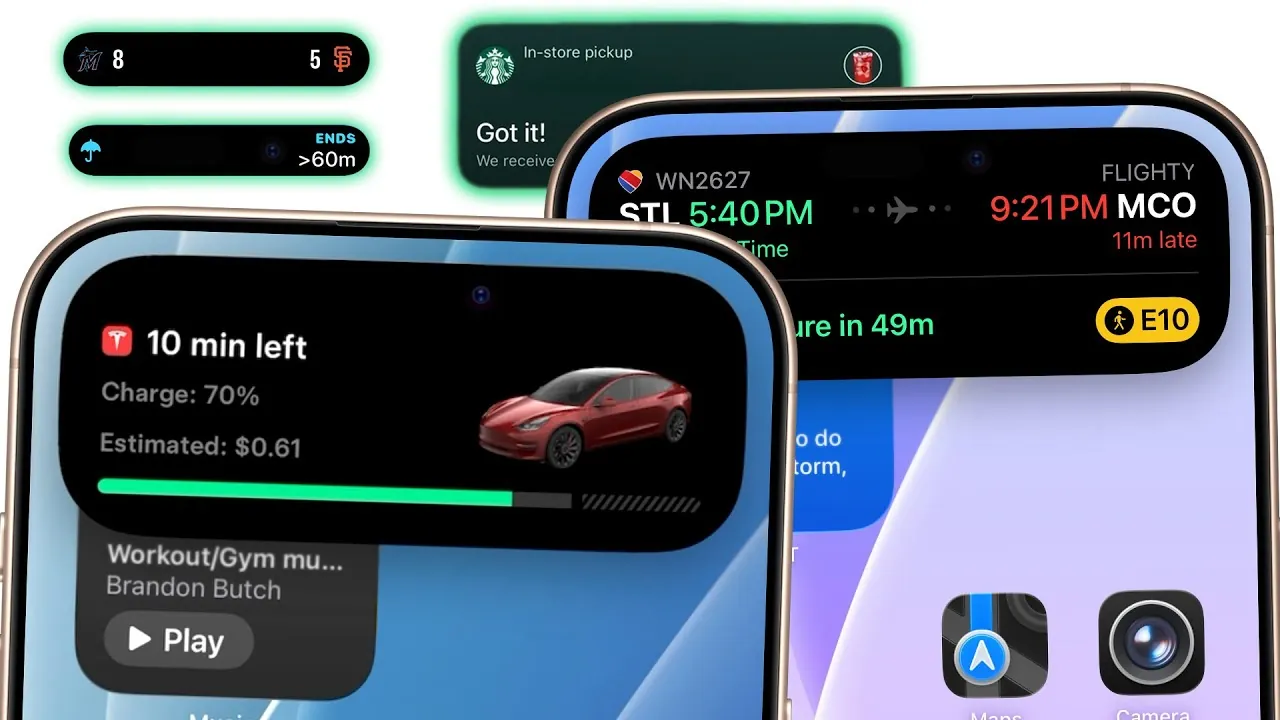
Your iPhone 16’s Dynamic Island isn’t just for show—it’s a powerful multitasking hub that lets you maintain awareness of active processes while working in other apps, though it differs significantly from true split-screen.
Transform App Switching into Seamless Workflow
When you minimize a supported app, it shrinks into the pill-shaped indicator at your screen’s top. This creates instant access without full app switching:
- Phone calls appear as overlapping circles
- Music playback shows album art
- Navigation apps display route information
- Timers show countdown progress
The One-Tap Return Technique
Master this essential gesture for near-instant switching:
Tap once on Dynamic Island to restore your minimized app instantly. This works for all supported functions and is significantly faster than using the App Switcher. For frequent tasks, place your two most-used apps in your App Switcher’s first positions to create a lightning-fast switching pattern.
Dynamic Island Compatibility Reality
Not all apps work with Dynamic Island. If your heart rate monitor or cycling app doesn’t appear there, you’ll need to rely on App Switcher techniques instead. Check your app’s documentation to confirm Dynamic Island support—many fitness apps have added this in iOS 18 updates.
App Switcher Mastery for Lightning-Fast Multitasking
The horizontal app carousel offers your primary tool for cycling between applications—the closest you’ll get to split-screen functionality on iPhone 16.
Access App Switcher Correctly
Three reliable methods:
1. Swipe up from bottom edge and pause briefly
2. Swipe left/right on bottom screen edge for instant switching
3. Double-tap home button (only on devices with home button)
Speed Switching Techniques That Save Time
- Left edge swipe: Returns instantly to your previous app
- Right edge swipe: Advances to your next most recently used app
- Bottom gesture: Skip App Switcher entirely by swiping up from the bottom
Optimize Your App Layout Strategically
Place your two most frequently paired apps (like Maps and Messages) in the first positions of your App Switcher. During your next multitasking session, swipe up and immediately select the secondary app—this creates an efficient workflow that feels nearly as responsive as split-screen.
Horizontal Layout Workarounds for Specific Apps
Some third-party applications offer internal split-view functionality when rotated horizontally, creating the illusion of split-screen within that single app.
Test for App-Specific Split View
Follow these steps to check compatibility:
1. Open your target app (try Notes, Mail, or Safari first)
2. Rotate iPhone 16 to landscape orientation
3. Look for automatic layout changes or split-view buttons
4. Reduce system font size to minimum if feature doesn’t appear
Font Size Impact on Split View
Apps like PoLo calculate split-view eligibility based on screen space versus font size ratio. Reducing your system font to the smallest setting in Settings > Accessibility > Display & Text Size may restore horizontal split functionality in compatible applications, though this affects your entire system.
Cycling and Biking Multitasking Solutions
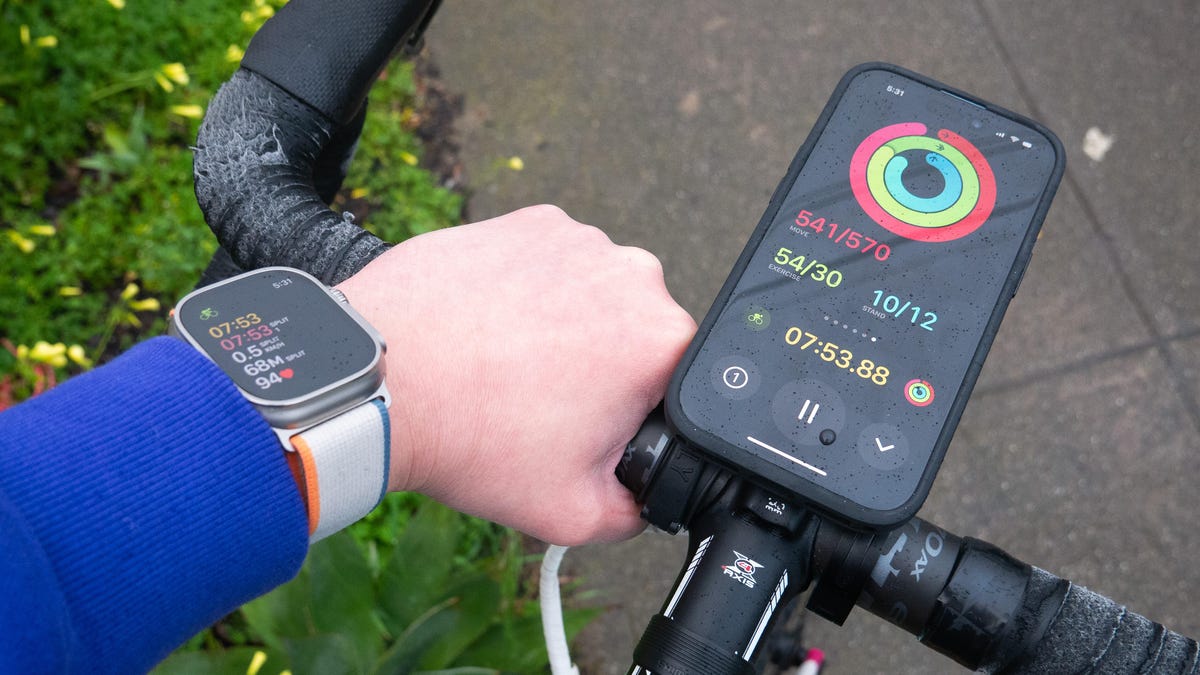
For cyclists wanting heart rate data plus navigation simultaneously, iPhone 16 limitations require creative approaches since true split-screen remains impossible.
PiP Cycling Configuration
If your heart rate app supports video output:
1. Start heart rate monitor video in PiP-compatible mode
2. Minimize to floating window
3. Open navigation app in full screen
4. Position PiP window in upper corner for visibility
Rapid Switching Method for Safety
For non-PiP heart rate apps:
– Mount iPhone 16 securely on handlebars
– Use Dynamic Island for instant heart rate app access
– Single tap returns you to navigation with minimal distraction
– Practice this tap-and-return technique until it becomes muscle memory
Professional Cycling Recommendation
For serious cycling multitasking, consider a dedicated fitness device paired with your iPhone or an iPad Mini mounted on handlebars. The iPhone 16’s form factor constraints make true dual-display impractical for extended cycling sessions where constant screen monitoring is required.
When to Consider iPad Instead of iPhone 16
Power users requiring genuine simultaneous app visibility face a clear choice between adapting to iPhone limitations or upgrading to iPad multitasking capabilities.
Scenarios Demanding iPad Investment
Choose iPad if you regularly need:
– Document editing while referencing web sources
– Photo editing with reference images visible
– Financial analysis with spreadsheets alongside market data
– Learning scenarios with video tutorials next to practice apps
iPhone 16’s Multitasking Advantages
Stick with iPhone 16 for:
– Portability: Fits in pocket during commutes
– Camera integration: Instant photo-to-app workflows
– One-handed use: Optimized for mobile scenarios
– Battery efficiency: Single-app focus extends usage
Master Your iPhone 16 Multitasking Workflow
Despite lacking true split-screen, your iPhone 16 offers powerful multitasking through Picture-in-Picture, Dynamic Island, and rapid app switching. These features, combined with intelligent app organization, create efficient workflows that respect your device’s form factor limitations.
Quick win today: Practice the Dynamic Island tap-and-return technique with your two most frequently paired apps. Place them in the first positions of your App Switcher. Within one week, you’ll achieve near-split-screen efficiency using iOS 18’s built-in tools.
For scenarios demanding simultaneous app visibility, consider the iPad investment. Until then, master these iPhone 16 multitasking techniques to maximize your productivity within Apple’s intentional design constraints—knowing exactly what your device can and cannot do is the first step toward working smarter with your new iPhone 16.


