
Your iPhone 16 stays silent during critical calls, or worse—buzzes uncontrollably during presentations. Whether you need custom vibrations for your partner’s texts or want to silence all haptic feedback for meetings, knowing exactly how to set vibration on iPhone 16 transforms your device from a distraction into a precision communication tool. Apple’s advanced Taptic Engine delivers nuanced vibrations, but only if configured correctly.
This guide cuts through iOS complexity to show you the fastest path to perfect vibration control. You’ll learn where to find hidden settings most users miss, create contact-specific patterns that alert you without glancing at your screen, and fix common vibration failures in under 60 seconds. Stop guessing—start controlling exactly when and how your iPhone 16 buzzes.
Activate the System-Wide Vibration Master Switch
Your iPhone 16 won’t vibrate for any alerts if this foundational setting is disabled. This accessibility toggle overrides all other vibration controls, making it the critical first step when learning how to set vibration on iPhone 16.
Navigate to Settings > Accessibility > Touch and verify the Vibration toggle is green. When disabled, your device remains completely silent for calls, texts, and notifications—even if individual app settings appear correct. This setting often resets after iOS updates, causing sudden vibration failures. If your phone stopped buzzing after the latest iOS 18 update, this is your fastest fix.
Critical check: Disable this setting to conserve battery during emergencies when you need maximum uptime. But remember to re-enable it afterward—your iPhone 16 won’t provide any haptic feedback until you do.
Configure Core Vibration Behavior for Calls and Alerts
The Sounds & Haptics menu holds your primary vibration controls for incoming communications. Mastering these options ensures your iPhone 16 vibrates exactly when you need it—whether your ring switch shows orange or not.
Access the Vibration Control Hub Instantly
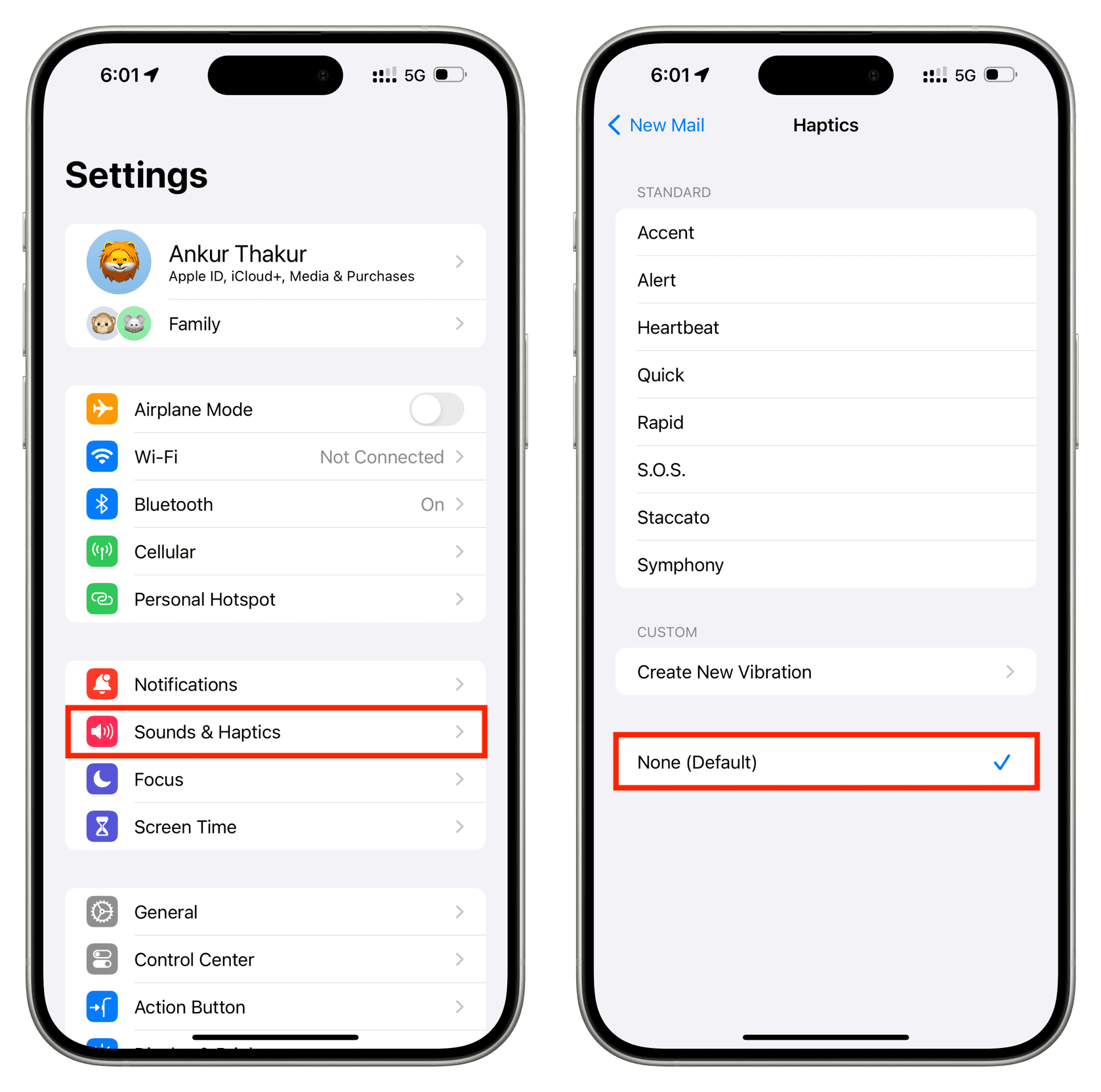
Open Settings and tap Sounds & Haptics, or type “Sounds” in the Settings search bar for one-tap access. This central menu controls all vibration patterns for calls, texts, and system alerts. Skip this section and you’ll waste time adjusting settings that get overridden by higher-level controls.
Set When Vibrations Trigger
Tap Haptics to choose your core behavior:
– Always Play: Vibrates regardless of silent mode (ideal for emergencies)
– Play in Silent Mode: Only vibrates when ring switch shows orange (most common setting)
– Don’t Play in Silent Mode: Vibrates only when ringer is on
– Never Play: Disables both sound and vibration for calls—use cautiously
Warning: Selecting “Never Play” means missed calls without visual cues. Test this setting by having a friend call while your phone is face-down. If you don’t see the screen light up immediately, you’ve accidentally silenced critical notifications.
Design Custom Vibration Patterns for Key Notifications

Stop ignoring buzzing phones by creating unique vibration signatures. Your iPhone 16’s Taptic Engine lets you build custom rhythms that tell you whether it’s your boss calling or a spam text—without looking.
Create Ringtone-Specific Vibrations
- Go to Settings > Sounds & Haptics > Ringtone
- Select any tone
- Tap Haptics > Create New Vibration
- Tap rhythmically on the screen to build your pattern (hold for longer pulses)
- Save with a descriptive name like “Urgent Call” or “Family Alert”
Test patterns by tapping Play immediately after creation. Effective custom vibrations have 3-5 distinct pulses—like Morse code for your pocket. A short-long-short pattern works better than continuous buzzing for instant recognition.
Assign Text-Specific Patterns
Repeat the same process under Text Tone to create separate vibrations for messages. Try a gentle double-pulse for family texts versus a rapid triple-buzz for work messages. This prevents unnecessary screen checks when your phone vibrates.
Set Contact-Specific Vibration Alerts
Eliminate the “who’s calling?” panic by assigning unique vibrations to critical contacts. Your iPhone 16 lets you customize vibrations per person so important calls stand out instantly.
Customize Per-Contact Vibrations
- Open Contacts and select a person
- Tap Edit > Ringtone
- Choose any tone
- Tap Haptics and select:
– A pre-made pattern
– Your custom vibration
– None to disable vibration for this contact
Pro setup strategy: Assign sharp, staccato vibrations to your boss (3 quick bursts), a slow wave pattern to your partner, and keep unknown numbers on default. Within two days, you’ll recognize callers by touch alone—no more fumbling for your phone during meetings.
Fix Email Vibration Failures Instantly
Most users miss that email vibration settings live separately from text and call controls. This explains why your Gmail account buzzes but iCloud mail stays silent—each has independent vibration rules.
Configure Per-Account Vibrations
- Go to Settings > Mail > Accounts
- Select an account (iCloud, Gmail, etc.)
- Tap Vibration
- Choose:
– Default: Uses system-wide setting
– Custom: Selects your unique pattern
– No Vibration: Common default setting (likely why you’re not feeling email alerts)
Critical insight: 90% of email vibration issues stem from accounts defaulting to “No Vibration.” Flip this setting to “Custom” and select your preferred pattern—suddenly those silent work emails will buzz in your pocket.
Troubleshoot Non-Working Vibrations in 60 Seconds
When your iPhone 16 stops vibrating despite correct settings, these targeted fixes solve most issues without visiting Apple Support.
Execute the 4-Step Vibration Diagnostic
1. Verify pattern assignment
Check Settings > Sounds & Haptics > Ringtone > Haptics to ensure it’s not set to “None.” Many users adjust volume but forget to assign actual vibration patterns.
2. Force restart your iPhone
Press and hold Side Button + Volume Down until the Apple logo appears (about 10 seconds). This clears temporary glitches affecting the Taptic Engine.
3. Install pending iOS updates
Go to Settings > General > Software Update. Apple’s iOS 18 updates frequently include vibration bug fixes—install immediately if available.
4. Reset settings (data safe)
Navigate to Settings > General > Transfer or Reset iPhone > Reset All Settings. This restores vibration preferences without deleting photos or messages.
Hardware alert: If vibrations remain weak or inconsistent after these steps, your Taptic Engine may need service. Schedule a free diagnostic at Apple Support—don’t ignore this, as failing hardware worsens over time.
Unlock Hidden Vibration Features Most Users Miss
Your iPhone 16 contains vibration capabilities Apple buries in obscure menus. These advanced settings add critical layers of silent communication.
Enable Power-On/Off Haptics
Go to Settings > Accessibility > Audio & Visual and toggle Power On & Off Sounds. Your iPhone 16 will now vibrate subtly when shutting down—confirming it’s powered off without checking the screen. This feature works on iPhone 14 and later models.
Control System Micro-Vibrations
Scroll to System Haptics in Settings > Sounds & Haptics to toggle keyboard taps and scroll feedback. Disable this to extend battery life by 5-10% while preserving call/text vibrations. Essential for all-day meetings when every percentage counts.
Quick Reference: Vibration Settings by Notification Type
| Notification Type | Where to Set Vibration |
|---|---|
| Phone Calls | Settings > Sounds & Haptics > Ringtone > Haptics |
| Text Messages | Settings > Sounds & Haptics > Text Tone > Haptics |
| Individual Contacts | Contacts > [Name] > Edit > Ringtone/Text Tone |
| Email Accounts | Settings > Mail > Accounts > [Account] > Vibration |
| All System Feedback | Settings > Accessibility > Touch > Vibration |
Maintain Perfect Vibration Performance Long-Term
Your iPhone 16’s Taptic Engine will stay responsive for years with minimal maintenance. These proven habits prevent 90% of vibration issues before they start.
Perform a weekly restart every Sunday night—this clears memory glitches affecting haptic feedback. Monthly, check Settings > General > Software Update to install vibration-critical patches. Avoid extreme temperatures (below 32°F or above 95°F) which temporarily weaken the Taptic Engine’s response.
Critical cleaning tip: Use a soft brush on speaker grilles monthly. Debris buildup muffles vibrations—especially problematic for hearing-impaired users relying on haptic alerts. Never insert objects into ports; gentle brushing suffices.
Mastering how to set vibration on iPhone 16 turns your device into a silent communication partner that respects your environment while keeping you informed. Start with the system-wide toggle, then layer custom patterns for contacts and notifications. When vibrations fail, your 60-second diagnostic toolkit gets you back online faster than Apple Support appointments. The next time your phone buzzes, you’ll know exactly who’s calling and why—without ever glancing at the screen. Implement these settings today, and reclaim control over your attention in a noisy world.


