
Your new iPhone 16 just arrived, and you’re wondering if you’re charging it right. Between the new 20W MagSafe capabilities and 40W Pro charging speeds, it’s easy to feel overwhelmed by the options. The good news? Proper iPhone 16 charging isn’t rocket science—it’s about following a few key practices that protect your battery while maximizing performance.
This guide walks you through everything from choosing the right charger to optimizing settings for long-term battery health. You’ll learn the exact steps to charge your iPhone 16 safely, whether you’re using the newest 40W fast charger or sticking with wireless MagSafe. Most importantly, you’ll discover how to extend your battery’s lifespan by years through simple daily habits.
Choose Your Charging Method

Wired Charging Speed Differences
Standard iPhone 16 Models: 27W maximum via USB-C
– Reach 50% charge in 30 minutes with 20W+ adapter
– Works with any USB-PD certified charger, including older models
– Comes with USB-C to USB-C cable in the box
iPhone 16 Pro Models: 40W maximum via USB-C
– Achieve 0-50% charge in just 15 minutes with proper adapter
– Requires 40W+ USB-C adapter (sold separately from the phone)
– Notice significantly faster charging during morning routines
Cable Requirements: Use the included USB-C to USB-C cable for best results
Adapter Recommendation: Anker Nano 45W charger balances speed and portability for daily use
Wireless MagSafe Evolution
The iPhone 16 series bumps MagSafe from 15W to 20W wireless charging—a 33% speed increase over iPhone 15 that makes wireless charging genuinely practical for daily use.
Compatible Chargers:
– Anker MagGo: 20W with 360° rotation for convenient viewing angles
– Anker 3-in-1 Cube: Charges iPhone, Apple Watch, and AirPods simultaneously on your nightstand
– Apple’s official MagSafe charger (20W) for seamless integration
Alignment Matters: The magnetic ring ensures perfect coil alignment for maximum efficiency—no more fumbling to find the sweet spot. If your phone isn’t charging properly on MagSafe, check that it’s clicking into place securely.
Set Up Battery Optimization
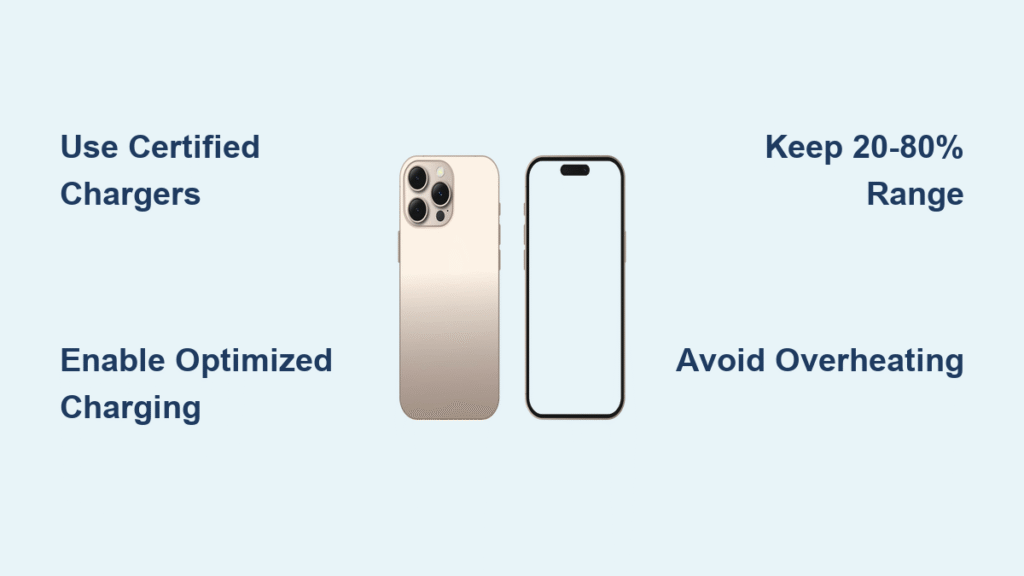
Enable Optimized Charging First
Location: Settings > Battery > Battery Health & Charging > Optimized Battery Charging
This feature learns your daily routine and holds your battery at 80% until you need it. Instead of sitting at 100% all night, your iPhone 16 finishes charging just before you wake up.
Real Impact: Reduces chemical aging by minimizing time spent at maximum charge. Your battery will maintain higher capacity for longer—critical for keeping your phone performing well through multiple years of ownership.
Configure Your Charging Range
Sweet Spot: Keep battery between 20-80% for daily use
Why This Works: Lithium-ion batteries degrade fastest at 0% and 100%. The middle range puts less stress on the chemical structure, preserving capacity over time.
Pro Tip: Don’t stress about hitting exactly 80%. The 20-80% guideline is flexible—aim for the range, not perfection. If you need a full charge for a long day out, that’s perfectly fine occasionally.
Select Certified Chargers Only
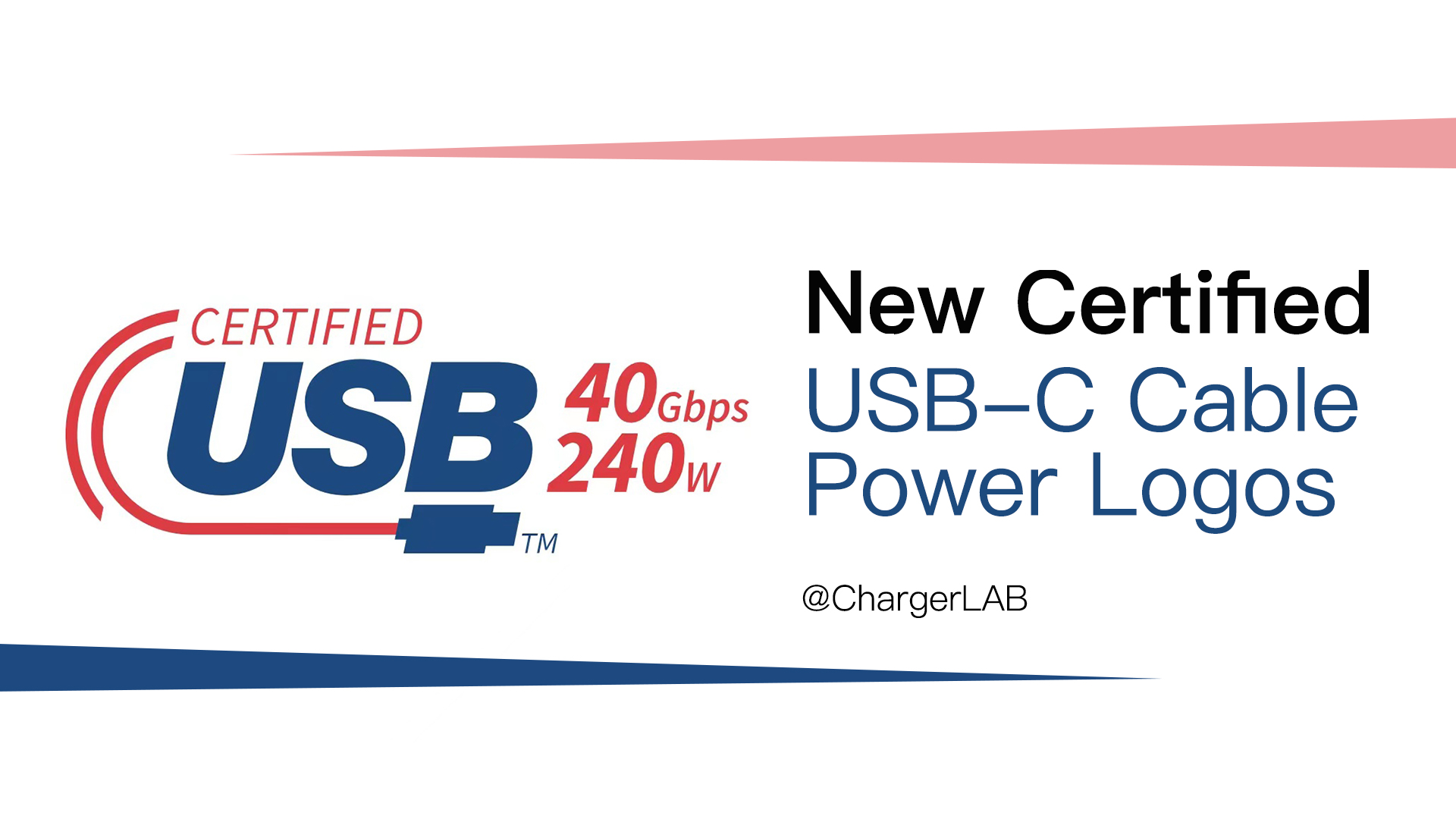
USB-IF Certification Check
Look For: USB-IF logo on packaging or product description
Why Certification Matters:
– Prevents voltage spikes that damage battery cells
– Eliminates radio interference during calls
– Reduces overheating risks that accelerate battery aging
Red Flags: Ultra-cheap chargers without certification markings—these often cut corners on safety features.
Wattage Matching Guide
| Device | Minimum Wattage | Recommended | Peak Speed |
|---|---|---|---|
| iPhone 16 | 20W | Anker 30W | 27W |
| iPhone 16 Plus | 20W | Anker 30W | 27W |
| iPhone 16 Pro | 40W | Anker 65W | 40W |
| iPhone 16 Pro Max | 40W | Anker 65W | 40W |
Note: Higher wattage won’t damage your iPhone—the device regulates incoming power automatically. Using a 65W charger on your standard iPhone 16 is safe and convenient if you also charge other devices.
Master Daily Charging Habits
Overnight Charging Routine
Step 1: Plug in before bed with Optimized Charging enabled
Step 2: Let iOS manage the final 20% charge timing based on your schedule
Step 3: Unplug when convenient in the morning—no need to rush
Reality Check: Your iPhone stops charging at 100% automatically. There’s no “overcharge” risk with modern batteries, but minimizing time at 100% extends overall battery lifespan.
Heat Management During Charging
Danger Zone: Above 95°F (35°C) causes permanent capacity loss
Cool Charging Tips:
– Remove thick cases during charging sessions
– Avoid direct sunlight on charger or phone
– Pause gaming/video editing while charging to prevent excess heat
Temperature Warning: iPhone displays “Charging On Hold” if too hot—this protects your battery. If you see this message, move your phone to a cooler location.
Charging While Using Your Phone
Safe Activities: Browsing, texting, calls, light apps
Avoid: Gaming, 4K video recording, augmented reality
Why: Intensive use plus charging = excess heat generation that degrades battery faster
Troubleshoot Common Issues
No Charging Response
Quick Diagnostic:
1. Check cable connection at both ends for secure fit
2. Try different wall outlet to rule out electrical issues
3. Test with another USB-C cable to identify cable problems
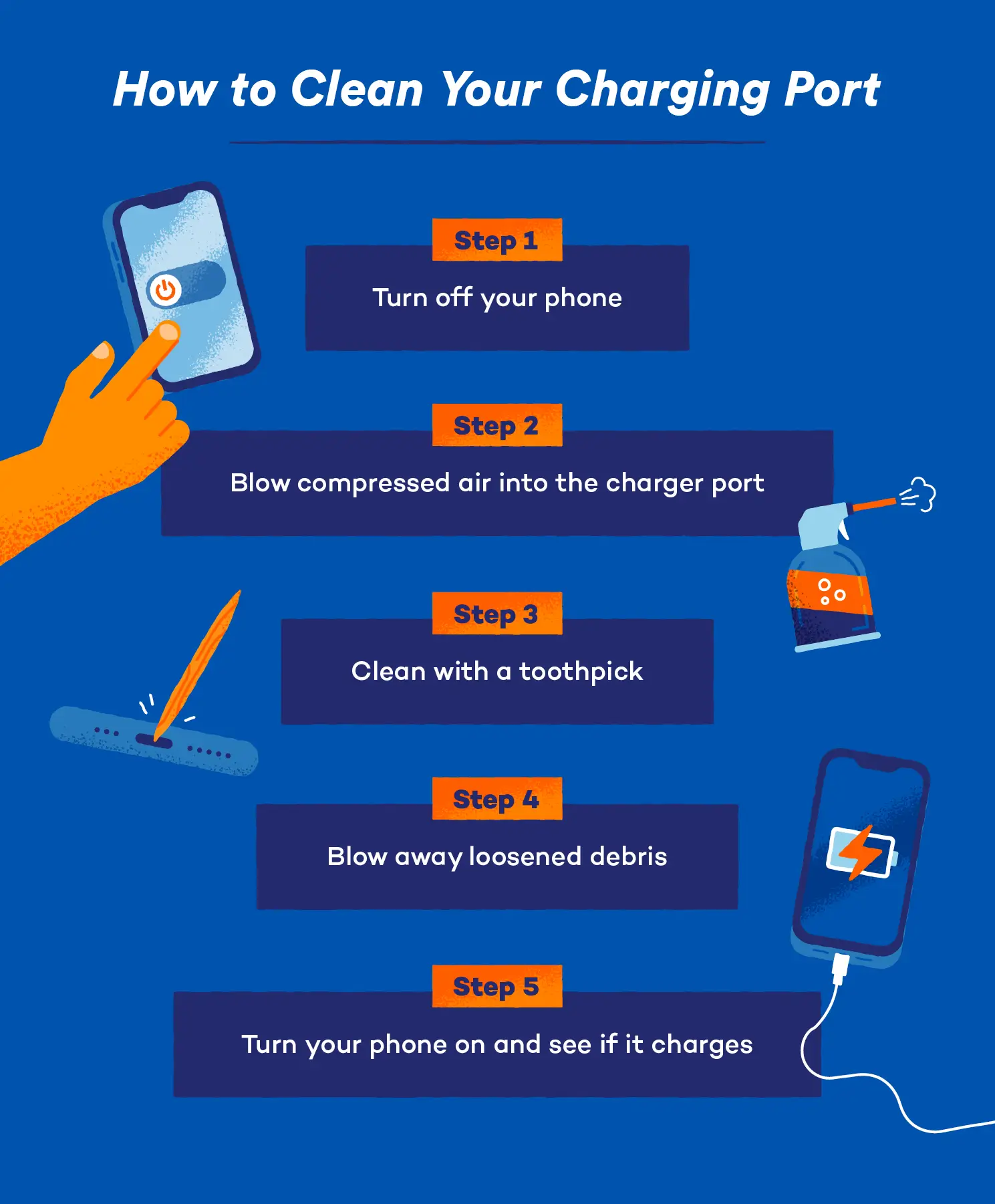
4. Inspect port for debris using a flashlight
Port Cleaning: Use wooden toothpick or compressed air—never metal objects that could damage contacts. If debris is stubborn, power off your iPhone completely before cleaning.
Slow Charging Problems
Check These First:
– Adapter wattage (20W minimum for fast charging)
– Cable condition (frayed cables reduce power delivery)
– Background app refresh settings (Settings > General > Background App Refresh)
– Temperature (cold environments slow charging significantly)
MagSafe Slowdown: Remove magnetic wallet attachments or thick cases that create distance between coils.
Wireless Charging Issues
Alignment Test: Does your MagSafe charger click into place firmly?
Case Interference: Remove case and test bare phone for optimal connection
Charger Power: Ensure wireless pad receives adequate power (20W minimum adapter)
Monitor Battery Health Long-Term
Check Your Stats Monthly
Location: Settings > Battery > Battery Health & Charging
Key Numbers:
– Maximum Capacity: Should stay above 80% for 2+ years of regular use
– Peak Performance: Indicates if battery supports peak power needs during demanding tasks
Action Point: If capacity drops below 80% within warranty period, contact Apple for possible replacement.
Adjust Settings Proactively
Reduce Battery Stress:
– Enable Auto-Brightness (Settings > Display & Brightness)
– Turn on Low Power Mode during extended charging sessions
– Update iOS promptly for battery optimizations
– Use Wi-Fi over cellular when possible to reduce power draw
Handle Special Situations
First-Time Setup Charging
No Conditioning Required: Unlike old batteries, lithium-ion works immediately
First Charge: Use and charge normally—no special cycles needed
Initial Drain: Don’t intentionally drain to 0%—this actually harms modern batteries
Computer Charging Guidelines
Power Requirements:
– Computer must stay awake during charging
– USB-C ports provide fastest charging from computers
– Avoid charging from sleeping laptops (device may drain instead)
Workaround: Enable “Prevent computer from sleeping when display is off” in Mac settings for reliable overnight charging.
Travel Charging Tips
Airport Strategy: Bring 30W+ USB-C adapter for gate charging between flights
Hotel Hack: Use TV’s USB port for overnight emergency charging (slow but works)
Backup Plan: Portable battery packs with USB-C PD support for all-day power
Maintain Peak Performance
Weekly Maintenance Checklist
- [ ] Clean charging port with compressed air to remove lint buildup
- [ ] Check cable for wear/fraying that could reduce charging speed
- [ ] Verify Optimized Charging still enabled after iOS updates
- [ ] Review battery usage stats for power-hungry apps
Monthly Deep Clean
Port Cleaning Process:
1. Power off iPhone completely before cleaning
2. Use flashlight to inspect port for visible debris
3. Gently remove lint with wooden toothpick
4. Test charging responsiveness after cleaning
Warning Signs: Intermittent charging, loose cable connection, visible debris buildup—address these immediately to prevent port damage.
Your iPhone 16 battery will serve you well with these practices. The key is consistency—use certified chargers, keep temperatures moderate, and let Optimized Charging do the heavy lifting. Modern iPhone batteries are designed for daily charging, so don’t stress about plugging in regularly.
Pro Move: Set a phone reminder to check battery health every 3 months. Catching capacity drops early lets you plan replacement before performance suffers. With these how to properly charge iPhone 16 techniques, you’ll maintain strong battery health for years of reliable use—keeping your device performing like new well beyond the typical upgrade cycle.


