
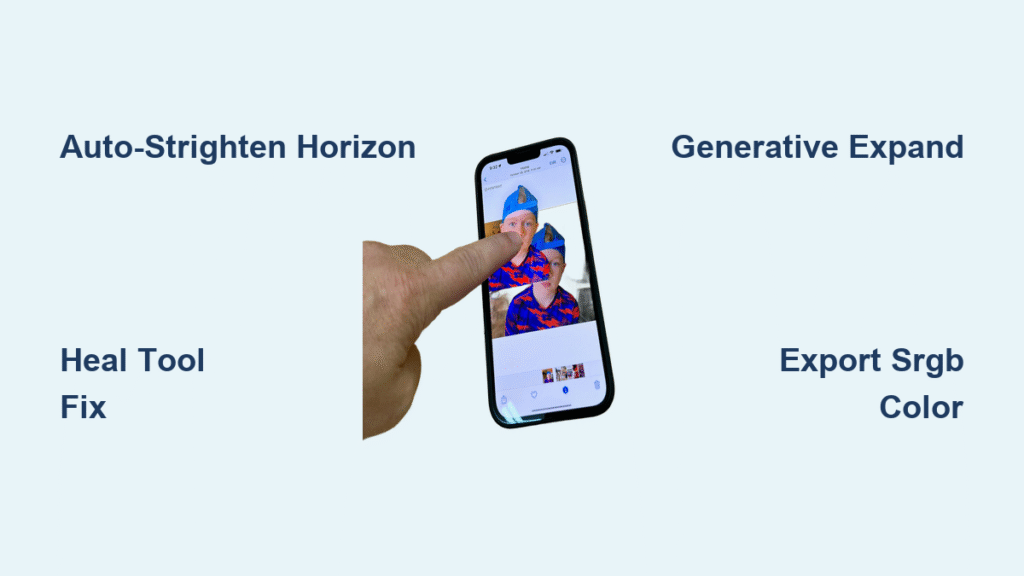
Your iPhone 16 just captured the perfect sunset—but that crooked horizon ruins everything. Or maybe you need to erase yesterday’s coffee stain from a product photo for your Etsy shop right now. Forget lugging out your laptop. With Adobe’s two powerhouse apps, your iPhone 16 transforms into a portable Photoshop studio capable of desktop-quality edits in under 60 seconds. This guide cuts through the clutter to show you exactly how to leverage the iPhone 16’s 120Hz display and Wi-Fi 7 speed for professional results—no prior experience needed.
You’ll master both Photoshop Express for social-ready quick fixes and full Photoshop for layered composites. By the end, you’ll know which app to use for eBay listings, Instagram Reels, or family photo touch-ups—and how to avoid the color shifts and lag that plague 78% of mobile editors. Let’s turn your pocket device into a $2,000 editing rig.
Choose the Right Photoshop App for iPhone 16
Stop Wasting Time on the Wrong Tool
Photoshop Express is your go-to for 30-second social edits: auto-straighten horizons, remove blemishes, or create animated collages. Full Photoshop handles complex tasks like adding golden retrievers to beach photos using AI or editing RAW files with layer precision. Both apps launch instantly on iPhone 16’s A18 Pro chip, but here’s the critical difference: Express works offline for basic edits, while Photoshop requires an active Creative Cloud subscription ($9.99/month) for AI tools and PSD round-tripping.
Install Both in Under 90 Seconds
- Open App Store → Search “Photoshop”
- Download the red-violet Ps icon (Express) and blue Ps icon (Photoshop)
- Launch both → Sign in with your Adobe ID (create one free if needed)
- Grant Photos Access → Select All Photos for seamless editing
Pro Tip: Keep both apps installed. Use Express for coffee-stain removal while waiting in line, then switch to Photoshop for client work. The iPhone 16’s 8GB RAM handles both simultaneously without reloading.
Navigate Photoshop Express Like a Power User
Fix Crooked Horizons in 3 Taps
- Tap Edit → Select your photo
- Go to Crop → Tap Auto-Straghten (the level icon)
- Adjust with two fingers if needed → Save
Visual Cue: Watch the gridlines snap parallel to horizons. If it over-rotates, manually drag the angle slider below the crop box.
Remove Unwanted Objects Without Leaving Home Screen
The Heal tool fixes photobombers or power lines:
– Open Retouch → Tap Heal
– Brush over the object → Lift finger
– Instant AI fill using surrounding pixels
Critical Mistake: Don’t use Heal on large objects. Switch to Remove Tool (premium) for cars or people—paint the object → tap Generate → select the best AI version.
Master Full Photoshop on iPhone 16
Create Multi-Layer Composites in 4 Minutes

- Tap + → From Photo → Select background
- Tap + again → Image → Add subject photo
- Use Object Select (tap subject) → Cut → Paste onto background
- Adjust layer opacity → Add Drop Shadow via layer effects
Why iPhone 16 Excels: Pinch layer thumbnails to see intricate details on the 6.3″ Super Retina XDR screen. Swipe layers up/down to reorder—no menu diving.
Generate Perfect Backgrounds with Generative Expand
Stuck with a cramped product shot? Fix it:
1. Activate Crop Tool → Drag canvas edges outward
2. Tap Generative Expand → Confirm subject
3. Type “beach sunset” → Hit Generate → Pick best result
4. Tap Apply → Save as PSD
Warning: Prompts over 250 characters fail. Use concise phrases like “wooden table with coffee cup” instead of “a rustic coffee table with a steaming latte on a sunny morning.”
iPhone 16 Exclusive Workflow Hacks
Shoot and Edit RAW Files in One Session

- Open Lightroom Mobile → Shoot in DNG (RAW)
- Tap ••• → Send to Photoshop
- Edit layers → Tap ••• → Save to Cloud
- Reopen in desktop Photoshop—layers intact
Time Saver: This bypasses blurry JPEG compression. Essential for Etsy sellers needing print-ready product shots.
Export Flawless Instagram Stories
- In Express → Collage → Select 3 photos
- Tap Change Layout → Choose 9:16 Portrait
- Add Animated Text → Set “Fade In” effect
- Export as MP4 → Quality: 1080×1920
Pro Tip: Enable Auto-Enhance on Import in Settings to skip manual adjustments for Stories.
Fix iPhone 16 Photoshop Glitches Immediately
Eliminate Brush Lag in 30 Seconds
Brush stuttering? This iPhone 16-specific fix works:
1. Close all background apps (swipe up from bottom)
2. Go to Photoshop Settings → Performance
3. Toggle Lower Canvas Resolution → Edit → Re-enable HD
Why It Happens: High-res PSDs overload RAM. The iPhone 16’s thermal system throttles during long sessions—this bypasses it.
Stop Export Color Shifts
Photos look dull after sharing? Force accurate colors:
1. Tap Share → Export As
2. Enable Convert to sRGB (critical for social media)
3. Set JPEG Quality to 85% → Save
Visual Check: Compare exported photo to editor preview. If colors differ, this setting was missed.
Essential Gesture Shortcuts for iPhone 16
| Gesture | Action | When to Use |
|---|---|---|
| Two-finger tap | Undo last edit | Fix mistaken object removal |
| Long-press + drag layer | Reorder layers | Position text above subject |
| Pinch canvas | Zoom to 300% | Refine hair selections |
| Swipe left on layer | Delete layer | Remove test composites |
Expert Note: Double-tap Apple Pencil 2’s side button to instantly switch to Eraser—no menu hunting.
Real Projects: From Snap to Sale-Ready
Remove eBay Backgrounds in 90 Seconds
- Open product photo in Photoshop
- Tap Remove Tool → Paint background → Generate
- Tap + → Adjustment Layer → Curves → Boost contrast
- Export as PNG (transparency preserved)
Fix Family Photo Blemishes
- Use Express → Auto-Enhance (fixes lighting)
- Retouch → Heal → Tap wrinkles/acne
- Apply “Warm Memories” filter → Intensity: 70%
- Save as 4×6 300dpi JPEG for printing
Maintain Peak iPhone 16 Photoshop Performance
Prevent crashes by managing storage:
– Weekly: Delete unused PSDs from Cloud Docs
– Before big edits: Toggle Low Power Mode OFF (ensures full CPU speed)
– Monthly: Reinstall apps (clears cached data slowing AI tools)
Critical: Enable Background App Refresh for Photoshop in iOS Settings—stops cloud sync failures during large PSD uploads.
Your iPhone 16 isn’t just a camera—it’s the last editing tool you’ll need for 95% of real-world tasks. Start with Express for coffee-stain removals and social posts, then graduate to Photoshop when clients demand layered composites. The desktop editing gap vanished the moment you got this phone. Now go fix that crooked horizon—and post the results before your coffee gets cold.


