
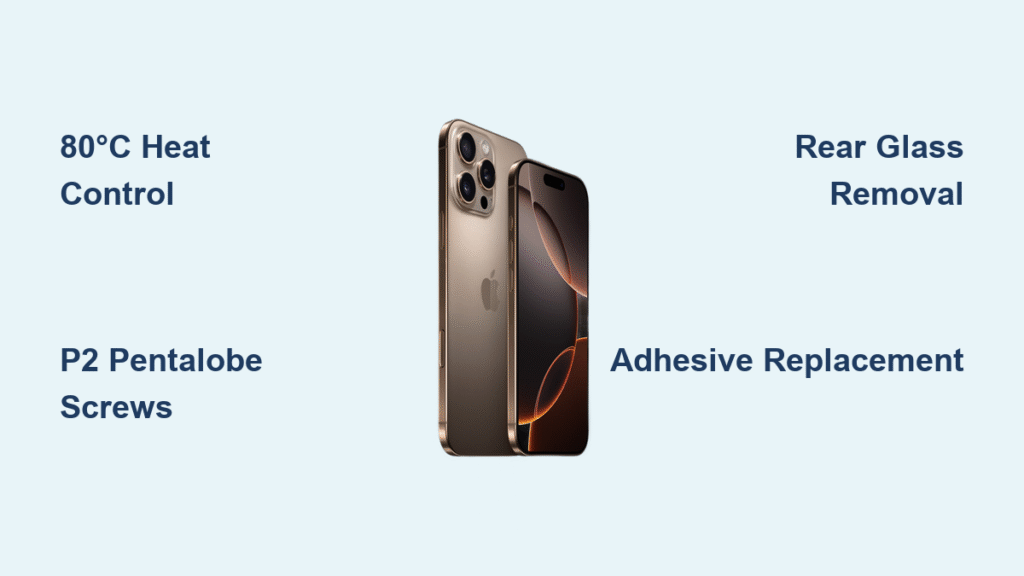
Your iPhone 16 Pro’s cracked back glass just shattered during a coffee shop drop, and Apple’s $499 official repair quote makes you cringe. Before you panic, know this: Apple’s revolutionary dual-entry design finally lets you access 80% of components through the rear glass—no screen removal required. This game-changing architecture means you can replace batteries, cameras, or charging ports without risking your $500 OLED display. In this guide, you’ll learn exactly how to open iPhone 16 Pro safely using the right tools and temperature-controlled techniques, avoiding the adhesive traps that ruin most DIY repairs.
Unlike previous Pro models, the iPhone 16 Pro features two independent access points: the rear glass for camera and battery work, and the traditional front entry for screen repairs. This isn’t just incremental improvement—it’s Apple’s highest repairability score (7/10) for any Pro model ever. Whether you’re replacing a shattered back panel after a 3-foot fall or upgrading your battery at 80% health, these steps prevent the $200 mistakes beginners make with heat guns and metal tools.
Confirm Your iPhone 16 Pro Model Before Opening
Mistaking an iPhone 15 Pro for the 16 Pro could destroy your device during disassembly. The 16 Pro’s unique identifiers prevent costly confusion.
Critical Physical Markers to Check:
– Camera Control button below the power button (new physical + capacitive hybrid)
– Matte titanium frame with textured back glass (vs. 15 Pro’s glossy finish)
– Pill-shaped Dynamic Island with symmetrical black bezels
– Square triple-camera bump with three distinct lenses
Double-Verify Model Numbers:
1. Shine light into the USB-C port—look for A3083 (US), A3292 (Canada/Mexico), A3293 (Global), or A3294 (China)
2. Go to Settings → General → About → tap Model Number until A3083 appears
3. Cross-check via Apple’s online identification tool using your serial number
Why this matters: The iPhone 16 Pro uses stretch-release adhesive while the 15 Pro requires electric adhesive release. Using wrong techniques cracks the glass.
Gather These iPhone 16 Pro-Specific Opening Tools

Generic iPhone toolkits will damage your 16 Pro’s titanium frame. You need these exact tools for safe disassembly.
Non-Negotiable Essentials:
– P2 Pentalobe screwdriver (smaller than P1 used on older models)
– Tri-point Y000 screwdriver for internal security screws
– Standoff screwdriver for logic board mounting points
– Heat gun with 80°C precision setting (iOpener alternative)
– iFixit 6-pack opening picks (stiffness #3 for rear glass)
– Suction handle with micro-grip pads
Pro Upgrade Kit ($25):
– 99% isopropyl alcohol in precision applicator
– Aluminum battery shield removal tool
– Polyimide tape dispenser for cable securing
– Microfiber cloths treated for titanium surfaces
Skip the cheap plastic spudgers—they snap on the 16 Pro’s reinforced corners. The titanium frame demands rigid but non-marring tools.
Back Glass Removal: Access Cameras Without Screen Removal
This rear entry method lets you replace cameras or batteries while keeping your display intact—a first for Pro models.
Prepare Workspace for Adhesive Success
Power off your iPhone completely and remove the SIM tray. Lay your device on a microfiber mat with the back facing up. Position your heat gun 5 inches away with temperature locked at 80°C—any higher risks warping the titanium frame. Arrange tools clockwise: heat gun → suction handle → opening picks → alcohol wipes. This prevents frantic reaching during time-sensitive adhesive work.
Apply Heat at Correct Temperature
Warm the back glass edges for 150 seconds exactly, focusing on the four corners where adhesive strips concentrate. Test readiness by pressing your fingertip to the bottom edge—it should feel “hot bathwater warm” (not painful). Critical mistake alert: Overheating to 100°C melts internal adhesive, causing permanent water resistance loss. Use an infrared thermometer if unsure—80°C is the absolute max.
Separate Glass Without Cable Damage
- Place suction handle 1 inch above the USB-C port on the back glass
- Pull upward with 5 lbs of pressure while sliding a #3 opening pick into the seam
- Work clockwise around the perimeter, replacing picks every 2 inches
- Pause at the right edge—this is where flex cables connect to the frame
- Lift glass 15 degrees maximum while checking for cable attachments
Pro tip: Insert a playing card between glass and frame after initial separation. This maintains gap width while you position new picks, preventing adhesive resealing.
Screen Removal: When Front Access Is Required

Use this method only for display replacements or front camera repairs—most fixes don’t need screen removal.
Remove Entry Screws Without Stripping
Unscrew the two P2 Pentalobe screws flanking the USB-C port using a ratcheting screwdriver. Apply downward pressure while turning clockwise to prevent cam-out. Warning: These screws have metric 0.8mm threads—overtightening strips them permanently. Store screws in a magnetic tray labeled “P2 entry.”
Screen Separation Without Flex Cable Tears
- Heat front edges to 80°C for 2 minutes (same as back glass)
- Attach suction handle below the Dynamic Island
- Lift 1 inch while inserting opening pick at bottom center
- Work picks around left, top, and right edges—but stop 1 inch before bottom corners
- Lift screen 45 degrees from the left side (hinge on right)
- Immediately disconnect battery connector with plastic spudger
- Release display flex cables using ZIF connector tool
Key insight: The screen opens “like a book” with flex cables as the spine. Forcing separation from the right side severs camera cables.
iPhone 16 Pro Battery Safety Protocol

The aluminum battery enclosure prevents fires during disassembly—but only if you follow these steps.
Never skip these safety checks:
– Blowout valve location: Identify the small button under the battery management system—it releases pressure during swelling events
– Shield removal: Use the aluminum-specific tool to lift the enclosure without puncturing cells
– Adhesive cutting: Slice stretch-release strips with floss technique (no prying)
Critical reminder: If you smell vinegar (electrolyte leakage), stop immediately and place device in fireproof container. The aluminum shield contains damage but won’t stop thermal runaway.
Avoid These 3 iPhone 16 Pro Opening Mistakes
These errors cause 90% of DIY repair disasters—learn from others’ expensive failures.
Mistake #1: Reusing Old Adhesive Strips
Stretch-release adhesive loses 70% effectiveness after removal. Solution: Always install Apple-certified replacement strips—$8 for front/back sets. Apply within 5 minutes of cleaning surfaces with 99% IPA.
Mistake #2: Skipping Temperature Verification
“Feels warm enough” guesses melt internal adhesives. Solution: Use a $10 IR thermometer—hold 2 inches from edge until 80°C registers. iPhone 16 Pro’s titanium conducts heat 3x faster than aluminum.
Mistake #3: Forcing Stuck Components
The USB-C port module has hidden clips that break when pulled. Solution: Insert opening pick under port edges and twist gently—never yank. If resistance exceeds 2 lbs, reapply heat.
Reassembly: Seal for IP68 Water Resistance
Improper resealing turns your expensive repair into a water damage disaster.
- Clean all surfaces with IPA-soaked lint-free wipes until no residue shows
- Apply new adhesive strips following original placement grooves
- Press glass/frame together with 10 lbs of even pressure for 45 minutes
- Wait 120 minutes before using device—adhesive cures at 70% strength in 2 hours
iOS 18 Repair Assistant tip: After reassembly, go to Settings → General → About → scroll to Repair Assistant. This verifies component functionality and recalibrates cameras automatically—no third-party software needed.
Final Safety Reminder: Opening your iPhone 16 Pro voids Apple’s warranty unless using Apple-certified parts. For battery or screen replacements, consider Apple’s $69 self-service kits with guided AR instructions. But for camera or logic board fixes, this dual-entry design puts professional-grade repair within reach—if you respect the 80°C temperature limit and never reuse adhesive. Your first disassembly should take 45 minutes; by the third repair, you’ll open the iPhone 16 Pro faster than Apple Store technicians. Remember: when the glass resists separation, more heat beats more force every time.


