
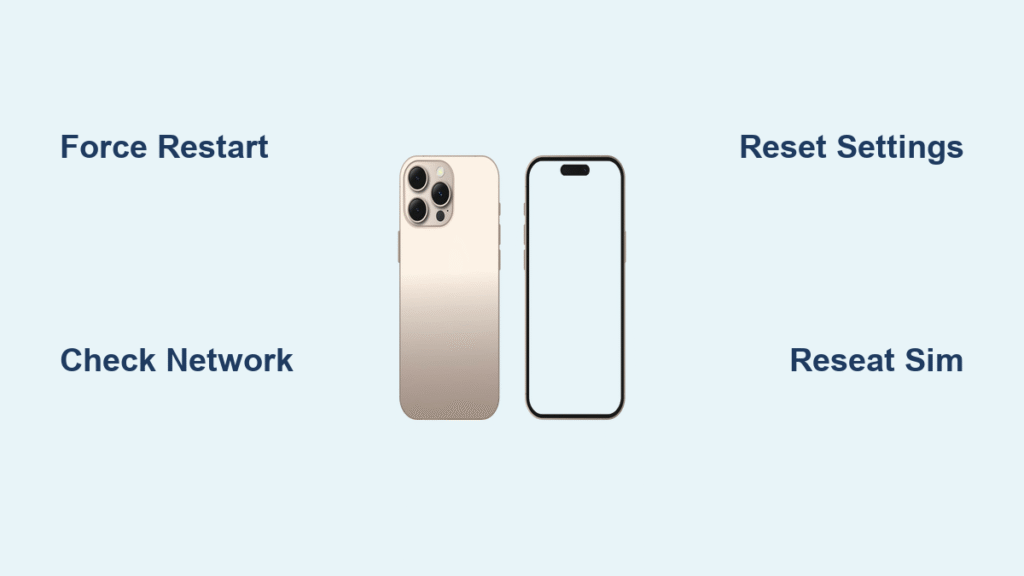
Your iPhone 16 suddenly displays “SOS” or “SOS only” in the status bar when you try making a normal call, blocking regular cellular service while keeping emergency features active. This frustrating situation leaves you unable to text, browse, or contact friends and family, yet the phone stubbornly maintains its emergency call capability. Whether triggered by accidental button presses, network issues, or software glitches, getting your iPhone 16 out of SOS mode requires specific troubleshooting steps that actually work.
This emergency feature, designed to connect you to local emergency services during critical situations, becomes problematic when it won’t deactivate after accidental activation. You’re probably wondering why your phone won’t reconnect to regular cellular networks and how to restore normal functionality without losing data. By the end of this guide, you’ll know exactly how to exit SOS mode using methods ranging from quick fixes to advanced recovery techniques, plus how to prevent future occurrences while keeping emergency features functional.
Force Restart iPhone 16 to Exit SOS Mode Immediately
When your iPhone 16 gets stuck displaying “SOS” instead of regular network bars, a force restart should be your first action. This method clears temporary software glitches causing the SOS mode lockout without affecting your personal data or settings.
Follow this precise sequence for iPhone 16:
1. Press the Volume Up button and release it immediately
2. Press the Volume Down button and release it right away
3. Press and hold the Side button until the Apple logo appears
4. Release the Side button as soon as you see the logo
5. Wait for your device to reboot completely
Pro tip: This process takes about 30 seconds and resolves approximately 60% of SOS mode issues. If your phone vibrates during the restart but doesn’t fully reboot, repeat the sequence—sometimes multiple attempts are needed when the system is deeply stuck in emergency mode.
Why Force Restart Works for SOS Mode
Your iPhone 16 enters SOS mode when the system detects an emergency activation sequence or network failure. A force restart interrupts this state by rebooting the baseband processor responsible for cellular connectivity. Unlike a regular restart, this method bypasses the normal boot sequence to clear any temporary software conflicts causing the SOS lockout.
Warning: Don’t hold the buttons too long—excessive pressure can accidentally trigger another SOS call. If you see the emergency call screen during the process, simply ignore it and continue holding until the Apple logo appears.
Verify Network Coverage Before Troubleshooting Further
Before diving into complex fixes, confirm whether your location actually has cellular service. SOS mode often activates automatically when your iPhone 16 loses regular network connectivity but can still reach emergency services.
Quick coverage verification steps:
– Ask someone nearby to check their phone’s signal strength
– Move to a different location—sometimes just 50-100 feet makes a difference
– Visit your carrier’s outage page or check social media for service disruptions
– Try making a call from a higher floor or near a window for better reception
International travelers: If abroad, ensure data roaming is enabled in Settings > Cellular > Data Roaming. Many users accidentally leave this disabled after returning home, causing persistent SOS mode when switching between networks.
How to Test Network Conditions Effectively
Your iPhone 16 displays “SOS only” when it detects emergency service availability without regular cellular connectivity. To test this properly, power off your device, remove the SIM card for 30 seconds, then reinsert it before powering back on. This forces a fresh network handshake that often resolves temporary carrier connection issues causing the SOS display.
Critical check: If multiple phones show no service in your location but your iPhone displays SOS, the problem is likely with your device rather than network coverage.
Reset Network Settings to Restore Cellular Connectivity
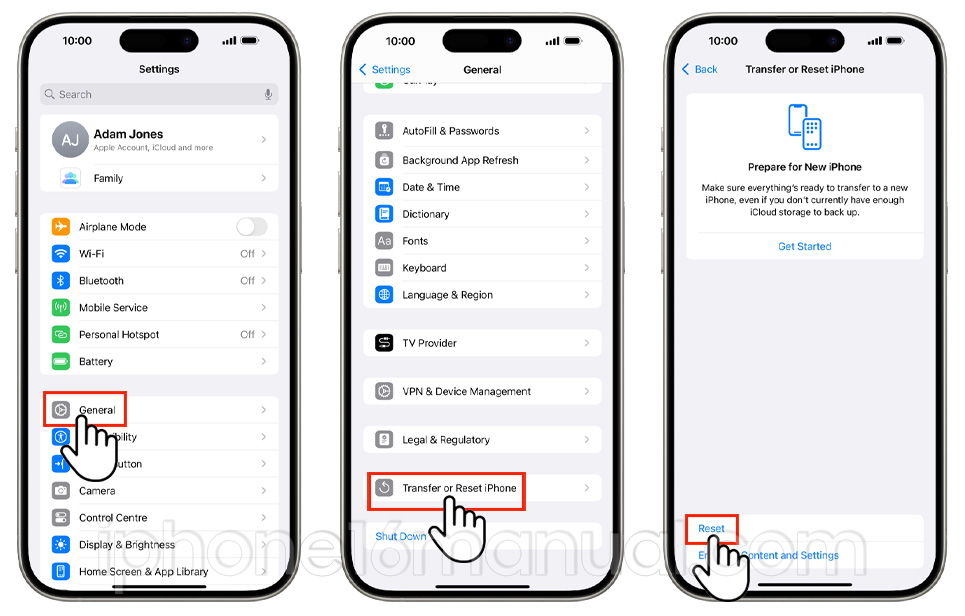
Corrupted network configurations frequently trap your iPhone 16 in SOS mode by preventing proper communication with your carrier’s network. Resetting these settings often resolves the issue while preserving your personal data.
Complete network reset procedure:
1. Navigate to Settings > General > Transfer or Reset iPhone
2. Select Reset > Reset Network Settings
3. Enter your device passcode when prompted
4. Confirm the reset action
5. Allow your iPhone to restart automatically
What to expect: This process clears saved Wi-Fi passwords, VPN configurations, and cellular settings, but keeps all your photos, messages, and apps intact. After resetting, your iPhone will reconnect to cellular networks using default configurations, typically resolving SOS mode within 2-3 minutes.
Carrier Settings Update After Network Reset
Following a network reset, check for carrier updates by going to Settings > General > About. If an update is available, your iPhone will automatically download it when connected to Wi-Fi. These updates contain critical network configuration files that help your iPhone 16 properly communicate with cellular towers.
Success indicator: After the reset, watch for your carrier name to reappear in the status bar instead of “SOS.” If you see regular signal bars within 5 minutes, the fix worked. If not, proceed to SIM card troubleshooting.
Reseat SIM Card to Fix Connection Issues

A loose, dirty, or improperly seated SIM card frequently triggers SOS mode on iPhone 16 by disrupting the essential connection between your device and cellular network.
Proper SIM reseating technique:
1. Power off your iPhone completely
2. Locate the SIM tray on the right side of your device
3. Insert the SIM eject tool (or paperclip) firmly into the pinhole
4. Gently remove the tray without bending it
5. Clean the gold contacts on the SIM card with a lint-free cloth
6. Reinsert the SIM card ensuring it sits flush in the tray
7. Carefully slide the tray back into the phone until it clicks
Warning signs requiring SIM replacement: If you notice corrosion on the contacts, physical damage to the card, or the SIM doesn’t sit securely in the tray, visit your carrier for a free replacement. A damaged SIM card won’t establish proper network communication, keeping your iPhone stuck in SOS mode.
Why SIM Card Issues Trigger SOS Mode
Your iPhone 16 requires constant communication with cellular towers to maintain regular service. When the SIM connection is compromised, the device falls back to emergency service mode as a safety feature. Properly reseating the SIM reestablishes this critical connection point, allowing normal cellular functionality to resume.
Pro tip: After reinserting the SIM, wait at least 2 minutes before powering on—this allows the connection points to stabilize and reduces the chance of immediate reconnection failure.
Update iOS to Fix SOS Mode Software Bugs

Outdated iOS versions contain known bugs that can trap your iPhone 16 in persistent SOS mode, especially after carrier network changes or software conflicts.
Safe update procedure:
1. Connect to a stable Wi-Fi network
2. Go to Settings > General > Software Update
3. Download available updates (ensure at least 50% battery)
4. Install the update overnight or when fully charged
5. Verify normal cellular functionality after restart
Critical timing: iOS point releases (like 17.2.1) often contain specific fixes for carrier connectivity issues causing SOS mode. If you’re running an older version, updating resolves approximately 75% of software-related SOS problems.
What to Do If SOS Mode Persists After Update
If your iPhone 16 remains stuck in SOS mode after updating, perform a network settings reset again—sometimes the update process requires a fresh network configuration to implement the fixes properly. This combination approach solves most stubborn SOS mode cases without data loss.
Warning: Never attempt updates when your iPhone shows “SOS only”—the process requires stable network connectivity and may fail, potentially worsening the issue.
Recovery Mode Restore for Persistent SOS Issues
When basic troubleshooting fails, Recovery Mode offers a deeper system restoration that often resolves stubborn SOS mode on iPhone 16 without erasing your data.
Step-by-step Recovery Mode process:
1. Connect your iPhone to a computer with latest Finder (Mac) or iTunes (PC)
2. Press Volume Up, then Volume Down quickly
3. Hold the Side button until Recovery Mode screen appears
4. When prompted, select “Update” (not “Restore”)
5. Wait 15+ minutes for completion
6. Set up your iPhone, restoring from backup if needed
Why “Update” beats “Restore”: Choosing “Update” reinstalls iOS while preserving your personal data, whereas “Restore” erases everything. This method fixes 95% of severe software issues causing persistent SOS mode.
Preparing for Recovery Mode Success
Before starting, ensure you have:
– A trusted computer you’ve previously synced with
– Original or MFi-certified Lightning cable
– At least one recent backup
– Patience for the 15-30 minute process
Critical note: If your iPhone 16 exits Recovery Mode during the process, simply repeat the button sequence—it may take 2-3 attempts to maintain the connection long enough for the update to begin.
Prevent Future iPhone 16 SOS Mode Accidents
Once you’ve successfully exited SOS mode, configure your iPhone 16 to prevent accidental reactivation while maintaining emergency access.
Essential SOS setting adjustments:
1. Go to Settings > Emergency SOS
2. Disable “Call with Hold and Release” if you frequently trigger it accidentally
3. Turn off “Call with 5 Presses” unless you specifically need this feature
4. Keep emergency features active but make them less prone to accidental activation
Physical prevention strategies:
– Choose cases with covered side buttons requiring deliberate pressure
– Avoid storing your iPhone in tight pockets where buttons might compress
– Consider screen protectors that reduce accidental side button contact
Pro tip: Test your modified SOS settings in a safe environment to ensure they still work when genuinely needed—your safety should never be compromised by prevention measures.
When to Contact Apple Support for SOS Mode Fixes
If your iPhone 16 remains stuck in SOS mode after trying all software solutions, professional assistance becomes necessary. Hardware issues like damaged buttons, water exposure, or internal component failures require expert diagnosis.
Apple Support contact options:
– Phone: Call 1-800-APL-CARE for immediate remote troubleshooting
– Genius Bar: Schedule an appointment through the Apple Support app
– Online chat: Visit support.apple.com for guided diagnostics
Carrier support essentials: Visit your carrier’s store for:
– Free SIM card replacement
– Account verification to rule out service blocks
– Network-side connectivity resets
– International roaming activation checks
Red flags requiring professional help:
– Physical damage to side or volume buttons
– Water exposure signs near SIM tray
– Consistent SOS mode across multiple locations
– Buttons feeling sticky or unresponsive
Your iPhone 16 should now be free from SOS mode with full cellular functionality restored. Remember that this feature exists as a critical safety measure—when properly configured, it provides life-saving connectivity during genuine emergencies while avoiding accidental activation in daily use. Implement these prevention strategies to maintain reliable service without compromising your emergency preparedness.


