

Your iPhone 16 should seamlessly send photos to Android friends and share videos across all mobile platforms through MMS messaging. Yet many users face frustration when their iPhone won’t send pictures to non-Apple devices—a common issue when MMS isn’t properly configured. This universal messaging capability typically activates automatically with your SIM card, but carrier restrictions or settings changes can disrupt functionality, leaving you with grayed-out camera icons and failed message attempts.
Whether you’ve recently upgraded to the iPhone 16, switched carriers, or noticed sudden multimedia messaging failures, this guide delivers every solution you need. We’ll cover standard activation procedures, carrier-specific configurations, and advanced troubleshooting—ensuring your iPhone 16 communicates flawlessly with all mobile devices. By the end, you’ll confidently send photos, videos, and group messages to any phone number without relying on third-party apps.
Verify Your iPhone 16’s Current MMS Status
Before adjusting settings, confirm whether MMS is already functional on your device. This simple diagnostic saves you unnecessary configuration steps and identifies whether the issue requires carrier intervention.
Perform a Quick Photo Send Test
Launch your Messages app and start a new conversation with a non-Apple contact (Android users work perfectly for this test). Tap the camera icon next to the text field—if it appears grayed out, MMS is definitely disabled. If you can select a photo, attempt to send it while watching for delivery confirmation.
Successful MMS messages display “Delivered” status below your media bubble, and the message background appears green rather than blue. If your photo fails to send or shows a red exclamation mark, proceed to the activation steps. This test takes less than 30 seconds but provides crucial insight into your specific issue.
Activate MMS Messaging Through Standard Settings

Your iPhone 16 contains built-in MMS functionality that only requires a single toggle to enable. This method works for most users on major carriers like Verizon, AT&T, and T-Mobile when MMS is included in your plan.
Navigate to MMS Configuration
Open Settings on your iPhone 16 home screen (the gray gear icon) and scroll down until you locate the Messages option, positioned about halfway through the settings list. Tap Messages to access messaging configurations, where you’ll find the SMS/MMS section prominently displayed.
Look for “MMS Messaging” at the top of this section—when disabled, the toggle appears gray and positioned to the left. Tap it once to activate MMS, watching as the slider turns green and shifts right. No restart is necessary; the change takes effect immediately. Exit Settings and attempt to send a photo message to verify success.
Pro tip: If you don’t see the MMS Messaging option, your carrier likely restricts this feature by default—proceed to the missing toggle section for carrier-specific solutions.
Resolve Missing MMS Toggle Options

When the MMS Messaging toggle fails to appear in your Messages settings, carrier restrictions are almost certainly blocking access. This common carrier policy affects certain prepaid plans or international SIM cards, requiring direct intervention to activate multimedia messaging.
Contact Your Carrier for Activation
Call your carrier’s customer support and explicitly request MMS activation for your iPhone 16. Many providers disable this feature by default to encourage messaging app usage or prevent unexpected data charges. While on the call, verify that your plan includes multimedia messaging—some budget carriers charge extra for this service.
After confirming activation with your carrier, check for carrier settings updates by navigating to Settings → General → About. If available, your iPhone will automatically download the necessary configuration. Complete the process with a quick restart—hold the side button and volume button simultaneously until the power-off slider appears, then slide to restart after 30 seconds.
Fix Wi-Fi Calling Conflicts with MMS
Many iPhone 16 users experience MMS failures immediately after enabling Wi-Fi Calling, as some carriers prioritize voice quality over multimedia messaging when connected to Wi-Fi networks. This carrier-specific limitation requires temporary Wi-Fi Calling suspension during media transmission.
Disable Wi-Fi Calling for MMS Transmission
Access Settings and tap Cellular (labeled Mobile in some regions), then select your carrier name under the SIMs section. Locate Wi-Fi Calling in this menu and toggle it off before attempting to send your media message. Once your photo or video successfully transmits via cellular data, you can safely re-enable Wi-Fi Calling.
Critical note: This fix works instantly if your MMS issues began after activating Wi-Fi Calling. Don’t waste time on other troubleshooting steps—test this solution first by sending a small image immediately after disabling Wi-Fi Calling.
Confirm Essential Network Requirements
MMS functionality depends entirely on cellular data connectivity—unlike iMessage, which works over Wi-Fi. Many iPhone 16 users mistakenly believe their home Wi-Fi network supports multimedia messaging, only to discover cellular data is mandatory for cross-platform media sharing.
Enable Cellular Data for MMS
Navigate to Settings → Cellular and ensure Cellular Data is toggled on. Then verify Data Roaming is enabled if traveling internationally, as MMS requires cellular connectivity even outside your home network. Check your signal strength—minimum two bars of cellular reception are required, with 4G LTE or 5G providing optimal performance for larger media files.
If cellular data appears enabled but MMS still fails, toggle Airplane Mode on for 15 seconds then off again. This forces your iPhone 16 to reconnect to the cellular network, often resolving temporary connectivity glitches that block MMS transmission.
Troubleshoot Common MMS Failures on iPhone 16
When standard activation doesn’t resolve your issue, these targeted solutions address specific error messages and failure scenarios that commonly plague iPhone 16 users attempting to send multimedia messages.
Resolve “MMS Needs to Be Enabled” Errors
If you see this persistent warning despite enabling MMS in settings, double-check that both MMS Messaging and Send as SMS toggles remain active in Messages settings. Some iOS updates reset these options, requiring reactivation. If the MMS toggle remains invisible after carrier confirmation, perform a network settings reset (Settings → General → Transfer or Reset iPhone → Reset Network Settings), understanding this will erase saved Wi-Fi passwords.
Fix Photo and Video Sending Failures
Compress large media files before sending—iPhone 16 automatically reduces video size during MMS transmission, but extremely large files may still exceed carrier limits. Check your carrier’s maximum size (typically 1-2MB) and avoid sending multiple high-resolution images simultaneously. For immediate success, turn off Wi-Fi to force cellular data usage and restart your iPhone if messages continue failing.
Clarify iMessage and MMS Relationship
Many iPhone users mistakenly disable iMessage when troubleshooting MMS issues, unaware these services operate independently. Understanding this distinction prevents unnecessary configuration changes that create additional messaging problems.
Maintain Both Services Simultaneously
Your iPhone 16 automatically switches from blue iMessage bubbles to green MMS bubbles when messaging non-Apple devices—no manual intervention required. Keep iMessage enabled for seamless Apple-to-Apple communication while relying on automatic MMS fallback for Android contacts. Only disable iMessage if specifically troubleshooting cross-platform compatibility issues, as this forces all messages to use SMS/MMS format regardless of recipient device.
Key insight: Disabling iMessage solves very few MMS problems but creates new issues with Apple device communication—always try other solutions first.
Verify MMS Functionality Through Testing
After configuration changes, perform these verification tests to confirm reliable MMS operation across different scenarios your iPhone 16 will encounter daily.
Conduct Comprehensive Media Tests
Send a self-test message to your own number to verify basic functionality without involving another person. Then message an Android contact with a small photo to confirm cross-platform delivery. Create a mixed group chat with both iOS and Android users to test group MMS behavior, noting that non-Apple participants receive individual messages rather than a true group thread.
Watch for green message bubbles and “Delivered” status indicators—these confirm successful MMS transmission. Failed messages display red exclamation marks, while successful iMessages appear in blue bubbles with read receipts when messaging other Apple users.
Configure Advanced Carrier Settings
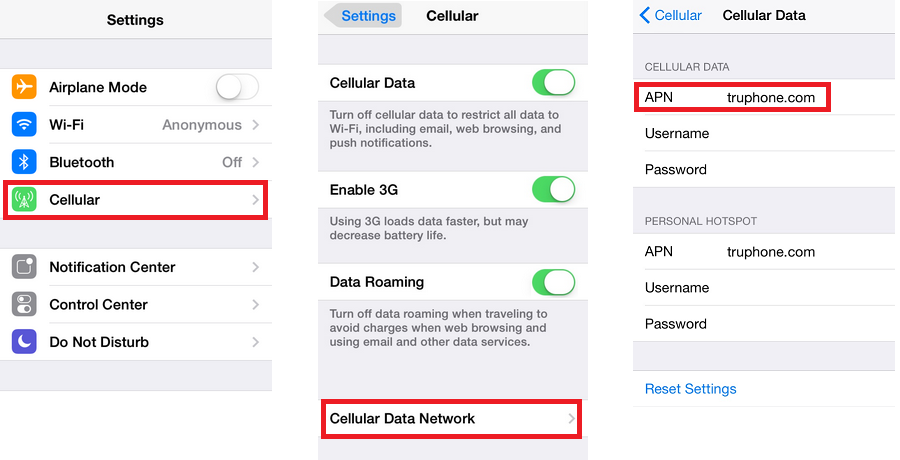
When standard activation fails, manual APN configuration often resolves persistent MMS issues, particularly with smaller carriers or international SIM cards where automatic settings don’t apply.
Enter Carrier-Specific APN Details
Access Settings → Cellular → Cellular Data Options → Cellular Data Network to reveal manual configuration fields. Enter the MMS Proxy, MMS Max Message Size, and MMS UA Prof URL provided by your carrier—these values differ significantly between providers. Most major carriers supply these details on their support websites, while smaller providers may require a customer service call to obtain the correct settings.
Critical warning: Incorrect APN settings can disrupt all cellular data services—only modify these fields with verified carrier information. Take screenshots of original settings before making changes to enable easy restoration if needed.
Implement Preventative Maintenance for Reliable MMS
Proactive management prevents future MMS disruptions on your iPhone 16, especially after iOS updates or carrier network changes that commonly reset messaging configurations.
Establish Monthly Maintenance Routine
After each iOS update, verify MMS remains enabled in Settings → Messages—many users discover functionality loss only when attempting to send their first post-update photo. Check for carrier settings updates monthly by visiting Settings → General → About, as carriers frequently push configuration improvements through this channel.
Monitor your cellular data usage specifically for messaging services by navigating to Settings → Cellular → System Services → Messaging Services. Heavy MMS users should consider unlimited messaging plans to avoid unexpected charges, especially when traveling internationally where MMS rates can be exorbitant.
Security reminder: Unlike encrypted iMessage, MMS provides minimal security—never send sensitive documents or personal identification through multimedia messages, as carrier networks only apply basic transmission encryption.
Final verification checklist before contacting support: Confirm MMS toggle enabled, cellular data active, strong signal present, Wi-Fi Calling temporarily disabled if troubleshooting, carrier confirms MMS plan inclusion, and iPhone restarted after changes. With these steps complete, your iPhone 16 will reliably send photos and videos to any mobile device—no more failed messages or frustrated Android contacts waiting for your pictures.


