

That unused shopping app cluttering your iPhone 16 home screen isn’t just an eyesore—it’s silently eating valuable storage space. With Apple’s enhanced iOS 18 interface, deleting apps has subtle differences compared to older models, leaving many iPhone 16 users frustrated when the familiar minus button doesn’t appear. Whether you’re freeing up space for high-resolution photos or eliminating apps you no longer need, this guide delivers every verified method to delete apps on your iPhone 16—plus troubleshooting fixes when standard deletion fails.
Remove Apps from Home Screen
Enter Jiggle Mode with iPhone 16’s Enhanced Haptics
Press and hold any app icon for just 1-2 seconds until you feel a subtle vibration—this is iPhone 16’s improved haptic feedback confirming jiggle mode activation. Unlike previous models, you’ll notice icons respond faster with less pressure required. Look for the minus (-) symbol appearing immediately in the top-left corner of each app icon. This method works identically across all iPhone 16 variants including Pro and Plus models.
Delete Individual Apps in Seconds
Tap the minus symbol on your target app, then select “Delete App” from the popup menu. Confirm by tapping “Delete” when prompted—this extra step prevents accidental removal of frequently used apps. The app vanishes instantly, and your remaining icons automatically reorganize. To exit jiggle mode, either press “Done” in the top-right corner or swipe up from the bottom of the screen. Pro Tip: For apps requiring account deletion first (like banking apps), open the app and sign out before removal to prevent data conflicts.
Batch Delete Multiple Apps Efficiently
While in jiggle mode, tap the minus symbol on each unwanted app sequentially. iOS 18 requires individual confirmation for each deletion as a security measure, but you can process 5-10 apps in under a minute. This technique excels when spring cleaning your home screens—start with the largest space-hogging apps first. When finished, press “Done” to save all changes simultaneously.
Delete Apps from App Library
Locate Hidden Apps in Category Folders
Swipe left past all home screens to enter the App Library where iPhone 16 automatically organizes apps into smart categories. Scroll through sections like “Social,” “Productivity,” or “Games” to find apps you’ve hidden from home screens. The search bar at the top works instantly—typing just 2-3 letters often brings up your target app. This method is particularly useful for removing pre-installed apps you’ve relocated.
Remove Apps Without Home Screen Access
Press and hold any app icon in the App Library, then select “Delete App” from the context menu. Confirm deletion when prompted—this works even for apps completely removed from your home screens. Unlike home screen deletion, the App Library method shows all installed apps in one place, eliminating the need to hunt through multiple home screen pages.
Settings-Based App Removal

Navigate to iPhone Storage for Size Insights
Open Settings > General > iPhone Storage and wait 10-15 seconds for the system to calculate usage. This screen reveals exactly how much space each app consumes, including documents and data that often exceed the app’s base size. Sort by size to identify storage hogs—large games or photo editing apps typically appear at the top.
Delete Apps with Precise Control
Tap any app in the storage list, then select “Delete App” at the bottom. Before confirming, review the “Documents & Data” section showing exactly how much space you’ll reclaim. This method is essential when targeting apps with massive cache files, like social media platforms that store years of media. Warning: Deleting photo-heavy apps may permanently remove local album content not backed up to iCloud.
Offload vs Delete: Critical Differences

Preserve Data with Offload Feature
Choose “Offload App” instead of “Delete App” when you want temporary space relief. The app icon remains on your home screen with a cloud symbol, and all documents/data stay intact. Reinstalling later restores everything exactly as before—ideal for seasonal apps like tax software. iPhone 16’s faster processing makes offloading/reinstalling nearly instantaneous compared to older models.
When to Delete Permanently
Delete immediately when: The app contains sensitive financial data, you’ve switched to a competitor’s service, or it’s causing system instability. Offload instead when: You use the app quarterly (like holiday planners), want to test alternatives, or need temporary space for large downloads. Never delete if you haven’t canceled active subscriptions—this can cause billing issues.
Troubleshoot Stubborn Apps That Won’t Delete
Resolve Subscription Blockers
Navigate to Settings > [Your Name] > Subscriptions to check for active plans tied to the app. Many subscription services prevent deletion until you cancel the plan. Tap the problematic subscription, select “Cancel Subscription,” then return to delete the app. This is especially common with streaming services and productivity apps.
Bypass Screen Time Restrictions
Go to Settings > Screen Time > Content & Privacy Restrictions > iTunes & App Store Purchases. Verify “Deleting Apps” shows “Allow”—many parents and business users accidentally restrict this feature. If set to “Don’t Allow,” change it temporarily to delete the app, then restore restrictions afterward.
Force Restart for Frozen Deletions
When apps refuse deletion despite multiple attempts, perform an iPhone 16-specific force restart: Press Volume Up, then Volume Down, then hold the Power button until the Apple logo appears (about 10 seconds). This clears temporary system glitches without erasing data. Wait for full reboot before retrying deletion.
Verify Complete App Removal
Confirm Deletion Across All Locations
After deletion, swipe down from your home screen to activate Spotlight Search and type the app name—deleted apps won’t appear. Also check Settings > General > iPhone Storage to ensure the app no longer shows in the storage list. Critical check: Open Settings > Notifications and confirm the app has disappeared from the notification list—lingering entries indicate incomplete removal.
Monitor Storage Recovery Accurately
Check Settings > General > About > Available before deletion, then revisit after 2-3 minutes. iPhone 16 may take up to 60 seconds to reflect freed space due to background optimization. For immediate verification, restart your device—this triggers an instant storage recalculation. Note that Pro models with 1TB+ storage may show smaller percentage gains than base models.
Privacy-First Deletion Protocol
Secure Your Data Before Removal
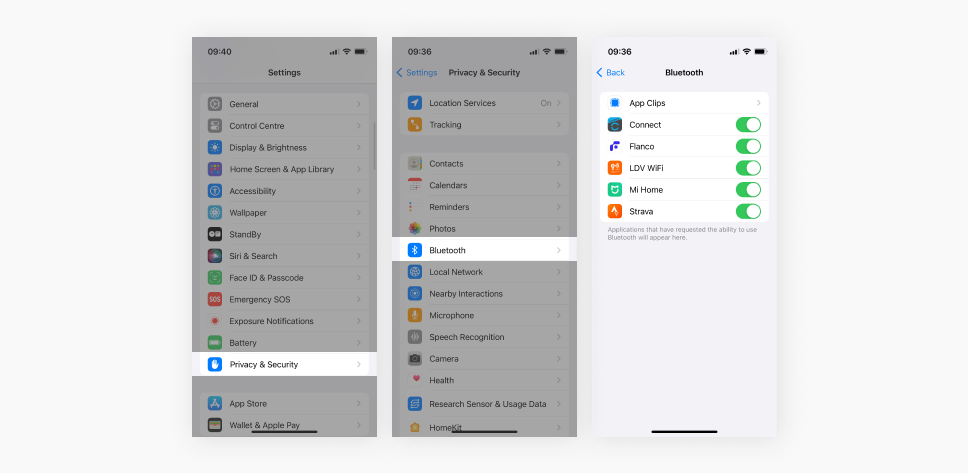
Always open the app and sign out of all accounts before deletion—this prevents residual login sessions. For finance apps, clear locally stored documents using the app’s internal settings. Essential step: Go to Settings > Passwords and delete any saved credentials for the app to prevent autofill confusion later.
Eliminate iCloud Residue
Navigate to Settings > [Your Name] > iCloud > Manage Storage > [App Name]. Select “Delete Data” to remove cloud-stored information. This ensures complete data removal across all Apple devices, especially important for health or financial apps. Without this step, reinstalling the app could restore sensitive information.
Smart Storage Management Routine
Monthly App Audit Checklist
Set a recurring calendar alert to review apps monthly. In Settings > General > iPhone Storage, sort by “Date Last Used” to identify dormant apps. Delete anything untouched for 90+ days—these typically consume 15-30% of total storage without providing value. Pro Tip: iPhone 16’s enhanced storage suggestions now highlight “Infrequently Used” apps automatically in the storage menu.
Optimize with Automatic Offloading
Enable Settings > App Store > Offload Unused Apps to let iPhone 16 intelligently manage storage. The system automatically offloads apps you haven’t opened in 30+ days while preserving all data. Reinstalling takes just seconds via the App Store, and your settings remain intact. This feature works particularly well for travel apps or event-specific tools you use seasonally.
Final Note: Deleted apps remain in your purchase history indefinitely—simply visit the App Store > Account > Purchased to reinstall anytime. For complete removal from purchase history (rarely needed), contact Apple Support directly. Remember that core system apps like Phone, Messages, and Settings cannot be deleted, but all other Apple apps including Weather and Stocks can be removed and restored as needed.


