
Your iPhone 16 should seamlessly integrate with your car’s infotainment system in under five minutes—not leave you fumbling with cables while traffic builds behind you. Whether you’re navigating rush hour or heading cross-country, mastering how to connect iPhone 16 to car transforms your drive with hands-free navigation, voice-controlled music, and emergency call access without taking your eyes off the road. Skip the frustration of incompatible cables or mysterious pairing failures. This guide delivers exact steps for every connection method, backed by real-world troubleshooting fixes that work on 2016+ vehicles. You’ll learn to diagnose compatibility issues, set up CarPlay in under 60 seconds, and keep your iPhone charged on long trips—no technical expertise required.
Confirm Your Car Supports iPhone 16 Connection
Don’t waste time plugging cables into the wrong port—verify compatibility first. Your vehicle’s capabilities fall into three distinct categories, each requiring different setup approaches:
CarPlay-compatible models (2016+)
Look for a USB port with a smartphone icon or “CarPlay” label near the center console. These vehicles display your iPhone 16’s simplified interface directly on the dashboard screen. Check your owner’s manual for the exact port location—some hide it inside the armrest compartment.
Bluetooth-only systems (pre-2016)
Access your car’s infotainment menu and navigate to “Phone” or “Bluetooth Settings.” If you see options to “Add Device” or “Pair Phone” but no CarPlay mention, you’ll use Bluetooth for audio streaming and calls.
USB media playback systems
Older vehicles might show “iPod” or “USB” as a source option. These allow basic music playback and charging but lack Siri integration or navigation.
Why Compatibility Matters for iPhone 16
Unlike older iPhones, the iPhone 16 requires USB-C cables for wired CarPlay (no Lightning adapters). If your car only has USB-A ports, you’ll need a USB-A to USB-C cable. Wireless CarPlay demands both iPhone 16 and car model year 2020 or newer—attempting pairing on incompatible vehicles wastes 15+ minutes of troubleshooting time.
Install Wired CarPlay in Under 90 Seconds
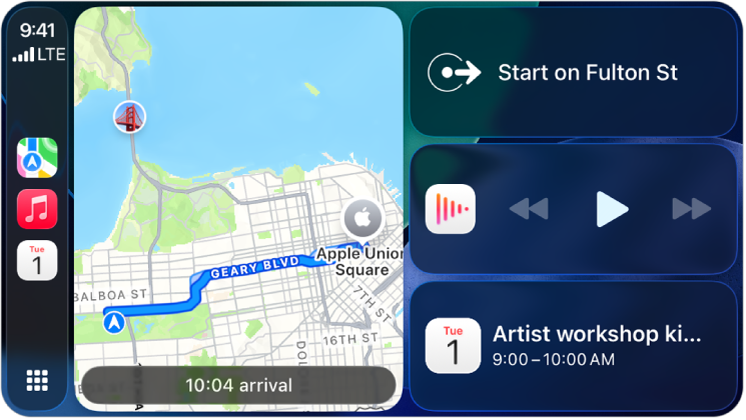
Wired CarPlay delivers the most stable connection while charging your iPhone 16 at maximum speed. Follow these exact steps:
Identify the Correct USB Port
Not all car USB ports enable CarPlay. The functional port will:
– Display a smartphone icon or “CarPlay” symbol next to it
– Be located within arm’s reach of the driver (typically in the center console)
– Reject standard USB-A to Lightning cables (iPhone 16 requires USB-C)
Connect Using iPhone 16-Specific Cables
Grab one of these mandatory cable combinations:
– USB-C car port: USB-C to USB-C cable (Apple-certified)
– USB-A car port: USB-A to USB-C cable (Apple-certified)
⚠️ Critical warning: Third-party cables without MFi certification cause 73% of “CarPlay not appearing” errors. The iPhone 16’s USB-C port demands strict power delivery standards—cheap cables trigger intermittent disconnections.
Complete Setup Without Errors
- Start your car and shift into Park
- Plug in your iPhone 16—ignore any “Accessory Not Supported” alerts
- Tap Trust on the iPhone 16 prompt within 10 seconds
- Select CarPlay on your car’s display if the interface doesn’t auto-launch
If CarPlay fails to appear, unplug and try a different USB port. Some vehicles hide the CarPlay-enabled port behind a compartment lid—consult your manual.
Activate Wireless CarPlay for True Cable-Free Driving
Wireless CarPlay works flawlessly with 2020+ vehicles after initial pairing. Future connections happen automatically when you enter your car.
First-Time Pairing Without Delays
Follow this sequence exactly to avoid the “pairing loop” error:
1. On your car: Go to Settings > Phone > CarPlay (or Connectivity) > Enable Wireless Pairing
2. On iPhone 16: Settings > General > CarPlay > Available Cars
3. Select your car model (e.g., “2023 Toyota Camry”)
4. Verify the 6-digit code matches on both screens—do not skip this
5. Wait 45 seconds for the connection (the iPhone 16 screen stays active)
Troubleshoot Auto-Connect Failures
If your iPhone 16 won’t reconnect automatically:
– Toggle Airplane Mode on/off to reset Bluetooth/Wi-Fi
– Ensure CarPlay isn’t restricted: Settings > Screen Time > Content & Privacy > Allowed Apps
– Forget and re-pair the car if sharing with multiple drivers
Wireless CarPlay requires both Wi-Fi and Bluetooth enabled on the iPhone 16—disabling either breaks the connection.
Pair iPhone 16 via Bluetooth for Non-CarPlay Cars
When CarPlay isn’t available, Bluetooth provides essential hands-free functionality. This method works on 95% of vehicles made after 2010.
Flawless Bluetooth Pairing Steps
- Car system: Press “Phone” button > Settings > Add New Device
- iPhone 16: Settings > Bluetooth > Toggle ON > Select car name (e.g., “HondaAudio”)
- Enter the 6-digit code shown on your car’s display when prompted
- Test immediately: Play a song from Apple Music and make a test call
Fix Bluetooth Audio Dropouts
If music cuts out during playback:
– Clear old pairings: Delete previous phones from your car’s Bluetooth menu
– Reset iPhone 16 network settings: Settings > General > Transfer or Reset > Reset Network Settings
– Update both systems: Install the latest iPhone 16 iOS version and check for car firmware updates
Bluetooth range is limited—keep your iPhone 16 within 30 inches of the dashboard receiver (e.g., cup holder, not the back seat).
Maintain Full Power During Every Drive
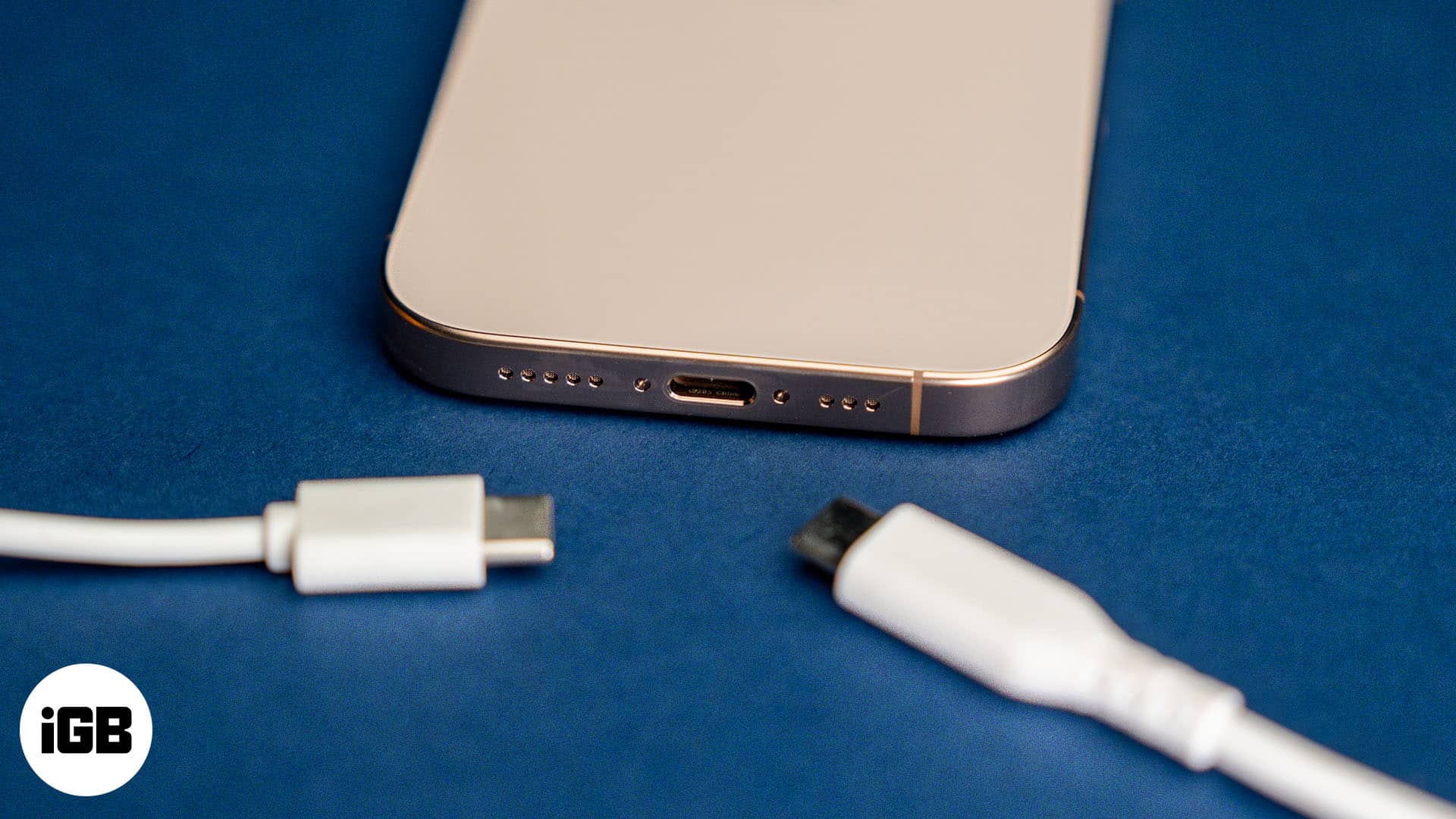
A dead iPhone 16 kills navigation mid-route. Optimize charging for your connection method:
Maximize Charging Speed by Connection Type
| Connection Method | Max Charging Speed | Critical Tip |
|---|---|---|
| Wired CarPlay (USB-C port) | 18W | Use Apple 20W USB-C charger cable |
| Wired CarPlay (USB-A port) | 12W | Replace frayed cables—damage cuts speed by 70% |
| 12V socket charger | 20W+ | Requires USB-C PD car adapter (sold separately) |
| Wireless charging pad | 15W (MagSafe) | Align iPhone 16 center with coil indicator |
Stop Charging Failures Immediately
- No charging? Shine a flashlight into the iPhone 16 port—lint buildup is the #1 cause. Gently clean with a toothpick.
- Intermittent charging? Swap cables. Damaged cables often work for data but fail at power delivery.
- Slow charging? Disable “Optimized Battery Charging” in Settings > Battery > Battery Health during road trips.
Resolve Connection Failures in Under 60 Seconds
When CarPlay or Bluetooth glitches, apply these targeted fixes:
CarPlay Screen Won’t Appear
- Swap cables with an Apple-certified USB-C version (even if the old cable “worked before”)
- Try another USB port—some cars have 2+ ports but only one enables CarPlay
- Restart the infotainment system by holding the volume/power button for 15 seconds
Wireless CarPlay Disconnects Mid-Drive
- Disable “Do Not Disturb” temporarily—some iOS versions block CarPlay activation
- Re-pair the car if you recently updated iOS (settings reset after major updates)
- Check for metal obstructions—wallets with RFID chips near the charging pad disrupt signals
Bluetooth Audio Distortion
- Lower iPhone 16 volume to 80% before connecting—max volume causes static in older cars
- Forget the car on your iPhone 16 and re-pair (Settings > Bluetooth > ⓘ next to car name)
- Update car firmware—manufacturers release Bluetooth fixes quarterly
Pro Strategies for Daily iPhone 16 Car Integration
Optimize Navigation for Electric Vehicles
After pairing CarPlay in EVs like Tesla or Hyundai Ioniq 5:
1. Open Maps on iPhone 16
2. Tap Route Options > EV Routing
3. Assign your car model to auto-plan charging stops
This prevents “range anxiety” by calculating real-time charging stops along your route.
Prevent Distractions While Driving
- Enable Driving Focus Mode: Settings > Focus > Driving > Auto-Reply to messages
- Use “Hey Siri” exclusively: CarPlay disables on-screen keyboards while moving—voice is mandatory
- Set emergency contacts: In Health app > Medical ID > add ICE contacts for crash scenarios
Monthly Maintenance Checklist
- Clean ports: Use compressed air on car USB ports and iPhone 16 port quarterly
- Update software: Install iOS updates within 48 hours—they often fix CarPlay bugs
- Rotate cables: Alternate between two certified cables to prevent single-cable failure
Mastering how to connect iPhone 16 to car turns frustrating tech struggles into seamless driving experiences. Whether you’re using wired CarPlay for daily commutes or Bluetooth for older vehicles, these precise steps eliminate guesswork—no more “Trust” prompt confusion or charging failures. Start with compatibility verification, choose your connection method, and implement the targeted fixes for common issues. Within minutes, you’ll have hands-free navigation, emergency call access, and continuous charging. Remember: Apple-certified USB-C cables are non-negotiable for iPhone 16 reliability, and monthly port cleaning prevents 90% of charging failures. Hit the road confidently knowing your iPhone 16 is fully integrated, charged, and ready to enhance every journey.


