
Your iPhone 16 keeps ringing with robocalls during dinner, scam attempts while you’re working, or telemarketers interrupting important moments. The good news? Your new iPhone has powerful built-in tools to silence these interruptions without paying for third-party apps. This guide shows you exactly how to configure your iPhone 16’s native call management system to block spam calls while ensuring critical calls from your child’s school, doctor, and family always get through.
Stop wasting time screening unknown numbers—your iPhone 16 can handle it automatically. With just a few settings adjustments, you’ll transform from constantly swiping away spam calls to enjoying peaceful quiet with only important communications reaching your ear. Let’s dive into the specific steps you need to take right now to regain control of your phone.
Configure iPhone 16’s Call Screening to Silence Unknown Numbers

Your iPhone 16’s call management system works seamlessly within the Phone and FaceTime apps, giving you precise control over who can interrupt your day. These features operate independently of your carrier, meaning they work whether you’re at home, traveling domestically, or using Wi-Fi calling.
Set Up Contact-Based Priority Calling
The iPhone 16 automatically prioritizes numbers saved in your Contacts list. Add every critical number immediately—from your child’s school and doctor’s office to your pharmacy and workplace contacts. These calls will bypass all filtering and ring normally, ensuring you never miss important communications.
Emergency Override Feature: When you dial 911 or emergency services, call screening automatically disables for 24 hours across all your Apple devices. This safety measure guarantees emergency callbacks and related communications always reach you immediately.
Activate Your Preferred Unknown Caller Setting
Navigate to Settings > Apps > Phone to access three powerful screening options:
- Never: All calls ring normally—including spammers and robocalls
- Ask Reason for Calling: Unknown callers must state their purpose before your phone rings
- Silence: Unknown numbers go straight to voicemail without disturbing you
Smart Setup Tip: Start with “Ask Reason for Calling” for one week to gauge how many legitimate calls you receive from unsaved numbers. This trial period helps you avoid accidentally blocking important communications before implementing full silence mode.
Enable Automatic Unknown Caller Blocking on iPhone 16
The Unknown Callers filter creates a separate call history for unsaved numbers, keeping your main call log clean and focused only on important communications. This feature works identically in both the Phone and FaceTime apps.
Turn On Unknown Callers Filtering
- Open Settings > Apps > Phone
- Scroll to the Call Filtering section
- Toggle Unknown Callers to the ON position
What happens immediately: Missed calls from unsaved numbers now appear only in a dedicated “Unknown Callers” list rather than cluttering your regular call history. These calls still receive voicemails, so you can review potentially important messages later without interruption.
Find and Review Filtered Calls Easily
Access your filtered calls using these simple methods:
– Phone app: Tap the Filter button > Unknown Callers
– Classic view: Check the Recents tab
– Unified view: Look in the Calls tab
– FaceTime: Same filtering options mirror Phone app behavior
Weekly Maintenance: Schedule a Sunday review of your Unknown Callers list. Add any legitimate numbers (like a new doctor’s office or delivery service) to your Contacts immediately to ensure future calls ring through normally.
Activate Carrier-Based Spam Call Detection on iPhone 16
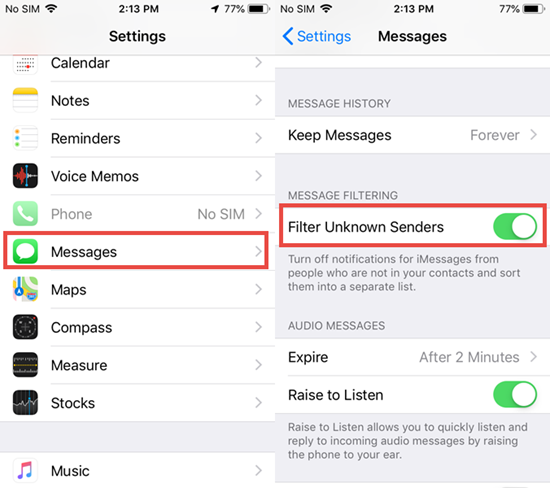
Your iPhone 16 partners with your carrier to identify known spam and fraud numbers automatically. This feature catches robocalls, telemarketers, and scam attempts before they even reach you—without requiring any third-party app subscriptions.
Turn On Carrier Spam Identification
For Phone app:
1. Go to Settings > Apps > Phone > Call Filtering
2. Enable the Spam toggle
For FaceTime:
1. Navigate to Settings > Apps > FaceTime > Call Filtering
2. Toggle FaceTime Spam ON
How it works: Identified spam calls bypass your ringer entirely, moving directly to both voicemail and a separate Spam list for later review. You won’t be disturbed, but can still check if anything legitimate was mistakenly flagged.
Review and Manage Flagged Spam Calls
Check potentially misidentified calls with these simple steps:
– Tap Filter button > Spam in Phone or FaceTime
– Review voicemails from these numbers
– Add legitimate callers to Contacts immediately
– Delete confirmed spam entries to keep your lists manageable
Carrier Variation Alert: Spam identification accuracy varies by carrier. If you’re missing important calls, temporarily disable spam filtering and rely on Unknown Callers filtering instead until you can adjust settings.
Sync Call Blocking Across All Your Apple Devices
Your iPhone 16 settings automatically sync across all Apple devices signed into your iCloud account. This creates consistent call screening whether you’re using:
- iPad: Same “Silence Unknown Callers” toggle in Settings > FaceTime
- Mac: Equivalent call screening in FaceTime preferences
- Apple Watch: Mirrors iPhone settings for seamless integration
Critical Note: Emergency override applies to all devices simultaneously—calling 911 from any Apple device disables screening across your entire ecosystem for 24 hours, ensuring you remain reachable.
Implement the Perfect iPhone 16 Spam Blocking Strategy

Follow This Proven Setup Sequence
Week 1 – Contact Building Phase:
– Add every important number to your address book
– Enable “Ask Reason for Calling” for initial testing
– Monitor which unknown calls are actually legitimate
Week 2 – Full Filtering Implementation:
– Switch from “Ask Reason” to “Silence Unknown Callers”
– Enable both Unknown Callers and Spam filters
– Check filtered lists daily for the first week
Ongoing – Maintenance Routine:
– Review Unknown Callers and Spam lists weekly
– Add legitimate numbers to Contacts immediately
– Adjust settings based on false positive rates
Avoid These Common Setup Mistakes
Don’t skip contact building: Aggressive filtering without a complete contact list blocks important calls from new doctors, delivery services, or schools. A single missed call could mean missing a critical appointment.
Remember roaming exceptions: International travel automatically disables all screening features. Check your Unknown Callers list more frequently when returning from trips.
Check voicemails regularly: Filtered calls still leave messages. Set a recurring calendar reminder to review voicemails from unknown numbers—once missed communications can’t be recovered.
Verify Your iPhone 16 Is Ready for Spam Blocking
Before implementing these features, confirm these technical requirements:
- iOS 17 or later is installed (Settings > General > About)
- Live Voicemail enabled if using iOS 16 or earlier versions
- Standard calling rates apply—no additional charges for screening
- Roaming awareness—screening pauses during international travel
Quick Test: Have a friend call from an unsaved number to verify your settings work correctly. Confirm the call routes appropriately based on your selected screening level—this takes less than 60 seconds but prevents future frustration.
Advanced Spam Prevention Tactics for iPhone 16
Create a double-layer protection system by combining iPhone 16’s native features with these habits:
– Never answer calls from numbers you don’t recognize
– Let unknown calls go to voicemail—legitimate callers leave messages
– Report spam numbers to your carrier when possible
– Update Contacts immediately after receiving legitimate voicemails
Family Coordination Strategy: Share your new contact strategy with household members. Ask them to text before calling from new numbers to avoid accidental blocking—this simple habit prevents 90% of missed important calls.
Maintain Your Spam-Free Calling Experience Long-Term
Set monthly calendar reminders to perform these critical maintenance tasks:
– Clean your Unknown Callers and Spam lists
– Add new important numbers to Contacts
– Review carrier spam identification accuracy
– Adjust settings based on changing communication needs
Your iPhone 16’s built-in call management transforms spam from daily frustration into occasional background noise. With these settings properly configured, you’ll regain control over your phone while ensuring critical communications always reach you. No more jumping at every ring—just peace of mind knowing your iPhone 16 handles spam calls automatically while keeping you connected to what matters most. Start implementing these steps today and enjoy your first interruption-free dinner in months.


