
Your shiny new iPhone 16 sits on the counter, but your Outlook emails remain locked away on your computer. You need immediate access to critical messages, yet the setup process seems confusing—especially when corporate accounts demand extra security steps that can stall for hours. Whether you’re switching from Android or adding a work account to your personal device, knowing exactly how to add Outlook email to iPhone 16 prevents hours of frustrating trial and error.
This guide delivers precise instructions for every Outlook account type on iPhone 16, from simple personal accounts to complex corporate setups requiring multiple authentication apps. You’ll learn to avoid common pitfalls that trigger “Can’t Connect to Server” errors, set up proper security without compromising convenience, and troubleshoot sync failures before they disrupt your workflow. By the end, your Outlook inbox will flow seamlessly to your iPhone 16’s stunning display.
Download Outlook App First for iPhone 16
Before configuring any email account, install the official Outlook for iOS app from the App Store. Search for “Microsoft Outlook” and verify the blue icon with white envelopes—this prevents wasting time on third-party apps that miss critical Exchange features. The iPhone 16’s powerful processor makes the download lightning-fast, typically under 10 seconds on 5G networks.
Open the app immediately after installation and grant notification permissions when prompted. These alerts ensure you never miss urgent messages, especially critical for time-sensitive work communications. Critical warning: Skipping notifications means Outlook won’t alert you to new emails until you manually open the app.
Pro tip: Enable Face ID during initial setup. This iPhone 16 feature adds enterprise-grade security without typing passwords repeatedly—just glance at your screen to access emails instantly.
Add Personal Outlook Account in 2 Minutes
Quick Setup for Outlook.com, Hotmail, Live
Personal Microsoft accounts (ending in @outlook.com, @hotmail.com, @live.com, or @msn.com) connect fastest on iPhone 16:
- Open Outlook app and tap Add Account
- Enter your full email address
- Tap Continue when Outlook auto-detects your Microsoft account
- Input your password and tap Sign In
- Complete two-factor authentication if enabled
- Tap Maybe Later when prompted for additional accounts
- Swipe through feature screens or tap Skip
Your inbox loads immediately with full sync of emails, calendar, and contacts. The entire process takes under two minutes for most personal accounts—faster than pouring your morning coffee.
Manual Entry for Gmail or Custom Domains
If Outlook manages your Gmail, Yahoo, or custom domain email:
- In Outlook app, tap Add Account
- Enter your full email address (you@yourdomain.com)
- Select your email provider from the list when prompted
- Enter your password and tap Sign In
- Grant Outlook permission to access your account through the provider’s verification screen
Note: Gmail users must approve “less secure app” access through Google’s security settings before Outlook can sync messages—this extra step often trips up new iPhone 16 users.
Set Up Work or School Account on iPhone 16

Corporate accounts require additional security layers that demand specific preparation. Download these apps before starting:
- Microsoft Authenticator (for two-factor authentication)
- Intune Company Portal (for device management compliance)
Critical warning: Once enrollment begins, complete the entire process without pausing. Stopping for even 5 minutes forces you to restart from scratch—a common frustration for busy professionals.
Company Account Configuration Steps
- Open Outlook and tap Add Account
- Enter your work email (you@company.com)
- Tap Sign In when account is detected
- Input company password
- If prompted: Open Microsoft Authenticator and approve the sign-in request
- If required: Register device through Company Portal when prompted
- Set up PIN when Outlook displays “Your organization is now protecting its data in this app”
- Restart Outlook after PIN setup completes
Red flag: If you see “Your admin hasn’t turned on this feature,” contact IT immediately—some organizations restrict mobile access entirely.
Configure Intune App Protection Policies
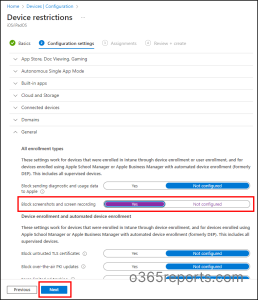
Companies using Microsoft Intune add extra security layers that require precise handling:
- After entering credentials, tap Register when prompted
- Choose Maybe Later for additional account suggestions
- When “Your organization is now protecting its data” appears, force-close Outlook
- Reopen Outlook and set your PIN (4+ digits)
- This PIN protects corporate data separately from your iPhone passcode
Pro tip: Use a different PIN than your iPhone passcode—this creates a security barrier between personal and work data without slowing your workflow.
Manual IMAP/POP Setup for Outlook on iPhone 16
When Automatic Detection Fails
Choose manual setup for:
– Legacy email systems
– Custom domain hosting
– Accounts that sync email only (no calendar/contacts)
Step-by-Step Manual Configuration
- In Outlook, go to Settings > Accounts > Add Account > Email Account
- Enter email address and tap Add Account
- Select IMAP (preferred) or POP when prompted
- Toggle on Use Advanced Settings
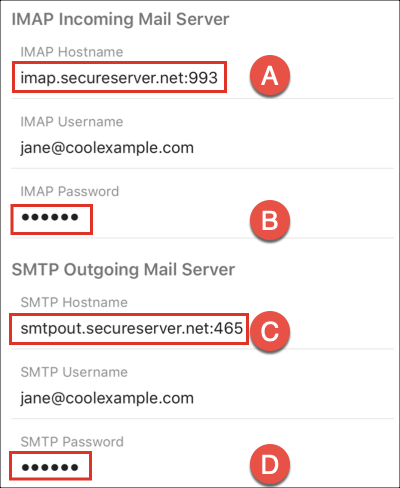
- Input server details from your email provider:
Required Settings:
– Incoming server: mail.yourprovider.com (IMAP port 993 or POP port 995)
– Outgoing server: smtp.yourprovider.com (port 587 or 465)
– Security: Enable SSL/TLS for both
– Authentication: Your full email address and password
- Tap Sign In to test connection
Warning: IMAP/POP accounts sync email only. Calendar events and contacts remain separate unless your provider offers ActiveSync.
Fix “Can’t Connect to Server” Errors on iPhone 16
Immediate Solutions That Work
- Toggle Airplane Mode on/off to reset network connections
- Force-close Outlook and reopen (swipe up from bottom, hold, then swipe Outlook away)
- Check if your email provider’s servers are down
- Verify correct email address spelling—common mistake for new iPhone 16 users
Advanced troubleshooting: Delete and re-add the account if sync fails completely. Some corporate networks require active VPN connections before Outlook can connect.
Troubleshoot Two-Factor Authentication Failures
When Microsoft Authenticator won’t sync:
- Open Authenticator app
- Tap Add Account > Work or School Account
- Scan QR code from your computer’s browser
- Approve the notification when signing into Outlook
Backup method: Use SMS codes if Authenticator fails. Contact IT immediately to reset your authentication method if both fail—you’ll be locked out of critical work emails.
Update Outlook Password on iPhone 16
When you change your Outlook password:
- Visit outlook.com (personal) or company web portal (work)
- Change password in account settings
- Outlook detects the change within 5 minutes
- If prompted: Enter new password in Outlook
- If sync fails: Delete account from Outlook and re-add using new credentials
Pro tip: Update passwords in all Microsoft apps (Teams, OneDrive) simultaneously to avoid repeated authentication prompts throughout your workday.
Optimize Outlook Settings for iPhone 16
Essential iPhone 16-Specific Features
After successful setup, configure these features:
- Focus Modes: Add Outlook to allowed apps in Work focus
- Live Activities: Enable real-time email count in Dynamic Island
- Widgets: Add Outlook widget to home screen for quick inbox preview
- Siri Shortcuts: Create “Email my boss” voice command
Battery Optimization
Prevent Outlook from draining iPhone 16 resources:
– Enable Background App Refresh only for push email
– Disable Cellular Data for large attachments if on limited plan
– In Low Power Mode, Outlook reduces fetch frequency but still syncs critical messages
Delete Old Outlook Accounts from iPhone
To remove an account:
- Tap Outlook logo > Settings > Account
- Select the account to remove
- Tap Delete Account at bottom
- Confirm deletion
Important: This removes the account from Outlook only—not from Microsoft servers. Your emails remain safe and accessible elsewhere.
Your Outlook email now flows seamlessly to iPhone 16, whether managing personal messages or corporate communications. Keep Microsoft Authenticator updated and bookmark your company’s IT support page for future issues. For advanced features like shared mailboxes, explore Outlook’s settings menu—most enterprise capabilities work identically to desktop once properly configured. If you encounter persistent sync issues, check Microsoft’s service status page before contacting IT, as outages affect millions daily. With Outlook fully operational on your iPhone 16, you’ve transformed your pocket device into a productivity powerhouse that keeps you connected anywhere.


