
Your iPhone 16 likely holds dozens of apps, but hunting for them shouldn’t feel like a scavenger hunt. While Apple still hasn’t added automatic alphabetization to iOS 18, you can create a perfectly ordered Home Screen with a systematic approach. This guide reveals exactly how to arrange your iPhone 16 apps from A to Z and maintain that order without constant frustration. You’ll discover time-saving techniques that transform app hunting into instant access, saving you valuable seconds every time you reach for your phone.
Organize iPhone 16 Home Screen Apps Manually
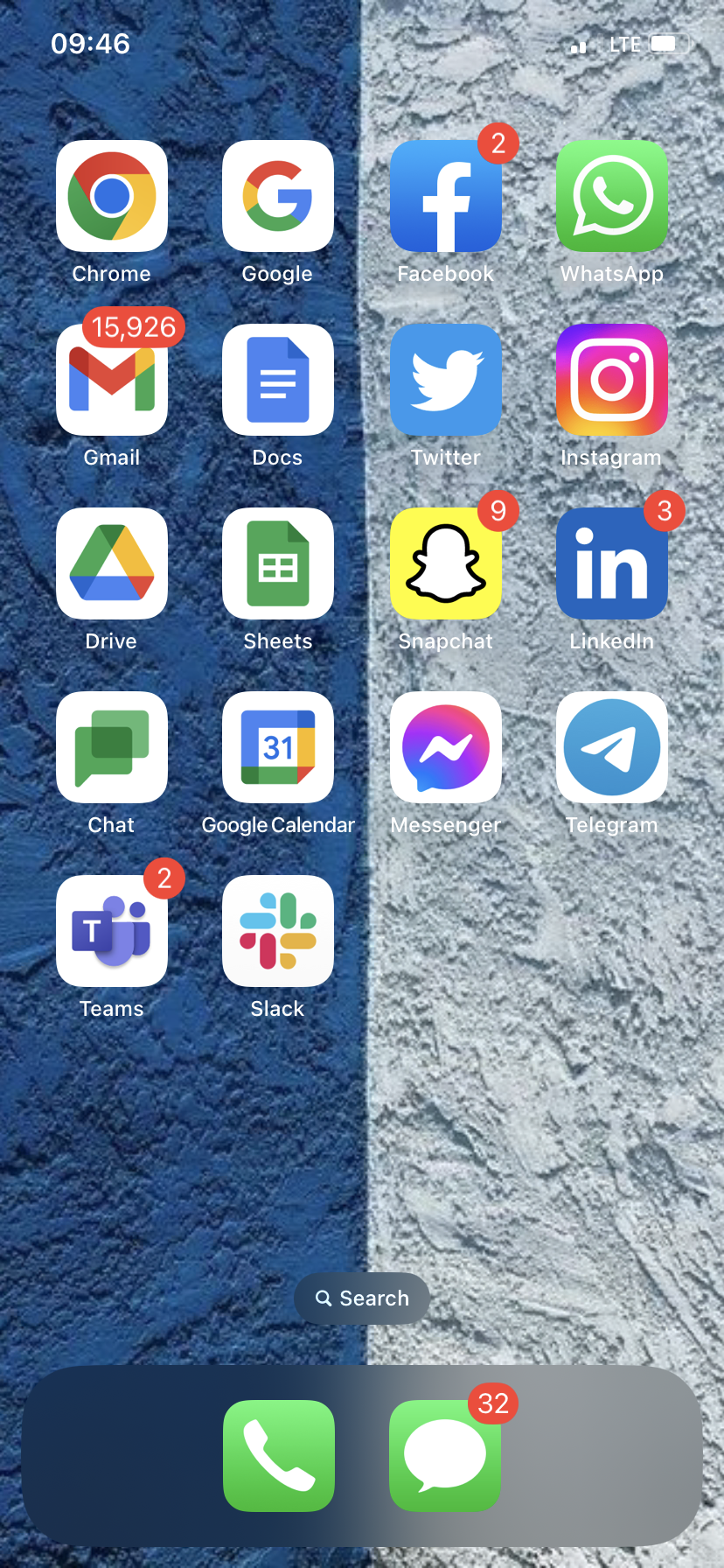
Unlike some Android devices, the iPhone 16 requires hands-on arrangement to achieve alphabetical order. This 20-minute initial investment pays off daily with dramatically faster app access. The key is working systematically rather than randomly moving icons.
Enter Jiggle Mode in One Tap
Press and hold any blank space on your Home Screen until all icons start jiggling and small minus signs appear in their corners. This visual cue confirms you’re ready to rearrange. On iPhone 16 models without a Home button, this is the only method—no need for complicated button combinations.
Drag Apps into Perfect Alphabetical Sequence
Begin with your “A” apps and progress through the alphabet methodically. For optimal organization:
- Page 1: A through C apps (keep this page light with 18-20 apps)
- Page 2: D through F apps
- Page 3: G through I apps
- Page 4: J through L apps
- Page 5: M through O apps
- Page 6: P through R apps
- Page 7: S through U apps
- Page 8: V through Z apps
Pro tip: Create empty pages first by dragging any app to the right edge until a new page appears. This gives you workspace without overcrowding existing pages. When positioning apps, pay attention to the subtle grid lines that appear—these help align icons perfectly.
Save Your Alphabetical Arrangement Permanently
Tap “Done” in the top-right corner or swipe up from the bottom of the screen to exit jiggle mode. Your iPhone 16 immediately locks in this new arrangement. No additional confirmation is needed—your icons will stay in place until you manually change them again.
Access All Apps Alphabetically Without Rearranging
When you prefer not to move icons but need quick alphabetical access, the App Library provides an instant solution.
Find Any App in Seconds Using App Library Search
Swipe left past your last Home Screen page to reach the App Library. Tap the search bar at the top and type the first letter of your target app. Within milliseconds, you’ll see a complete alphabetical list of matching apps—no scrolling required. This works whether you have 30 or 300 installed applications.
Browse Your Entire App Collection Alphabetically
In App Library’s search view, scroll down to see every single installed app listed in strict alphabetical order. This text-based format eliminates visual hunting—simply scan the list until you spot your app, then tap to open. It’s particularly useful for rarely used utilities you might otherwise forget you have.
Stop New Apps from Ruining Your Alphabetical System
Every new download threatens to disrupt your carefully organized Home Screen. These settings prevent that frustration.
Redirect New Downloads to App Library Only
Go to Settings > Home Screen & App Library and select “App Library Only” instead of the default “Add to Home Screen.” Now, when you download TikTok, Spotify, or any new app, it appears exclusively in your App Library—never on your alphabetized Home Screen. This single setting preserves your organization automatically.
Implement a 5-Minute Weekly Maintenance Routine
Set a recurring calendar reminder for Sunday evenings:
1. Check your App Library for new downloads
2. Enter jiggle mode on your Home Screen
3. Drag important new apps to their correct alphabetical positions
4. Remove any unused apps cluttering your system
This weekly habit takes less time than making coffee but keeps your iPhone 16 perfectly organized.
Optimize Page Layouts for Maximum Efficiency
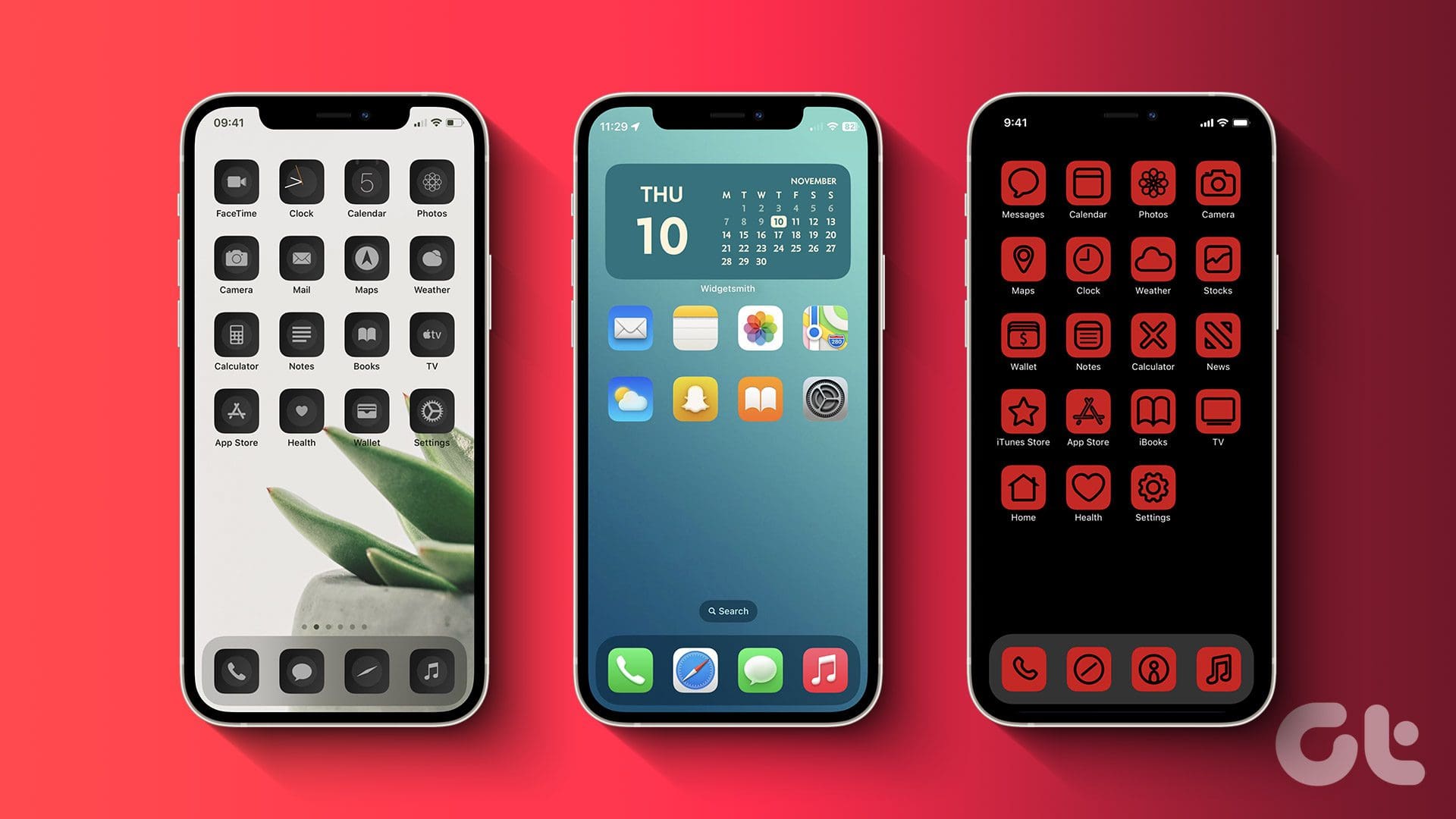
Smart page divisions transform basic alphabetization into a navigation powerhouse.
Create Balanced Letter Range Pages
Instead of cramming all apps onto few pages, distribute them logically:
- Page 1: A-E (common starter letters)
- Page 2: F-K (moderate usage frequency)
- Page 3: L-P (mid-alphabet essentials)
- Page 4: Q-U (less common but important)
- Page 5: V-Z + overflow (least frequent starters)
This prevents overcrowding and ensures every icon remains large enough for easy tapping with one hand.
Position Widgets Without Breaking Flow
Widgets consume valuable space that can disrupt alphabetical continuity. Smart solutions include:
- Place all widgets on a dedicated page before your A-E apps
- Position single widgets at the bottom of alphabetical pages
- Use Smart Stacks with “Automatic” setting to minimize space usage
- Avoid placing widgets between app rows that would split alphabetical sequences
Bypass Visual Organization Entirely
Sometimes searching beats scrolling through even the best-organized Home Screen.
Master Spotlight Search for Instant Access
Swipe down from anywhere on your Home Screen (except within apps) to open Spotlight. Type just the first letter of your target app—results appear alphabetically within milliseconds. For example, typing “C” shows Calendar, Camera, and Clock in perfect order. This method works regardless of your Home Screen arrangement.
Use Siri for Hands-Free Alphabetical Access
Activate Siri with “Hey Siri” or by holding the side button, then say “Open [app name].” Siri accesses your entire app library alphabetically behind the scenes, launching the correct application without you lifting a finger. This is ideal when driving or cooking with messy hands.
Avoid These iPhone 16 Alphabetization Pitfalls
Common mistakes undermine your organizational efforts—steer clear of these traps.
Don’t Overcrowd Pages with Too Many Icons
Cramming 30+ apps onto one page makes icons too small for reliable tapping, especially on iPhone 16’s larger displays. Stick to 20-24 apps per page maximum—your thumb will thank you during late-night scrolling sessions.
Skip Alphabetical Folders—They Slow You Down
Creating A-folder, B-folder, etc., adds an unnecessary tap to access each app. Individual icons on your Home Screen provide one-tap access versus folder navigation. Reserve folders for logical groupings like “Travel” or “Finance,” not alphabetical sorting.
Remember Built-in Apple Apps in Your Scheme
Many users organize downloaded apps but forget Calculator, Compass, and Voice Memos. Include these system apps in your alphabetical flow—they appear in App Library anyway and disrupt your order if missing from Home Screen.
Quick Fixes When Your System Gets Messy
When accidental icon movement ruins your arrangement, these solutions restore order fast.
Avoid Resetting to Default Layout
Settings > General > Transfer or Reset iPhone > Reset > Reset Home Screen Layout reverts to Apple’s arrangement, not alphabetical order. This destroys your careful organization and forces you to start over from scratch.
Perform Targeted 2-Minute Corrections
Instead of complete resets, enter jiggle mode and fix only misplaced apps. Focus on high-traffic areas first—your most-used apps deserve perfect positioning. Most disruptions can be corrected in under two minutes with this surgical approach.
Maintain Your System for Years to Come
Long-term success requires sustainable habits, not just initial setup.
Conduct Monthly Efficiency Audits
Once monthly, spend five minutes:
– Check for accidentally misplaced apps
– Delete unused applications causing clutter
– Adjust page boundaries as your app collection evolves
– Verify new downloads are going to App Library only
This maintenance prevents small issues from becoming overwhelming disorganization.
Leverage iCloud for Cross-Device Consistency
Your iPhone 16’s Home Screen layout automatically syncs via iCloud to other Apple devices using the same ID. Check your iPad and older iPhones—they’ll mirror your alphabetical system, creating seamless transitions between devices.
When Alphabetical Isn’t the Best Option
For massive app collections, consider hybrid approaches.
Implement Category-Based Organization for Large Libraries
If you have 200+ apps, create:
– First page: Most-used alphabetical apps (20-30)
– Second page: Productivity apps (alphabetized within category)
– Third page: Social media (alphabetized)
– Fourth page: Entertainment (alphabetized)
This reduces page count while maintaining quick access.
Combine Methods for Ultimate Efficiency
Keep your daily-driver apps (Messages, Mail, Safari) in strict alphabetical order on your first Home Screen page. Use categorized, alphabetized pages for less-frequent apps, and rely on App Library search for rare utilities. This tiered approach optimizes your workflow based on actual usage patterns.
Organizing your iPhone 16 apps alphabetically requires initial effort but delivers immediate time savings every time you use your phone. Start by redirecting new downloads to App Library only, then systematically arrange your Home Screen pages using letter ranges. Maintain your system with weekly 5-minute sessions, and leverage Spotlight search for instant access when needed. Within a week, you’ll wonder how you ever managed without this simple organizational system—no more endless scrolling or frustrated app hunting. Your perfectly ordered iPhone 16 Home Screen awaits, ready to transform daily digital chaos into effortless efficiency.


