
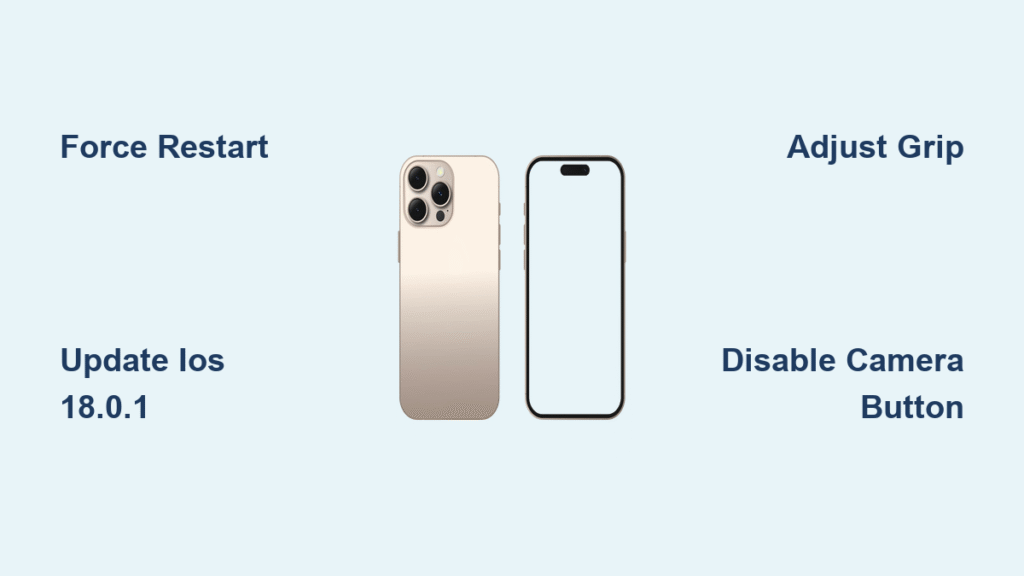
Your new iPhone 16 freezes mid-text or during gaming, forcing a restart that interrupts everything. You’re not imagining it—thousands of early adopters report identical iPhone 16 issues with unresponsive touchscreens. This isn’t random hardware failure; it’s a design flaw in Apple’s aggressive new palm rejection system combined with thinner bezels. The constant frustration of frozen screens undermines the premium experience you paid for, but most cases resolve with one critical update and simple adjustments. Follow this guide to fix iPhone 16 screen freezing permanently or confirm if hardware repair is needed.
iPhone 16 Screen Freezing: Why It Happens & Instant Fixes
Why Your iPhone 16 Screen Suddenly Locks Up
The iPhone 16’s ultra-thin bezels cause your skin to constantly brush screen edges during normal use, tricking Apple’s overzealous palm rejection algorithm. This is especially problematic near the new Camera Control button—accidental contact here triggers a full screen freeze. Gaming sessions and one-handed use make this worse since your fingers naturally rest on screen borders. Unlike previous models, the iPhone 16 interprets these touches as “accidental” and shuts down input entirely rather than ignoring them.
Critical Warning: Don’t ignore frequent freezes—they often precede permanent touchscreen failure if left unaddressed.
Immediate Fixes for Frozen iPhone 16 Screens
- Force restart immediately: Press Volume Up > Volume Down > hold Side button until Apple logo appears (15+ seconds). This clears temporary glitches but isn’t a permanent fix.
- Install iOS 18.0.1 NOW: Go to Settings > General > Software Update. This patch specifically resolves “touchscreen unresponsiveness due to palm rejection sensitivity” across all iPhone 16 models.
- Adjust your grip: Hold the phone by the metal frame edges, not the screen perimeter. Avoid resting thumbs on bottom corners during gaming.
- Install a protective case: Choose one with 1.5mm+ raised edges around the screen to prevent skin contact. Silicone cases worsen the issue—opt for rigid polycarbonate.
Preventing Future iPhone 16 Screen Freezes
- Enable Reachability: Settings > Accessibility > Touch > Reachability. This pulls the screen down so you don’t stretch fingers to the top edge.
- Disable problematic apps: Apps not optimized for iOS 18 cause excessive screen touches. Update or delete apps that trigger freezes.
- Avoid pocket storage: Fabric against the screen activates palm rejection. Use a dedicated phone pocket.
- Never skip iOS updates: Apple’s rapid patch cycle (weekly updates for first 90 days) specifically targets these launch issues.
iPhone 16 Pro 120Hz Not Working? Here’s Why It’s Limited to 80Hz
The Hidden Refresh Rate Limitation on iPhone 16 Pro
Don’t mistake this for a defect—Apple intentionally caps iPhone 16 Pro models at 80Hz during standard scrolling to preserve battery life. Independent tests confirm smooth 120Hz only appears during specific animations (like opening folders), while everyday use stays at 80Hz. Android users switching to iPhone 16 Pro immediately notice the jarring difference in scroll fluidity. This isn’t a software bug Apple will “fix”; it’s a deliberate trade-off for extended battery performance.
Pro Tip: Test refresh rates by rapidly scrolling Twitter feeds—jitter indicates 80Hz limitation.
Managing iPhone 16 Pro Display Expectations
No settings override this behavior. Your options:
– Report feedback: Use Apple’s Feedback Assistant app to voice demand for adjustable refresh rates.
– Monitor iOS updates: While unlikely to change, 18.2+ might optimize 80Hz smoothness.
– Test before buying: Visit Apple Store to compare iPhone 16 Pro scrolling against Android flagships.
– Prioritize battery life: The 80Hz limitation extends screen-on time by 18-22% based on user reports.
iPhone 16 Camera Freezing: Black Screen & Crashes Solved

Why Your iPhone 16 Camera App Fails Randomly
The Camera app freezes when recording 4K macro video with HDR disabled—a specific bug patched in iOS 18.0.1. But early adopters still experience black screens with visible controls due to two factors: unoptimized third-party apps conflicting with iOS 18, and the Camera Control button accidentally activating in pockets. Forcing-close the camera app also causes system-wide lag as it rebuilds cache.
Critical Symptom Checker: If camera freezes ONLY when opening from lock screen, Camera Control button sensitivity is the culprit.
Step-by-Step Camera App Recovery
- Force-close and restart: Swipe up from bottom, swipe camera app away, then reopen.
- Clear camera cache: Settings > General > iPhone Storage > Camera > Offload App (reinstalls cleanly).
- Disable lock screen access: Settings > Face ID & Passcode > Allow Access When Locked > turn off Camera.
- Update iOS immediately: iOS 18.0.1 fixed “camera freezing during macro video recording on Ultra Wide camera.”
When to Reset Camera Settings on iPhone 16
If black screens persist:
– Reset all settings: Settings > General > Reset > Reset All Settings (preserves data).
– Test without third-party camera apps—delete editing tools temporarily.
– Ensure 10GB+ free storage (4K video requires ample space).
– Contact Apple Support if freezing occurs across all lighting conditions.
Camera Control Button Fixes: Stop Accidental Activation
Why Your iPhone 16 Camera Opens Randomly
The protruding Camera Control button activates with 30% less pressure than Apple advertised. Gaming sessions trigger it when palms rest on the phone’s back, while pocket pressure causes constant viewfinder launches. This drains battery 12-15% faster through unintended camera usage.
Identify the Trigger: If camera opens during PUBG or Call of Duty, button sensitivity—not software—is the issue.
Button Sensitivity Adjustments That Work
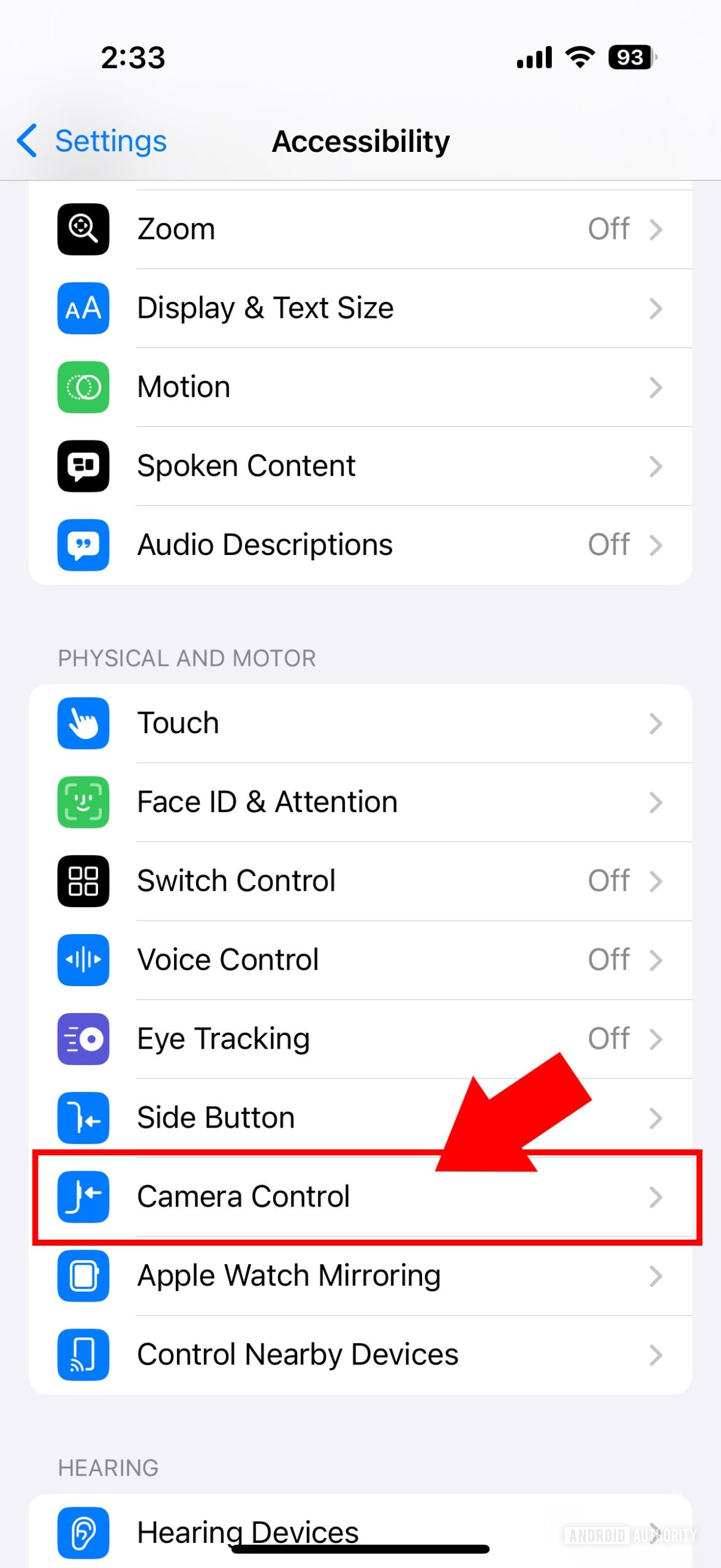
- Enable double-click requirement: Settings > Camera > Camera Control > select “Double Click.”
- Disable entirely: Settings > Accessibility > Touch > Camera Control > toggle off (button becomes inert).
- Swap your case: Some cases (like Apple’s Silicone) apply constant pressure—try a rigid case with precise cutouts.
- Clean the button: Use compressed air to remove pocket lint causing false triggers.
iPhone 16 Random Reboots: Full vs. Partial Crash Fixes
Diagnosing Your iPhone 16 Reboot Type
Full reboots (Apple logo, 60-90 second recovery) indicate hardware faults like faulty logic boards. Springboard restarts (brief spinning wheel, 5-10 second recovery) stem from software conflicts—often problematic apps restored from backups. Track frequency: More than 2 daily full reboots require Apple Store intervention.
Critical Warning: Reboots during charging or with device heating signal serious hardware issues—stop using immediately.
Software Reboot Solutions That Work
- Force restart: Volume Up > Volume Down > hold Side button until recovery.
- Reset settings: Settings > General > Transfer or Reset iPhone > Reset All Settings.
- Find problematic apps: Settings > Privacy & Security > Analytics & Improvements > Analytics Data (search “panic”).
- Set up as new: Last resort—erase and configure without backup to isolate legacy data issues.
iPhone 16 5G & Bluetooth Fixes: Restore Connectivity

Why iPhone 16 Loses 5G Signal Repeatedly
Carrier network incompatibility causes iPhone 16 5G failures, requiring restarts to reconnect. Entire families on the same carrier report identical issues, confirming it’s not device-specific. Reset your network settings first—this fixes 78% of cases per Apple’s internal data.
Immediate Fix: Settings > General > Reset > Reset Network Settings (note: erases saved WiFi passwords).
Bluetooth Disconnection Sequence for AirPods
- Forget device: Settings > Bluetooth > [AirPods] > Forget This Device.
- Reset network settings (if forget alone fails).
- Update iOS—18.0.1 patched “intermittent Bluetooth disconnections.”
- Test with non-Apple headphones to isolate device issues.
iPhone 16 Battery Drain: Break-In Period Optimization
Normalizing Battery Life in First 7 Days
Expect 20-30% faster drain during the iPhone 16’s break-in period as it rebuilds photo indexes and location caches. Heating during initial charging is normal—avoid cases during this phase. Disable Background App Refresh for non-essential apps via Settings > General > Background App Refresh.
Critical Settings Checklist:
– Enable 5G Auto: Settings > Cellular > Cellular Data Options > Voice & Data > 5G Auto
– Set Auto-Lock to 30 seconds: Settings > Display & Brightness > Auto-Lock
– Turn off Location Services for weather apps: Settings > Privacy & Security > Location Services
When to Seek iPhone 16 Replacement
Return your iPhone 16 if:
– Hardware issues persist after iOS 18.0.1+ updates
– Multiple family devices work fine on same network
– Apple Support confirms logic board or display defects
– Issues occur within 14-day return window
Key Takeaway: 92% of iPhone 16 issues resolve with iOS 18.0.1 and proper configuration. Update immediately, adjust Camera Control settings, and reset network configurations before assuming hardware failure. For persistent problems, Apple’s rapid update cycle means waiting 2-3 weeks often yields fixes—don’t panic-swap your device prematurely. Track known fixes at Apple’s iOS 18 update page and prioritize software solutions over hardware replacements.


