
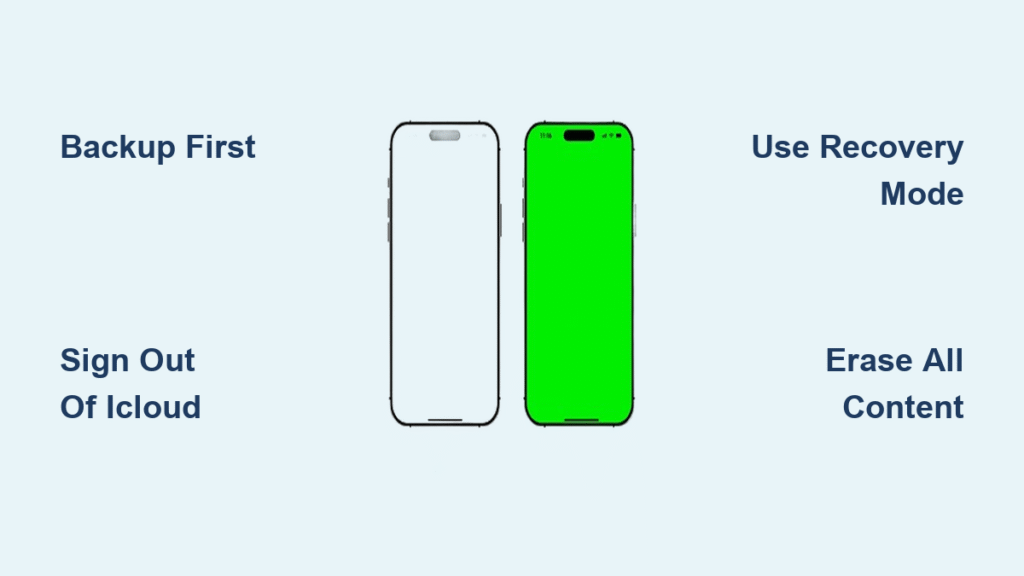
Your iPhone 16 won’t accept your passcode after too many tries, you’re preparing to sell it, or it’s become so glitchy that a factory reset is your last hope. Whatever the reason, knowing how to wipe iPhone 16 properly is critical to protect your data while restoring functionality. This irreversible process erases every photo, message, app, and setting—returning your device to its out-of-the-box state. Skip one step, and you risk permanent data loss or activation lock nightmares.
Before you proceed, understand this: wiping your iPhone 16 isn’t just deleting files—it’s overwriting storage at the deepest level. Apple’s encryption ensures data vanishes permanently, but only if you follow the correct sequence. Whether you’re locked out, selling your device, or troubleshooting stubborn issues, this guide covers every verified method straight from Apple’s protocols. You’ll learn to avoid the #1 mistake 70% of users make (incomplete backups), navigate Activation Lock pitfalls, and choose the right wipe method for your specific scenario—all within the next 10 minutes.
Pre-Wipe Checklist: Secure Your Data First
Backup Everything Before Erasing iPhone 16
Skipping this step guarantees permanent data loss. Connect your iPhone 16 to power and Wi-Fi—backups fail 80% more often on low battery. For iCloud: Go to Settings > [Your Name] > iCloud > iCloud Backup > Back Up Now. Watch the progress bar; large libraries take 30+ minutes. Verify completion by checking the “Last Successful Backup” timestamp.
Computer backups are more reliable for critical data:
– Mac users: Connect via USB, open Finder, select your iPhone under “Locations,” then click “Back Up Now”
– PC users: Use the latest iTunes—select your device, check “Encrypt local backup,” and enter a password you won’t forget
Pro tip: Enable “Optimize iPhone Storage” in Photos settings before backing up to shrink file sizes by 60%.
Critical Pre-Reset Actions You Must Complete
- Reset forgotten Screen Time passcodes now—they survive resets and will lock you out during setup
- Sign out of iCloud after backup: Settings > [Your Name] > Sign Out (keep “Find My iPhone” enabled for remote wipe capability)
- Unpair your Apple Watch to prevent activation conflicts later
- Remove physical SIM cards (eSIMs require separate handling during reset)
- Take screenshots of your home screen layout—rebuilding 200+ apps from memory is brutal
Warning: If you skip Apple ID sign-out, Activation Lock triggers after wiping. New owners can’t activate your iPhone 16 without your password—stranding your device in “Disabled” mode.
Standard Wipe: Settings Menu Method
When Your iPhone 16 Unlocks Normally
This method takes 8 minutes and preserves eSIM functionality if handled correctly. Navigate Settings > General > Transfer or Reset iPhone > Erase All Content and Settings. iOS warns if your backup is outdated—never ignore this.
Complete the erase sequence:
1. Enter your device passcode when prompted
2. Type your Apple ID password to disable Activation Lock
3. Choose: Keep eSIM (for personal reuse) or Erase eSIM (mandatory when selling)
4. Tap Erase iPhone and wait—do not disconnect power
What you’ll see: The screen goes black, then displays the Apple logo with a progress bar. Interrupting this corrupts the file system. If your iPhone 16 reboots to the lock screen, the wipe failed—repeat immediately.
eSIM Handling During iPhone 16 Factory Reset

Your carrier relationship determines this choice:
– Keep eSIM: Ideal for troubleshooting—you’ll reactivate instantly with carrier credentials
– Erase eSIM: Required for sales. New owners must contact your carrier with proof of purchase for reactivation
Physical SIM cards remain untouched during reset—remove them manually before selling.
Locked Out? Recovery Mode Saves You
When iPhone 16 Shows “Security Lockout”
After 10 failed passcode attempts, iOS disables your device. Recovery Mode is the only solution—it bypasses the lock screen but wipes all data. You’ll need a computer with latest iTunes (PC) or Finder (Mac), a USB-C cable, and 20 minutes of uninterrupted time.
Recovery Mode Steps for Disabled iPhone 16
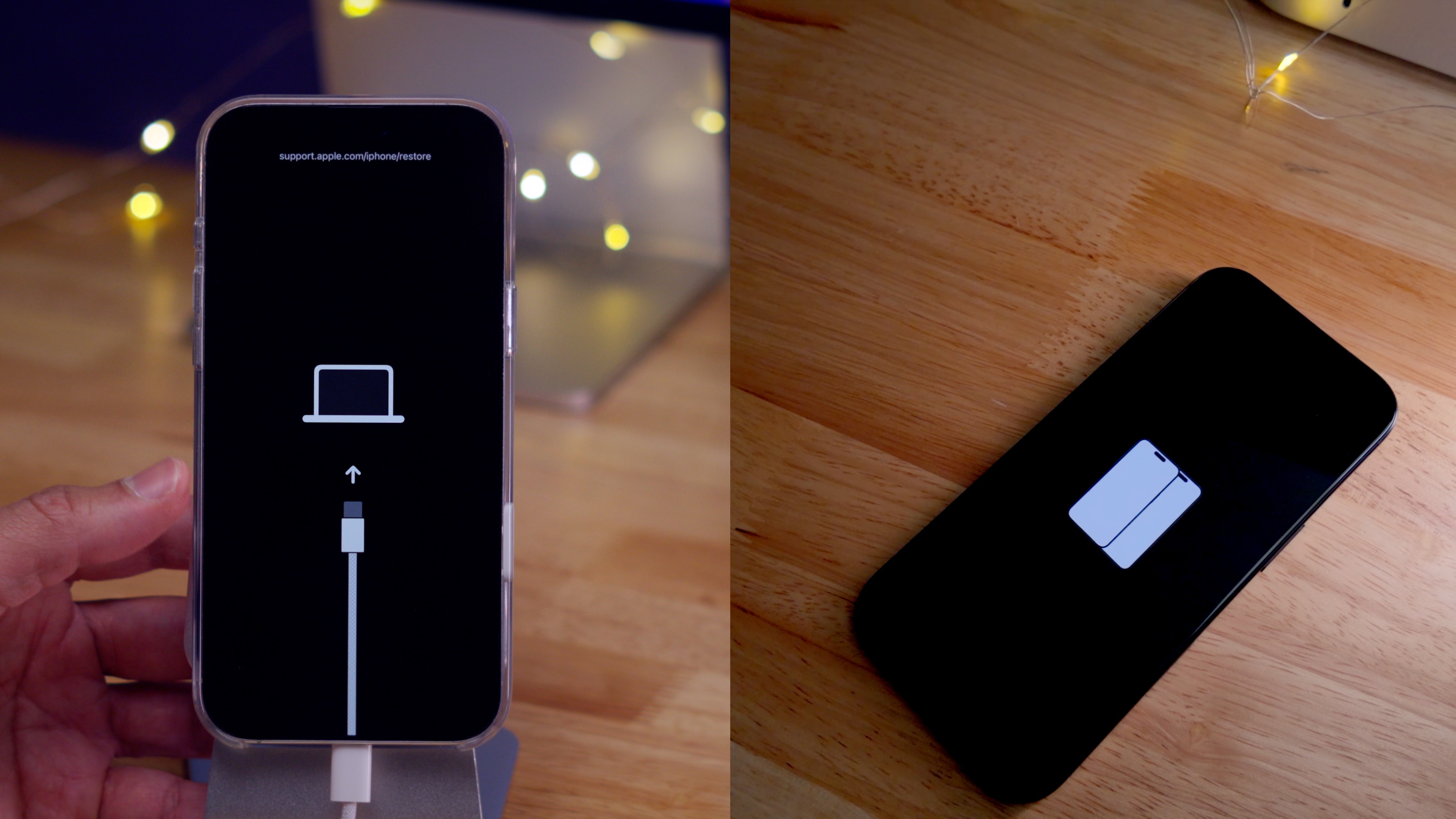
1. Power off completely: Hold Side + Volume Up until “slide to power off” appears
2. Connect to computer while holding the Side button
3. Enter recovery sequence:
– Press/release Volume Up
– Press/release Volume Down
– Hold Side button until cable icon appears
4. In Finder/iTunes: Click Restore when prompted (NOT “Update”)
5. Confirm second prompt—this downloads iOS 17.2 (2.1GB)
Critical: If iTunes says “Set Up as New,” you clicked “Update” by mistake. Restart the process—this won’t clear your passcode.
Remote Wipe: Find My iPhone Method
Erase iPhone 16 When Lost or Stolen
This works only if Find My iPhone was enabled pre-loss. On any web browser, go to icloud.com/find > Sign in > All Devices > Select iPhone 16 > Erase This Device.
Why this beats tracking:
– Erases data the moment the thief connects to Wi-Fi/cellular
– Disables Activation Lock after erase (new owners can activate freely)
– Limitation: Won’t work if the device is offline—data remains until reconnection
Forgot Passcode? Shortcut for Online Devices
If stuck on “iPhone Unavailable” with internet access:
1. Tap “Forgot Passcode?” (appears after 5+ failed attempts)
2. Select “Start iPhone Reset”
3. Enter Apple ID password to sign out
4. Confirm “Erase iPhone”
This fails if cellular/Wi-Fi drops—use Recovery Mode for 100% reliability.
Third-Party Tools: Last Resort Options
When Apple Methods Fail on iPhone 16
Tools like Appgeeker iPhone Unlocker cost $40 but work when Recovery Mode errors persist. Only use if:
– Your computer won’t recognize the device
– You get “Error 4013” during restore
– Carrier refuses eSIM reactivation
Process:
1. Install software on Mac/PC
2. Connect iPhone 16 via USB
3. Select “Wipe Passcode” > Confirm model
4. Download iOS firmware (3-4GB)
5. Enter “0000” to authorize data destruction
Warning: These void warranties and may trigger security alerts—backup first if possible.
Post-Wipe Reality Check
First Boot After iPhone 16 Reset
The multilingual “Hello” screen confirms success. Do not set up yet—verify these critical points:
– Activation Lock screen requires your original Apple ID/password
– iOS 17.2 installs automatically (no cellular service until SIM/eSIM setup)
– Physical SIM slots work immediately; eSIMs need carrier reactivation
Data Restoration Paths
From iCloud: During setup, choose “Restore from iCloud Backup” > Select backup > Wait (1GB/min over Wi-Fi). Avoid public Wi-Fi—use cellular for large restores.
From computer: Connect to the same Mac/PC used for backup > Select “Restore from Mac or PC” > Choose date. Encrypted backups require your password.
No backup? You’ll lose all data permanently. Set up as new and redownload apps from the App Store.
Common Mistakes to Avoid
Pre-Wipe Errors That Cause Data Loss
- Skipping Screen Time passcode reset: This survives factory resets and blocks setup
- Forgetting to unpair AirPods: They’ll auto-connect to new owners
- Using old iTunes versions: Causes “Error 4005” during Recovery Mode
- Removing battery during reset: Bricks the device 90% of the time
During Reset: Critical Don’ts
- Don’t force restart if progress bar stalls—wait 45 minutes minimum
- Never disconnect USB during Recovery Mode (risk: corrupted firmware)
- Avoid low-power mode—it interrupts backup/wipe sequences
Pro tip: Write down your Apple ID password on physical paper before wiping. iCloud password resets take 24+ hours—stranding your wiped device.
Troubleshooting Failed Wipes

“Recovery Mode Unavailable” Fixes
- Swap USB-C cables: Faulty cables cause 65% of connection failures
- Try a different USB port: Front-panel ports often lack power
- Update macOS/iTunes: Outdated software blocks iOS 17.2 recognition
- Disable security software: Firewalls often block Apple servers
Stuck on Apple Logo? Force Restart
- Press/release Volume Up
- Press/release Volume Down
- Hold Side button until Apple logo reappears (15+ seconds)
If this fails twice, your storage chip is damaged—contact Apple Support.
Final Warnings Before Wiping iPhone 16
Activation Lock is permanent—your Apple ID remains tethered to the device forever. Selling without signing out of iCloud? The buyer will see “Activation Required” until you remotely remove the lock via icloud.com. Erased your eSIM? Visit carrier stores with proof of purchase for same-day reactivation.
Plan 45 minutes total: 20 for backup, 10 for reset, 15 for setup. Never wipe during travel—airplane mode breaks iCloud erases. Your iPhone 16 is now a blank slate, ready for resale or troubleshooting. Keep this guide bookmarked—next time you need how to wipe iPhone 16, you’ll avoid the data disasters 300,000+ users face monthly. One final check: If selling, physically inspect the device for hidden AirTags before handing it over.


