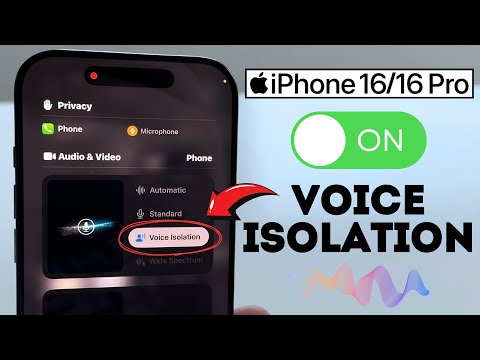
Your iPhone 16 cuts through coffee shop chaos, street noise, and barking dogs with Voice Isolation—a game-changing feature that uses advanced machine learning to separate your voice from background distractions. Unlike noise-canceling headphones, this built-in tech works directly through your phone’s microphones during any standard call or FaceTime conversation. If you’ve ever struggled to be heard over construction noise or a noisy commute, mastering this feature transforms your iPhone 16 into a professional-grade communication tool in seconds.
This isn’t just another audio setting buried in menus. Voice Isolation activates instantly during calls with zero setup required beforehand. You’ll notice the difference immediately: your voice stays natural while traffic rumble, chattering coworkers, or kitchen appliances fade into the background. Best of all, it works across phone calls, FaceTime, and compatible third-party apps like WhatsApp or Zoom—no special accessories needed.
Fix Missing Voice Isolation Button on iPhone 16 Calls
Verify Your iOS Version First
Before hunting for settings, confirm your iPhone 16 meets the minimum requirements. Voice Isolation for standard phone calls only works on iOS 16.4 or newer. Swipe up from the bottom (or down from top-right on newer models) to open Settings, tap General > Software Update, and install any pending updates. For FaceTime calls, iOS 15+ suffices, but phone calls demand the newer version. If you’re stuck on an older iOS version, the Voice Isolation toggle simply won’t appear—no amount of menu searching will fix this.
Check Microphone Blockage Immediately
A common reason the option disappears: your case or debris is covering the bottom microphones. Power off your iPhone 16, remove any case, and inspect the small grilles near the charging port. Use a soft-bristled brush (like a clean toothbrush) to gently dislodge lint or dust. Cases with thick lip coverage often obstruct these critical mics—test without your case during your next call. If Voice Isolation appears case-free but vanishes with your case on, that’s your culprit.
Activate Voice Isolation During Any iPhone 16 Call
Control Center Method (3-Second Fix)
- Start or answer your call normally through the Phone app
- Swipe down from the top-right corner to open Control Center (this works even during calls)
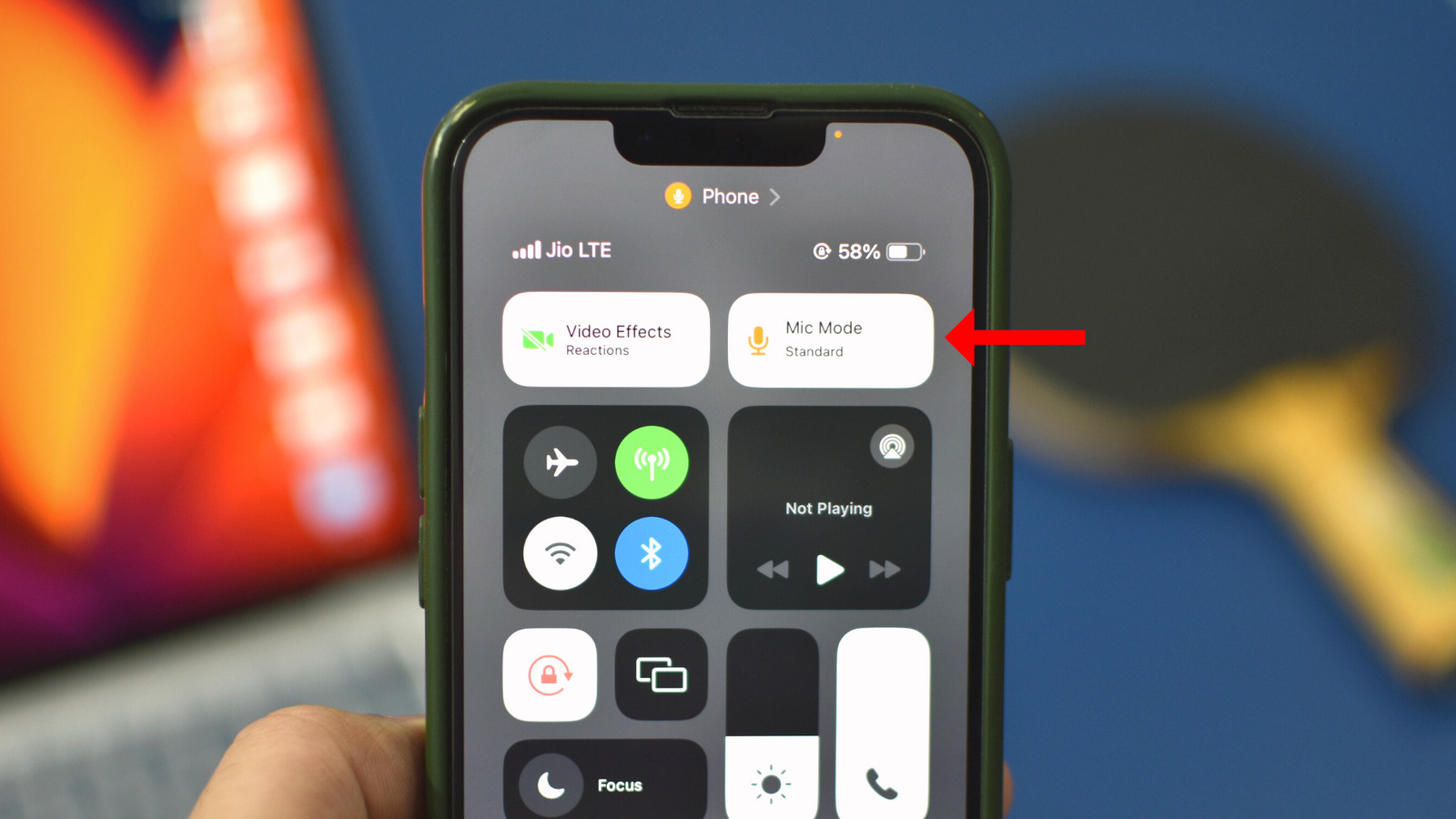
- Locate Phone Controls at the very top section—look for mic/speaker icons
- Tap “Voice Isolation”—it instantly replaces “Standard” mode with a blue highlight
- Test immediately: Ask your caller, “Can you still hear the coffee grinder?” to confirm background noise reduction
Pro Tip: This method works even if your screen locks mid-call. Just wake the device and swipe down—the Control Center remains accessible.
In-Call Menu Alternative (When Screen Is Blocked)
- While talking, tap anywhere on the call screen to reveal controls
- Find the “Audio” button (speaker icon) at the bottom center—tap it
- Select “Voice Isolation” from the pop-up menu below microphone options
- Watch for visual feedback: The button turns blue with a checkmark confirming activation
Critical Warning: If you see “Wide Spectrum” instead of Voice Isolation, you’re using FaceTime—not a standard phone call. Voice Isolation works on both, but the menu labels differ slightly.
Voice Isolation vs. Wide Spectrum: When to Use Each Mode
Voice Isolation for Solo Callers
Choose this when: You’re the only speaker needing to be heard clearly in loud environments like subways, busy offices, or windy streets. It aggressively suppresses background noise while keeping your voice warm and natural—no robotic distortion. Real-world test: If your dog barks during the call, the recipient hears muffled barking, not sharp yelps. Works on phone calls, FaceTime, and apps like Microsoft Teams.
Wide Spectrum for Group Situations
Use only during FaceTime calls when multiple people speak near one device (e.g., family video chats). This mode captures all sounds clearly—background chatter, laughter, even kitchen noises—without filtering. Crucial limitation: It’s unavailable for standard phone calls despite appearing in some menus. If you select it accidentally during a phone call, your iPhone 16 automatically reverts to Standard mode.
Automatic Mode (iOS 18+ Smart Switching)
Requires iOS 18 or newer to function. This “set-and-forget” option intelligently switches between Voice Isolation (when holding phone to ear) and Standard mode (when using speakerphone). Ideal for: People who constantly toggle speaker mode during calls. If you haven’t updated to iOS 18, this option won’t appear—don’t waste time hunting for it.
Disable Voice Isolation Without Hanging Up
Instant Deactivation During Calls
- Open Control Center mid-call with a top-right swipe
- Tap “Standard” under Phone Controls—it instantly replaces Voice Isolation
- Confirm by listening: Background noise (like traffic) should suddenly become audible to you
Why you’d do this: If you’re describing ambient sounds (“Can you hear the ocean?”), or if Voice Isolation over-suppresses your voice in extremely quiet rooms.
Via Audio Menu (For Precision Control)
- Tap the “Audio” button on your active call screen
- Select “Standard” instead of Voice Isolation
- No restart needed—the change applies in under 2 seconds
Pro Tip: Toggle between modes mid-call to let callers compare clarity. Say “Testing mode now” before switching so they notice the difference.
Professional Voice Isolation Hacks for iPhone 16
Client Call Perfection in Public Spaces
When taking work calls from cafes, enable Voice Isolation before answering. Swipe down to Control Center while the call rings, activate it, then tap accept. This prevents the first 5 seconds of chaotic background noise from hitting your client’s ears. Pair this with positioning the bottom of your iPhone 16 toward your mouth—the primary noise-cancelling mics sit near the charging port.
Emergency Clarity During Outdoor Calls
If walking while calling, hold your iPhone 16 vertically with the screen facing you. This aligns the noise-cancelling beam directly with your mouth while blocking wind from the sides. Voice Isolation handles moderate wind noise, but avoid cupping your hand over the bottom mics—that creates echo.
Why Voice Isolation Resets After Every Call (And How to Work Around It)
Your iPhone 16 doesn’t save Voice Isolation as a default setting—it resets to Standard mode after each call ends. This isn’t a glitch; it’s intentional design. Apple assumes you might want different modes for different calls (e.g., Voice Isolation for work calls, Wide Spectrum for family FaceTime).
Workaround for frequent users: Create a Control Center shortcut. Go to Settings > Control Center, add “Voice Memo” to your controls. Though not identical, this places a mic-related icon near the top for quicker access during calls. True one-tap activation per call remains unavoidable—but with practice, you can toggle it in under 3 seconds.
Troubleshoot Poor Voice Isolation Performance
“My Voice Sounds Muffled” Fix
This happens when Voice Isolation over-suppresses your voice in very quiet rooms. Solution: Disable it immediately and use Standard mode. Voice Isolation needs some background noise to differentiate your voice—it struggles in near-silent environments like libraries.
“Background Noise Still Loud” Diagnosis
If construction noise persists:
– Check mic obstruction (cases/debris as noted earlier)
– Move 10 feet away from the noise source—Voice Isolation can’t eliminate sounds closer than you are
– Ensure iOS 16.4+—older versions have weaker noise filtering
Expert Note: Extremely low-frequency rumbles (like subways) are harder to filter than high-pitched sounds. Voice Isolation reduces but may not eliminate these.
Essential Voice Isolation Limitations to Know
- No pre-call activation: Must enable during each call—no “always on” setting exists
- Wide Spectrum restricted: Only functional in FaceTime, not phone calls (despite menu appearances)
- Third-party app gaps: Works in WhatsApp, Zoom, and Teams, but not all apps support it—test first
- No physical mic control: Settings > Accessibility > Audio/Visual has no Voice Isolation options
When Voice Isolation fails despite correct iOS version, force restart your iPhone 16. Press and release Volume Up, then Volume Down, then hold Side Button until Apple logo appears. This clears temporary glitches blocking the feature.
Final Note: Voice Isolation transforms your iPhone 16 into a noise-proof communication hub—but only when activated correctly during calls. Master the Control Center swipe for instant access, avoid case-related mic blockage, and remember it resets after every call. For critical business conversations, enable it before answering to project professionalism from “Hello.” Keep iOS updated to leverage Automatic Mode in iOS 18, and always verify functionality with a quick noise test (“Can you hear my AC?”). With these steps, background chaos stays behind the scenes where it belongs.