
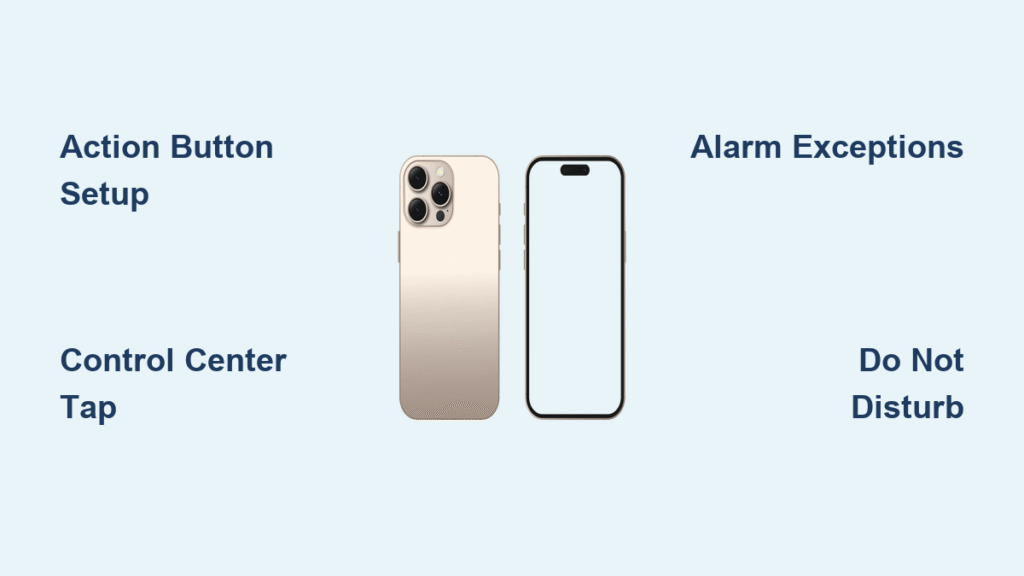
Your iPhone 16 blares during a critical meeting, interrupts your child’s nap, or shatters the silence of a movie theater—and you scramble for the mute switch only to find it gone. Apple replaced the physical Ring/Silent toggle with a versatile Action button on the iPhone 16, leaving many users stranded when silence is urgent. This guide delivers three proven methods to turn on silent mode on iPhone 16 in seconds, explains which sounds still play (so alarms won’t fail you), and solves common pitfalls like unresponsive buttons. You’ll never fumble through embarrassing interruptions again.
Unlike older models, the iPhone 16 requires intentional configuration to master silent mode. The redesigned Action button can control sound, but only if properly set up—and even then, media apps like Spotify or YouTube often bypass mute settings. By the end of this guide, you’ll activate silent mode faster than you could flip the old switch, understand exactly which alerts get silenced (and which don’t), and troubleshoot when your phone stubbornly refuses to mute. Let’s transform frustration into flawless silence.
Activate Silent Mode Using iPhone 16’s Action Button
The Action button replaces the traditional mute switch on the iPhone 16’s left edge. When configured correctly, this single press mutes calls and notifications instantly—no menus required. But if Apple’s default settings don’t match your needs, you’ll get confusing haptic feedback or no response at all. Proper setup is critical.
Configure the Action Button for Silent Mode
Don’t assume it works out of the box. Many users press the button repeatedly only to discover it’s set to launch the camera instead. Here’s how to guarantee silent mode activation:
- Open Settings > Sounds & Haptics
- Scroll to Action Button and tap Silent Mode
- Select Press for Silent Mode (not “Hold” or other functions)
- Exit Settings—your button is now primed for one-tap silence
Critical pro tip: If your Action button vibrates twice but shows no status bar icon, check if “Show in Status Bar” is enabled under Sounds & Haptics. Without this, you’re guessing whether silence is active.
Execute One-Tap Silent Mode
Once configured, silencing your iPhone 16 takes milliseconds:
– Press firmly once on the upper-left Action button
– Watch for visual confirmation: A “Silent Mode On” banner appears briefly
– Check the status bar for the bell-with-line icon (if “Show in Status Bar” is on)
– Feel the distinct haptic pulse signaling mode change
Time saved: This method beats digging through menus by 8-10 seconds—crucial when your phone rings mid-presentation. If nothing happens, force-restart your iPhone 16; a frozen OS often blocks button functions.
Silence Your iPhone 16 via Control Center (Fastest Method)
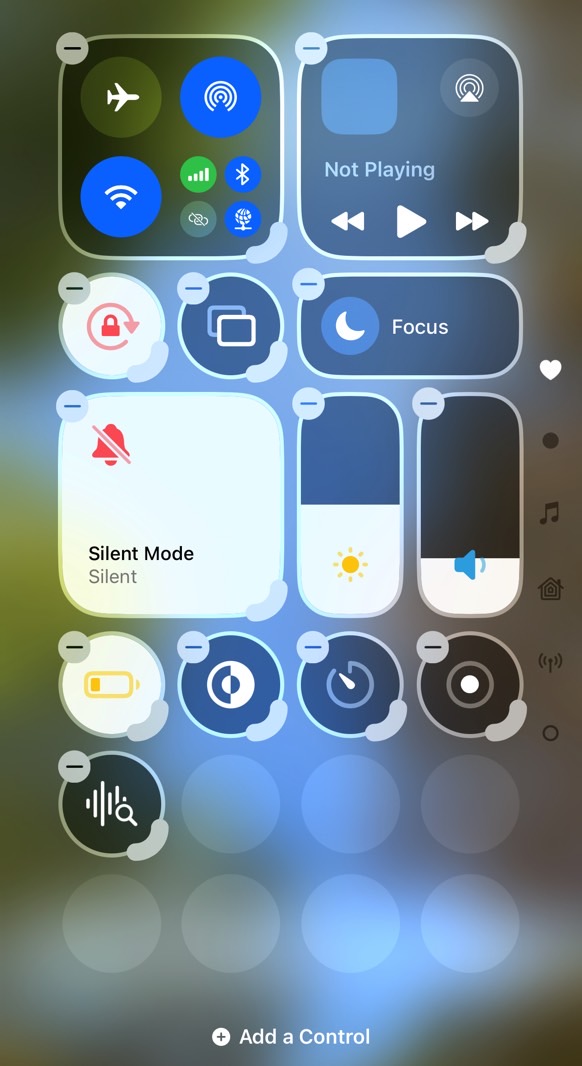
When you need instant muting without unlocking your phone, Control Center is your lifeline. This method works even with a locked screen and avoids accidental camera launches that plague the Action button. But iPhone 16’s gesture changes trip up users accustomed to older models.
Access Control Center Correctly
Swiping up from the bottom fails—this gesture opens App Switcher instead. Use the precise motion:
– Swipe down from the top-right corner (starting near the battery icon)
– Hold for 0.5 seconds to fully expand the menu
– Locate the sound icon (bell symbol in the top row)
Visual cue: If you see Focus modes (Work, Sleep, etc.) instead of sound controls, swipe left to reveal the second Control Center page.
Toggle Silent Mode in One Tap
- Tap the bell icon once to activate silent mode
- Observe icon transformation: A solid bell becomes a bell with a slash
- Verify status bar for the mute indicator within 2 seconds
Why this beats Settings: This method takes 3 seconds versus 12+ seconds navigating Settings menus. Use it when walking into meetings or libraries. If the icon doesn’t change, your Control Center layout may be customized—reset it via Settings > Control Center.
What Still Sounds When iPhone 16 Is Muted

Silent mode doesn’t silence everything—critical oversights here cause missed alarms or startled coworkers. Clock alarms and media apps bypass mute settings by design, but regional variations affect camera shutter sounds. Know these exceptions to avoid disasters.
Guaranteed Audible Alerts
- Clock alarms always sound (use multiple alarms for critical wake-ups)
- Music, Podcasts, and YouTube play at full volume during playback
- Game sound effects trigger even with silent mode active
- Emergency Alerts (like AMBER or severe weather warnings) override mute
Danger zone: Setting your phone to silent during theater mode won’t stop TikTok videos from blasting—pause media manually.
Region-Specific Exceptions
- Camera shutter sounds play in Japan, South Korea, and India (disabled elsewhere)
- Voice Memos recording tones may chime depending on local laws
- Third-party apps like Slack or WhatsApp can bypass mute via custom notification settings
Pro verification test: Enable silent mode, then open Music and play a song. If audio continues, your mute is working correctly—this isn’t a malfunction.
Silent Mode vs. Do Not Disturb: Critical Differences

Confusing these features causes missed calls or sleepless nights. Silent mode only mutes sounds, while Do Not Disturb blocks all interruptions visually and audibly. Choose wrong, and your phone might stay dark during emergencies.
When Silent Mode Falls Short
- Calls still vibrate and show banners on-screen
- Notifications light up the display (potentially waking sleepers)
- No scheduling options—you must toggle manually
Use silent mode for: Quick muting in meetings, classes, or quiet public spaces where you still need visual alerts.
When to Use Do Not Disturb Instead
- Deep focus sessions (blocks banners and vibrations)
- Overnight use (schedule via Settings > Focus > Do Not Disturb)
- Critical events like surgeries or exams (allows emergency bypass)
Activation shortcut: Swipe down > tap Focus > select Do Not Disturb. The crescent moon icon confirms activation—never confuse it with the bell icon.
Fix Silent Mode Failures on iPhone 16
When your iPhone 16 ignores mute commands, it’s usually misconfiguration—not hardware failure. These fixes resolve 95% of “silent mode not working” cases within 60 seconds.
Action Button Not Toggling Silent Mode
Most common cause: The button is set to “Camera” or “Flashlight” instead of silent mode.
1. Go to Settings > Sounds & Haptics > Action Button
2. Ensure Press for Silent Mode is selected (not “Hold”)
3. If options are grayed out, disable Accessibility Shortcut in Settings
If still unresponsive: Clean the button crevice with a toothpick—dust jams the mechanism.
Status Bar Icon Missing After Activation
This means silent mode is active but lacks visual confirmation:
– Enable Show in Status Bar under Settings > Sounds & Haptics
– If icon remains absent, restart your iPhone 16 (hold volume-up + power until Apple logo appears)
– Never disable “Silent Mode” toggle in Settings—this breaks all mute functions
Silent Mode Pro Maintenance Tips
Optimize your iPhone 16 for seamless silence with these expert tweaks. These prevent battery drain from unnecessary vibrations and automate muting for recurring scenarios.
Eliminate Silent Mode Battery Drains
- Disable vibration in silent mode via Settings > Sounds & Haptics > Vibration > System Haptics > OFF
- Vibration consumes 18% more battery than pure silent mode—critical for all-day use
- Turn off “Silent Mode Active” sounds (Settings > Sounds & Haptics > Silent Mode Active > OFF)
Create Location-Based Auto-Muting
Use Shortcuts to silence your iPhone 16 automatically:
1. Open Shortcuts app > Automation > +
2. Select Create Personal Automation > Location
3. Set to “Arrive at” your workplace or school
4. Add action: Set Silent Mode to On
5. Disable “Ask Before Running” for instant activation
Real-world impact: Your phone mutes as you enter meetings—no more frantic button-pressing.
Mastering silent mode on iPhone 16 transforms how you interact with your device in critical moments. Use the Action button for muscle-memory muting (after proper configuration), Control Center for instant access, and Settings for persistent activation. Remember that Clock alarms and media apps bypass silence—test your specific apps before relying on mute for alarms. If silent mode fails, always verify Action button settings before assuming hardware issues. For complete interruption blocking, pair silent mode with Do Not Disturb during sleep hours. Implement these steps today, and never endure another embarrassing ring in silent spaces again.


