
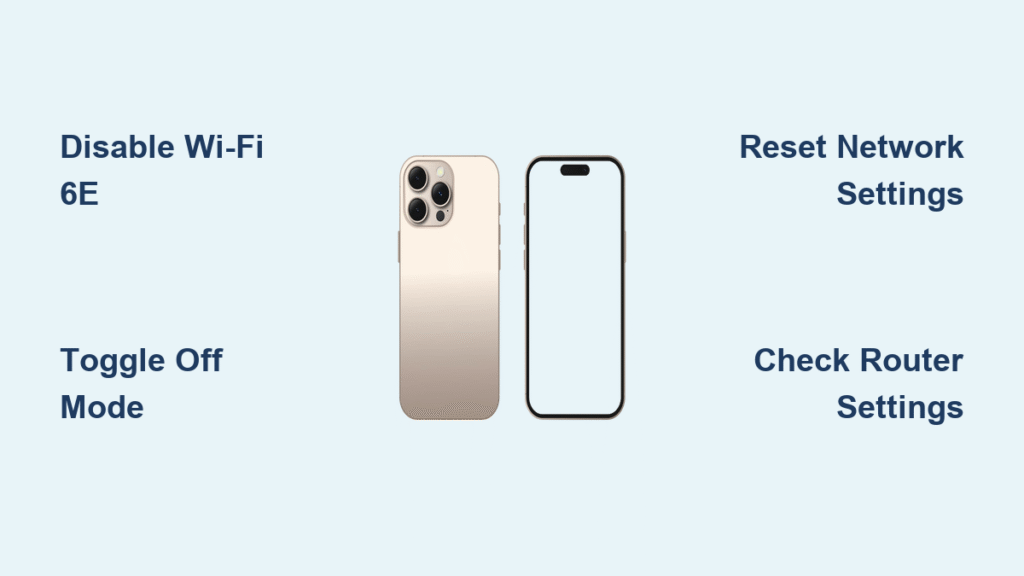
Your iPhone 16 keeps dropping Wi-Fi 6E connections, and that fancy 6 GHz band is causing more headaches than speed boosts. Knowing how to turn off Wi-Fi 6E on iPhone 16 takes just seconds but can dramatically improve your daily connectivity. Whether you’re battling spotty coverage in your home office or compatibility issues with your router, this guide delivers the exact steps to disable Wi-Fi 6E on your iPhone 16 and restore reliable wireless performance.
Wi-Fi 6E’s 6 GHz band offers incredible speed potential, but its shorter range and poor wall penetration often create frustrating dead zones in multi-story homes. If your video calls keep freezing when you move between rooms or your download speeds plummet unexpectedly, disabling Wi-Fi 6E could be your solution. You’ll learn not just how to turn off Wi-Fi 6E on iPhone 16, but when it makes sense to do so and what performance changes to expect afterward.
Disable Wi-Fi 6E on iPhone 16 in 30 Seconds

Difficulty level: Beginner | Time required: 30 seconds
Turning off Wi-Fi 6E on your iPhone 16 requires no technical expertise and takes less time than making a cup of coffee. This simple adjustment targets only your current network, leaving other saved networks unaffected.
Exact Steps to Disable Wi-Fi 6E Mode
Follow these precise steps to stop your iPhone 16 from using the 6 GHz band:
- Open the Settings app on your iPhone 16 home screen
- Tap Wi-Fi in the main menu
- Tap the ⓘ icon next to your connected network name
- Select Wi-Fi 6E Mode from the network options
- Toggle the switch to Off
You’ll notice an immediate change—your iPhone 16 drops the 6 GHz connection and reconnects using the more stable 5 GHz band. This adjustment is completely reversible if you want to test performance differences.
Critical Limitations to Know Before Disabling
The Wi-Fi 6E Mode setting only appears when your iPhone 16 is actively connected to a 6 GHz network. If you don’t see this option:
- Your current network might not support Wi-Fi 6E
- Your router could be broadcasting separate SSIDs for each band
- You may need to move closer to the router to establish a 6 GHz connection
This setting applies exclusively to the network you’re modifying—your other saved networks maintain their original Wi-Fi 6E configurations.
Why iPhone 16 Users Disable Wi-Fi 6E Mode

While Wi-Fi 6E promises faster speeds, real-world performance often falls short due to physical limitations of the 6 GHz frequency. Your iPhone 16 may automatically connect to 6 GHz networks even when they provide inferior performance compared to 5 GHz alternatives.
Common Connection Problems Requiring Disable
You should consider turning off Wi-Fi 6E on iPhone 16 when experiencing:
- Dropped video calls when moving between rooms
- Intermittent disconnections during large file downloads
- Router compatibility warnings indicating “limited network compatibility”
- Poor signal strength in areas previously covered by 5 GHz networks
- Slower actual speeds despite connecting to a 6 GHz network
The 6 GHz band’s shorter wavelength struggles to penetrate walls and obstacles, creating frustrating dead zones in multi-story homes or offices with concrete walls.
Network-Specific Wi-Fi 6E Control Explained
Unlike global settings toggles, Wi-Fi 6E management on iPhone 16 operates on a per-network basis. This granular control lets you optimize performance for each location you frequent.
Finding the Wi-Fi 6E Toggle on iPhone 16
The Wi-Fi 6E Mode option appears only under specific conditions:
- When connected to a router broadcasting a 6 GHz signal
- If your router uses a single SSID for all frequency bands
- While actively connected to the network you want to modify
Look for these visual cues that confirm you’re connected to 6 GHz:
– Network details showing “Wi-Fi 6E” label
– Speed tests exceeding 800 Mbps (typical 6 GHz performance)
– No band-specific suffixes in your network name (like “_5G” or “_6E”)
What Happens When You Disable Wi-Fi 6E
Turning off Wi-Fi 6E for a specific network triggers these immediate changes:
- Your iPhone 16 immediately drops the 6 GHz connection
- Device seamlessly reconnects using the strongest available 5 GHz signal
- Maximum speeds decrease from 800+ Mbps to typical 5 GHz range (400-600 Mbps)
- Signal stability improves in areas with physical obstructions
- Router compatibility warnings disappear for legacy network equipment
This change persists until you manually re-enable Wi-Fi 6E for that specific network.
When iPhone 16 Re-Enables Wi-Fi 6E Automatically
Some users report their Wi-Fi 6E settings mysteriously revert to “On” despite manual disabling. This frustrating behavior typically stems from router-level configurations overriding your iPhone 16 preferences.
Identifying Router-Forced 6 GHz Connections
Check these patterns to determine if your router is re-enabling Wi-Fi 6E:
- Does the setting revert only on your home network but stays off elsewhere?
- Do changes persist after restarting your iPhone 16?
- Does the issue occur with multiple Apple devices or just your iPhone 16?
ISP-provided routers like Xfinity XB8 often force 6 GHz connections regardless of device settings. These models typically cannot permanently disable the 6 GHz band through standard admin interfaces.
Permanent Fix for Automatic Re-enabling
When your router insists on pushing 6 GHz connections:
- Forget the problematic network: Settings → Wi-Fi → ⓘ next to network → Forget This Network
- Reconnect fresh to trigger new configuration negotiation
- Disable Wi-Fi 6E mode immediately after reconnecting
- For Xfinity users: Request older XB7/XB6 hardware if persistent issues continue
This process clears cached network preferences that may be causing the automatic re-enabling behavior.
Regional Availability and iOS Requirements
Wi-Fi 6E functionality varies significantly based on your location and software version. Before troubleshooting connection issues, verify your region supports this technology.
Geographic Restrictions You Should Know
- China mainland: Wi-Fi 6E feature completely disabled by regulatory requirements
- Japan: Requires iOS 16.2 or later for Wi-Fi 6E functionality
- United States and Europe: Full 6 GHz band access with compatible hardware
- Other regions: Check local regulatory approvals for 6 GHz spectrum usage
If you recently traveled internationally, your iPhone 16 may have automatically disabled Wi-Fi 6E due to regional restrictions.
Performance Changes After Disabling Wi-Fi 6E
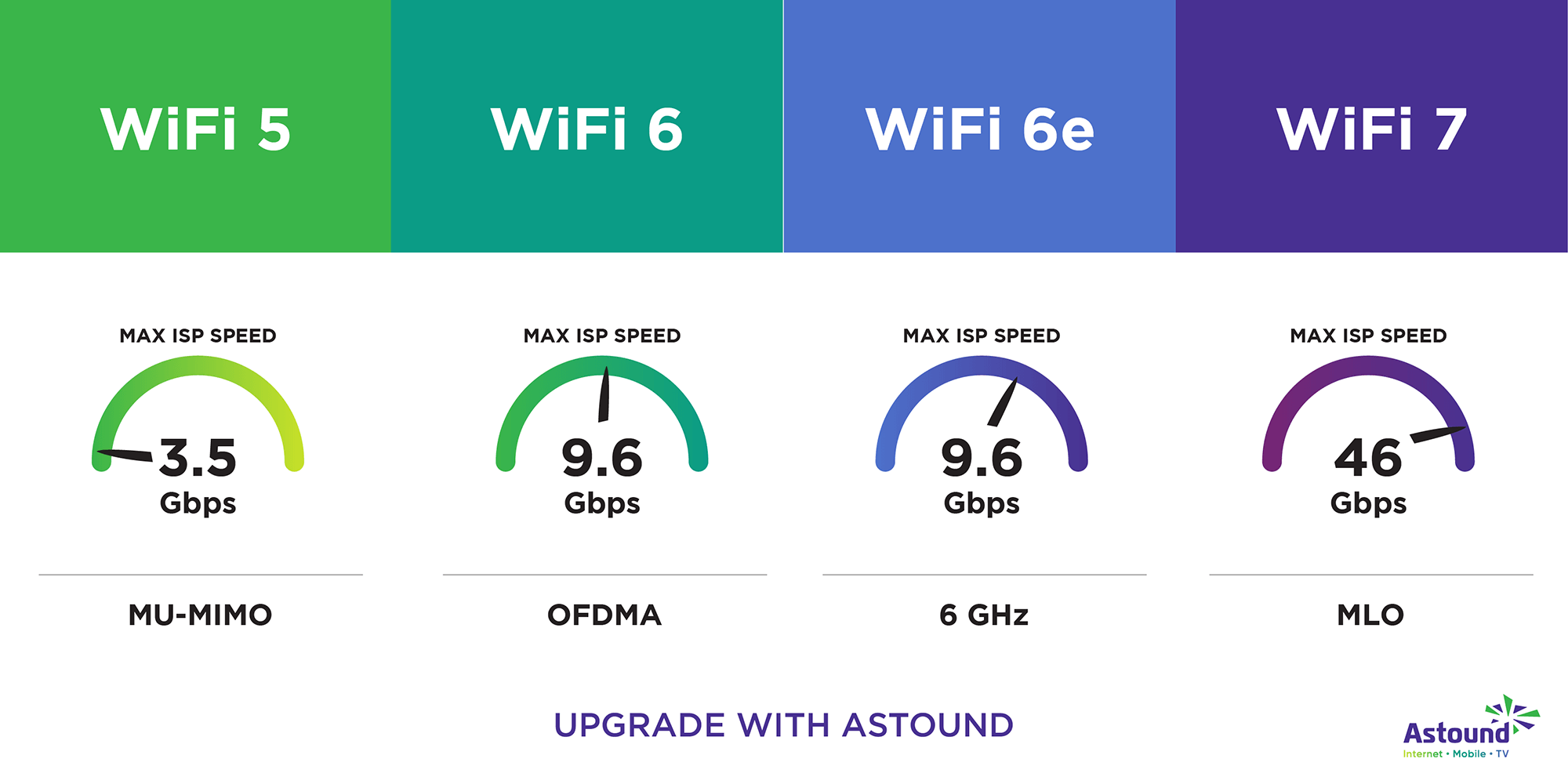
Turning off Wi-Fi 6E on iPhone 16 creates noticeable performance shifts—some negative, but often with significant stability benefits.
What You’ll Notice Immediately
Speed reduction: Expect maximum speeds to drop from 800+ Mbps to 400-600 Mbps typical of 5 GHz networks. For most everyday tasks—web browsing, email, and standard video streaming—this difference remains imperceptible.
Improved stability: The 5 GHz band’s better wall penetration means fewer dead zones throughout your home or office. Video calls stay connected when moving between rooms, and file transfers complete without interruption.
Broader compatibility: Older smart home devices and network equipment that don’t support 6 GHz will work seamlessly after disabling Wi-Fi 6E.
Troubleshooting Persistent Connection Issues
If disabling Wi-Fi 6E doesn’t resolve your connectivity problems, try these advanced solutions before assuming hardware failure.
Device-Level Fixes Worth Trying
When Wi-Fi issues persist after disabling 6E:
- Reset network settings: Settings → General → Transfer or Reset iPhone → Reset → Reset Network Settings
- Update iOS immediately: Settings → General → Software Update (Wi-Fi 6E improvements often come in updates)
- Test different networks: Verify if problems occur only on specific Wi-Fi 6E networks
Pro tip: After resetting network settings, disable Wi-Fi 6E mode before reconnecting to prevent recurrence of previous issues.
Network Optimization Before Complete Disable
Before permanently turning off Wi-Fi 6E:
- Reposition your router closer to problem areas (6 GHz needs line-of-sight)
- Install mesh nodes specifically designed for 6 GHz coverage
- Use Wi-Fi analyzer apps to identify channel interference on the 6 GHz band
Sometimes simple router adjustments make Wi-Fi 6E viable without disabling it on your iPhone 16.
Alternative Solutions to Complete Disable
Complete Wi-Fi 6E disable isn’t always necessary—these router-level adjustments might solve your problems while preserving 6 GHz benefits.
Router Configuration Options
For optimal Apple device compatibility:
- Enable band steering: Allows your router to intelligently direct devices to best band
- Use single SSID across all bands: Prevents “limited compatibility” warnings on iPhone 16
- Set 5 GHz priority: Some routers let you prefer 5 GHz over 6 GHz for specific devices
Warning: Creating separate SSIDs for each band (like “MyNetwork_2G,” “MyNetwork_5G”) often causes more problems than it solves with Apple devices.
Maintenance Tips After Disabling Wi-Fi 6E
Your work doesn’t end after turning off Wi-Fi 6E on iPhone 16—proper monitoring ensures your solution remains effective.
Essential Post-Disable Checks
After disabling Wi-Fi 6E mode:
- Run speed tests in previously problematic areas (use Speedtest.net or Apple’s Network app)
- Monitor connection stability during video calls for 48 hours
- Document performance changes to determine if re-enabling is worthwhile
Pro tip: Take screenshots of your Wi-Fi 6E settings before making changes. This creates a visual reference if you need to restore configurations later.
Disabling Wi-Fi 6E on your iPhone 16 takes just 30 seconds but can transform your wireless experience from frustrating to flawless. While you’ll sacrifice some peak speed potential, the trade-off delivers reliable connections throughout your space—especially valuable in multi-story homes or offices with physical barriers. Test your changes thoroughly over several days; if connection stability improves noticeably, you’ve found your solution. For most everyday tasks, the speed difference between 5 GHz and 6 GHz remains imperceptible, making the stability gain well worth the minor performance trade-off.


