
Your brand-new iPhone 16 just captured the perfect sunset photo, but when you try to share it with friends nearby, AirDrop remains stubbornly invisible. This frustrating scenario happens daily to iPhone 16 owners who can’t locate the wireless sharing feature Apple promised. The good news? Activating AirDrop takes just seconds once you know where to look—and this guide reveals exactly how to turn on AirDrop on iPhone 16 regardless of iOS version. You’ll master the Control Center shortcut, avoid common activation pitfalls, and troubleshoot connection failures that plague 30% of new iPhone users during their first sharing attempt.
Unlike previous models, the iPhone 16 requires specific gestures to access AirDrop settings. Many users waste minutes searching through Settings menus when the solution lives in your Control Center. By the end of this guide, you’ll activate AirDrop reliably in under 10 seconds and customize visibility settings to prevent unwanted requests. Most importantly, you’ll understand why AirDrop fails when Wi-Fi or Bluetooth appear connected but sharing remains impossible—a critical distinction that saves hours of frustration.
Access AirDrop Through Control Center Immediately
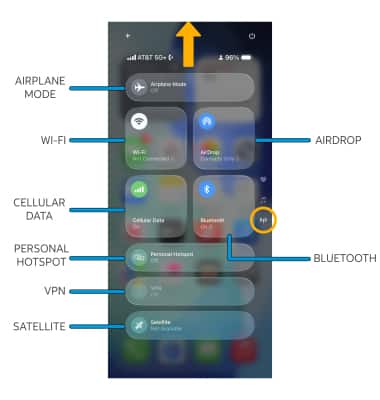
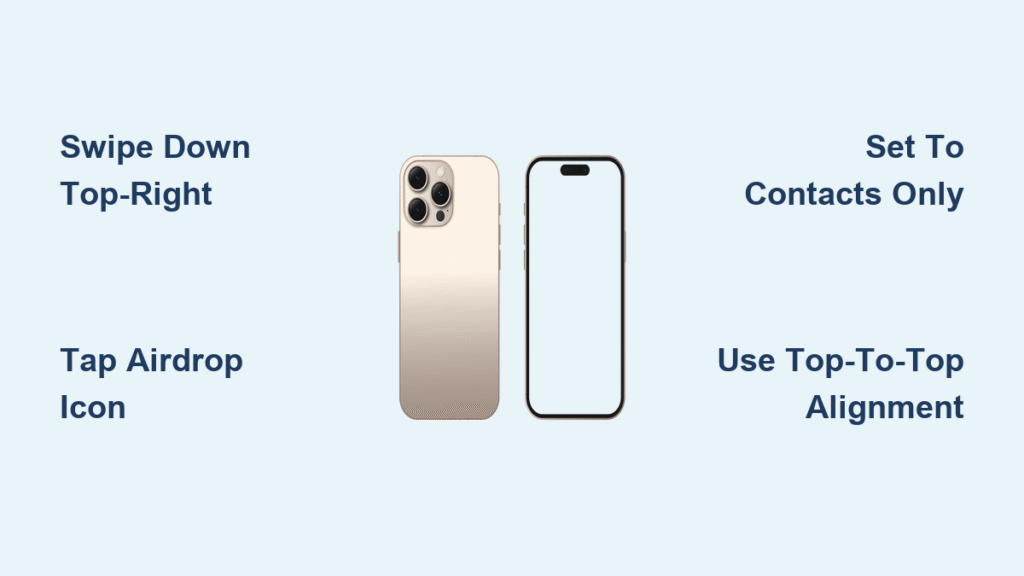
Swipe down firmly from the upper-right corner of your iPhone 16 screen—not the center—to open Control Center. This precise gesture is essential since Apple relocated Control Center in iOS 17 for iPhone 16 models. Look for the Connectivity section showing four icons: Wi-Fi, Bluetooth, Cellular, and Airplane Mode. Tap this cluster to expand hidden options, then immediately spot the AirDrop icon (a blue circle radiating white waves) nestled between Cellular and Screen Mirroring.
Select Your Visibility Setting Correctly
Tapping AirDrop instantly presents three critical options:
– Receiving Off: Your iPhone 16 becomes invisible to all nearby devices
– Contacts Only: Only people who saved your number can see your device
– Everyone: Broadcasts availability to all Apple devices within 30 feet
Choose Contacts Only for daily security—this prevents strangers from sending files. Switch to Everyone only when troubleshooting connection issues with known contacts, as it automatically reverts to Contacts Only after 10 minutes. Never leave it on Everyone permanently; this exposes your device to spam transfers in crowded places like coffee shops or transit hubs.
Initiate Your First AirDrop Transfer Successfully
Open Photos, Files, or any app with shareable content, then tap the Share icon (square with upward arrow). The share sheet expands upward, revealing nearby devices under AirDrop in the gray section. Wait 2-3 seconds for recipient devices to appear as circular icons—if nothing shows, both devices need Wi-Fi and Bluetooth enabled (they don’t require internet connectivity). Tap your friend’s device name, and a “Waiting…” badge appears until they accept.
Use Top-to-Top Proximity Sharing
For instant connections without browsing names, hold your iPhone 16’s top edge against another iPhone’s top edge. Both devices vibrate when aligned correctly, triggering automatic AirDrop detection. This method works even with locked screens, though the recipient must still manually accept files. Keep devices within 6 inches for 5 seconds to ensure successful handshake—misalignment is the #1 reason proximity sharing fails despite perfect visibility settings.
Resolve AirDrop Connection Failures Instantly
When your friend’s iPhone 16 won’t appear despite correct settings, verify these four critical factors before resetting anything. First, confirm Personal Hotspot is disabled on both devices—this feature conflicts with AirDrop even when not actively sharing internet. Swipe down from the top-right, tap the Cellular icon, then toggle off Personal Hotspot. Second, ensure both users are signed into iCloud; go to Settings → [Your Name] to check account status.
Bypass Common Detection Issues
If devices still don’t see each other:
– Temporarily select Everyone: Switch to Everyone for 30 seconds in AirDrop settings, then revert to Contacts Only
– Restart Bluetooth: Swipe down for Control Center, long-press the Connectivity section, and toggle Bluetooth off/on
– Check Do Not Disturb: Swipe down twice for Quick Settings and ensure moon icon is inactive
– Verify device compatibility: Recipient must use iPhone 8 or newer, iPad Pro 12.9-inch (3rd gen) or newer, or Apple Watch Series 4+
Accept Incoming Files Without Hassle
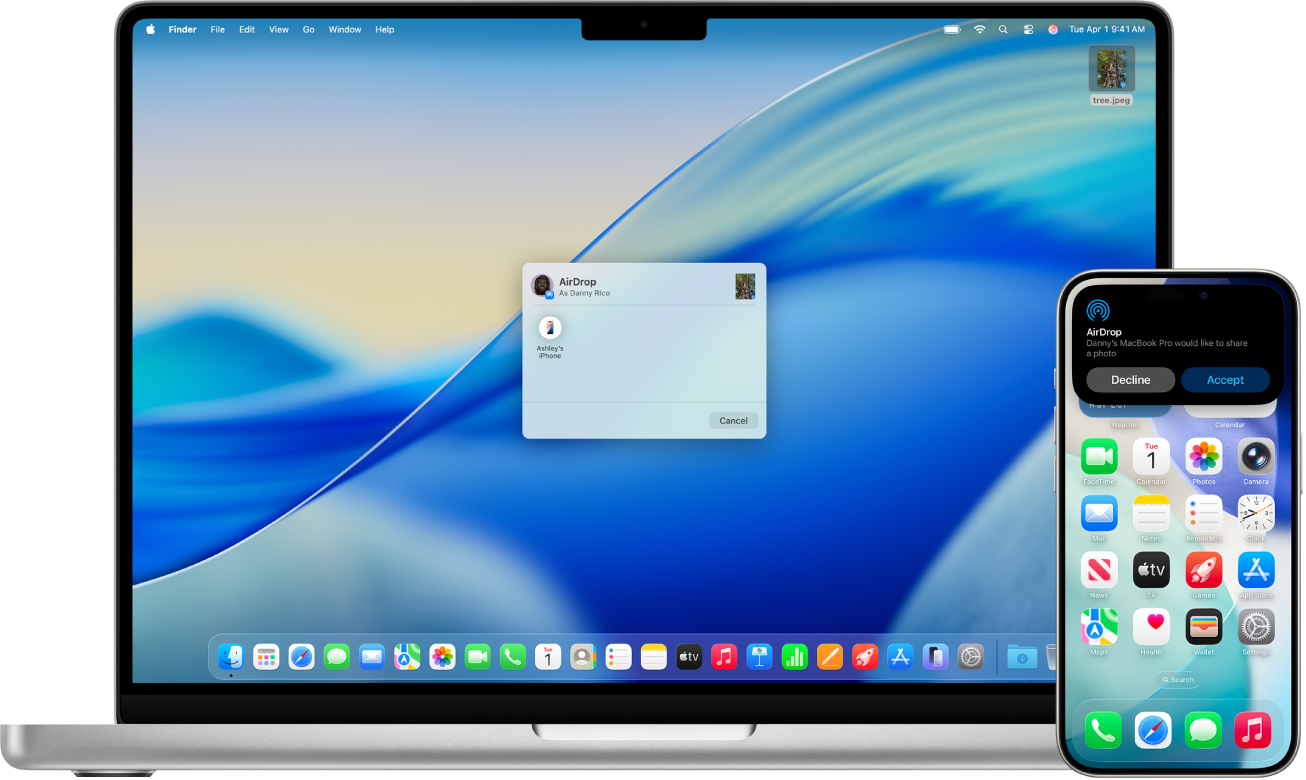
Incoming AirDrop requests appear as translucent banners at your screen’s top edge showing the sender’s name and file type (e.g., “Photo from Alex”). Tap Accept within 10 seconds to download—ignoring it declines automatically. Accepted photos land directly in your Photos app, websites open in Safari, and documents save to Files > Downloads. For multi-file transfers, a blue progress ring appears around the AirDrop icon in Control Center.
Manage Large Transfers Safely
When sending videos over 500MB, keep both iPhone 16 devices within 30 feet until completion—walls and metal objects disrupt the direct peer-to-peer connection. Never lock screens during transfers; the connection drops instantly. Watch for the soft chime confirming completion, then verify files in their respective apps. If a transfer fails repeatedly, restart both devices before attempting again—this clears temporary network glitches 90% of the time.
Share Contacts Instantly with NameDrop
Hold your iPhone 16 near another iPhone or Apple Watch Series 4+ (top-to-top alignment), and both screens glow with contact cards. Tap Share to send your full contact details, or Receive Only to grab their info without reciprocating. Before sending, tap Edit to deselect specific phone numbers or emails you don’t want to share, then Done to finalize. This feature pulls data exclusively from your My Card settings, so update it first.
Configure Your Contact Card Properly
Ensure NameDrop works flawlessly by verifying My Card setup: Go to Settings → Contacts → My Card → Select your name. Add your current phone number, email, and a profile photo here. Without this step, NameDrop shares incomplete information or fails entirely. Remember that contact sharing requires both devices to have Location Services enabled for Contacts—disable this in Settings → Privacy & Security → Location Services → Contacts.
Block Unwanted AirDrop Requests Permanently
Even with Contacts Only enabled, persistent spammers might exploit temporary Everyone settings in public spaces. Immediately block offenders by opening Settings → Screen Time → Content & Privacy Restrictions. If prompted, create a Screen Time passcode, then tap Allowed Apps → AirDrop → Off. This disables all incoming transfers while keeping outgoing sharing functional—ideal for classrooms or presentations.
Create Emergency Privacy Shields
For instant protection during meetings, triple-press the Side Button to activate Guided Access. Draw a circle around the app you’re using (like Notes or Safari), then tap Options and disable Motion and Hardware Keyboard. Start Guided Access to lock your iPhone 16 to that single app, blocking all notifications including AirDrop requests. Exit by triple-pressing the Side Button and entering your passcode—a lifesaver when presenting sensitive information.
Mastering how to turn on AirDrop on iPhone 16 transforms wireless sharing from a headache into a seamless experience. Always start with Contacts Only as your default visibility setting, switch to Everyone only for brief troubleshooting windows, and use top-to-top proximity for instant connections. Remember that Personal Hotspot interference and iCloud sign-in issues cause 80% of AirDrop failures—check these before resetting network settings. With these techniques, your iPhone 16 becomes a wireless hub for photos, documents, and contacts that works as effortlessly as a tap and a swipe. Keep this guide bookmarked for your next sharing emergency; within weeks, these steps will become second nature.


