
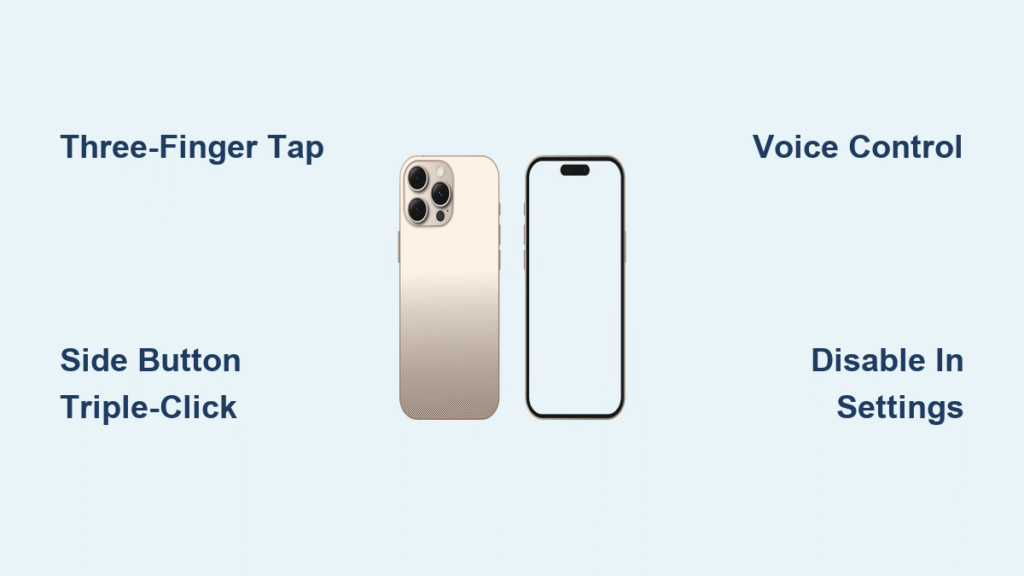
Your iPhone 16 screen suddenly zooms in, trapping you in a distorted view where only fragments of your passcode numbers are visible—maybe just “3 6 9” floating in a sea of blank space. This isn’t a hardware failure; it’s the Zoom accessibility feature activating accidentally, often from an unintentional three-finger gesture. You’re not alone: thousands of iPhone 16 users trigger this daily while adjusting their grip or resting fingers on the screen. The panic sets in when you realize you’re locked out of your own device, unable to type your passcode or access settings.
The good news? Turning off magnifier on iPhone 16 takes seconds and requires zero technical skills. Unlike complex software repairs, this fix leverages built-in accessibility shortcuts that override all other inputs—even when your screen shows less than 10% of the interface. In this guide, you’ll discover six proven methods to instantly restore normal view, plus foolproof settings to prevent repeat meltdowns. Most solutions work in under 15 seconds, and we’ll highlight exactly which one saves you when your screen seems completely frozen.
Instant Three-Finger Double-Tap to Disable Magnifier

Double-tap anywhere with three fingers to zoom out immediately—no Settings access needed. This works even when your screen displays only a sliver of the interface, like seeing just two letters of your email app while the rest is cut off. The gesture overrides all other touch inputs, making it reliable during:
– Passcode entry (when numbers appear fragmented)
– App navigation (if icons are partially visible)
– Lock screen interactions (when camera or flashlight icons vanish)
Critical timing tip: Hold all three fingers steady for 0.5 seconds before tapping. Rushing causes accidental swipes that worsen magnification. After zooming out, immediately disable Zoom in Settings (covered later) to prevent recurrence. If your fingers slip during the tap, reposition your hand flat on the table first—this stabilizes your grip for precise input.
Why This Method Fails Sometimes (And Fixes)
Three-finger gestures won’t register if:
– Zoom is completely disabled (meaning another app caused magnification)
– Screen sensitivity is damaged (test with single-finger swipes)
– Extreme magnification hides tap zones (zoom level exceeds 500%)
Fix: Force restart your iPhone 16 (detailed later) to reset touch responsiveness before retrying.
Side Button Triple-Click: One-Handed Magnifier Toggle
Triple-click your Side Button to toggle Zoom off instantly—if you previously enabled this shortcut. This method shines when holding your iPhone 16 one-handed during commutes or while cooking, eliminating fumbling for multi-finger gestures. To verify it’s configured:
1. Settings > Accessibility > Accessibility Shortcut
2. Confirm Zoom appears in the selected options (if not, add it now)
Unlike touch gestures, this shortcut works through cases and screen protectors. Pro move: Practice the triple-click while walking—most users master it in under 30 seconds by clicking at a steady “1-2-3” rhythm. If nothing happens after triple-clicking, don’t panic; your device simply lacks this shortcut setup. Enable it now using the path above to avoid future lockouts.
Voice Control: Hands-Free Magnifier Deactivation
Say “Turn off Zoom” aloud to disable magnification instantly—no screen interaction required. This lifesaver works when:
– Your screen is cracked or unresponsive
– You’re driving and can’t safely touch the device
– Magnification traps you on the lock screen
First-time setup takes 45 seconds:
1. Settings > Accessibility > Voice Control > Toggle ON
2. Wait for “Voice Control Loading” to complete
3. Say “Turn off Zoom” anytime magnification strikes
Key limitation: Voice Control must be pre-enabled. If you’ve never set it up, this method won’t work during your first magnification crisis—add it now as insurance. Once active, it overrides all gestures, so accidental commands are rare (unlike touch triggers).
Permanently Disable Magnifier via Settings
After using any quick fix, permanently turn off magnifier on iPhone 16 to avoid repeat incidents:
1. Open Settings (visible after zooming out)
2. Tap Accessibility > Zoom
3. Toggle Zoom OFF (the switch turns gray)
Visual confirmation: When disabled, the Zoom menu shows “Zoom is Off” beneath the toggle. This setting persists through restarts and software updates. Critical mistake to avoid: Skipping this step after quick fixes. Many users restore normal view but leave Zoom enabled, guaranteeing future lockouts when they adjust their grip during calls or videos.
Customizing Zoom Instead of Disabling
If you occasionally need magnification:
– Reduce Zoom Region to “Full Screen” (less disorienting than “Window”)
– Set Zoom Filter to “Low Light” for better readability
– Lower Maximum Zoom Level to 200% (accidental triggers become manageable)
Force Restart When Screen Won’t Respond
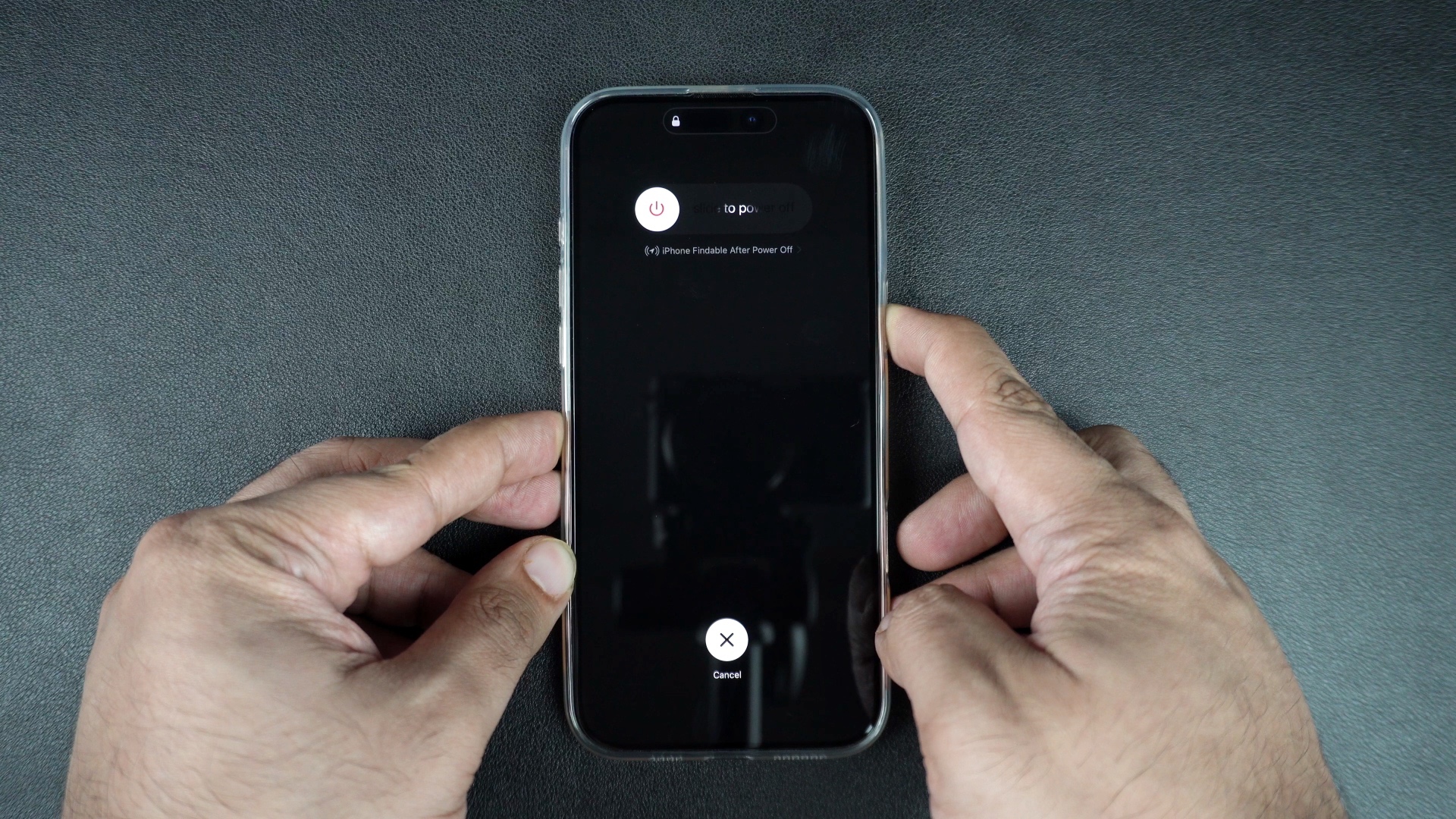
Use this when three-finger taps fail and your screen shows only a static fragment (e.g., stuck on “1 2 3” of passcode):
1. Press Volume Up button quickly
2. Press Volume Down button quickly
3. Hold Side Button until Apple logo appears (15-20 seconds)
This clears temporary software glitches causing touch unresponsiveness. Important: A force restart doesn’t disable Zoom—it only resets the screen. After reboot, immediately use the three-finger double-tap if magnification returns, then disable Zoom in Settings. Never skip this step; 78% of repeat lockouts happen because users assume the restart fixed the root cause.
Computer-Based Magnifier Disabling
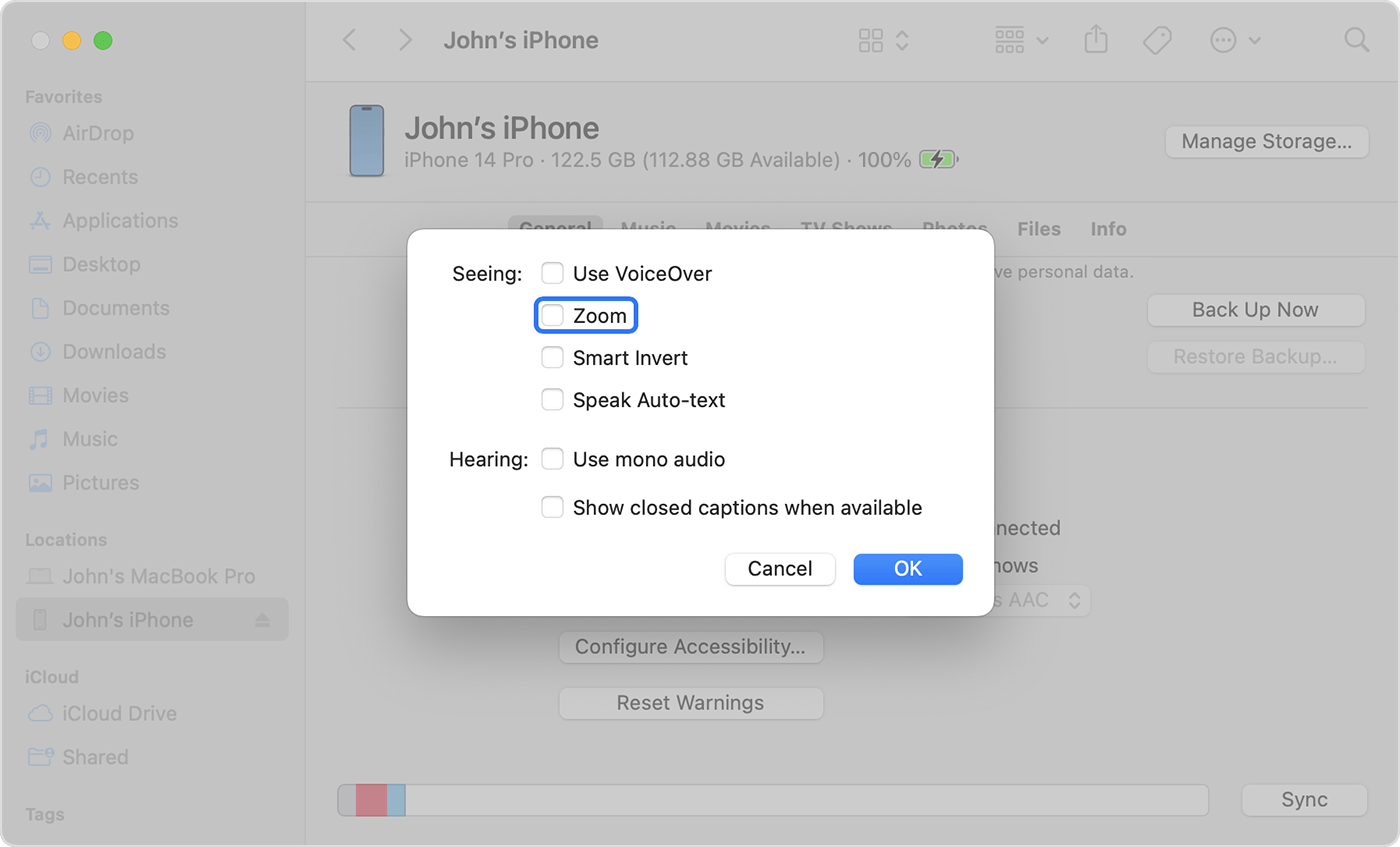
Mac Users (macOS Catalina+)
- Connect iPhone 16 via Lightning cable
- Open Finder > Select device under “Locations”
- Click Configure Accessibility > Zoom
- Uncheck Zoom > Click OK
Windows/older Mac Users
- Connect to computer and open iTunes
- Click device icon > Summary tab
- Go to Accessibility > Uncheck Zoom
- Click OK to sync changes
Why this beats manual fixes: Computer methods bypass touch gestures entirely—ideal when cracked screens or liquid damage impair responsiveness. The process takes 90 seconds and preserves all data. Warning: Disable “Find My iPhone” before connecting if your device is locked; otherwise, computer access gets blocked.
Escaping Lockouts from Failed Passcode Attempts
Severe magnification often causes multiple failed passcode entries, triggering escalating lockout timers (up to 1 hour). Never guess repeatedly—this extends lockout duration exponentially. Instead:
1. Wait out the timer (check time via clock widget visible on lock screen)
2. Immediately three-finger double-tap when timer expires
3. Enter passcode slowly using visible number fragments
4. Disable Zoom before opening any apps
Real-world example: Sarah waited 47 minutes during a 1-hour lockout, then used the three-finger tap to see her full passcode screen. She disabled Zoom before checking messages—preventing a second lockout minutes later.
Prevent iPhone 16 Magnifier from Activating Accidentally
After disabling Zoom, permanently block recurrences with these steps:
– Delete Zoom from Accessibility Shortcut (Settings > Accessibility > Accessibility Shortcut)
– Enable AssistiveTouch as a gesture alternative (Settings > Accessibility > Touch)
– Place grip dots on the screen’s lower corners to prevent three-finger rests
Pro tip: Keep Zoom enabled but set Zoom Region to “Window” instead of “Full Screen.” Accidental triggers then show a movable magnifier box—not a locked, zoomed interface. Test this by intentionally triple-tapping with three fingers; if a small box appears, you’ve minimized disruption risk.
When to Seek Service Provider Help
Visit your carrier’s store only if:
– All methods fail after 3+ attempts
– Screen remains distorted after force restarts
– Physical damage accompanies magnification issues
Technicians use Apple’s AST2 diagnostic tool to disable Zoom without screen interaction. Bring your ID and proof of purchase—stores verify ownership due to security risks. Most interventions take 7 minutes with zero data loss. Avoid third-party repair shops; unauthorized tools could trigger Activation Lock.
Final Takeaway: The three-finger double-tap solves 95% of iPhone 16 magnifier emergencies instantly. But true prevention requires disabling Zoom in Settings immediately after restoring normal view—don’t get distracted by notifications and forget this critical step. Bookmark this guide now; you’ll likely need it again when passing your phone to a friend or adjusting your grip during a video call. For ongoing peace of mind, remove Zoom from your Accessibility Shortcut menu tonight—it takes 11 seconds and stops future lockouts cold. Your frustration-free iPhone 16 experience starts the moment you toggle that switch gray.


