
That frustrating flash when you take a photo on your iPhone 16 Pro—the brief moment showing the natural image before it transforms into an overprocessed HDR version—drives photography enthusiasts crazy. If you’ve been searching for how to turn off HDR on iPhone 16 Pro, you’ve hit a wall because Apple removed the straightforward toggle we had on older models. Unlike iPhone 12 and earlier devices, the iPhone 16 Pro forces Smart HDR 5 processing on every photo, leaving many users feeling powerless over their own images. This guide cuts through the confusion to show you exactly what you can control and the practical workarounds that actually deliver natural-looking photos.
Why iPhone 16 Pro Won’t Let You Disable HDR Photography
Apple permanently enables Smart HDR 5 processing on iPhone 16 Pro with zero option to turn it off completely. The device automatically captures multiple exposures in rapid succession and blends them into a single optimized image, analyzing lighting conditions to determine the best combination. This computational photography approach means you’ll never find an HDR toggle in Settings > Camera or within the Camera app interface like you could on previous iPhone models.
What Happens When You Take a Photo
When you press the shutter button, your iPhone 16 Pro immediately captures three different exposures: one standard exposure, one underexposed to preserve highlight detail, and one overexposed to capture shadow information. For a split second after shooting, you see the unprocessed standard exposure before the final HDR-blended version appears. This brief flash often shows the more natural-looking image that many photographers prefer.
Why Apple Removed HDR Control
Apple’s shift toward fully automatic computational photography reflects their belief that most users benefit from intelligent processing without manual intervention. The company determined that average users either didn’t understand when to use HDR or made poor decisions about enabling it, resulting in worse photos. While this improves consistency for casual photographers, it frustrates enthusiasts who want direct control over their image processing.
How to Disable HDR Video Recording (Step-by-Step)
Unlike photography, you can actually turn off HDR for video recording on your iPhone 16 Pro—a crucial distinction many users miss when searching for how to turn off HDR on iPhone 16 Pro.
Turning Off Dolby Vision HDR Video
- Open Settings on your iPhone 16 Pro
- Scroll down and tap Camera
- Select Record Video from the options
- Toggle off HDR Video (the switch turns gray when disabled)
Pro tip: Disabling HDR video recording automatically switches your format from High-Efficiency (HEVC) to standard H.264, improving compatibility with older editing software and non-Apple devices—essential if you regularly share videos with Windows users or use legacy editing systems.
Video Format Implications
When HDR Video is enabled, your iPhone records in Dolby Vision HDR up to 4K at 60fps, delivering stunning color depth and contrast. However, these files consume significantly more storage space and may cause compatibility headaches. If you primarily share videos on social media or with friends using Android devices, disabling HDR video creates more universally compatible files without noticeable quality loss for casual viewing.
ProRAW: Your Actual HDR Photography Workaround
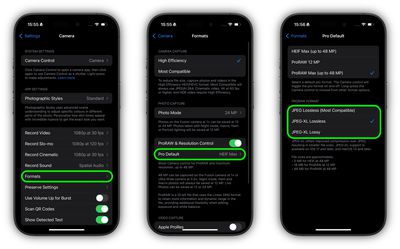
Since you can’t directly turn off HDR on iPhone 16 Pro for photos, enabling ProRAW format gives you access to the unprocessed sensor data before Apple’s HDR algorithms kick in—this is your most powerful control option.
Activating ProRAW Capture
- Go to Settings > Camera > Formats
- Toggle on Apple ProRAW
- Open Camera app and look for the RAW indicator in the top-right corner
- Tap the RAW label to toggle between RAW and standard HEIF/JPEG capture
Critical warning: ProRAW files consume 25-75MB per image compared to 2-3MB for standard photos. A single ProRAW photo takes up 10-25 times more space, so only enable this for important shots where you need editing control.
When to Use ProRAW
Shoot in ProRAW when you need to bypass iPhone 16 Pro’s automatic HDR processing for:
– Professional photography sessions
– High-contrast scenes where you want manual control
– Images destined for print or professional editing
– Situations where you prefer the natural look of the unprocessed exposure
Processing ProRAW Files for Natural-Looking Results

Capturing ProRAW files is only half the battle—you need the right editing workflow to bypass Apple’s HDR processing completely.
Essential RAW Editing Steps
- Transfer DNG files to your computer using AirDrop or cable
- Open in Lightroom, Photoshop, or Capture One (free Adobe apps work too)
- Change camera profile from “Apple” to “Adobe Color” or “Adobe Landscape”
- Adjust exposure manually using the histogram as your guide
- Apply selective adjustments with masking tools rather than global HDR processing
Expert insight: The ProRAW file contains all three exposures captured by your iPhone 16 Pro, but gives you the power to blend them manually rather than accepting Apple’s automatic interpretation. This lets you preserve dramatic lighting effects that Smart HDR would otherwise flatten.
Photographic Styles: Influencing HDR Results
While you can’t turn off HDR on iPhone 16 Pro, Photographic Styles offer subtle control over how aggressively Smart HDR processes your images.
Optimizing Your Style Settings
- Navigate to Settings > Camera > Photographic Styles
- Select “Rich Contrast” for less HDR-like processing with deeper shadows
- Choose “Vibrant” for more natural color reproduction without HDR’s typical saturation boost
- Avoid “Warm” or “Cool” presets as they primarily affect white balance, not HDR intensity
Important note: These styles apply before Smart HDR processing, so they influence but don’t eliminate the HDR effect. Think of them as fine-tuning controls rather than complete solutions for disabling HDR.
When to Keep HDR Enabled vs. When to Bypass It
Understanding iPhone 16 Pro’s HDR behavior helps you decide when to embrace it versus when to use workarounds.
Scenes Where HDR Shines
- Backlit subjects (like sunsets with people in foreground)
- Mixed lighting environments (indoor rooms with windows)
- High-contrast scenes where you need detail in both shadows and highlights
- Situations with blown-out skies in standard photos
Cases Where You Should Bypass HDR
- Portrait photography with dramatic lighting
- Artistic shots relying on high contrast or silhouettes
- Scenes where you want intentional blown highlights
- When shooting film-like aesthetic images
Storage and Performance Impact Comparison
| Feature | HDR Enabled | HDR Bypassed (ProRAW) | Difference |
|---|---|---|---|
| Photo Size | 2-3MB per image | 25-75MB per image | 10-25x larger |
| Video Format | HEVC (Dolby Vision) | H.264 | Better compatibility |
| Processing Time | Instant (in-camera) | Manual editing required | Added workflow step |
| Storage Impact | Standard usage | Rapid space consumption | Requires management |
What You Can Actually Control: Quick Reference
You won’t find a simple “turn off HDR on iPhone 16 Pro” toggle, but this summary shows your real options:
- HDR Photography: ❌ Cannot disable (use ProRAW workaround)
- HDR Video Recording: ✅ Can disable (Settings > Camera > Record Video)
- HDR Processing Intensity: ⚠️ Limited control via Photographic Styles
- RAW Format Shooting: ✅ Available (enable in Camera Formats)
Final Recommendations for HDR Control
While you can’t directly turn off HDR on iPhone 16 Pro for photos, understanding your limited but powerful options puts you back in control. For everyday shooting, trust that Smart HDR usually delivers better results than manual control would for most lighting situations. When you need natural-looking images, enable ProRAW for critical shots and process them manually—this bypasses Apple’s HDR processing entirely. Disable HDR video recording if you regularly share with non-Apple users or work with legacy editing systems.
The iPhone 16 Pro represents Apple’s commitment to computational photography where the device makes intelligent decisions rather than offering manual controls. This approach delivers consistently good photos for most users but requires workarounds for enthusiasts. By leveraging ProRAW and understanding when HDR helps versus when it hurts your images, you can create photos that match your vision—even when Apple thinks it knows better.


