
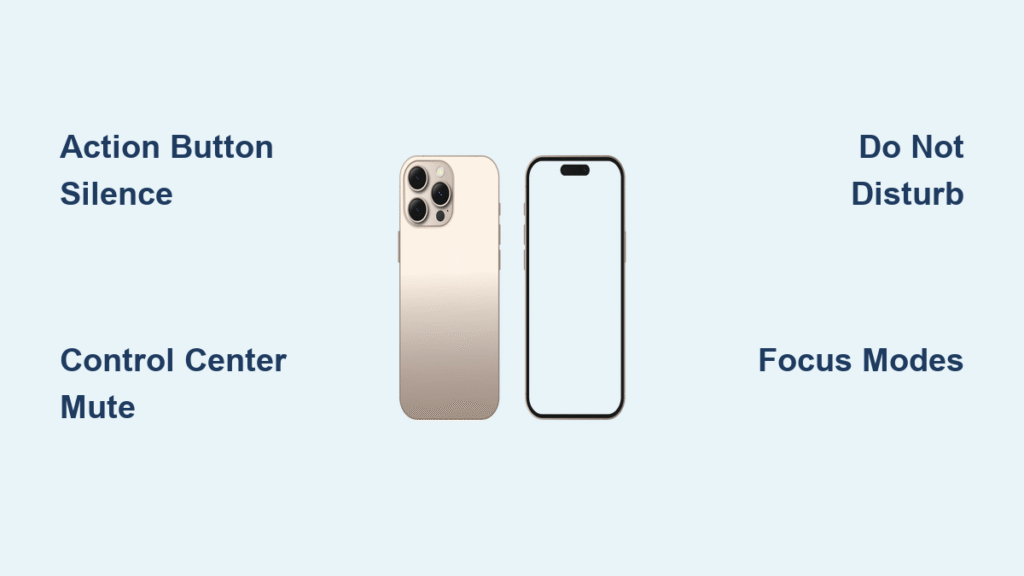
Your iPhone 16 won’t stop buzzing during meetings, dinner, or bedtime? You’re not alone—constant pings from apps, group chats, and social media fracture your focus daily. The iPhone 16 revolutionizes notification control with its new Action Button replacing the traditional silent switch, plus AI-powered Focus modes that adapt to your habits. Unlike older models, silencing requires updated methods to truly mute distractions. This guide cuts through the confusion with precise, model-specific solutions. You’ll master instant silencing tricks, automated schedules, and granular app controls—all verified for iOS 18.1 on the iPhone 16. Stop missing important alerts while drowning in noise; reclaim your attention in under 5 minutes.
Action Button: Instant Silence Method
The iPhone 16 ditches the physical silent switch for a programmable Action Button above the volume controls. This single press mutes all sounds while preserving visual alerts—perfect for sudden silencing needs like presentations or quiet spaces.
Setup takes 30 seconds:
1. Open Settings > Action Button
2. Scroll to Silent Mode and select it
3. Press and hold the Action Button to activate instant silence
Critical detail: Your screen still shows banners and badges, but zero sound or vibration occurs. Unlike older iPhones, this button remembers your last setting—so one press today silences everything if you configured it yesterday. Avoid the common mistake of short-pressing; you must hold for 1 second to toggle modes. If the button does nothing, revisit Settings to confirm Silent Mode is selected—other functions like Camera or Flashlight override it.
Control Center Quick Mute
When you need silence now without pre-configuration, Control Center delivers immediate results. This method works even if you reassigned the Action Button to another function.
- Swipe down from the top-right corner
- Tap the bell icon (it turns red when active)
- Tap again to restore sounds
Pro tip: This silences all system sounds—including keyboard clicks and lock tones—not just notifications. For temporary muting during movies or calls, use this instead of Do Not Disturb to avoid accidentally blocking alarms. If the bell icon is missing, edit Control Center via Settings > Control Center > Customize Controls and add “Focus.”
Complete Notification Shutdown
When you demand absolute silence across every app, this nuclear option stops all alerts instantly. Use it for emergencies like travel or critical work sessions.
For all apps at once:
1. Go to Settings > Notifications
2. Toggle off Allow Notifications for each app
3. Warning: Messages still deliver silently—senders see “notifications silenced” under your name
For specific noise-makers:
– Target apps like Instagram or TikTok: Disable Sounds while keeping Badges to see counts without pings
– Mute explosive group chats: Swipe left on the notification > Options > Mute for 1 Hour
Never disable all notifications permanently—emergency alerts and alarms may fail. Instead, use Focus modes for smarter silencing (covered next).
Do Not Disturb Deep Dive

Do Not Disturb acts as your personal notification bouncer, screening calls based on your rules. It’s ideal for sleep or deep work sessions.
Three activation paths:
– Control Center: Swipe down > tap Focus > select Do Not Disturb
– Settings: Settings > Focus > Do Not Disturb
– Siri: Say “Hey Siri, silence notifications for 2 hours”
Smart configurations:
– Enable Repeated Calls to let through urgent back-to-back calls
– Add Favorite Contacts to bypass silence for family or your boss
– Set duration: “Until 10 AM” or “Until I leave location”
The crescent moon icon appears in your status bar when active. Unlike basic silencing, this syncs across all Apple devices—your Mac and iPad won’t buzz either.
Focus Modes: Advanced Silence
Focus modes transform your iPhone 16 into a context-aware assistant that silences notifications based on what you’re doing, not just time.
Creating Your First Focus Mode
Build a custom focus in 60 seconds:
1. Settings > Focus > + > Custom
2. Name it: “Deep Work” or “Family Dinner”
3. Allow only critical contacts: Select boss, spouse, or kids
4. Permit essential apps: Slack, Calendar, or Messages
5. Set triggers: Activate automatically at 9 AM or when arriving at your office
iOS 18.1 Intelligent Breakthrough
iPhone 16’s Apple Intelligence learns which notifications truly matter:
– Enable via Settings > Focus > [Your Mode] > Options > Intelligent Breakthrough
– It analyzes which messages you actually respond to (e.g., your spouse’s texts but not newsletters)
– Limitation: Requires iOS 18.1+, English language, and iPhone 16 series hardware
This AI feature prevents important alerts from getting buried—no more missing urgent emails because you muted “All Notifications.”
App-Specific Notification Control

Not all apps deserve equal attention. Target the worst offenders without losing critical alerts.
Permanent Silencing
- Settings > Notifications > [App]
- Toggle off Sounds (keep Badges to see counts)
- Set Haptics to None for total silence
Pro tip: For social media apps, disable Time-Sensitive Notifications—this stops non-urgent pings from bypassing Focus modes.
Temporary Muting
When a group chat explodes:
1. Swipe down Notification Center
2. Swipe left on the chat
3. Tap Options > Mute for Today
This avoids the blunder of permanently disabling notifications for active conversations you’ll need tomorrow.
Contact & Conversation Controls
Prioritize people over pings with contact-specific silencing.
Message Thread Muting
Two fast methods:
– Open chat > tap contact name > toggle Hide Alerts
– In Messages list > swipe left on conversation > tap bell icon
Visual cue: A crescent moon appears beside silenced chats. Messages still deliver—you just won’t hear them.
Emergency Bypass Setup
For true emergencies:
1. Messages > Contact > Info > Edit > Text Tone
2. Enable Emergency Bypass
3. Effect: Their notifications blast through all silence modes
Use this sparingly—only for your partner, doctor, or babysitter. Overuse defeats the purpose of silencing.
Scheduled Notification Management
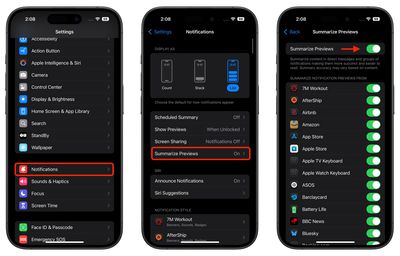
Batch annoying notifications into convenient digest times instead of constant interruptions.
Notification Summary Magic
Perfect for: News apps, social media, games
1. Settings > Notifications > Scheduled Summary > On
2. Select apps like Twitter or Instagram
3. Set delivery: 9 AM and 6 PM daily
Result: Instead of 47 random pings, you get two organized bundles. Time-sensitive alerts (like texts) still break through immediately.
Location-Based Focus
Automate silencing when you arrive at work:
1. Settings > Focus > Work > Add Schedule > Location
2. Set your office address
3. Effect: Social apps auto-mute upon arrival
Troubleshooting Common Issues
When silence fails, diagnose these iPhone 16-specific glitches:
Notifications still buzzing? Check:
– Time-Sensitive Alerts: Settings > Notifications > [App] > Toggle off Time Sensitive
– Share Across Devices: Settings > Focus > Toggle off Share Across Devices
– Intelligent Breakthrough: Disable if it’s wrongly allowing spam
Focus won’t auto-activate?
– Confirm location permissions for Focus modes
– Disable conflicting Smart Activation if schedules fail
Best Practice Configurations
Sleep Mode Setup
- Duration: 10 PM – 7 AM
- Allow: Family calls, alarm apps
- Location trigger: Bedroom coordinates
- Pro tip: Disable Share Focus Status to hide “silenced” indicators from contacts
Work Mode Blueprint
- Duration: 9 AM – 5 PM weekdays
- Allow: Slack, Teams, Calendar
- Location trigger: Office address
- Result: Personal apps wait until 5 PM
Reading Mode
- Trigger: Opening Kindle app
- Silence: Everything except emergency contacts
- Bonus: Pair with Scheduled Summary for zero interruptions
Master these iPhone 16-specific silencing techniques, and your device transforms from a distraction machine into a focused productivity tool. Start with the Action Button for instant control during emergencies, then layer in Focus modes for automated peace. Within days, scheduled summaries and location triggers will rewire your relationship with notifications—no more frantic swiping during important moments. Your first step? Press and hold that Action Button right now to experience instant silence. Then build a custom Focus mode before bed; your future self will thank you when morning arrives without 27 unread pings. The power to reclaim your attention isn’t just possible—it’s built into your iPhone 16.


